Back to the Blog
How to Render in Enscape

How to Render in Enscape

Learn how to render in Enscape efficiently and which settings make the biggest difference in the final result.

How to Render in Enscape
Author
Redraw
Administrador
Use AI to delight your customers, sell more, and make your images and videos stand out in ads and marketplaces.
How to Render in Enscape
6 min
|
18.03.2026
Author
Redraw
Administrador
Use AI to delight your customers, sell more, and make your images and videos stand out in ads and marketplaces.
[

Redraw

]

Create your free account

Start transforming your projects today using Redraw.

I want to register
Share this article

Efficient Rendering: What to Expect from Enscape

How to render in Enscape is one of the most frequently asked questions among architects and designers who want quick, uncomplicated results. And look, I totally understand: who has time to wait hours for a rendering when the customer is breathing down their neck asking for urgent changes? Enscape arrived promising miracles in real time, but does it really deliver? That's what we're going to see together in this guide. And of course, if your patience is running out or your PC is almost on fire, know now: Redraw can save you with rendering via AI directly from the browser, without high-end hardware. But calm down, before trying everything out, come with me to understand the secrets, successes and pitfalls of Enscape.

What is Enscape and why you should use it (spoiler: maybe not)

Enscape is that plugin that seems like magic for SketchUp, Revit, Rhino and Archicad: you click and you can see your model in real time. It's good for impressing customers in front of the computer, yes. But if you want full control over lighting, materials, and post-processing, it can leave something to be desired. Another point: it needs decent hardware. Sometimes the rendering drops in quality or crashes, and then that regret hits. Is it useful? Without a doubt. Is it perfect? There's still a bit left.

Not every render comes out as a work of art just because you clicked “Start”.

Prerequisites: Setting up your setup for success

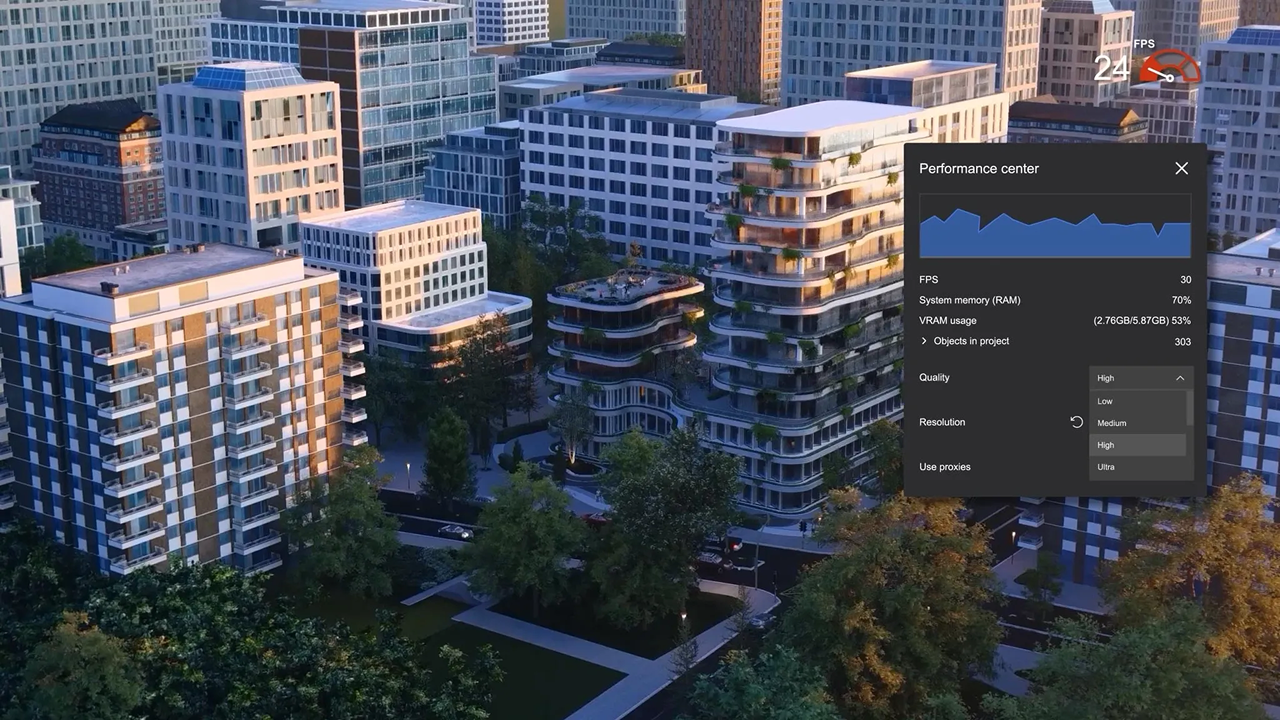
Before attempting your first render, make sure your computer can handle the lock. Enscape needs a decent graphics card, which can be a huge limiter for students or self-employed professionals. RAM also influences a lot. Don't make a thousand tabs open in the browser, okay? The key is to shoot only what is essential.

  • Dedicated video card (at least 4GB VRAM recommended)
  • Recent processor
  • Few programs while rendering

Does it still lock? There is Redraw to escape suffocation without depending on hardware, it's worth remembering.

How to Render in Enscape: Step-by-Step Tutorial

  1. Open the model in SketchUp, Revit, or Rhino. Preferably, you already have your project complete or are almost ready.
  2. Start Enscape. Click “Start Enscape” and wait for it to load the view in real time. Shortcut? F5, your new friend.
  3. Explore the interface. Move around the project to see angles, test lights, and decide on the best framing.
  4. Press the capture button (camera icon) to generate the static rendering. Five minutes or less, depending on complexity.
First render: fast or almost. But will it be beautiful? That depends on the next few tips.

Configurations that make the difference

Settling for the standard definition is a beginner's thing, okay? Tweak the visual settings: adjust brightness, contrast, exposure, and color temperature. Be careful not to overdo it with Bloom or in the saturation. The output resolution also plays a role in the result: for a portfolio, forget 800x600. Use high resolutions (4K if you can), and enable Safe Frame to ensure good framing.

  • Balance performance and quality if the PC doesn't help
  • Save presets for common scenes

It sounds basic, but few people make fine adjustments and everything changes with 5 more minutes of attention.

Mastering lighting in Enscape

Natural light is generated by Enscape's automatic sun and sky, but controls the time of day as needed. For artificial light, include spots, omnilights, and lines by model. Try changing the solar angle. Another golden tip? Use HDRI images in the sky; this gives realism to the reflections and tones of the scene.

  • Don't overdo the amount of artificial lights
  • Sometimes less is more: 1 well-placed light is worth 10 poorly placed

Materials and textures: from basics to photorealism

Enscape's material library is reputable, but go further: use the advanced editor to tinker with bump, reflectivity, and roughness maps. 2K textures are fine for small projects, but for close scenes, 4K works miracles. Just don't abuse it so as not to weigh the file too much, okay?

  • Play with reflection maps and normal map
  • Beware of exaggerated reflections, they become artificial!

Asset Library: Your Best Friend (and Worst Enemy)

Enscape offers more than 1,900 ready-made assets: trees, people, furniture. Use wisely to bring scale and life to the project, but don't clutter up the scene. Abuse proxies to keep loading light. Organize favorites so you don't waste time hunting for items every time.

An extra couch can weigh... a lot.

Batch rendering: automating your workflow

Do you need to generate multiple images at once? Set up saved views, choose visual pattern for each one, and use the batch export function. Does it save time? Of course. Just don't forget to check out each scene beforehand - sometimes the lighting or material fails in one of them.

  • Create different presets for day and night
  • Review each image, mistakes happen!

Advanced techniques that few know

For small projects, reduce the field of view to avoid distortion. Use cuts and sections to highlight interiors, 360° panoramas to sell the space concept, and if you want to impress your portfolio, play with virtual reality. Not many people explore these resources, which is a shame.

Animations in Enscape: professional walkthroughs

The built-in video editor allows you to create camera routes, adjust transitions, angles, and even post-processing effects. Remember to work on the timing: passages that are too fast don't work. Test different viewpoints, and don't hesitate to redo it until you get it right.
  • Short, objective sequences work best
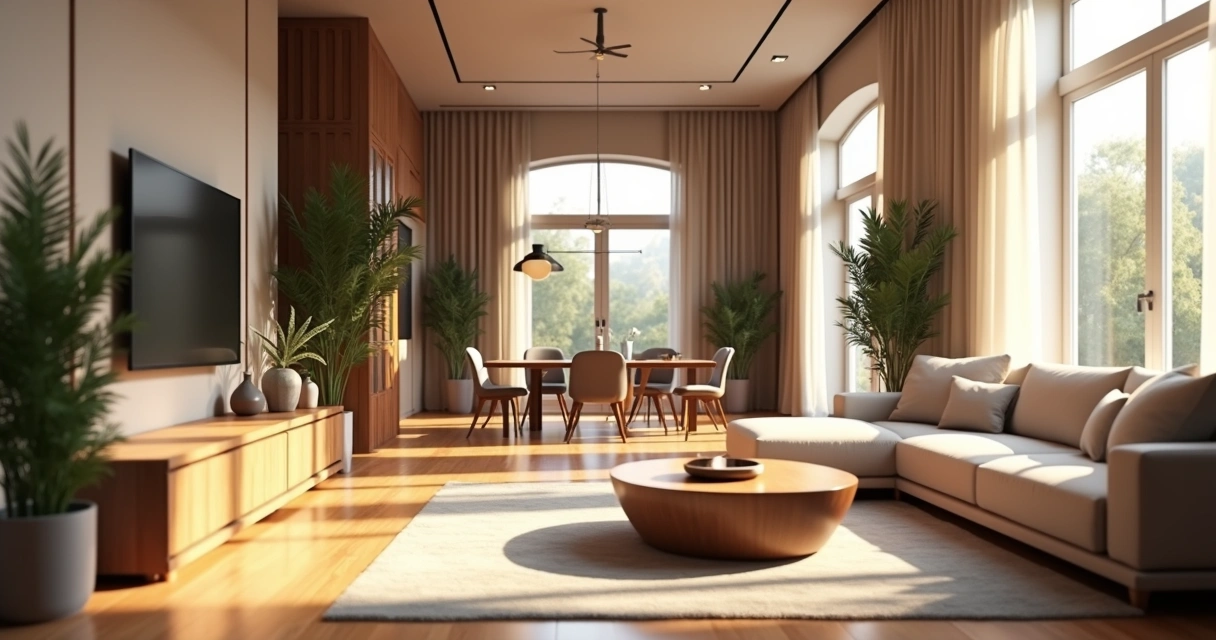
Como renderizar no Enscape

Solving common problems (troubleshooting)

Is Render slow or crashing? Close open programs, lower resolution, or simplify heavy materials. Flashing lights or total darkness almost always indicate misplaced lights or lack of ambient lighting. If any material doesn't appear, review the model's UV mapping or try to redefine it by the material editor.

  • Update video card drivers to avoid bugs
  • Start the tests in small scenes before moving on to the entire project

Enscape vs AI: The Future Has Arrived Earlier

Enscape delivers what it promises, to a certain extent. But the future lies in solutions like Redraw: AI that generates renderings with surprising quality without that absurd hardware requirement. With AI, you don't need more hours or expensive video cards. Everything happens in the cloud, right from the browser, and creative freedom is much greater.

Time is money. And your time shouldn't be spent waiting for render bar progress.

Compare for yourself: convenience, speed, and limitless quality. After experimenting with the Redraw flow, going back to the Enscape tutorial feels... kind of old. Here's a tip for those who want to modernize their workflow and invest in their creativity.

FAQ: frequently asked questions about rendering in Enscape

How do I start rendering in Enscape?

Open your model in SketchUp, Revit, Rhino, or Archicad, click “Start Enscape” and adjust the navigation until you find the best frame. Then, use the capture button to save your rendered image. The process is quick and intuitive, even for those who are just starting out.

What are the best Enscape settings?

Prefer high resolutions for final images, adjust brightness, exposure, and contrast manually. Use safe frame to compose the scene well and, whenever possible, save visual profiles for recurring projects. The key is to balance performance and quality, adjusting according to the power of your computer.

How to make renders more realistic?

Invest time calibrating lighting, combining natural and artificial light, and abuse HDRIs in the sky. Use good-resolution textures and refine materials using bump and reflectivity maps. In scenes, position assets in a natural way and adjust the perspective so as not to distort spaces.

What modeling programs does Enscape work on?

Enscape integrates with SketchUp, Revit, Rhino, and Archicad. Just install the plugin and it appears directly on the interface of these programs, facilitating the flow between modeling and rendering without leaving the main software.

Is rendering in Enscape fast?

Yes, as long as you have a computer with a dedicated graphics card. The real-time preview is almost instantaneous for lightweight models, but large or very detailed scenes require more processing, in this case, solutions like Redraw overcome limitations, delivering speed without depending on your hardware.

Conclusion: Your Next Step in Rendering

We've come to the end of this tour of the secrets of how to render in Enscape. If you were excited or perhaps a little frustrated by the technical limitations, know that the universe of architectural visualization is changing. With AI, as offered by Redraw, you gain time, freedom, and high-level results right from the browser. Take the opportunity to try the new way of rendering. Modernize your flow and leave Enscape in the past if you want real agility. Come and meet Redraw: your next rendering may be simpler (and more beautiful) than you imagine.

Share this article
Summary of the content
[

Blog

]

Related articles

Access Blog
Render
01.04.2026

Prompt to Render with Nano Banana - Google Gemini

Alexandre Kuhn
5 min of reading

Generative artificial intelligence has transformed the way in which architects and designers view their projects. Tools such as Nano Banana, with the integration of Veo 3, opened up a universe of possibilities for creating conceptual images. However, this flexibility comes with a steep learning curve and a process that can be frustrating: the art of writing Perfect Prompt. While a generic prompt can be powerful, it requires the architect to become an expert in prompt engineering, shifting focus away from what really matters: design.


In this article, we will demystify the process of creating prompts for rendering in tools like Google's Nano Banana, explain what the mysterious “seeds” are, and show why the Redraw represents the natural evolution of this technology, offering a solution where the architect does not have to be a programmer to create spectacular images.


The Nano Banana Prompt Challenge

Transforming Ideas into Commands


To generate an accurate architectural image in Nano Banana, it's not enough to describe the scene. A detailed instruction manual for the AI must be provided. An effective prompt must be a combination of multiple commands, specifying every detail to avoid ambiguities.

Let's analyze an example of a complex prompt to generate a modern house facade:

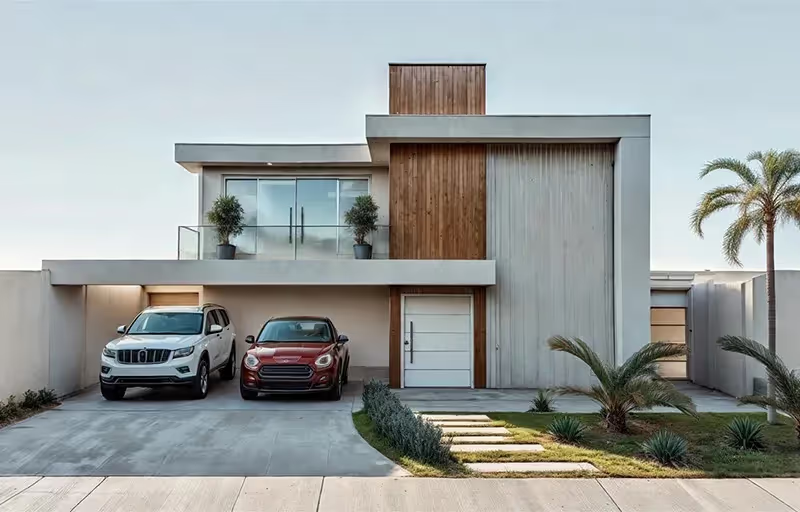
“Photograph of a modern two-story house with exposed concrete façade and cumaru wood paneling, large floor-to-ceiling glass windows, black pivoting entrance door. The lighting should be dramatic, with late afternoon sunlight creating long shadows (golden hour). The house is surrounded by a minimalist garden with grass and an olive tree. Architectural photography style, Canon EOS 5D Mark IV camera with 35mm lens, f/8. The climate is serene and luxurious.”

This level of detail is necessary because AI lacks the context of an architect. You must specify:

  • Subject: The house and its materials.
  • Style: Architectural photography.
  • Lighting: Golden Hour, Long Shadows.
  • Environment: Minimalist garden.
  • Technical Parameters: Type of camera, lens, and aperture.

Any omission may result in an image that does not match the professional's vision, generating rework and wasting time.

What are Seeds

Why Did You Need to Worry About Them?

Another technical concept that haunts users of generic image generators is the “seed” (headquarters). The seed is a number that serves as a starting point for AI randomness. Think of it as the “DNA” of an image. If you use the same prompt and the same seed, the AI will generate the exact same image every time.


This is useful for maintaining consistency or for making small changes to a result that you liked. However, managing seeds is yet another layer of complexity. You need to find the seed of an image you liked, save it, and reinsert it with each new generation. Recently, OpenAI itself removed the ability to customize seeds in DALL-E 3, signaling that even for creators, this is a complex and unintuitive functionality for the end user.

The Solution without Prompt

Redraw was created to eliminate this technical barrier. We understand that architects and designers need a tool that speaks their language, that understands materials, lighting and architectural styles without the need for an instruction manual at every command.

In Redraw, the prompt is simplified because our AI is already an expert in architecture.

You don't have to specify that you want an “architectural photograph” or detail the type of lens. The platform is trained with a vast database of high-quality architectural images, allowing it to understand direct commands such as:

“It's as simple as relaxing and selecting the options that make sense for your project. Redraw builds the best prompt for you through examples.” Sergio Santos - Co-founder of Redraw - Specialist in Generative AI.

Redraw bridges the gaps with its expertise, delivering high-fidelity results with a fraction of the effort. And most importantly: On Redraw, you don't have to worry about seeds. Our technology was developed to offer consistency and high-quality variations in an intuitive way, through a simple and visual interface, allowing you to refine your projects without requiring technical programming knowledge.

Conclusion

Let AI Work for You, Not the Other Way Around

Generic imaging tools are powerful, but they require the professional to adapt to them. The result is a workflow where the architect spends more time learning to “talk to the machine” than designing.


O Redraw reverses this logic. We teach the machine to understand architecture so you can focus on your creative vision. We believe that technology should be an extension of your creativity, not an obstacle. By simplifying the prompt and eliminating the need to manage technicalities such as seeds, Redraw gives power back to the architect, ensuring that the only skill needed to create incredible renders is their passion for design.


Are you ready to abandon complexity and focus on what really matters? Try Redraw and transform the way you view your projects.

Render
01.04.2026

Prompt to Render: Why ChatGPT Complicates and Redraw Simplifies for Architects

Alexandre Kuhn
5 min of reading

Generative artificial intelligence has transformed the way in which architects and designers view their projects. Tools such as ChatGPT, with the integration of DALL-E, opened up a universe of possibilities for creating conceptual images. However, that flexibility comes with a steep learning curve and a process that can be frustrating: the art of writing Perfect Prompt. While a generic prompt can be powerful, it requires the architect to become an expert in prompt engineering, shifting focus away from what really matters: design.


In this article, we will demystify the process of creating prompts for rendering in tools like ChatGPT, explain what the mysterious “seeds” are, and show why Redraw represents the natural evolution of this technology, offering a solution where the architect does not have to be a programmer to create spectacular images.


The Prompt Challenge in ChatGPT

Transforming Ideas into Commands


To generate an accurate architectural image in ChatGPT, it is not enough to describe the scene. A detailed instruction manual for the AI must be provided. An effective prompt must be a combination of multiple commands, specifying every detail to avoid ambiguities.

Let's analyze an example of a complex prompt to generate a modern house facade:

“Photograph of a modern two-story house with exposed concrete façade and cumaru wood paneling, large floor-to-ceiling glass windows, black pivoting entrance door. The lighting should be dramatic, with late afternoon sunlight creating long shadows (golden hour). The house is surrounded by a minimalist garden with grass and an olive tree. Architectural photography style, Canon EOS 5D Mark IV camera with 35mm lens, f/8. The climate is serene and luxurious.”

This level of detail is necessary because AI lacks the context of an architect. You must specify:

  • Subject: The house and its materials.
  • Style: Architectural photography.
  • Lighting: Golden Hour, Long Shadows.
  • Environment: Minimalist garden.
  • Technical Parameters: Type of camera, lens, and aperture.

Any omission may result in an image that does not match the professional's vision, generating rework and wasting time.

What are Seeds

Why Did You Need to Worry About Them?

Another technical concept that haunts users of generic image generators is the “seed” (headquarters). The seed is a number that serves as a starting point for AI randomness. Think of it as the “DNA” of an image. If you use the same prompt and the same seed, the AI will generate the exact same image every time.


This is useful for maintaining consistency or for making small changes to a result that you liked. However, managing seeds is yet another layer of complexity. You need to find the seed of an image you liked, save it, and reinsert it with each new generation. Recently, OpenAI itself removed the ability to customize seeds in DALL-E 3, signaling that even for creators, this is a complex and unintuitive functionality for the end user.

The Solution without Prompt

Redraw was created to eliminate this technical barrier. We understand that architects and designers need a tool that speaks their language, that understands materials, lighting and architectural styles without the need for an instruction manual at every command.

In Redraw, the prompt is simplified because our AI is already an expert in architecture.

You don't have to specify that you want an “architectural photograph” or detail the type of lens. The platform is trained with a vast database of high-quality architectural images, allowing it to understand direct commands such as:

“It's as simple as relaxing and selecting the options that make sense for your project. Redraw builds the best prompt for you through examples.” Sergio Santos - Co-founder of Redraw - Specialist in Generative AI.

Redraw bridges the gaps with its expertise, delivering high-fidelity results with a fraction of the effort. And most importantly: On Redraw, you don't have to worry about seeds. Our technology was developed to offer consistency and high-quality variations in an intuitive way, through a simple and visual interface, allowing you to refine your projects without requiring technical programming knowledge.

Conclusion

Let AI Work for You, Not the Other Way Around

Generic imaging tools are powerful, but they require the professional to adapt to them. The result is a workflow where the architect spends more time learning to “talk to the machine” than designing.


O Redraw reverses this logic. We teach the machine to understand architecture so you can focus on your creative vision. We believe that technology should be an extension of your creativity, not an obstacle. By simplifying the prompt and eliminating the need to manage technicalities such as seeds, Redraw gives power back to the architect, ensuring that the only skill needed to create incredible renders is their passion for design.


Are you ready to abandon complexity and focus on what really matters? Try Redraw and transform the way you view your projects.

Render
18.03.2026

The 8 Best Renderers of 2026

Redraw
5 min of reading

Every year the market for architectural renderers changes, some alternatives appear, others cease to be relevant, software remains king of the market while some are consolidating and, in the midst of all this, in 2026, IAs are increasingly capable of generating and improving their renderings and have a promising future in sight.

This year, however, given the news and evolution of the renderers, the question is no longer which option is the best, since all of them can give you great results, but rather, which one best meets my demands.

In this article, we will show you the 8 best options at the beginning of the year for you to render your architectural projects, evaluating them based on 3 aspects: learning difficulty, price, and rendering agility.

V-RAY

V-Ray remains the first choice when thinking about rendering for architecture. It is one of the most consolidated tools and remains a reference for its precision and realism, great for offices that want to have an above average result and for studios that work with luxury real estate launches where each image needs to be like a photo.

The V-Ray engine is robust, offering rendering options via CPU, GPU, or a hybrid model. Its main advantage is full control over lighting parameters and materials. However, this control comes at a price: the learning curve is high and the time to render is the longest among the options on the list.

Positive Points:
  • Unquestionable quality: It remains one of the best options in terms of final quality.
  • Chaos Ecosystem: Perfect integration with the Chaos Cosmos (asset library) and Chaos Cloud.
  • Post-Production Control: Generates a wide range of Render Elements for advanced composition in Photoshop.
  • Interoperability: Because it's a plugin, it's a great option for offices and architects working with SketchUp.
Negative Points
  • Hardware Requirement: Needs state-of-the-art computers to improve quality options while reducing rendering time.
  • Complexity: It requires a lot of study to extract the best that the software has to offer, which can make it more difficult to start from scratch.

CORONA

While V-Ray is the precision tool, Corona simplifies some technical parameters, making it a simple option and focuses only on the essentials for a quality rendering but with results very similar to the competitor.

Corona simplified complex processes, such as LightMix, which allows you to change the intensity and color of the lights after the rendering has been completed without needing multiple renders to test day and night scenes.

It is ideal for offices focused on interior design and high-end residential architecture, it balances quality with productivity and its ability to handle lighting and complex materials (such as fabrics and woods) with little configuration effort makes it extremely efficient for medium teams.

Positive Points:
  • Industry Standard: It is the reference software for archviz offices and studios when it comes to realism and productivity.
  • Chaos Ecosystem: Like V-ray, it also has interoperability with Chaos Cosmos and Chaos Cloud.
  • Simplicity: It has several options that improve the user experience and make rendering easier.
Negative Points
  • Complexity: Despite being simple compared to V-Ray, it's still more complex to learn than many on the list.
  • 3ds Max: Doesn't work natively with SketchUp, the most common modeling program among architects.

ENSCAPE

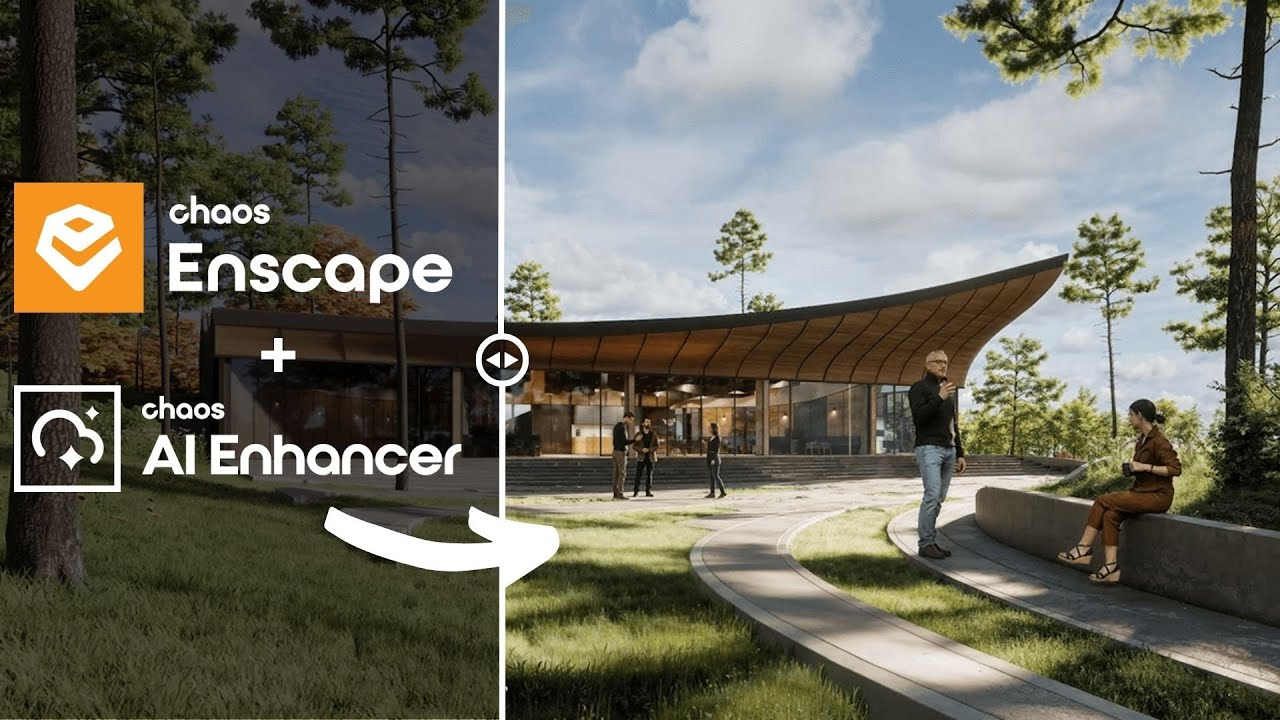
Enscape is the best option for the architect who seeks simplicity and wants to have quick results. The program is a plugin that runs within the most popular programs on the market (Sketchup, Revit, Archicad and Rhino), facilitating the workflow and minimizing modeling rework.

In addition, it shows your results in real time without the need for many settings in lighting and effects. Rendering previews as some programs require is not something for those who use Enscape, which requires you to render only the final version.

Positive Points:
  • Simplicity and Agility: Few configurations are needed to achieve a quality rendering with very low waiting times.
  • Chaos Ecosystem: It also includes the Chaos Cosmos and the Chaos Cloud.
  • Plugin: It works together within almost all architectural software.
Negative Points
  • Quality: Among the options on the list, it may be the one with the weakest rendering results, especially in outdoor scenes.
  • Customization: It allows few customizations due to its simplified interface.

TWINMOTION

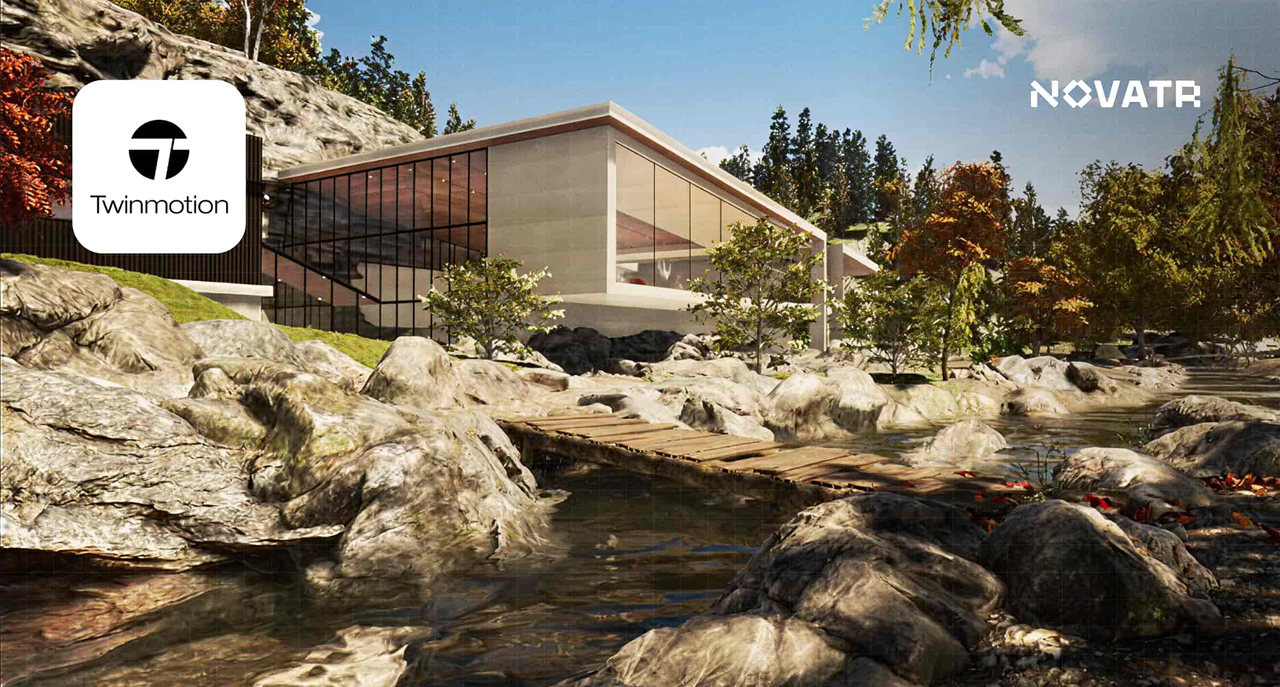
Also with an extremely simple and intuitive interface, Twinmotion focuses on unique animation experiences, with simplified options that only it presents and has fast and accurate rendering. It is also compatible with several programs (SketchUp, Revit, Archicad and Rhino) through its Datashmith plugin, but unlike Enscape, it does not work internally in the programs but runs separately with automatic updates (which can be turned off) of the base model of the program you are using.

Positive Points:
  • Simplicity and Agility: Very low rendering and animation times and a very user-friendly interface.
  • Datasmith: It is compatible with most modeling programs.
  • Animations: There are several options to create customized animations.
  • Price: It's free.
Negative Points
  • Library: It doesn't have a robust library like the competitors.
  • Quality: Not up to the level of top renderers in the market.

UNREAL ENGINE

Certainly the most complex option on the list, Unreal Engine is also the software with the most possibilities among all the others, it allows you to create the most varied interactive experiences, both for an individual client and for real estate launches.

Although its differential is its interactivity, its renderings and animations leave nothing to be desired, and can be compared with images produced in Corona and with the highest rendering speed among all competitors.

Unreal, however, due to its learning difficulty, makes it a specific niche program for archviz studios or large architectural firms, but nothing prevents you from taking full advantage of this great tool.

Positive Points:
  • Render Speed: Almost instant renders and animations in a matter of minutes.
  • Interactivity: Allows delivery with fully customizable interactive projects.
  • Quality: It compares to the best options on the market.
  • Price: It's free.
Negative Points
  • Library: There is no native library, requiring you to do it from scratch
  • Difficulty: It has a very high learning curve and ended up becoming a niche option.
  • Heavy Hardware: This is the heaviest program on the list, requiring a very robust computer or notebook.

LUMION

Along with V-Ray, Lumion is one of the software that has dominated the rendering market in Brazil since the beginning. Because of its ease of use and vast library, they make it a relevant option today, however, with its minor updates, it makes it an increasingly less relevant alternative.

Lumion continues to have the best vegetation of all software for landscaping and has a large number of effects to customize your renderings, whether realistic or artistic, shining especially outdoors.

Positive Points:
  • Library: In addition to having the best vegetation, it also has numerous options to compose your indoor or outdoor scene.
  • Ease: It's undoubtedly the easiest and most intuitive program on the list.
  • Render Speed: Not the fastest option but it is among the fastest.
Negative Points
  • Losing Relevance: It is rapidly lagging behind the most relevant updates from competitors.
  • Heavy Hardware: With each new update, the program gets even heavier, requiring an extremely strong machine.
  • Cost: It is by far the most expensive software among the options listed.

D5 RENDER

The surprise of the rendering market and the new darling of architects, the D5 innovates by bringing ease, agility, library and integration with native AI, making it very easy to create an image, requiring only general knowledge of rendering and photography to achieve an optimal result.

Because of its free plan, it is also a great option for those architects who want to start rendering their projects and don't know where to start. This version, however, has library, functionality and AI limitations, requiring you to pay for its full version, which is not so expensive by market standards.

Positive Points:
  • Library: It has a great library in its paid version, limited to the free version.
  • Ease: Extremely easy and fast to use and render.
  • Cost: It offers a free version and a paid plan with affordable prices.
  • AI: It integrates with your artificial intelligence to save time and improve results in its paid version.
Negative Points
  • Heavy Hardware: Like the other options, it requires a powerful computer to be used with quality.
  • Free version: Although it has a free version, it is limited, compared to Twinmotion and Unreal Engine, they have a full free version.
  • Simplicity: Because of its simplicity, it has fewer customization parameters than more complete programs, such as V-Ray, Corona, and Unreal.

REDRAW

Unlike the other alternatives, Redraw is not a separate software or a plugin, but rather a browser AI that works anywhere you want, requiring only an internet connection.

Another difference is that you only need your modeling and only a few commands in Redraw's AI to instantly get an image to present to your client, making it the best option for architectural firms that want to save time and money by testing various alternatives until they find one suitable for your situation.

Redraw also provides integration with several other IAs, such as ChatGPT Pro and Gemini, which makes it a hub of the most powerful and innovative artificial intelligence on the market and allows you to not only create renderings but also improve those you have done in other programs, being the most versatile option on the market.

Positive Points:
  • Agility: Generate instant renderings from your base images.
  • Ease: You don't need knowledge in rendering, you can generate images from prints from your modeling program.
  • Versatility: Allows you to change the styles of your image, customizing your delivery to the client and also improving your renderings from other programs.
  • Cost: It allows free uses but has the cheapest paid plans among the options on the list.
Negative Points
  • Internet: It always requires an internet connection to work
  • AI: Technical limitations that all IAs have but which will quickly be overcome due to rapid advances and innovations in the market
  • Waste of Time: You will no longer be able to drink coffee and watch reels while waiting for the rendering to be ready.

CONCLUSION

There is no single answer, each situation and objective requires a specific tool, each with its positive and negative aspects. If you want quality, look for Vray or Corona. If you want agility combined with ease of learning, use Twinmotion or Enscape. If you want a vast library, Lumion, integration with AI, D5Render and interactivity, the Unreal Engine. But if you want the best of ease, agility, quality and innovation, united in a single option, Redraw is your right choice.

Redraw is ready to meet all your needs and expectations, simplifying rendering and taking it to the next level with the use of our AI specifically created for architecture.