


Sergio is a specialist in generative AI and technology, and leads the Redraw development team.
Guide to prompts for humanized architecture sections with AI — graphic, watercolor, monochromatic and custom color styles for boards and portfolios
Redraw
Start transforming your projects today using Redraw.



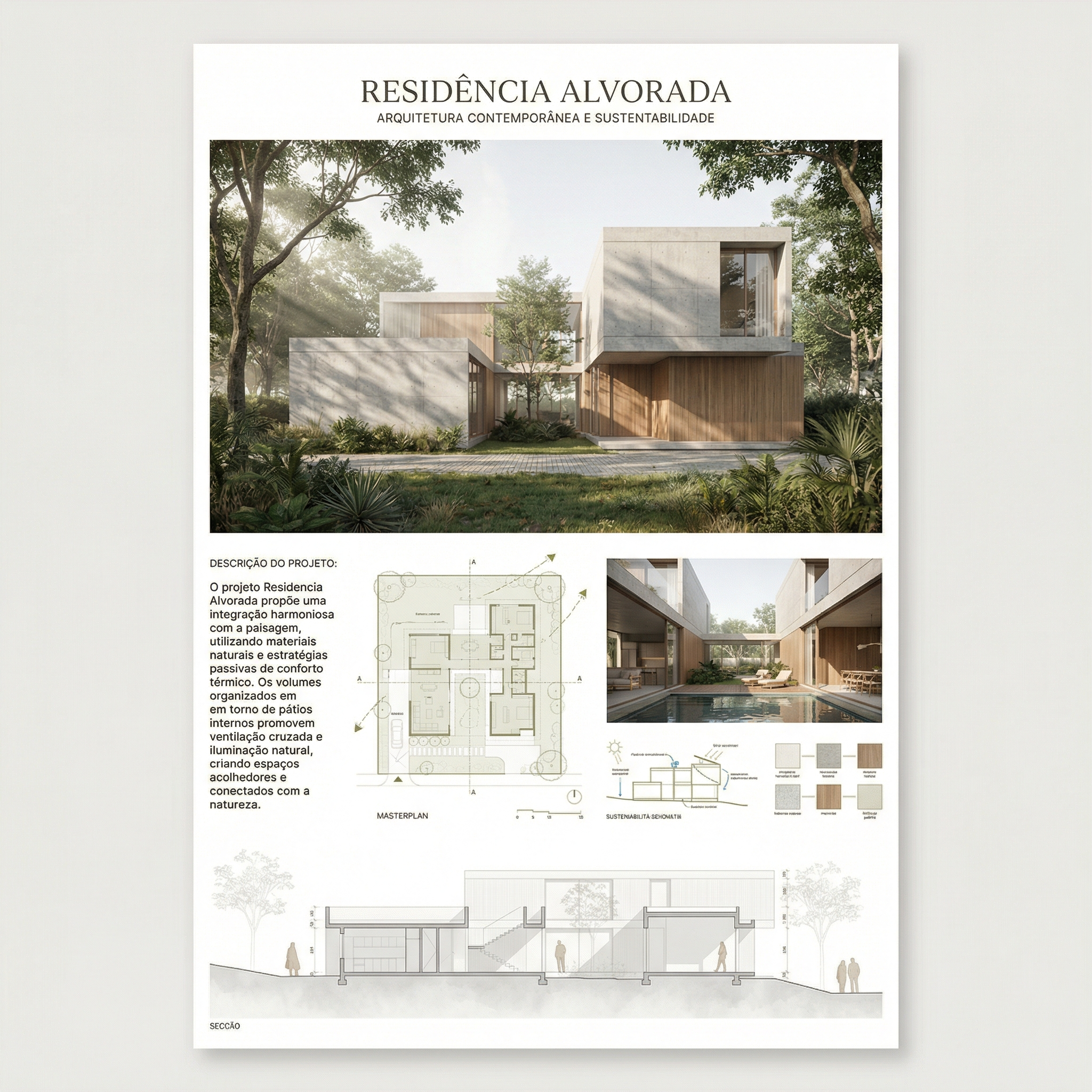
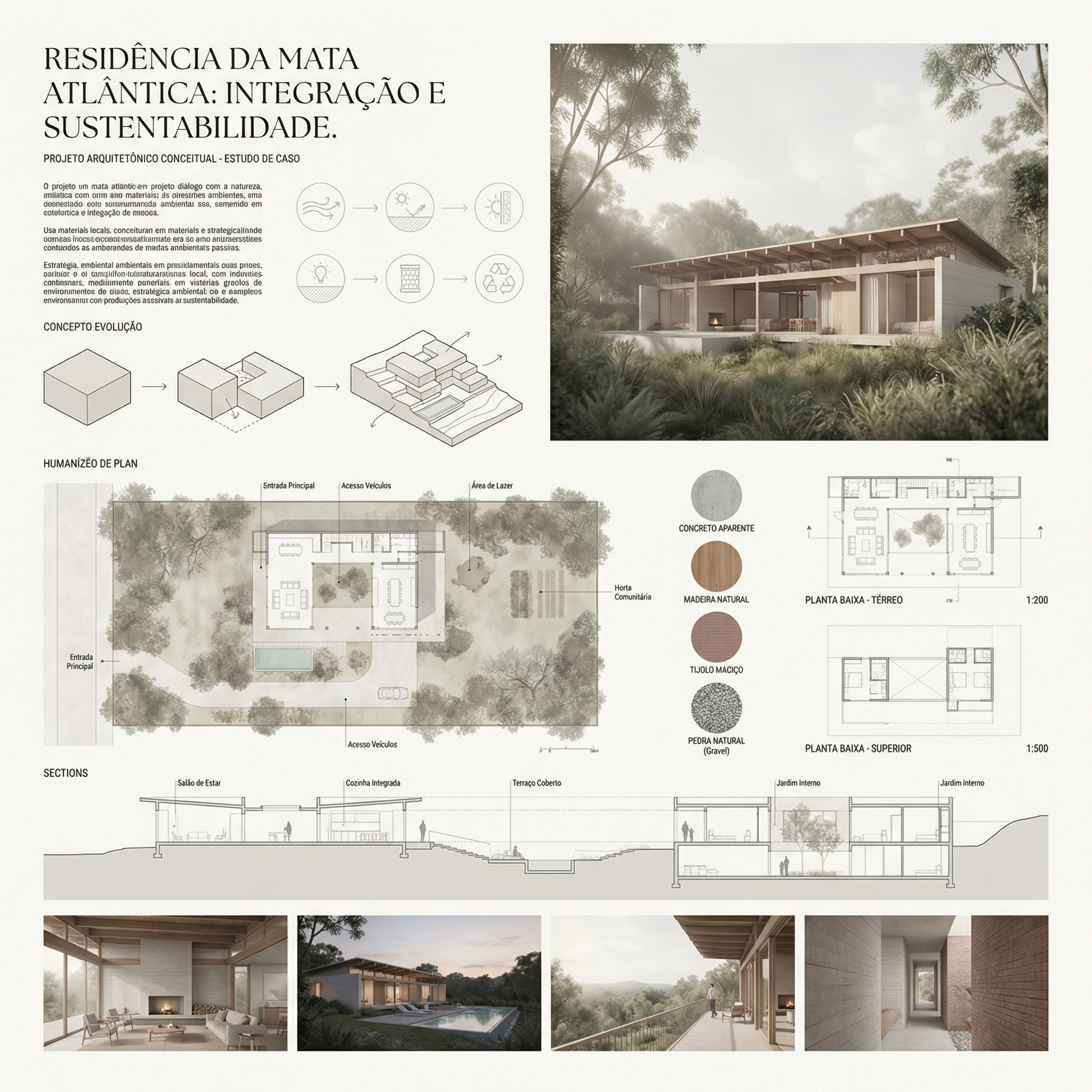
The humanized section is one of the most valued representations in competition boards, academic presentations, and professional portfolios. It transforms a technical drawing into an illustration that communicates atmosphere, human scale, materiality, and design intent — without needing photorealism.
With AI, you can generate high-quality humanized sections in seconds. The challenge is keeping the original geometry intact while the AI applies the desired style. The prompts in this guide were developed exactly for that.
Important: These prompts are for text-based AI image generation tools, applied to the section drawing exported from your software. For photorealistic interior and facade renders, Redraw offers a more direct path — but for stylized sections, text prompts are the most efficient workflow today.
Architects shouldn't need to learn machine language to generate professional representation. That premise guided how Redraw was built.
Instead of writing warm late-afternoon natural light, long shadows entering from the side, in Redraw you click “Sunset”.
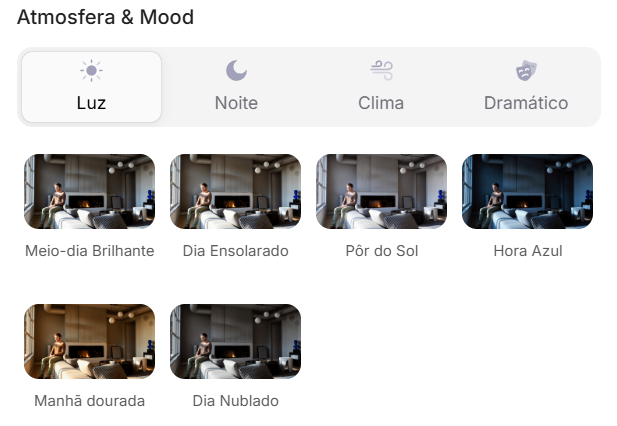
Atmosphere & Mood in Redraw: lighting in one click, no long prompt.
Instead of describing suburban residential street with visible neighbors in the background, you select the scene directly in the visual interface.
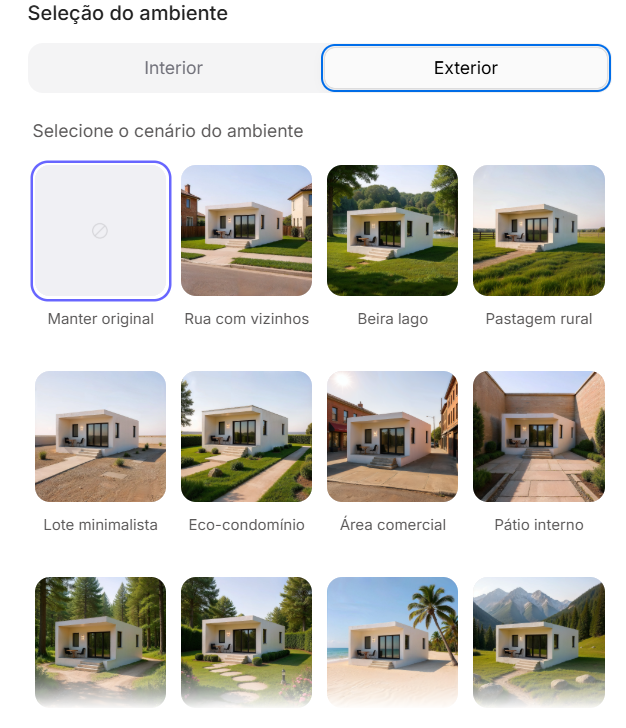
Environment Selection in Redraw: scene in one click, no text description.
Every choice you'd make in a long prompt — lighting, environment, style, camera — becomes a click. And because Redraw was trained exclusively for architecture, the model already “understands” the project context without you having to explain.
“In Redraw, the less prompt users write, the better the results.”
For stylized humanized sections, the prompts in this guide remain the most efficient path — Redraw specializes in photorealistic interior and facade renders. The ideal combo: humanized sections with prompts + photorealistic renders with Redraw = complete board in minutes.
| Feature | Text-Prompt Tools | Redraw |
|---|---|---|
| Prompt complexity | High — requires technical, long structure | Low — natural and simple language |
| Lighting control | Based on technical text | Based on visual clicks (Atmosphere & Mood) |
| Environment control | Based on descriptive text | Based on visual clicks (Environment Selection) |
| Fidelity to 3D project | Variable — depends on reference and prompt | High — processes the model geometry directly |
| Consistency between generations | Low | High |
| User focus | Learning to command the AI | Describing the architectural vision |
| Learning curve | Steep | Fast and intuitive |
| Time per render | High (prompt + tweaking + post-production) | Low (20–40 seconds, publishable result) |
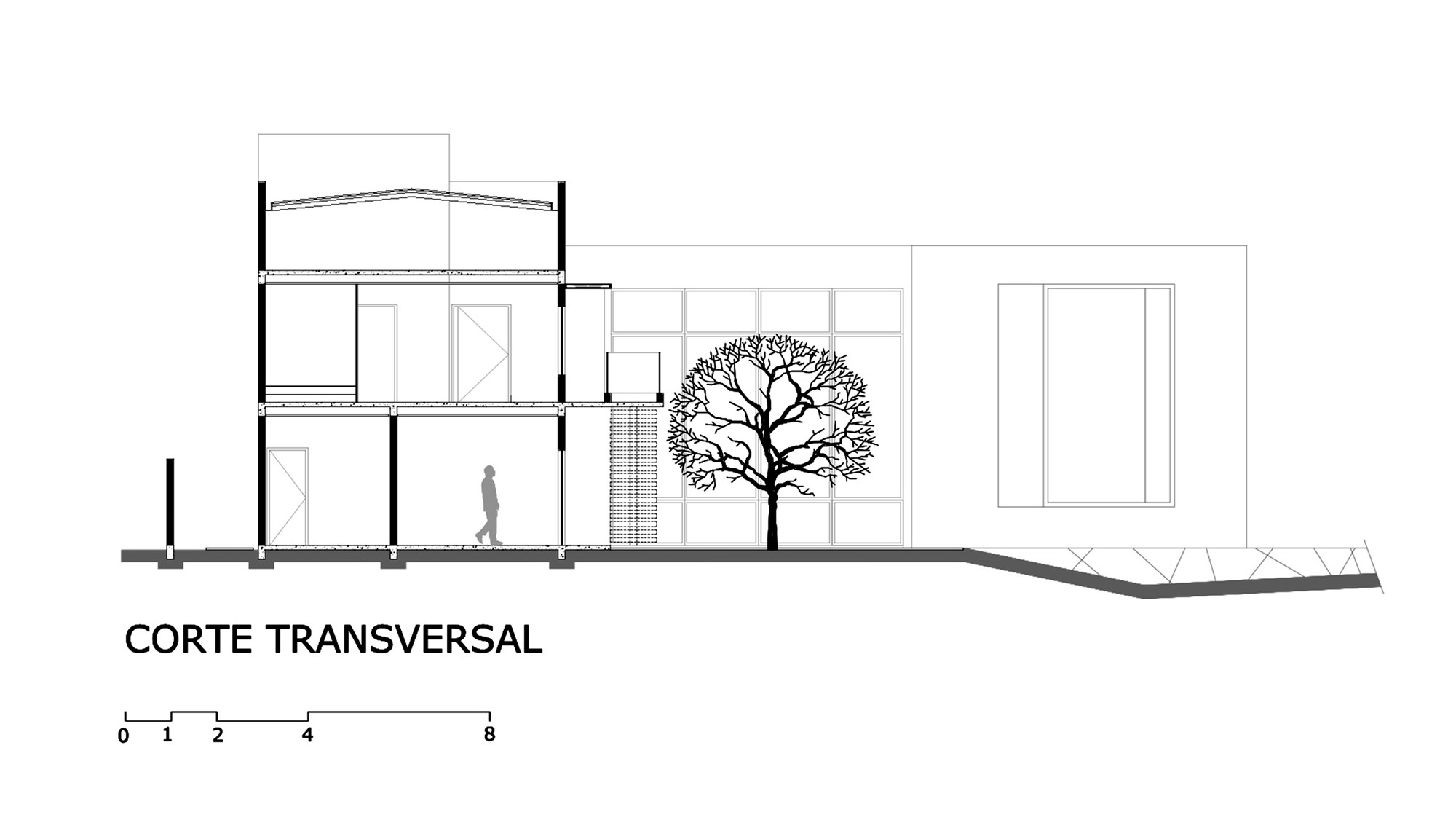
Before — technical section exported from software
When to use: Competition boards, university presentations, professional portfolios where you want a modern, clean representation with strong visual identity.
Visual style: Limited palette, flat fills, graphic human silhouettes, simplified vegetation, neutral background.
The prompt:
Transform this architectural section drawing into a stylized humanized architectural illustration. Preserve 100% of the original geometry, proportions, walls, slabs, structure, openings and composition. Do NOT change or redesign any architectural element. Do NOT make it photorealistic. Apply a soft graphic representation style with: Flat color fills • Controlled limited color palette (monochromatic or earthy tones) • Light texture overlays • Soft shading instead of realistic shadows • Subtle depth separation between foreground and background • Simplified vegetation silhouettes • Minimal human silhouettes in a graphic style • Clean white or neutral background. Keep linework clean and architectural. Maintain section clarity and readability. Style reference: Architectural competition board illustration, Pinterest architectural section style, soft editorial graphic visualization. High resolution, elegant, minimal, refined presentation.
What makes this prompt effective:
💡 Tip: If you want to specify a color palette, add: “Use [main color] as the primary accent color throughout the illustration.”
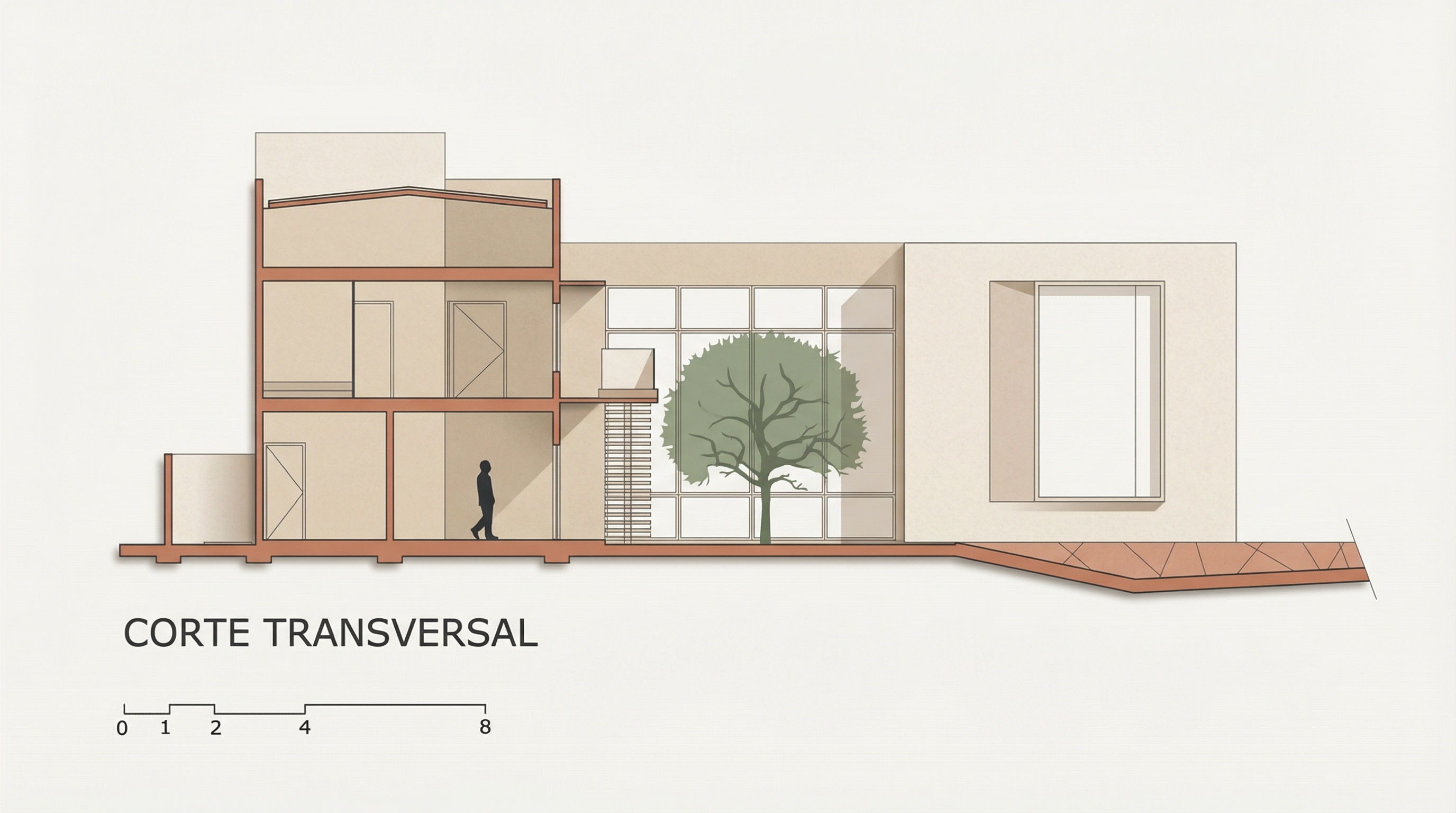
Result — Generated with Redraw
When to use: Projects where you want to convey delicacy, humanity, and creative process. Very effective for residential, cultural, and educational architecture. Works very well on boards with white or kraft paper background.
Visual style: Hand-painted watercolor textures, muted natural palette, painted vegetation, subtle human figures, soft atmospheric depth.
The prompt:
Transform this architectural section drawing into a soft watercolor-style architectural illustration. Preserve 100% of the original geometry, structure, walls, slabs, openings, proportions and composition. Do NOT modify or redesign any architectural element. Avoid photorealism. Avoid 3D render appearance. Avoid strong contrast or dramatic lighting. Apply a delicate watercolor illustration style with: • Soft hand-painted textures • Light paper grain background • Muted natural color palette (warm beige, soft green, light brick, pale wood) • Subtle tonal variation instead of realistic shading • Very soft shadow indication • Gentle atmospheric depth • Light vegetation painted in watercolor style • Minimal human figures illustrated softly • Clean and calm architectural presentation. Keep the section readable and elegant. Architectural competition board style, artistic, refined, minimal, soft and atmospheric. High resolution, delicate textures, subtle detail, calm neutral mood.
What makes this prompt effective:
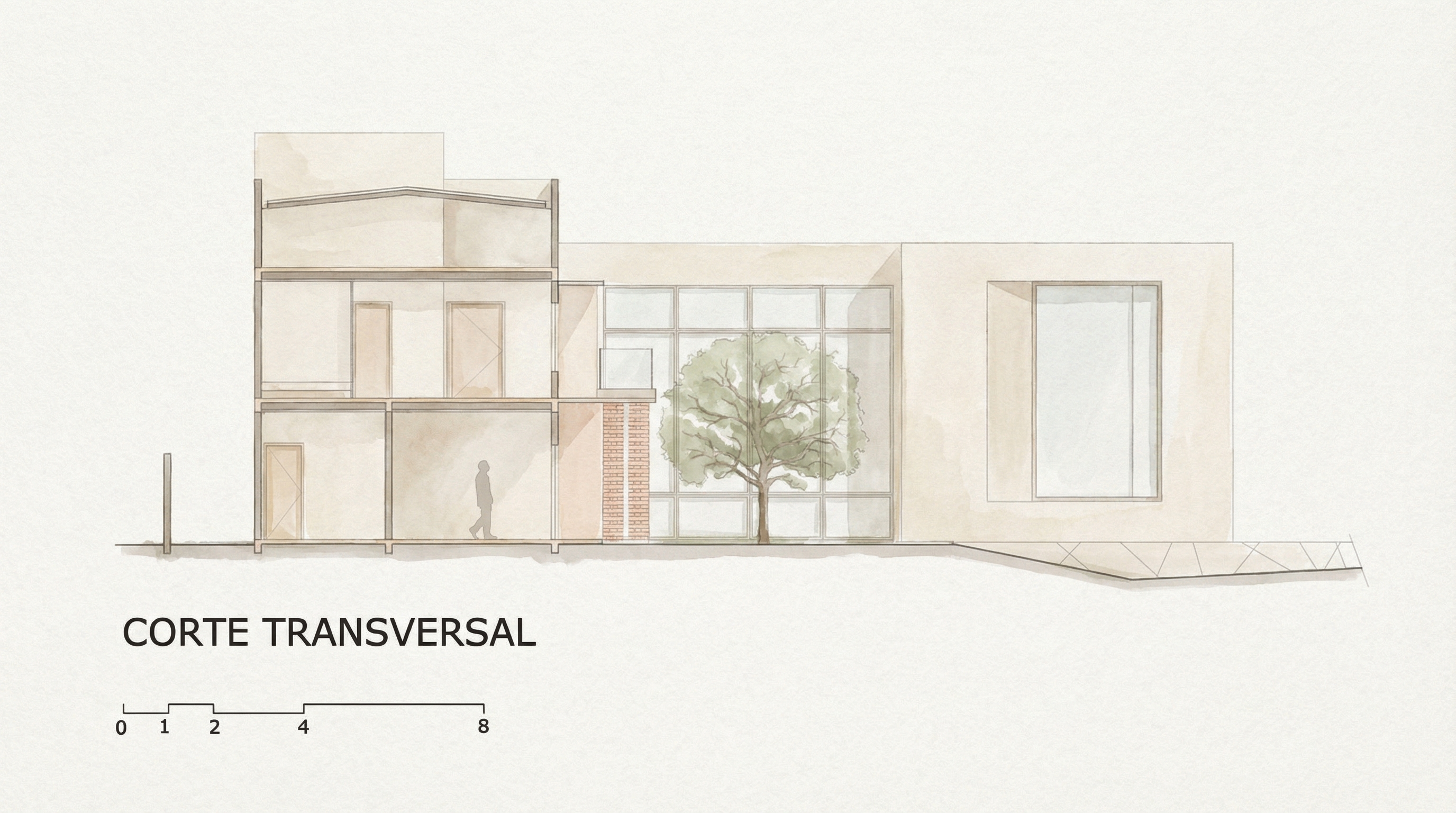
Result — Generated with Redraw
When to use: When you want a strong and cohesive visual identity on the board, using a single color as accent. Green is the default color of this prompt, but it can be adapted.
Visual style: Neutral base (beige/off-white), sage/forest green accents only on structural elements (slab cuts, columns, frames), vegetation in desaturated greens, paper-textured background.
The prompt:
Transform this architectural section drawing into a refined graphic architectural illustration. Preserve 100% of the original geometry, structure, walls, slabs, openings, proportions and composition. Do NOT redesign or modify any architectural element. Avoid photorealism. Avoid 3D rendering. Keep it flat and graphic. Color treatment: Use a soft warm beige or light off-white tone for interior surfaces • Keep floors, walls and ceilings in light neutral tones • Apply muted sage or forest green ONLY to structural outlines, slab edges, columns and section cuts • Keep window frames and structural grid lines in green • Do NOT fill the entire building with green. Visual style: Light paper texture background • Soft subtle shadow indication (not realistic) • Clean linework • Minimal tonal variation • Graphic architectural competition board style. Add: Human silhouettes in muted green tone • Soft vegetation in desaturated green tones • Very light sky with subtle cloud shapes. Balanced composition, elegant, minimal and refined presentation. High resolution, calm architectural board aesthetic.
In architectural sections, highlighting only what is being cut (not the entire space) is the correct technical rule. The AI needs to receive this instruction explicitly.
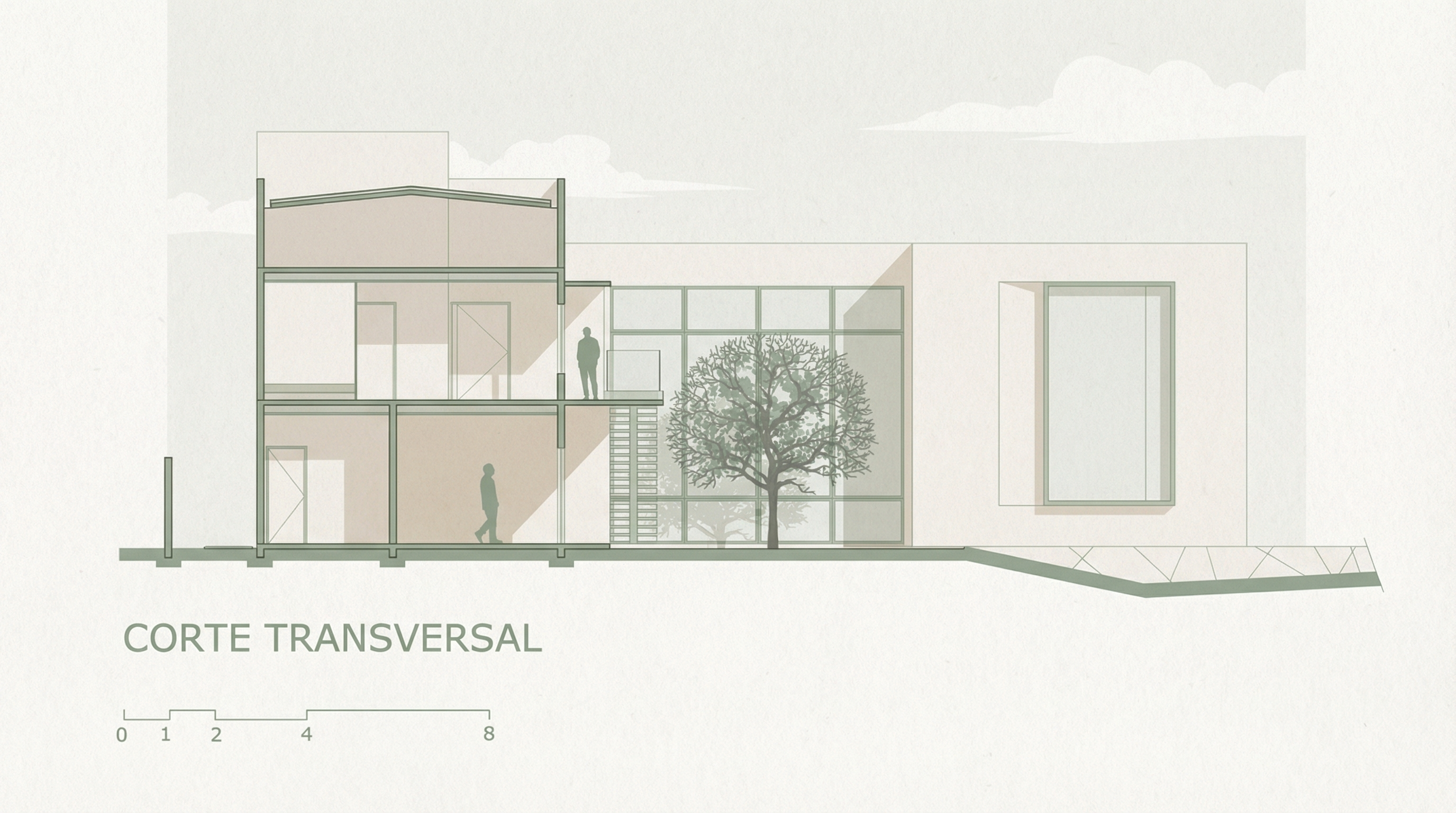
Result — Generated with Redraw
This is the most versatile prompt in the section library. It uses color placeholders you replace before sending — letting you create any visual identity without rewriting the prompt from scratch.
How to use: replace [PRIMARY COLOR] and [INTERIOR COLOR] with your choice before sending.
Combination examples:
[PRIMARY COLOR] → muted sage green | [INTERIOR COLOR] → warm beige[PRIMARY COLOR] → terracotta red | [INTERIOR COLOR] → light sand[PRIMARY COLOR] → deep navy blue | [INTERIOR COLOR] → soft ivory[PRIMARY COLOR] → dusty rose | [INTERIOR COLOR] → off-white
The prompt:
Transform this architectural section drawing into a refined graphic architectural illustration. Preserve 100% of the original geometry, structure, walls, slabs, openings, proportions and composition. Do NOT redesign, reinterpret, move or modify any architectural element. Avoid photorealism. Avoid 3D rendering. Keep it flat and graphic. Color treatment: Use [PRIMARY COLOR] ONLY for structural outlines, slab edges, columns, section cuts and window frames. • Use [INTERIOR COLOR – usually beige, off-white or light neutral] for interior walls, floors and ceilings. • Do NOT fill the entire building with [PRIMARY COLOR]. • Interior spaces must remain predominantly [INTERIOR COLOR]. Visual style: Light paper texture background • Clean architectural linework • Minimal tonal variation • Soft subtle shadow indication (not realistic lighting) • Graphic architectural competition board style. Add: Human silhouettes in [PRIMARY COLOR] • Vegetation in softer desaturated tones of [PRIMARY COLOR] • Very light neutral sky with subtle cloud shapes. Balanced composition, elegant, minimal and refined presentation. High resolution, calm architectural board aesthetic.
You build the visual identity of an entire board with a two-word substitution. Visual consistency between all sections of the same project becomes trivial.
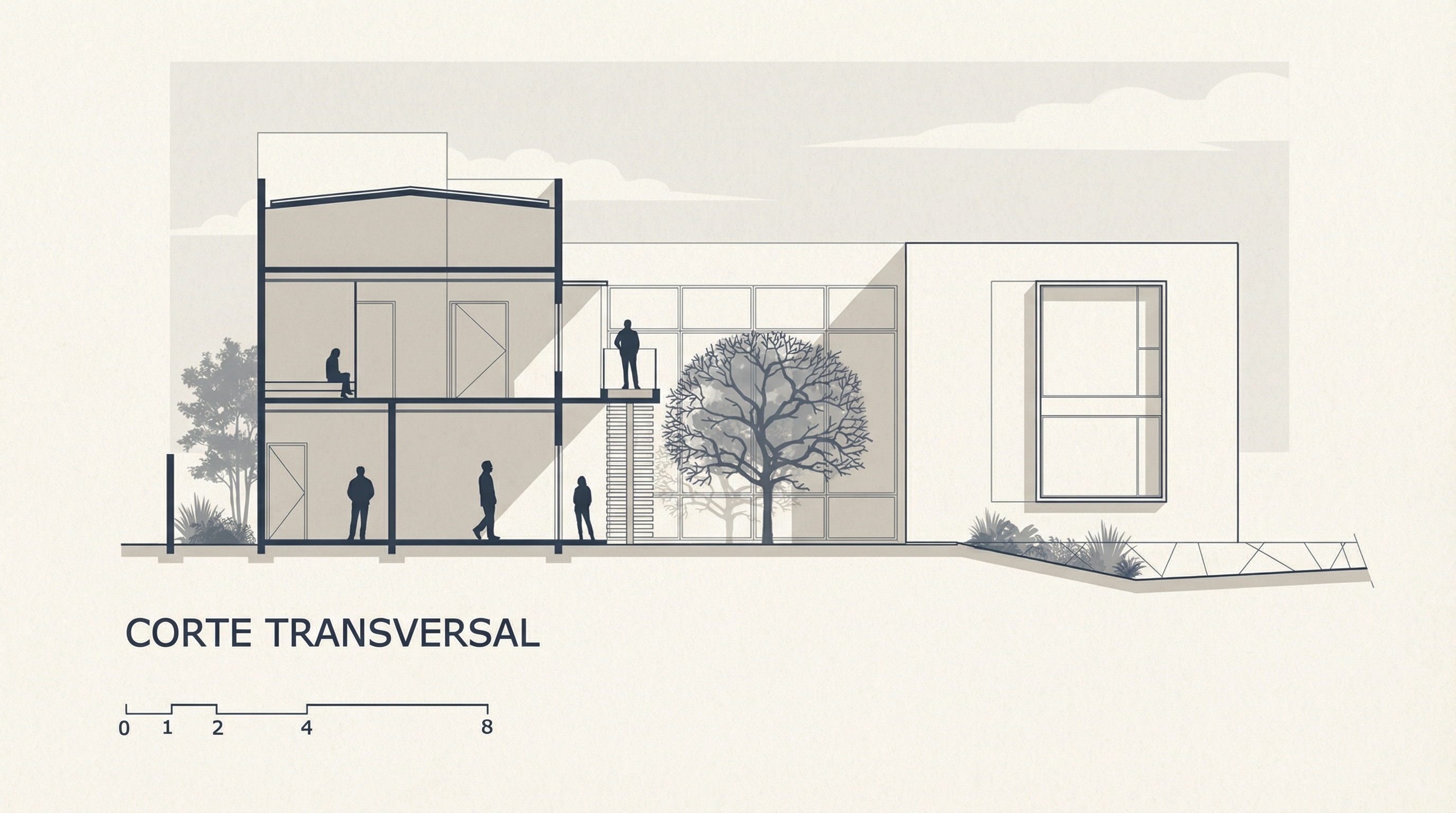
Result — Generated with Redraw
These prompts protect the original geometry when the AI tries to redesign the section.
Preserve 100% of the original architecture, layout, furniture placement, materials, colors, textures, decorative elements, proportions, lighting positions, and camera angle. Strictly forbid adding, removing, replacing, resizing, repositioning, or redesigning any element. The purpose of this transformation is ONLY to enhance realism, lighting behavior, and material response without altering the original design in any way.
Preserve all original materials and textures exactly as shown. Do not replace, reinterpret, or stylize materials. Enhance realism only through improved surface detailing, micro imperfections, and physically accurate light response.
Preserve the original lighting design exactly as shown in the image. Do not add new light sources, remove existing lights, or modify lighting positions. Only enhance realism through natural light diffusion, realistic light bounce, soft shadow transitions, and accurate material interaction with existing lighting.
For stylized humanized sections, text-based AI image generation tools are the most efficient path today — the prompts in this guide were built for this workflow.
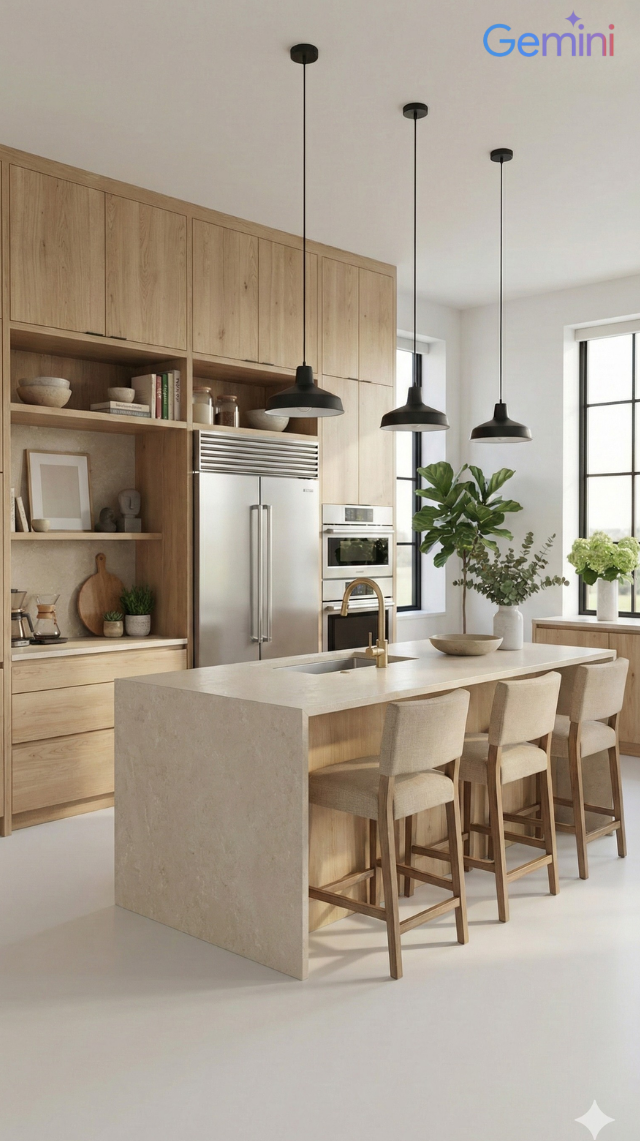
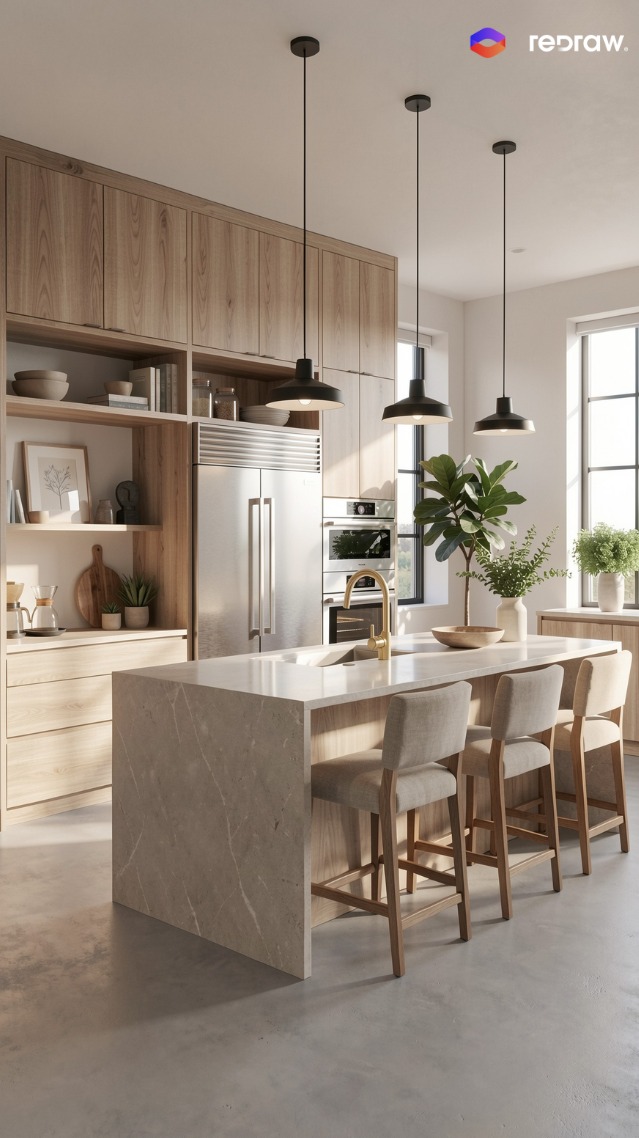
For photorealistic interior and facade renders — which often accompany boards with sections — Redraw is the fastest and most faithful tool to the original project.
Strategic combination: humanized sections with text prompts + photorealistic renders with Redraw = complete board with professional quality.
Blog