Guide to Prompts for Façade Renders with AI

Complete guide to prompts for facade renders with AI — neighbors, trees, rain, overcast, night and blue hour. Preserve the design and elevate realism

Guide to Prompts for Façade Renders with AI
Author
Alexandre Kuhn
Co-founder and marketing director
Alexandre is currently the marketing director, but he previously worked as an architect specializing in BIM.
Guide to Prompts for Façade Renders with AI
6 min
|
05.05.2026
Author
Alexandre Kuhn
Co-founder and marketing director
Alexandre is currently the marketing director, but he previously worked as an architect specializing in BIM.
[

Redraw

]

Create your free account

Start transforming your projects today using Redraw.

I want to register
Share this article

Why facade renders are AI's decisive test

The facade is the project's calling card. It's the first thing the client sees, what appears on the portfolio cover, and what circulates on social media. A convincing facade render depends on two factors most architects neglect: realistic urban context and correct light condition.

Generic AI tools tend to “invent” the surroundings, change the original facade, or produce inconsistent results between generations. The prompts in this guide were designed to solve exactly that — each one preserves 100% of the original facade while working only on what needs to be improved.

About Redraw: For facade renders with project fidelity, Redraw is the most direct tool — you upload the model, select the atmosphere in clicks, and get the result in seconds, with no risk of the AI altering the facade. The prompts below are for those working with text-based generation tools.

Before the prompts: why you don't need them in Redraw

Architects shouldn't need to learn machine language to generate a professional facade render. That premise guided how Redraw was built.

Instead of writing warm late-afternoon natural light, long shadows entering from the side, in Redraw you click “Sunset”.
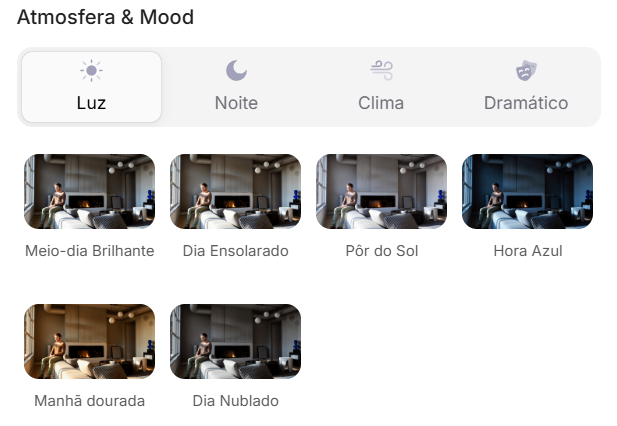
Atmosphere & Mood in Redraw: lighting in one click, no long prompt.

Instead of describing suburban residential street with visible neighbors in the background, you select the scene directly in the visual interface.
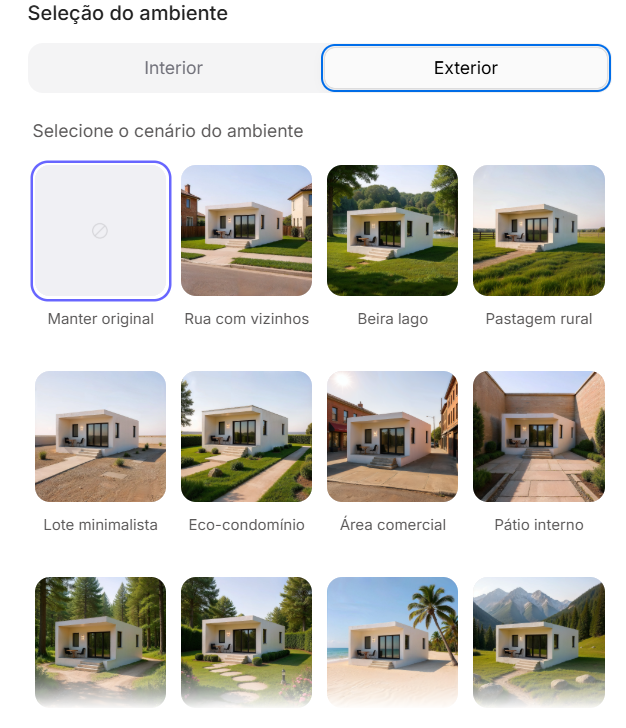
Environment Selection in Redraw: scene in one click, no text description.

Every choice you'd make in a long prompt — lighting, environment, style, camera — becomes a click. And because Redraw was trained exclusively for architecture, the model already “understands” the project context without you having to explain.

“In Redraw, the less prompt users write, the better the results.”

Comparison: text prompts vs. visual interface

FeatureText-Prompt ToolsRedraw
Prompt complexityHigh — requires technical, long structureLow — natural and simple language
Lighting controlBased on technical textBased on visual clicks (Atmosphere & Mood)
Environment controlBased on descriptive textBased on visual clicks (Environment Selection)
Fidelity to 3D projectVariable — depends on reference and promptHigh — processes the model geometry directly
Consistency between generationsLowHigh
User focusLearning to command the AIDescribing the architectural vision
Learning curveSteepFast and intuitive
Time per renderHigh (prompt + tweaking + post-production)Low (20–40 seconds, publishable result)

The prompts in this guide remain valuable — understanding the logic makes you a more strategic user of any tool. But if you want to skip the learning curve and go straight to the result, Redraw solves it in clicks.

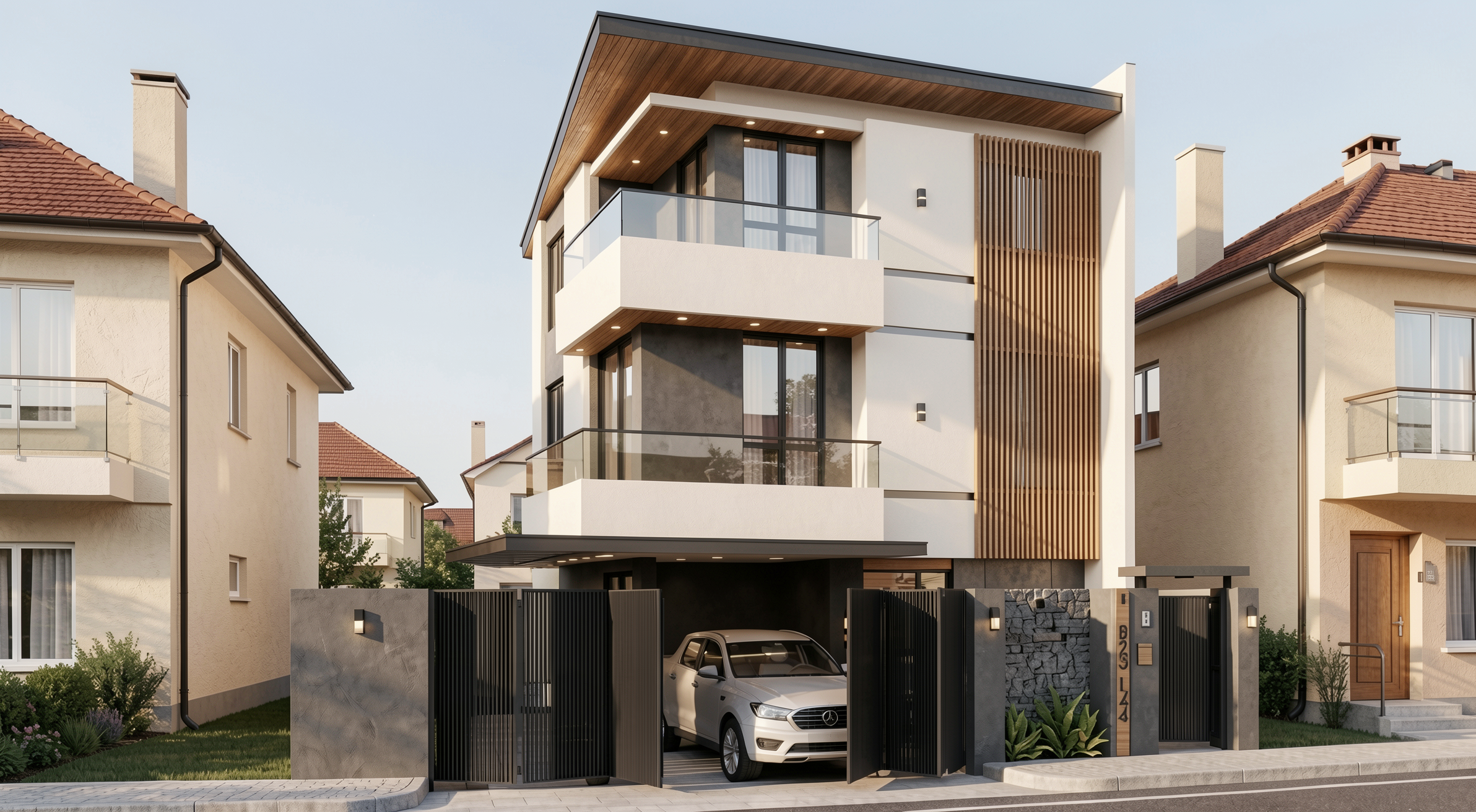
PROMPT 1 — Adding urban context: neighboring houses

Problem it solves: Facades rendered against white or generic backgrounds don't convey the project's real urban context. Clients and developers need to see how the project fits into the street.

When to use: Residences on urban lots where neighborhood context is relevant for the presentation.

The prompt:

Transform this image into an ultra photorealistic architectural photograph. Preserve 100% of the original architecture, layout, furniture placement, materials, colors, textures, proportions, decorative elements, and camera angle. Do NOT add, remove, redesign, or replace any element of the main project. Enhance realism only through: Physically accurate global illumination • Natural light behavior and realistic light bounce • Soft and natural shadow gradients • Ray traced reflections and refractions • Real-world material response. Add neighboring houses on both sides of the main construction, integrating them naturally into the urban context. The neighboring houses must: • Respect correct scale and perspective • Follow realistic residential architectural language • Maintain coherent lighting direction • Not block or interfere with the visibility of the main project • Not cast unrealistic shadows over the main façade • Remain secondary elements in the composition. Under no circumstances modify, adjust, reinterpret, resize, or redesign the original main building. Professional architectural photography style, balanced HDR exposure, natural color grading, cinematic yet realistic atmosphere. Ultra high resolution, 8K detail.

What sets this prompt apart: The detailed instruction on how neighboring houses should behave — scale, perspective, light direction, and visual hierarchy. Without it, the AI may produce neighbors that visually compete with the project or distort perspective.
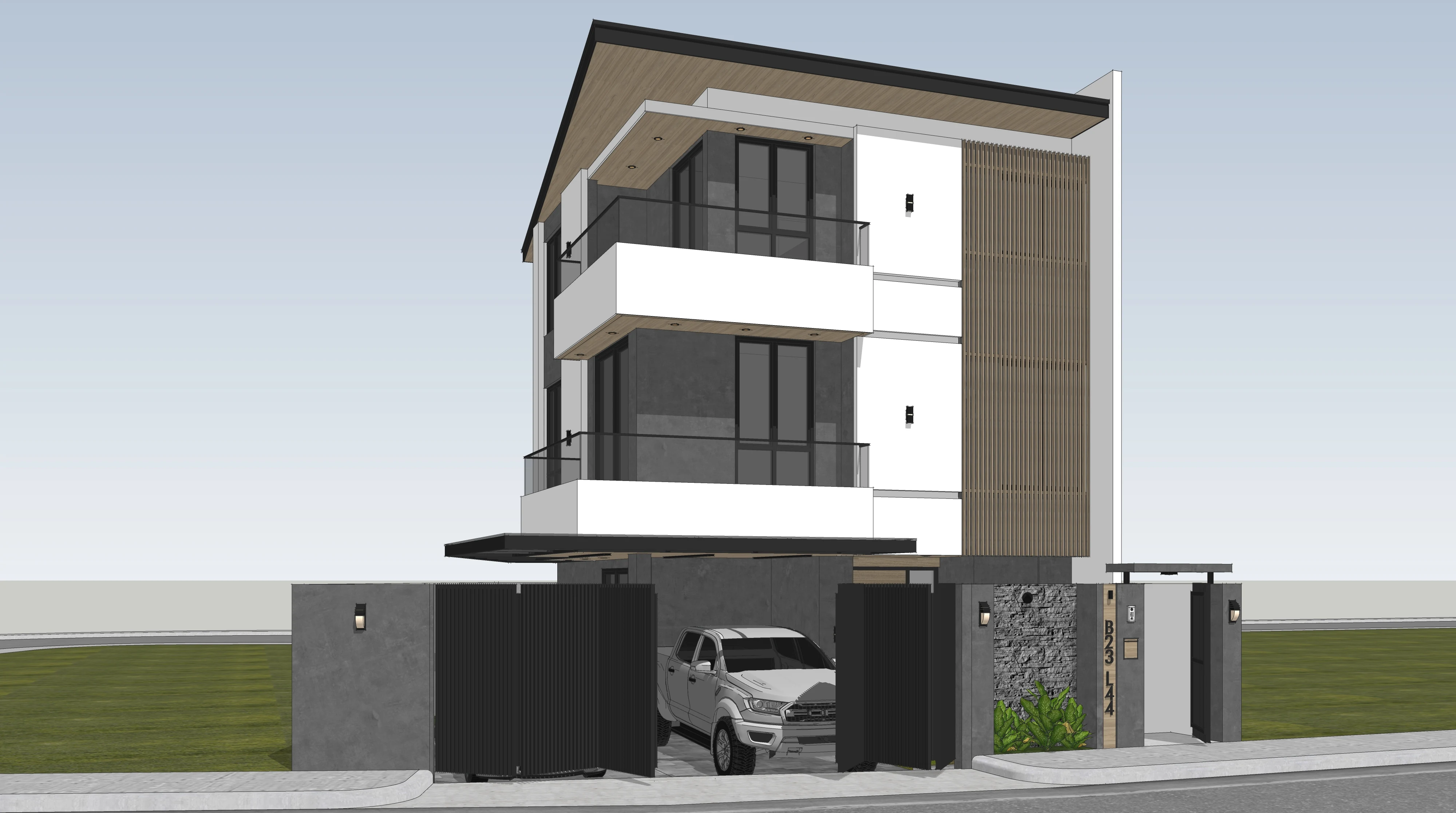
Before — base SketchUp render

Result with Redraw
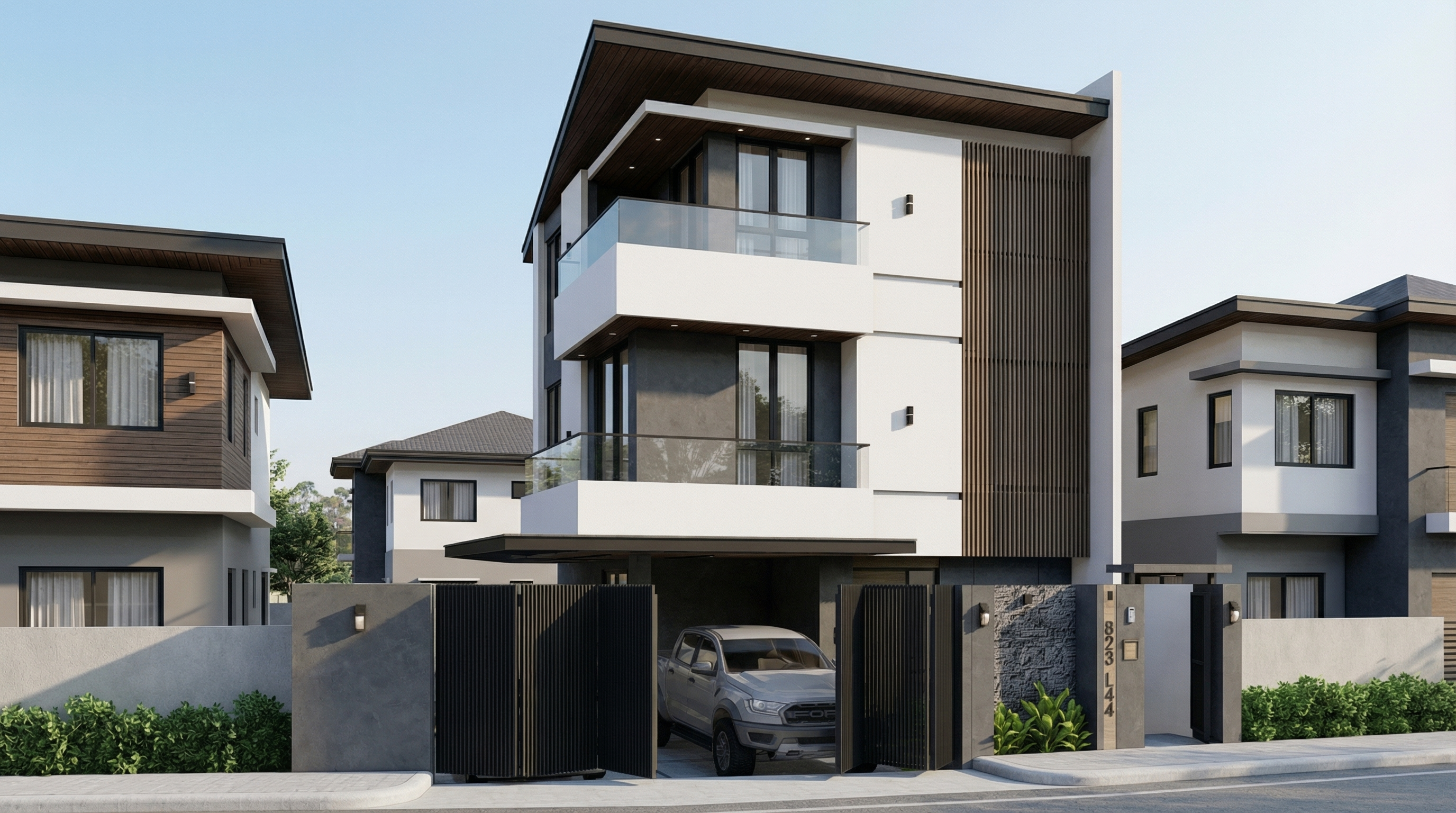
Result with Nano Banana Pro

PROMPT 2 — Adding natural context: trees

Problem it solves: Facades without vegetation feel cold and decontextualized. Adding trees increases realism and elevates the project — as long as it's done with control over scale and shadows.

When to use: Any type of facade — residential, commercial, mixed-use — where natural vegetation improves the presentation.

The prompt:

Transform this image into an ultra photorealistic architectural photograph. Preserve 100% of the original architecture, layout, furniture placement, materials, colors, textures, proportions, decorative elements, and camera angle. Do NOT add, remove, redesign, or replace any element of the main project. Enhance realism only through: Physically accurate global illumination • Natural light behavior and realistic light bounce • Soft and natural shadow gradients • Ray traced reflections and refractions • Real-world material response. Add realistic trees around the main construction, integrating them naturally into the surrounding context. The trees must: • Respect correct scale and perspective relative to the building • Be positioned naturally (side areas, background, or sidewalk alignment) • Maintain coherent lighting direction and shadow behavior • Cast physically accurate and soft shadows • Not block or interfere with the visibility of the main façade • Remain secondary elements in the composition • Appear as natural landscape additions, not decorative overlays. Under no circumstances modify, adjust, reinterpret, resize, or redesign the original main building. Professional architectural photography style, balanced HDR exposure, natural color grading, cinematic yet realistic atmosphere. Ultra high resolution, 8K detail.

If you want a specific type of tree (palms, oaks, cedars), add to the prompt: “Use [tree type] as the primary vegetation species.”
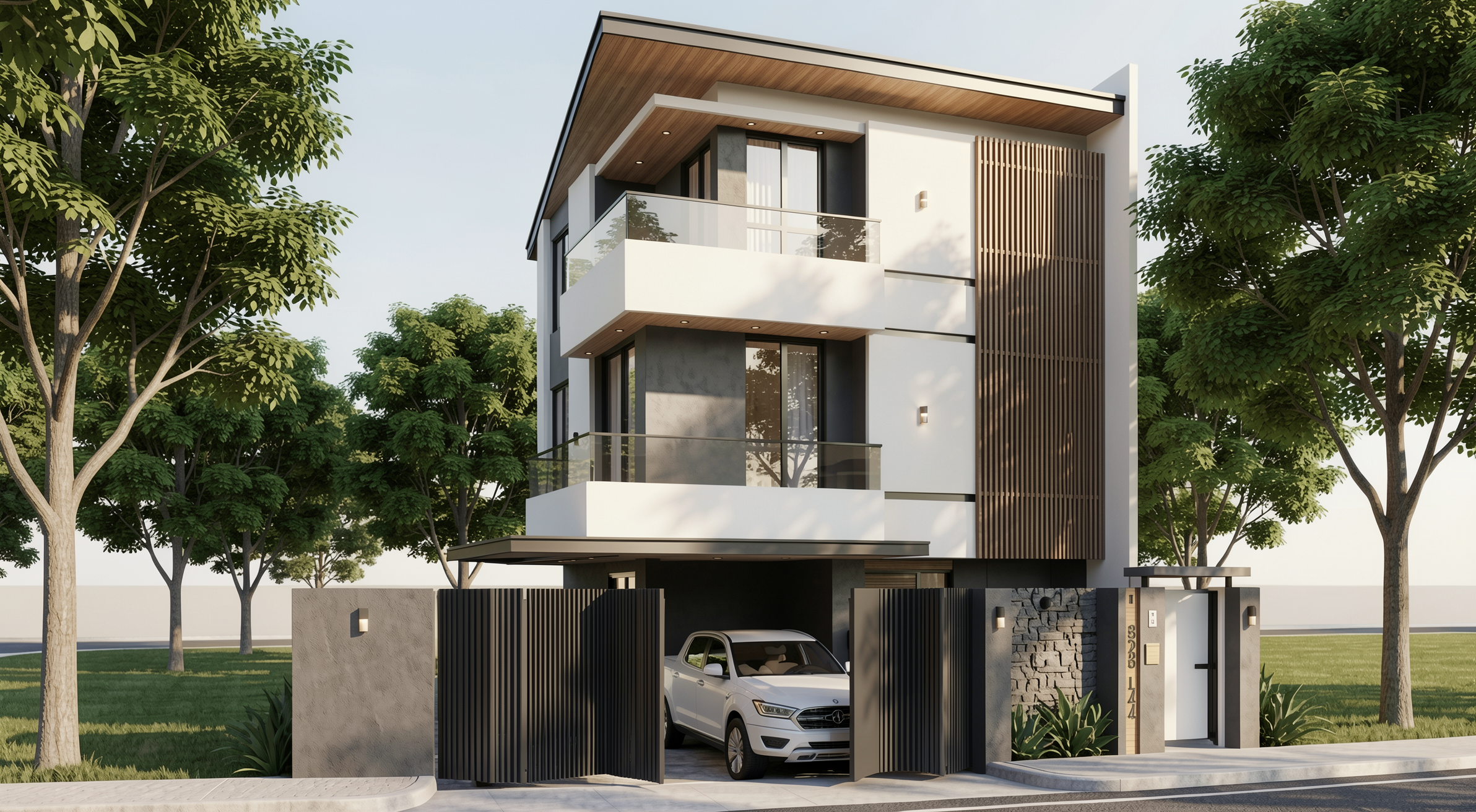
Result with Redraw
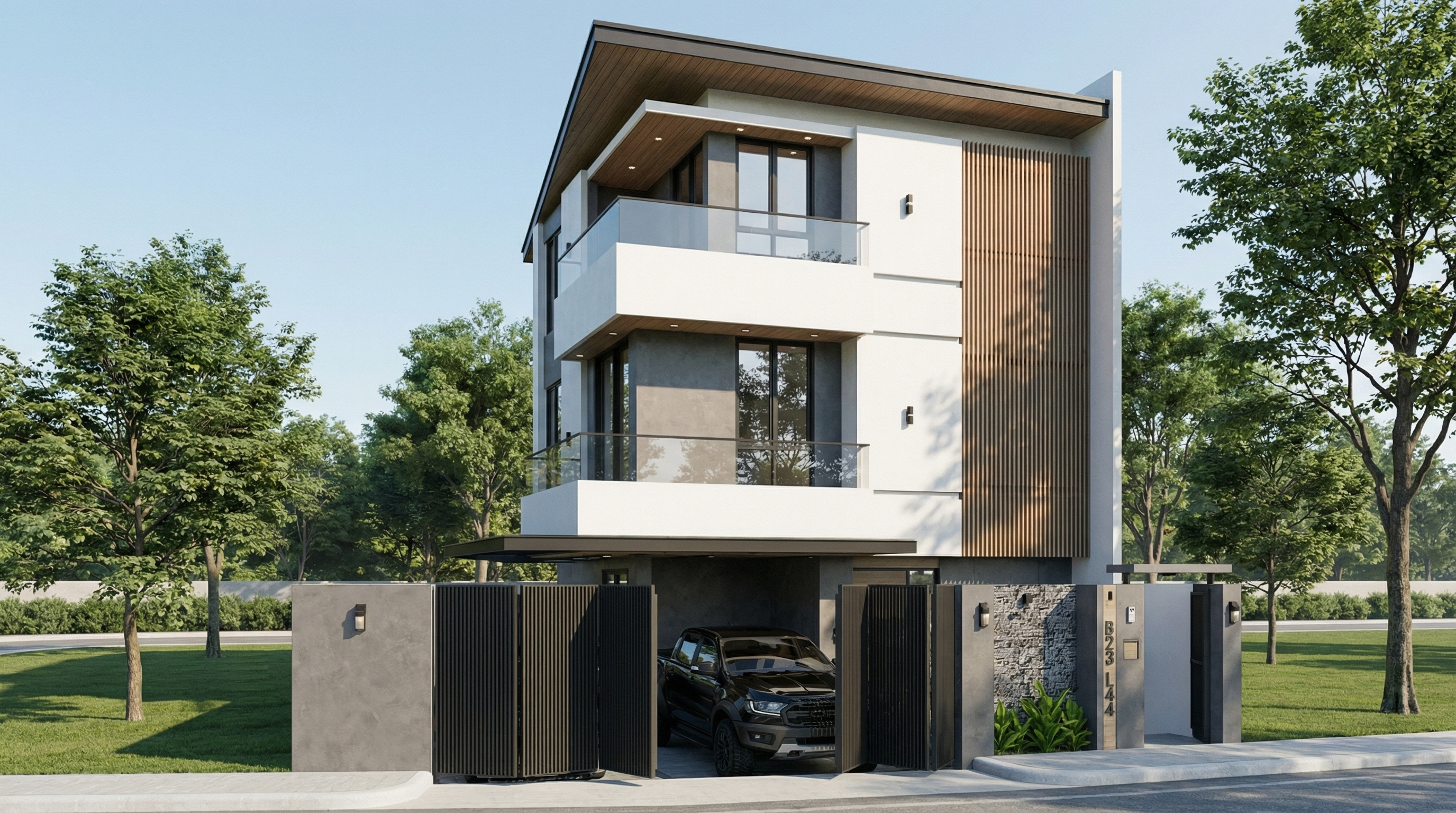
Result with Nano Banana Pro

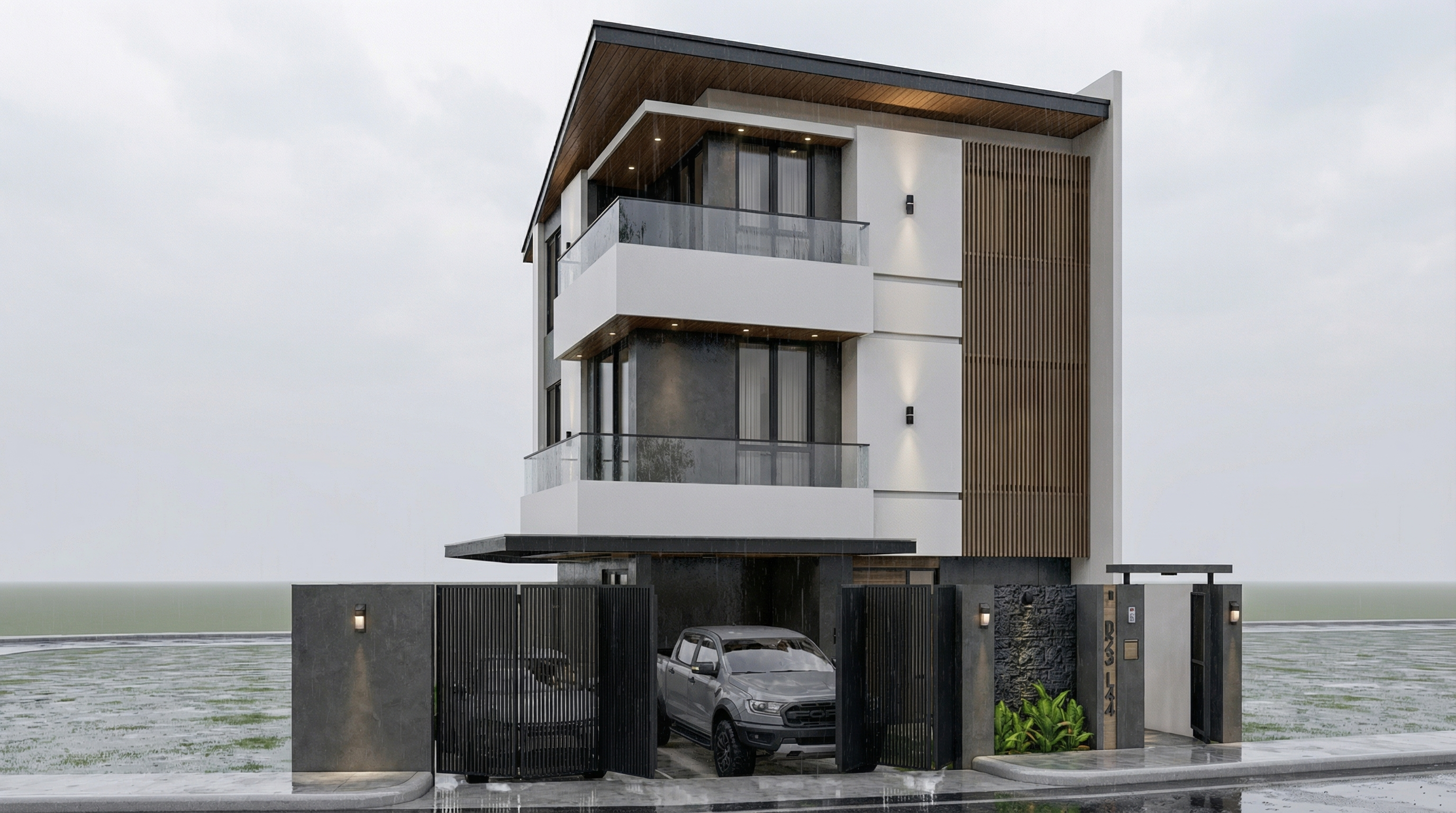
PROMPT 3 — Post-rain atmosphere (ultra realistic)

Problem it solves: Post-rain facades with wet floor reflections and surface moisture are among the most visually impactful renders — and among the hardest to do with control. This prompt solves it.

When to use: High-impact presentations, portfolios, social media. Works especially well on facades with concrete, stone, paving, and metal.

The prompt:

Preserve 100% of the original architecture, materials, colors, textures, proportions, decorative elements, lighting fixtures, surrounding elements, landscaping, and camera angle. Do NOT add, remove, redesign, reposition, replace, or reinterpret any element. Transform the image into an ultra photorealistic architectural photograph representing a natural post-rain environment. Simulate realistic wet surface conditions on ground planes, pavements, streets, and exposed exterior surfaces, ensuring physically accurate water reflection behavior and subtle moisture accumulation. Enhance reflective properties on materials such as stone, concrete, glass, metal, and flooring through realistic surface roughness variation, water film reflections, and natural light diffusion across wet areas. Introduce subtle environmental dampness indicators such as slightly darkened material tones, enhanced reflection clarity, and realistic interaction between moisture and lighting. Maintain balanced HDR exposure, natural color grading, realistic sky brightness consistency, soft shadow transitions, and accurate global illumination under post-rain atmospheric conditions. Ensure reflections remain physically plausible and proportional, avoiding exaggerated mirror effects while preserving realistic depth and material response. Professional architectural photography quality, cinematic yet natural atmosphere, ultra high resolution, 8K detail, and full-frame camera realism.

What sets this prompt apart: The instruction “avoiding exaggerated mirror effects” is fundamental. Without it, the AI tends to create floor mirror reflections that look unreal.
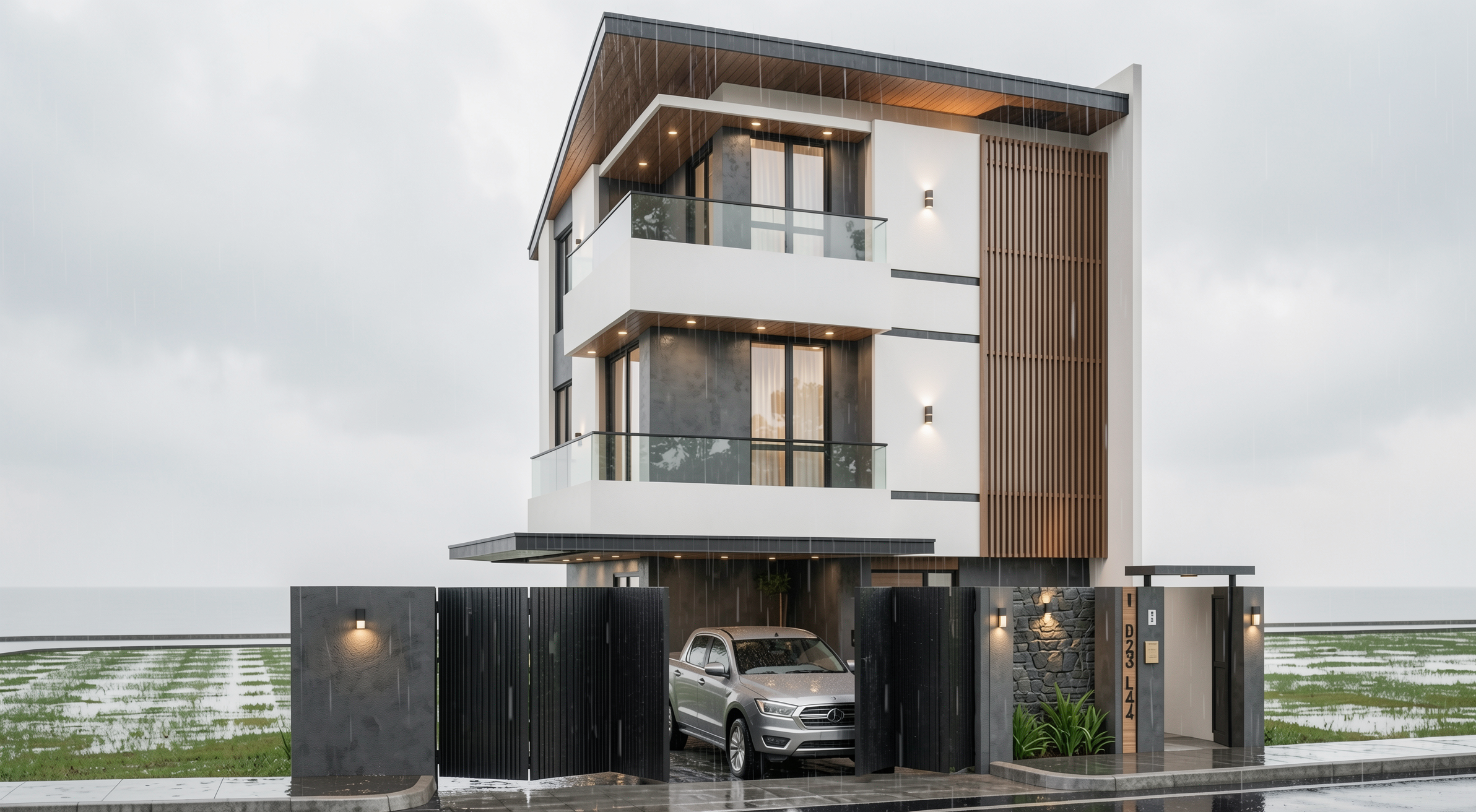
Result with Redraw
Result with Nano Banana Pro

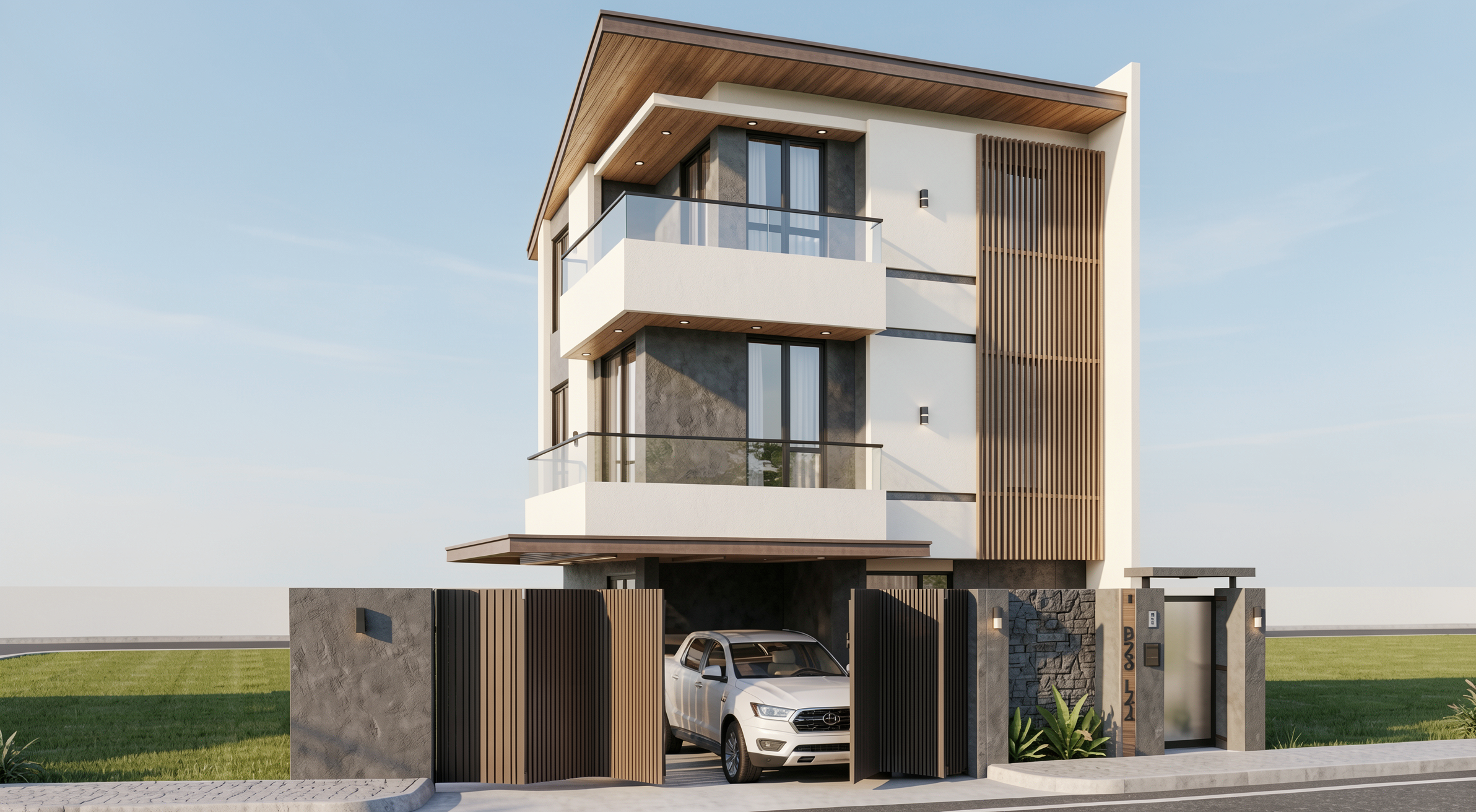
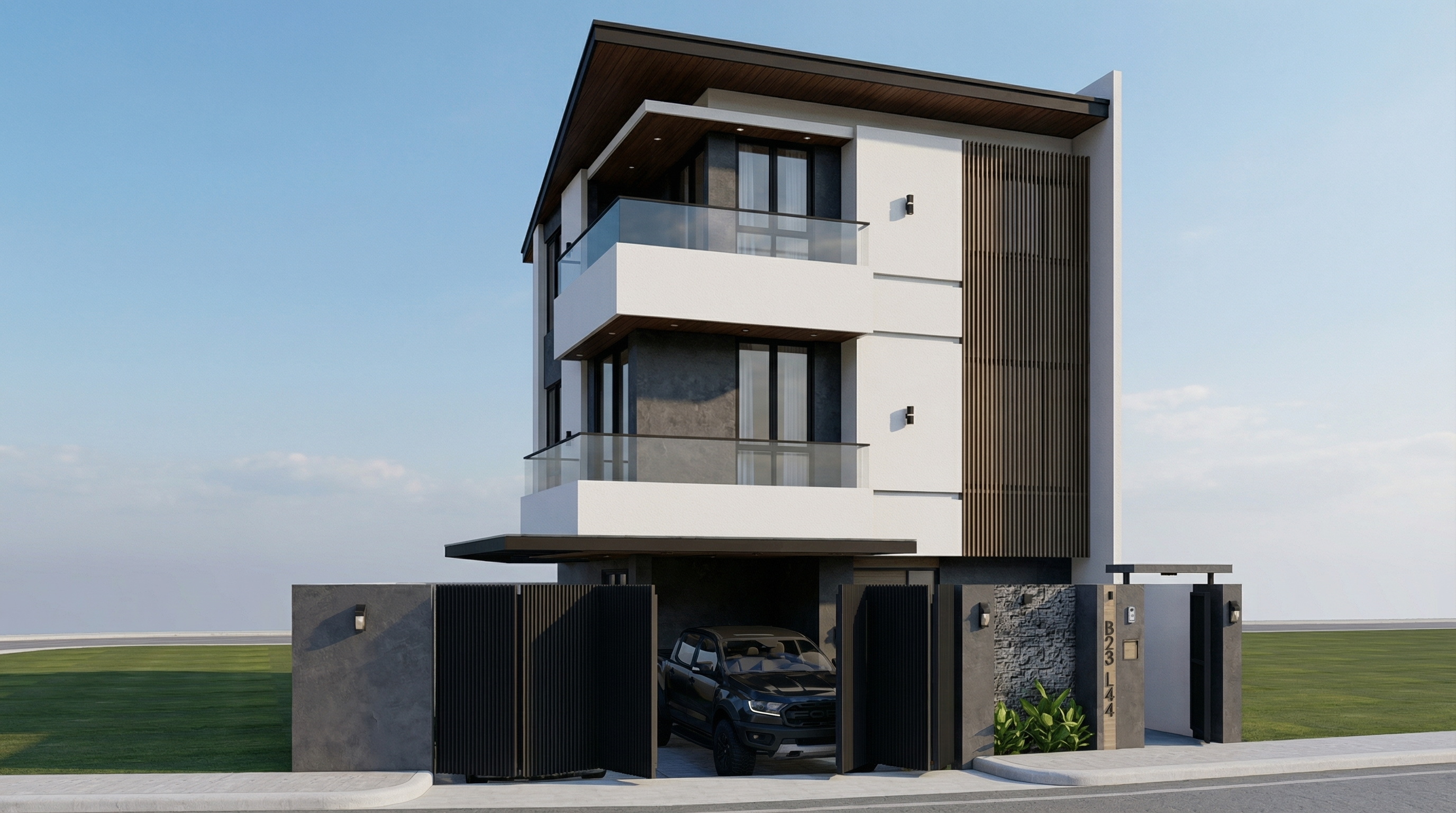
PROMPT 4 — Universal daytime atmosphere

Problem it solves: The most versatile facade prompt — transforms any facade render into a daytime architectural photograph with realistic natural light.

When to use: Starting point for any facade when you want a clean and professional photorealistic result, without defining a specific atmosphere.

The prompt:

Preserve 100% of the original architecture, materials, colors, textures, proportions, decorative elements, lighting fixtures, surrounding elements, landscaping, and camera angle. Do NOT add, remove, redesign, reposition, replace, or reinterpret any element. Transform the image into an ultra photorealistic daytime architectural photograph. Enhance realism through physically accurate daylight simulation, natural sky illumination, realistic sun direction, soft shadow gradients, global illumination, and accurate environmental light bounce. Improve facade material response with micro surface imperfections, subtle tonal variation, realistic roughness maps, natural reflection behavior on glass and metal, and authentic surface depth. Maintain balanced HDR exposure, natural color grading, realistic atmospheric clarity, professional full-frame camera behavior, subtle depth perception, and true-to-life sharpness. Ultra high resolution, 8K detail, cinematic yet realistic architectural photography quality.
Result with Redraw
Result with Nano Banana Pro

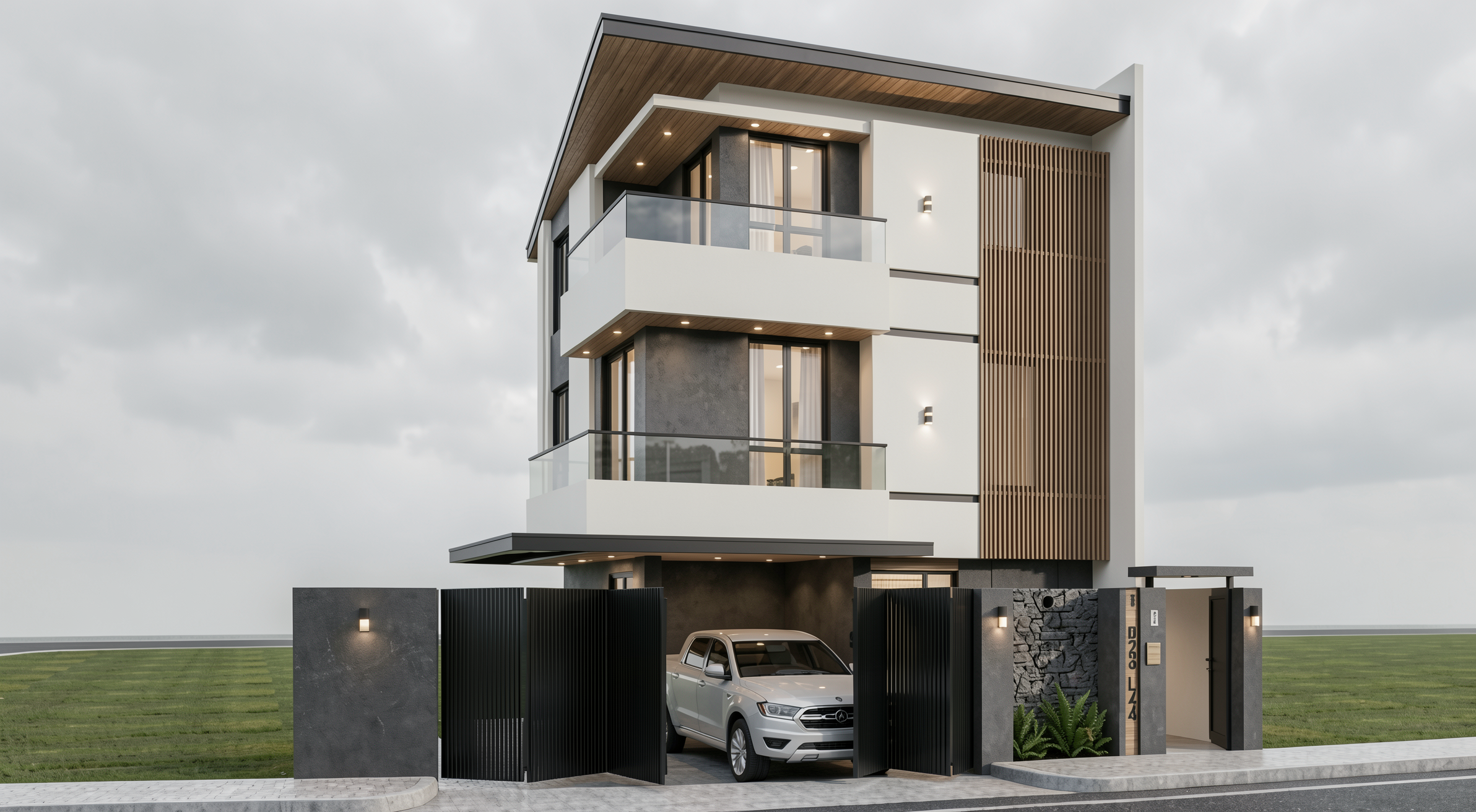
PROMPT 5 — Overcast (ultra realistic)

Problem it solves: Overcast light is the favorite of professional architectural photographers — it's diffused, casts no harsh shadows, and reveals the real material texture. This prompt replicates that effect.

When to use: Facades with textured materials (exposed concrete, brick, stone) where you want texture to be the protagonist. Also works very well on dark facades or low-reflection materials.

The prompt:

Preserve 100% of the original architecture, materials, colors, textures, proportions, decorative elements, lighting fixtures, surrounding elements, landscaping, and camera angle. Do NOT add, remove, redesign, reposition, replace, or reinterpret any element. Transform the image into an ultra photorealistic architectural photograph under overcast sky conditions. Simulate diffused environmental lighting with soft, evenly distributed illumination across all facade surfaces. Reduce harsh shadow contrast while maintaining realistic depth perception, natural material response, accurate environmental reflections, and subtle tonal transitions. Enhance facade texture clarity with physically accurate surface roughness, micro imperfections, realistic light absorption, and natural color consistency under cloudy lighting conditions. Maintain professional architectural photography standards, balanced exposure, realistic atmospheric depth, and ultra high resolution 8K detail.

What sets this prompt apart: “Reduce harsh shadow contrast” is the key to overcast days. Soft shadows and uniform diffused light are exactly what differentiate a professional facade photograph from a hard-sun render.
Result with Redraw
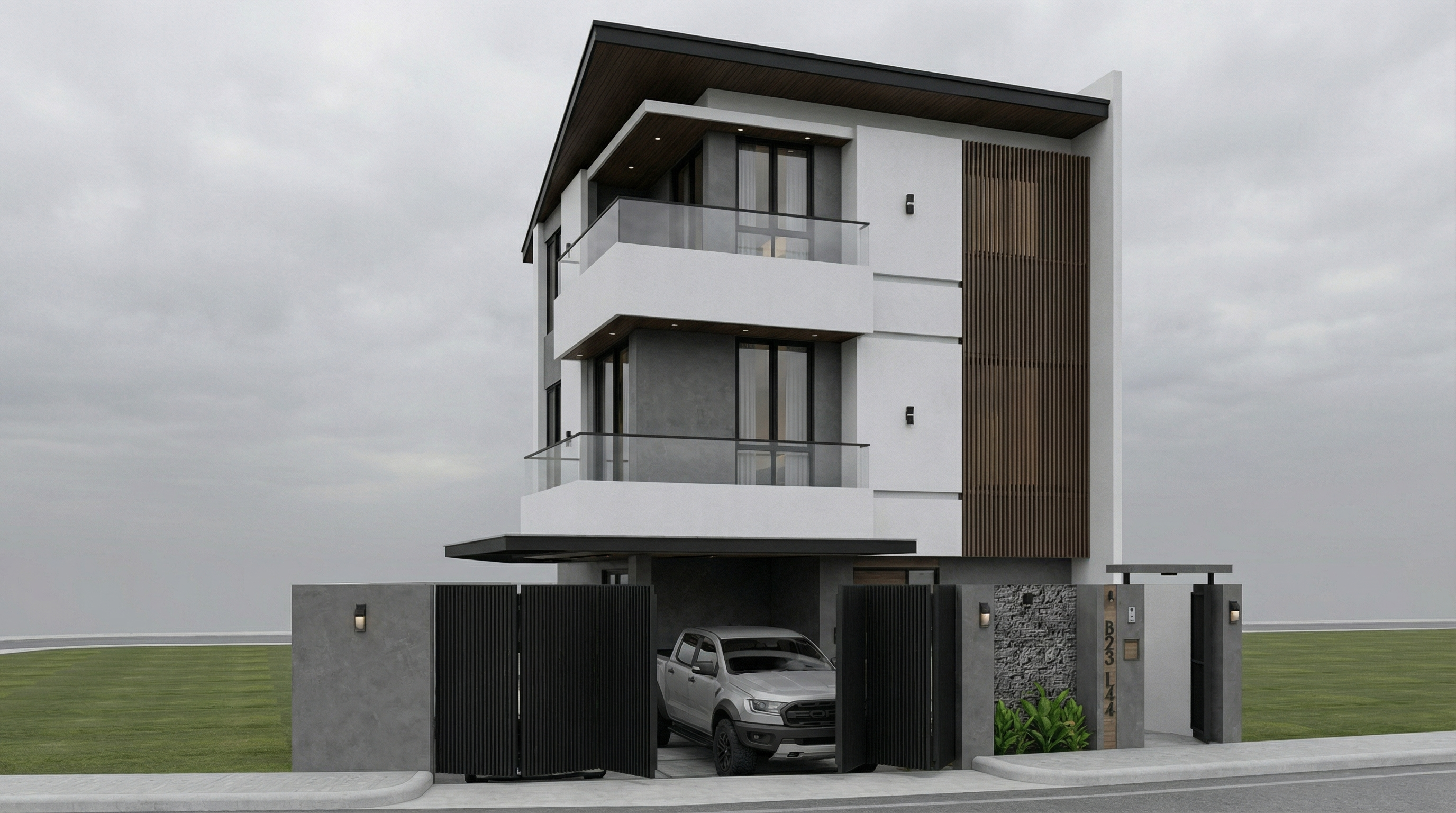
Result with Nano Banana Pro

PROMPT 6 — Night (ultra realistic)

Problem it solves: Night renders are hard to do well — the balance between the project's artificial lighting and the dark environment is the great challenge.

When to use: Projects with elaborate artificial lighting — commercial, high-end residential, restaurants, hotels. Night renders are often the most impactful for these.

The prompt:

Preserve 100% of the original architecture, materials, colors, textures, proportions, decorative elements, lighting fixtures, surrounding elements, landscaping, and camera angle. Do NOT add, remove, redesign, reposition, replace, or reinterpret any element. Transform the image into an ultra photorealistic nighttime architectural photograph. Simulate realistic night environmental conditions with accurate low-light exposure, natural darkness balance, and physically correct interaction between existing artificial lighting and surrounding shadows. Enhance realistic light falloff, warm and cool contrast balance, subtle reflections on glass surfaces, accurate ambient occlusion, soft shadow transitions, and volumetric light interaction where appropriate. Refine facade materials with realistic surface depth, micro imperfections, subtle reflection roughness variation, and true-to-life night photography exposure control. Professional architectural night photography style, balanced dynamic range, cinematic yet natural atmosphere, ultra high resolution, 8K detail.

What sets this prompt apart: “warm and cool contrast balance” and “light falloff” are the two parameters that make a night render look like a real photo. Warm light from fixtures vs. cool blue of the night ambient.
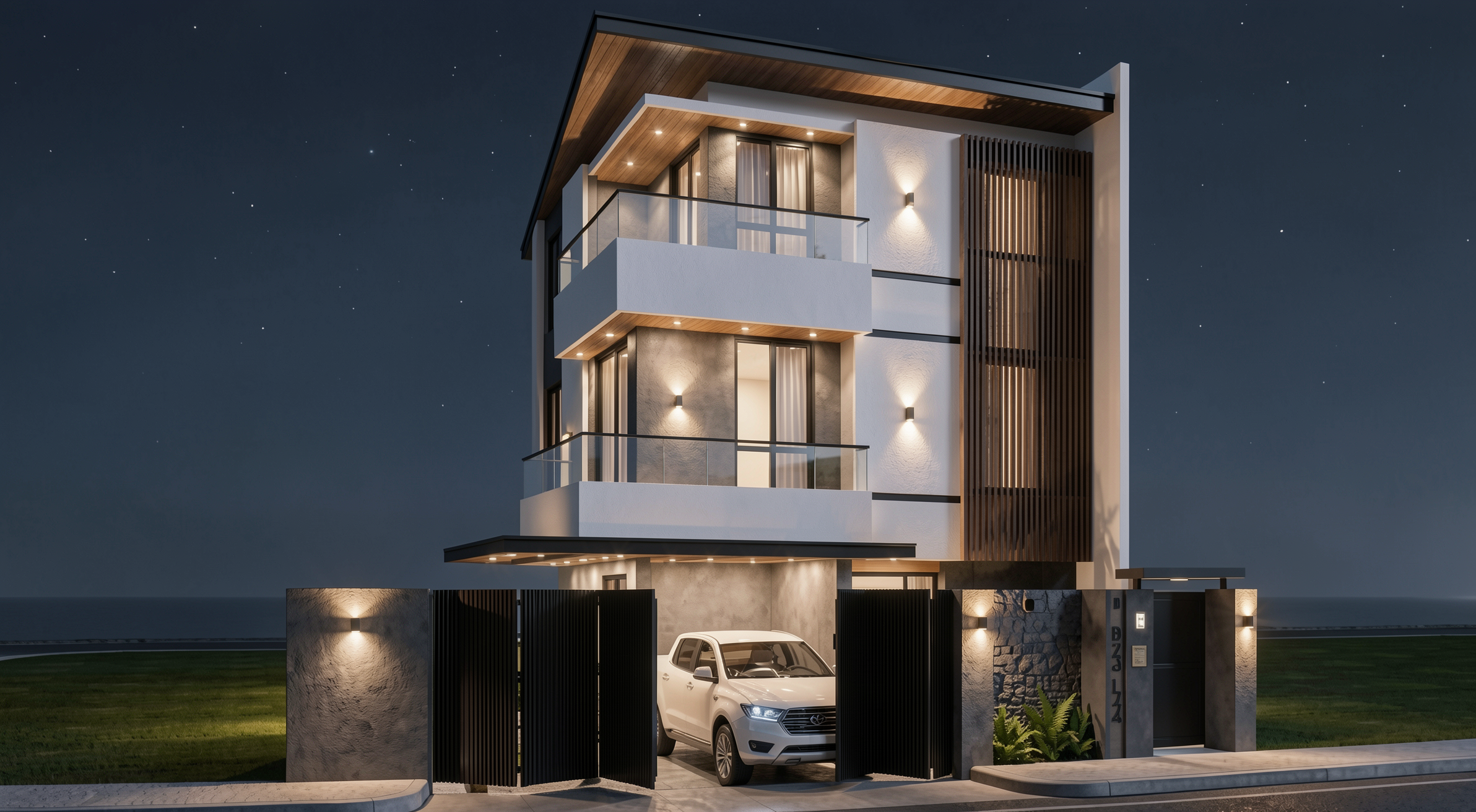
Result with Redraw
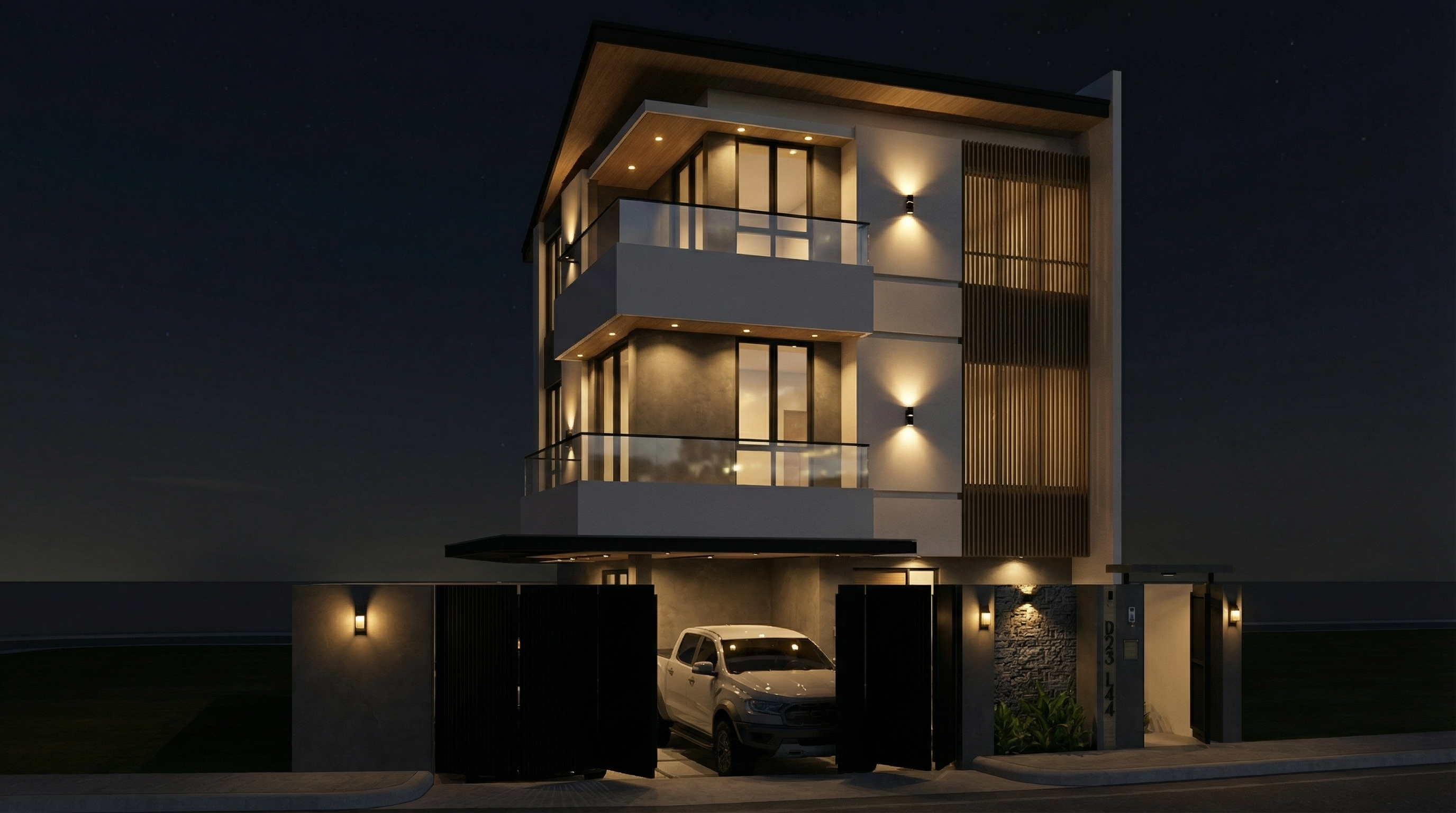
Result with Nano Banana Pro

PROMPT 7 — Blue hour (premium transition)

Problem it solves: Blue hour — that moment between end of day and full night — is the most sought-after timing in professional architectural photography. Ambient light still exists, but the project's artificial lights are already on. The contrast is cinematic.

When to use: Portfolios, high-impact presentations, projects with significant artificial lighting. It's the hardest render to do manually and one of the most efficient with AI.

The prompt:

Preserve 100% of the original architecture, materials, colors, textures, proportions, decorative elements, lighting fixtures, surrounding elements, landscaping, and camera angle. Do NOT alter any architectural or design element. Transform the scene into an ultra photorealistic blue hour architectural photograph. Balance residual ambient daylight with existing artificial lighting, creating realistic contrast between cool environmental tones and warm interior illumination. Enhance subtle reflections, soft shadow layering, atmospheric depth, physically accurate light diffusion, and realistic material response. Maintain cinematic yet natural color grading, professional camera exposure control, realistic dynamic range, and ultra high resolution 8K architectural photography quality.

What sets this prompt apart: “balance residual ambient daylight with existing artificial lighting” — this instruction is what creates the real blue hour contrast. Without it, the AI tends to go straight to night or day, with no transition.
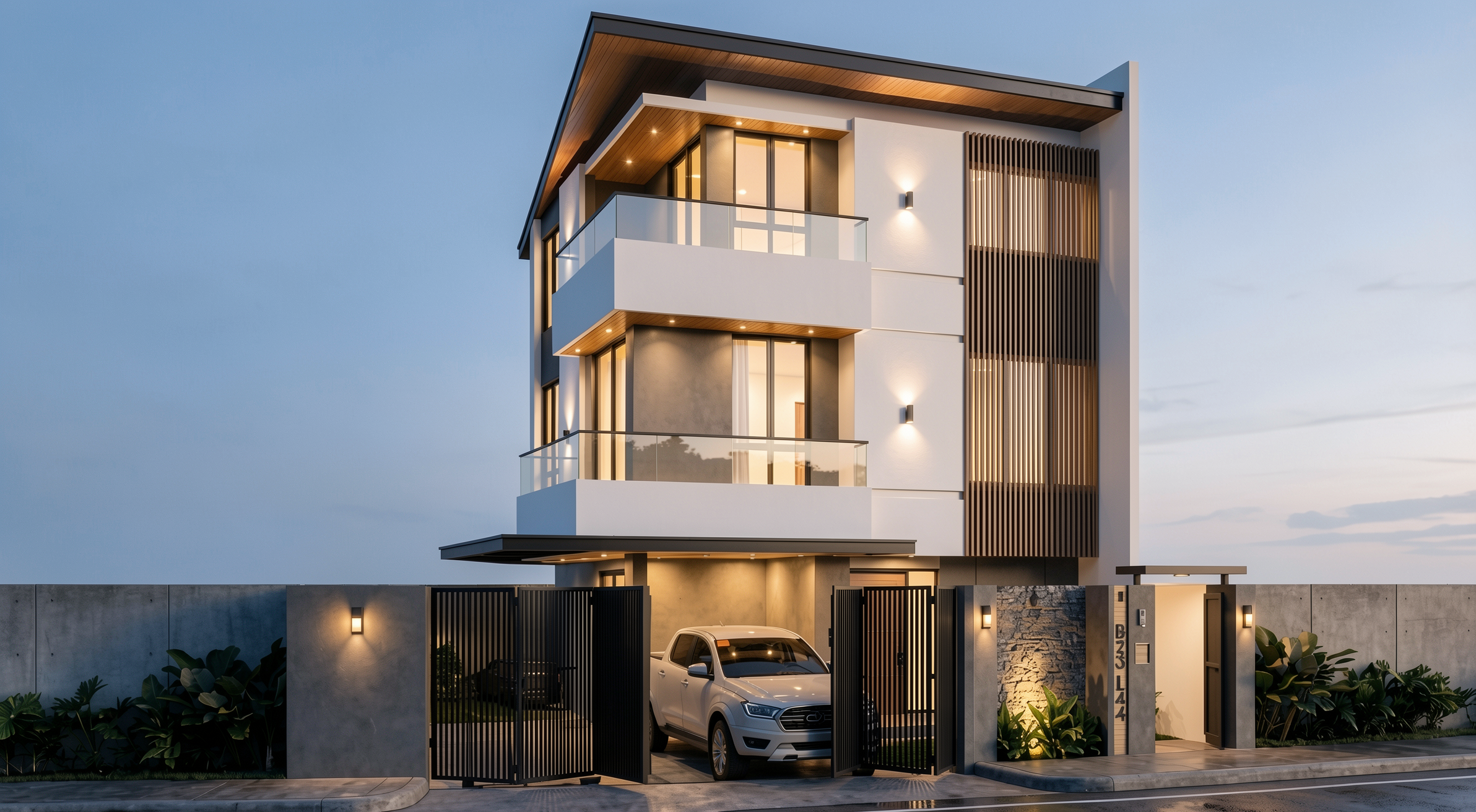
Result with Redraw
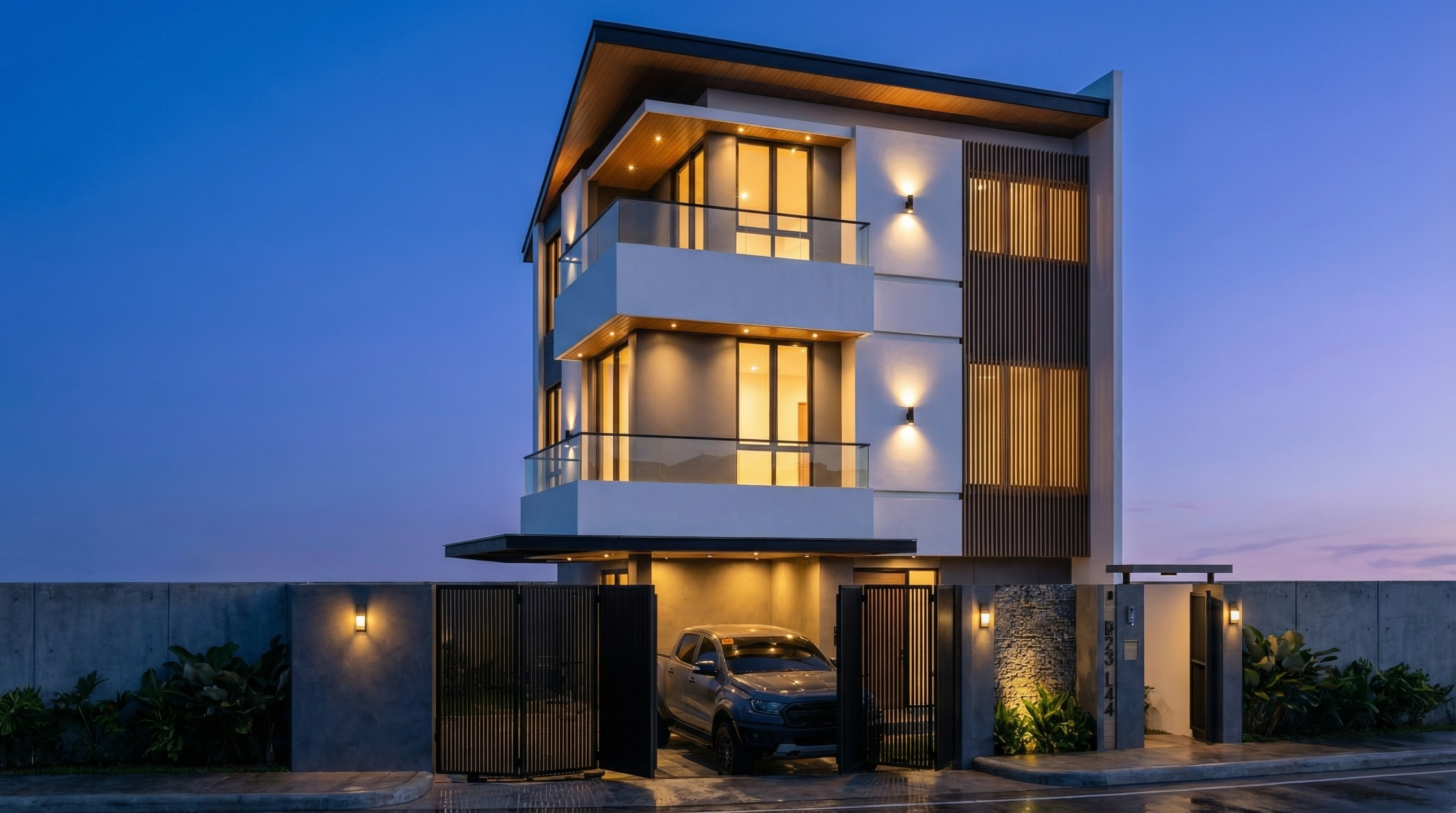
Result with Nano Banana Pro

AI change control system

Use these prompts together with any facade prompt above whenever the AI is altering elements it shouldn't.

Total change lock

Preserve 100% of the original architecture, layout, furniture placement, materials, colors, textures, decorative elements, proportions, lighting positions, and camera angle. Strictly forbid adding, removing, replacing, resizing, repositioning, or redesigning any element. The purpose of this transformation is ONLY to enhance realism, lighting behavior, and material response without altering the original design in any way.

Lighting design respect

Preserve the original lighting design exactly as shown in the image. Do not add new light sources, remove existing lights, or modify lighting positions. Only enhance realism through natural light diffusion, realistic light bounce, soft shadow transitions, and accurate material interaction with existing lighting.

Material protection

Preserve all original materials and textures exactly as shown. Do not replace, reinterpret, or stylize materials. Enhance realism only through improved surface detailing, micro imperfections, and physically accurate light response.

Which AI to use for facade renders?

For facade renders with full project fidelity, the recommendation is clear: Redraw.

Redraw processes the 3D facade model directly (SketchUp, Archicad, Revit, Rhino, 3DS), preserves the original geometry, and generates the render in 20 to 40 seconds. You choose the atmosphere — daytime, night, overcast, sunset — in clicks, with no need for long text prompts.

The prompts in this guide are ideal for those who want to explore and learn AI text control. For day-to-day office work, Redraw delivers the result without the learning curve.

Create your free Redraw account →

Share this article
Summary of the content
[

Blog

]

Related articles

Access Blog
Humanized Sections — stylized architectural illustration
Redraw
05.05.2026

Guide to Prompts for Humanized Sections with AI

Alexandre Kuhn
5 min of reading

Why humanized sections still win on architecture boards

The humanized section is one of the most valued representations in competition boards, academic presentations, and professional portfolios. It transforms a technical drawing into an illustration that communicates atmosphere, human scale, materiality, and design intent — without needing photorealism.

With AI, you can generate high-quality humanized sections in seconds. The challenge is keeping the original geometry intact while the AI applies the desired style. The prompts in this guide were developed exactly for that.

Important: These prompts are for text-based AI image generation tools, applied to the section drawing exported from your software. For photorealistic interior and facade renders, Redraw offers a more direct path — but for stylized sections, text prompts are the most efficient workflow today.

Before the prompts: why you don't need them in Redraw

Architects shouldn't need to learn machine language to generate professional representation. That premise guided how Redraw was built.

Instead of writing warm late-afternoon natural light, long shadows entering from the side, in Redraw you click “Sunset”.

Atmosphere & Mood in Redraw: lighting in one click, no long prompt.

Instead of describing suburban residential street with visible neighbors in the background, you select the scene directly in the visual interface.

Environment Selection in Redraw: scene in one click, no text description.

Every choice you'd make in a long prompt — lighting, environment, style, camera — becomes a click. And because Redraw was trained exclusively for architecture, the model already “understands” the project context without you having to explain.

“In Redraw, the less prompt users write, the better the results.”

For stylized humanized sections, the prompts in this guide remain the most efficient path — Redraw specializes in photorealistic interior and facade renders. The ideal combo: humanized sections with prompts + photorealistic renders with Redraw = complete board in minutes.

Comparison: text prompts vs. visual interface

FeatureText-Prompt ToolsRedraw
Prompt complexityHigh — requires technical, long structureLow — natural and simple language
Lighting controlBased on technical textBased on visual clicks (Atmosphere & Mood)
Environment controlBased on descriptive textBased on visual clicks (Environment Selection)
Fidelity to 3D projectVariable — depends on reference and promptHigh — processes the model geometry directly
Consistency between generationsLowHigh
User focusLearning to command the AIDescribing the architectural vision
Learning curveSteepFast and intuitive
Time per renderHigh (prompt + tweaking + post-production)Low (20–40 seconds, publishable result)

Before — technical section exported from software

PROMPT 1 — Graphic / editorial style

When to use: Competition boards, university presentations, professional portfolios where you want a modern, clean representation with strong visual identity.

Visual style: Limited palette, flat fills, graphic human silhouettes, simplified vegetation, neutral background.

The prompt:

Transform this architectural section drawing into a stylized humanized architectural illustration. Preserve 100% of the original geometry, proportions, walls, slabs, structure, openings and composition. Do NOT change or redesign any architectural element. Do NOT make it photorealistic. Apply a soft graphic representation style with: Flat color fills • Controlled limited color palette (monochromatic or earthy tones) • Light texture overlays • Soft shading instead of realistic shadows • Subtle depth separation between foreground and background • Simplified vegetation silhouettes • Minimal human silhouettes in a graphic style • Clean white or neutral background. Keep linework clean and architectural. Maintain section clarity and readability. Style reference: Architectural competition board illustration, Pinterest architectural section style, soft editorial graphic visualization. High resolution, elegant, minimal, refined presentation.

What makes this prompt effective:

  • Flat color fills — avoids heavy gradients that clutter the section
  • Controlled limited color palette — keeps visual cohesion on the board
  • Minimal human silhouettes in a graphic style — human figures as scale reference, not realistic elements
  • Maintain section clarity and readability — the AI cannot compromise the technical reading of the section

💡 Tip: If you want to specify a color palette, add: “Use [main color] as the primary accent color throughout the illustration.”

Result — Generated with Redraw

PROMPT 2 — Soft watercolor

When to use: Projects where you want to convey delicacy, humanity, and creative process. Very effective for residential, cultural, and educational architecture. Works very well on boards with white or kraft paper background.

Visual style: Hand-painted watercolor textures, muted natural palette, painted vegetation, subtle human figures, soft atmospheric depth.

The prompt:

Transform this architectural section drawing into a soft watercolor-style architectural illustration. Preserve 100% of the original geometry, structure, walls, slabs, openings, proportions and composition. Do NOT modify or redesign any architectural element. Avoid photorealism. Avoid 3D render appearance. Avoid strong contrast or dramatic lighting. Apply a delicate watercolor illustration style with: • Soft hand-painted textures • Light paper grain background • Muted natural color palette (warm beige, soft green, light brick, pale wood) • Subtle tonal variation instead of realistic shading • Very soft shadow indication • Gentle atmospheric depth • Light vegetation painted in watercolor style • Minimal human figures illustrated softly • Clean and calm architectural presentation. Keep the section readable and elegant. Architectural competition board style, artistic, refined, minimal, soft and atmospheric. High resolution, delicate textures, subtle detail, calm neutral mood.

What makes this prompt effective:

  • Avoid strong contrast or dramatic lighting — soft watercolor doesn't have aggressive contrast
  • Light paper grain background — simulates real watercolor paper
  • Muted natural color palette — the specific palette guides the AI to tones that work together

Result — Generated with Redraw

PROMPT 3 — Green monochromatic

When to use: When you want a strong and cohesive visual identity on the board, using a single color as accent. Green is the default color of this prompt, but it can be adapted.

Visual style: Neutral base (beige/off-white), sage/forest green accents only on structural elements (slab cuts, columns, frames), vegetation in desaturated greens, paper-textured background.

The prompt:

Transform this architectural section drawing into a refined graphic architectural illustration. Preserve 100% of the original geometry, structure, walls, slabs, openings, proportions and composition. Do NOT redesign or modify any architectural element. Avoid photorealism. Avoid 3D rendering. Keep it flat and graphic. Color treatment: Use a soft warm beige or light off-white tone for interior surfaces • Keep floors, walls and ceilings in light neutral tones • Apply muted sage or forest green ONLY to structural outlines, slab edges, columns and section cuts • Keep window frames and structural grid lines in green • Do NOT fill the entire building with green. Visual style: Light paper texture background • Soft subtle shadow indication (not realistic) • Clean linework • Minimal tonal variation • Graphic architectural competition board style. Add: Human silhouettes in muted green tone • Soft vegetation in desaturated green tones • Very light sky with subtle cloud shapes. Balanced composition, elegant, minimal and refined presentation. High resolution, calm architectural board aesthetic.

In architectural sections, highlighting only what is being cut (not the entire space) is the correct technical rule. The AI needs to receive this instruction explicitly.

Result — Generated with Redraw

PROMPT 4 — Universal with custom color

This is the most versatile prompt in the section library. It uses color placeholders you replace before sending — letting you create any visual identity without rewriting the prompt from scratch.

How to use: replace [PRIMARY COLOR] and [INTERIOR COLOR] with your choice before sending.

Combination examples:

  • [PRIMARY COLOR] → muted sage green | [INTERIOR COLOR] → warm beige
  • [PRIMARY COLOR] → terracotta red | [INTERIOR COLOR] → light sand
  • [PRIMARY COLOR] → deep navy blue | [INTERIOR COLOR] → soft ivory
  • [PRIMARY COLOR] → dusty rose | [INTERIOR COLOR] → off-white

The prompt:

Transform this architectural section drawing into a refined graphic architectural illustration. Preserve 100% of the original geometry, structure, walls, slabs, openings, proportions and composition. Do NOT redesign, reinterpret, move or modify any architectural element. Avoid photorealism. Avoid 3D rendering. Keep it flat and graphic. Color treatment: Use [PRIMARY COLOR] ONLY for structural outlines, slab edges, columns, section cuts and window frames. • Use [INTERIOR COLOR – usually beige, off-white or light neutral] for interior walls, floors and ceilings. • Do NOT fill the entire building with [PRIMARY COLOR]. • Interior spaces must remain predominantly [INTERIOR COLOR]. Visual style: Light paper texture background • Clean architectural linework • Minimal tonal variation • Soft subtle shadow indication (not realistic lighting) • Graphic architectural competition board style. Add: Human silhouettes in [PRIMARY COLOR] • Vegetation in softer desaturated tones of [PRIMARY COLOR] • Very light neutral sky with subtle cloud shapes. Balanced composition, elegant, minimal and refined presentation. High resolution, calm architectural board aesthetic.

You build the visual identity of an entire board with a two-word substitution. Visual consistency between all sections of the same project becomes trivial.

Result — Generated with Redraw

Tips for humanized sections with AI

  • Export the section in high resolution: the result quality depends on the input quality. At least 150 dpi, preferably 300 dpi.
  • Black lines, white background: make sure the section has clean and readable lines on white background before sending.
  • Simple sections work better: the cleaner the input, the more predictable the result. If the section has many details, simplify first.
  • Combine prompts: use the style + Total Lock prompt if the AI is altering geometry.

AI change control system

These prompts protect the original geometry when the AI tries to redesign the section.

Total change lock

Preserve 100% of the original architecture, layout, furniture placement, materials, colors, textures, decorative elements, proportions, lighting positions, and camera angle. Strictly forbid adding, removing, replacing, resizing, repositioning, or redesigning any element. The purpose of this transformation is ONLY to enhance realism, lighting behavior, and material response without altering the original design in any way.

Material protection

Preserve all original materials and textures exactly as shown. Do not replace, reinterpret, or stylize materials. Enhance realism only through improved surface detailing, micro imperfections, and physically accurate light response.

Lighting design respect

Preserve the original lighting design exactly as shown in the image. Do not add new light sources, remove existing lights, or modify lighting positions. Only enhance realism through natural light diffusion, realistic light bounce, soft shadow transitions, and accurate material interaction with existing lighting.

Which AI to use for humanized sections?

For stylized humanized sections, text-based AI image generation tools are the most efficient path today — the prompts in this guide were built for this workflow.

For photorealistic interior and facade renders — which often accompany boards with sections — Redraw is the fastest and most faithful tool to the original project.

Strategic combination: humanized sections with text prompts + photorealistic renders with Redraw = complete board with professional quality.

Create your free Redraw account →

Prompts for Interiors - photorealistic render
Redraw
05.05.2026

Complete Guide to Prompts for Interior Renders with AI

Alexandre Kuhn
5 min of reading

Why mastering prompts for interior renders changes everything

Mastering prompts for interior renders is one of the most valuable skills an architect or designer can develop when working with generative AI. A well-crafted prompt is the difference between a generic result and a render that faithfully preserves the project, materials, and desired atmosphere.

This guide brings together the most widely used professional prompts for rendering interior spaces — from living rooms to bathrooms, from inserting people to animals. For each prompt, you'll understand what it does, when to use it, and how to adapt it to your project.

Important note: These prompts were developed for text-based AI image generation tools. If you use Redraw, you don't need long prompts — the platform was built specifically for architecture and does this work for you in clicks, using the best integrated AIs like ChatGPT and Nano Banana.

Before the prompts: why you don't need them in Redraw

Redraw was built on a different premise: architects shouldn't need to learn machine language to generate a professional render.

Instead of writing warm late-afternoon natural light, long soft shadows entering from the side, in Redraw you click “Sunset”.

Redraw interface with click-based lighting selection

Atmosphere & Mood in Redraw: lighting in one click, no long prompt.

Instead of describing suburban residential street with visible neighbors in the background, you select the scene directly in the visual interface.

Redraw interface with click-based environment selection

Environment Selection in Redraw: scene in one click, no text description.

Every choice you'd make in a long prompt — lighting, environment, style, camera — becomes a click. And because Redraw was trained exclusively for architecture, the model already “understands” the project context without you having to explain.

“In Redraw, the less prompt users write, the better the results.”

Comparison: text prompts vs. visual interface

FeatureText-Prompt ToolsRedraw
Prompt complexityHigh — requires technical, long structureLow — natural and simple language
Lighting controlBased on technical textBased on visual clicks (Atmosphere & Mood)
Environment controlBased on descriptive textBased on visual clicks (Environment Selection)
Fidelity to 3D projectVariable — depends on reference and promptHigh — processes the model geometry directly
Consistency between generationsLowHigh
User focusLearning to command the AIDescribing the architectural vision
Learning curveSteepFast and intuitive
Time per renderHigh (prompt + tweaking + post-production)Low (20–40 seconds, publishable result)

The prompts in this guide remain valuable — understanding the logic makes you a more strategic user of any tool. But if you want to skip the learning curve and go straight to the result, Redraw solves it in clicks.

PART 1 — Photorealistic Realism (Without Altering the Design)

The Master Realism Prompt

This is the base prompt for when you want to transform any project image into an ultra-realistic architectural photograph without modifying any element of the original design. It's the starting point for most workflows.

When to use: You have a simple render (SketchUp, Revit, or even a photo of the physical model) and want to elevate realism without risking the AI "inventing" elements.

The prompt:

Transform this image into an ultra photorealistic architectural photograph. Preserve 100% of the original architecture, layout, furniture placement, materials, colors, textures, proportions, decorative elements, and camera angle. Do NOT add, remove, redesign, or replace any element. Enhance realism only through: Physically accurate global illumination • Natural light behavior and realistic light bounce • Soft and natural shadow gradients • Ray traced reflections and refractions • Real-world material response. Apply subtle micro imperfections such as: Fabric fiber details • Natural wood grain variation • Slight surface irregularities • Minimal dust particles • Realistic glass reflections and transparency. Professional architectural photography style, balanced HDR exposure, natural color grading, cinematic yet realistic atmosphere. Ultra high resolution, 8K detail.

What each part does:

  • Preserve 100% of the original — locks the geometry and composition of the project
  • Enhance realism only through — directs the AI to improve only physical lighting
  • Micro imperfections — what differentiates a render from a real photo
  • 8K detail — ensures resolution for printing and presentation

Original render

Before — original project image

Nano Banana

Result with Nano Banana

Redraw

Result with Redraw

PART 2 — Prompts by Room Type

2.1 High-End Living Room — Editorial Luxury

When to use: High-end residential projects where the client expects results with architectural magazine quality.

The prompt:

Create an ultra photorealistic luxury living room interior. Preserve 100% of the original architectural design, layout, furniture placement, materials, colors, and proportions. Enhance realism using physically accurate global illumination, natural daylight behavior, ray traced reflections, and soft shadow gradients. Apply high-resolution textures with micro imperfections such as fabric fibers, natural wood grain variation, subtle surface irregularities, minimal dust particles, and realistic glass reflections. Professional architectural editorial photography style, HDR balance, cinematic yet natural color grading, soft ambient occlusion, realistic depth of field, balanced white exposure. Ultra high resolution, 8K detail, interior magazine quality.

The instruction interior magazine quality calibrates the AI for editorial publication — more balanced lighting, more refined color grading, subtle depth of field.

Nano

Result with Nano Banana

Redraw

Result with Redraw

2.2 Minimalist Contemporary Living Room

When to use: Projects with a neutral palette, clean geometry, and calm atmosphere.

The prompt:

Create an ultra photorealistic minimalist contemporary living room interior. Neutral color palette, clean geometry, calm and elegant atmosphere. Preserve the original layout, furniture positioning, materials, and lighting concept. Enhance realism with soft natural light, accurate light bounce, subtle reflections, and realistic shadow softness. Apply smooth plaster walls with minimal imperfections, refined fabric textures, and matte surface response. Professional interior photography style, HDR lighting, natural white balance, 8K ultra detailed render.

Nano

Result with Nano Banana

Redraw

Result with Redraw

2.3 General Lighting Realism

When to use: The project already has good rendering quality, but the lighting needs refinement.

The prompt:

Enhance lighting realism while preserving the original lighting design. Improve natural light diffusion, realistic light bounce, and soft shadow transitions. Maintain balanced contrast, natural brightness distribution, and physically accurate light interaction with all materials. Avoid overexposure and maintain realistic color balance.

Nano

Result with Nano Banana

Redraw

Result with Redraw

2.4 Cozy Atmosphere — Universal

When to use: Any indoor environment where you want to create a sense of warmth, comfort, and welcome.

The prompt:

Enhance the scene with a warm and inviting lighting atmosphere. Introduce subtle warmth into the lighting while maintaining realistic intensity and shadow behavior. Ensure smooth light gradients and comfortable visual balance without altering the original lighting composition.

Nano

Result with Nano Banana

Redraw

Result with Redraw

2.5 Night Atmosphere — Universal

When to use: Project presentations where the night environment is important.

The prompt:

Adjust the scene to simulate a realistic low-light environment. Enhance contrast between illuminated areas and darker surroundings while preserving natural light behavior. Maintain realistic reflections, ambient occlusion, and natural color balance suitable for evening environments.

Nano

Result with Nano Banana

Redraw

Result with Redraw

PART 3 — Material Realism

The prompt:

Enhance natural materials with realistic surface variation, subtle tonal inconsistencies, micro texture detailing, and physically accurate light response. Maintain authentic material depth and natural imperfections.

Nano

Result with Nano Banana

Redraw

Result with Redraw

PART 4 — Universal Prompts by Room

4.1 Living Room — Universal

Preserve 100% of the original architecture, layout, furniture placement, materials, colors, textures, proportions, decorative elements, lighting positions, and camera angle. Do NOT add, remove, redesign, or replace any element. Enhance realism through physically accurate global illumination, natural light behavior, realistic reflections, soft shadow gradients, real-world material response, subtle micro imperfections, balanced HDR exposure, natural color grading, and professional architectural photography quality. Enhance this living environment by improving spatial comfort perception, material depth, texture clarity, and visual harmony while maintaining a welcoming and sophisticated atmosphere.

For exemplification, the AI model used was Nano Banana Pro — in models like Redraw V4, the results may be different and superior.

4.2 Dining Room — Universal

Preserve 100% of the original architecture, layout, furniture placement, materials, colors, textures, proportions, decorative elements, lighting positions, and camera angle. Do NOT add, remove, redesign, or replace any element. Enhance realism through physically accurate global illumination, natural light behavior, realistic reflections, soft shadow gradients, real-world material response, subtle micro imperfections, balanced HDR exposure, natural color grading, and professional architectural photography quality. Enhance this dining environment by improving visual elegance, material refinement, lighting balance, and spatial clarity while maintaining a comfortable and sophisticated atmosphere.

For exemplification, the AI model used was Nano Banana Pro — in models like Redraw V4, the results may be different and superior.

4.3 Kitchen — Universal

Preserve 100% of the original architecture, layout, furniture placement, materials, colors, textures, proportions, decorative elements, lighting positions, and camera angle. Do NOT add, remove, redesign, or replace any element. Enhance realism through physically accurate global illumination, natural light behavior, realistic reflections, soft shadow gradients, real-world material response, subtle micro imperfections, balanced HDR exposure, natural color grading, and professional architectural photography quality. Enhance this kitchen environment by improving surface clarity, reflective material behavior, texture realism, and spatial definition while maintaining functional clarity and visual sophistication.

For exemplification, the AI model used was Nano Banana Pro — in models like Redraw V4, the results may be different and superior.

4.4 Bedroom — Universal

Preserve 100% of the original architecture, layout, furniture placement, materials, colors, textures, proportions, decorative elements, lighting positions, and camera angle. Do NOT add, remove, redesign, or replace any element. Enhance realism through physically accurate global illumination, natural light behavior, realistic reflections, soft shadow gradients, real-world material response, subtle micro imperfections, balanced HDR exposure, natural color grading, and professional architectural photography quality. Enhance this sleeping environment by improving lighting softness, material comfort perception, fabric detailing, and spatial depth while maintaining a calm and relaxing atmosphere.

For exemplification, the AI model used was Nano Banana Pro — in models like Redraw V4, the results may be different and superior.

4.5 Bathroom — Universal

Preserve 100% of the original architecture, layout, furniture placement, materials, colors, textures, proportions, decorative elements, lighting positions, and camera angle. Do NOT add, remove, redesign, or replace any element. Enhance realism through physically accurate global illumination, natural light behavior, realistic reflections, soft shadow gradients, real-world material response, subtle micro imperfections, balanced HDR exposure, natural color grading, and professional architectural photography quality. Enhance this bathroom environment by improving reflective surface behavior, material detailing, lighting clarity, and clean spatial perception while maintaining refined visual realism.

For exemplification, the AI model used was Nano Banana Pro — in models like Redraw V4, the results may be different and superior.

PART 5 — Inserting Human and Animal Elements

5.1 Realistic Person Insertion

The prompt:

Add a realistic human presence into the scene while preserving 100% of the original architecture, layout, furniture placement, materials, lighting setup, composition, and camera angle. Do NOT modify, remove, redesign, or reposition any architectural or decorative element. The human figure must complement the scene naturally and realistically.

Model: Nano Banana Pro

5.2 Person in Motion (Motion Blur)

The prompt:

Preserve 100% of the original architecture, materials, colors, textures, lighting, furniture placement, proportions, decorative elements, composition and camera angle. Do NOT modify, redesign, reposition, remove, enhance or reinterpret any element of the image. Only add a realistic human silhouette passing in front of the camera, creating a subtle motion blur effect. The person must appear naturally integrated into the scene, as if walking across the frame during a real photograph. The human figure must: Be slightly translucent (70–85% opacity) • Have vertical motion blur consistent with walking movement • Show soft directional blur edges (no hard outline) • Maintain realistic scale relative to the environment • Respect the existing lighting direction • Cast a subtle, soft, slightly blurred contact shadow on the floor. Ultra realistic integration. Professional architectural photography style.

Model: Nano Banana Pro

5.3 Cat Insertion

The prompt:

Preserve 100% of the original architecture, layout, furniture placement, materials, colors, textures, proportions, decorative elements, lighting positions, and camera angle. Do NOT modify, remove, or redesign any existing element. Insert a realistic cat naturally integrated into the environment. The cat must have physically accurate fur texture, natural body proportions, realistic shadows, and correct interaction with the existing lighting conditions.

Model: Nano Banana Pro

5.4 Dog Insertion

The prompt:

Preserve 100% of the original architecture, layout, furniture placement, materials, colors, textures, proportions, decorative elements, lighting positions, and camera angle. Do NOT modify, remove, or redesign any existing element. Insert a realistic dog naturally integrated into the environment. The dog must display accurate fur detailing, realistic anatomy, proper scale, and physically accurate shadow behavior according to the existing lighting conditions.

Model: Nano Banana Pro

AI Change Control System

The prompts below are complementary — they don't generate images on their own, but when added to the beginning or end of your main prompt, they act as a safety lock.

Total Change Lock

Use when: The AI keeps changing layout, furniture, or proportions.

Preserve 100% of the original architecture, layout, furniture placement, materials, colors, textures, decorative elements, proportions, lighting positions, and camera angle. Strictly forbid adding, removing, replacing, resizing, repositioning, or redesigning any element. The purpose of this transformation is ONLY to enhance realism, lighting behavior, and material response without altering the original design in any way.

Lighting Design Respect

Use when: The AI is ignoring the original lighting design and creating new light sources.

Preserve the original lighting design exactly as shown in the image. Do not add new light sources, remove existing lights, or modify lighting positions. Only enhance realism through natural light diffusion, realistic light bounce, soft shadow transitions, and accurate material interaction with existing lighting.

Material Protection

Use when: The AI is replacing or reinterpreting the project's materials.

Preserve all original materials and textures exactly as shown. Do not replace, reinterpret, or stylize materials. Enhance realism only through improved surface detailing, micro imperfections, and physically accurate light response.

Which AI to use for interior renders?

The prompts in this guide work with any text-based AI image generation tool. For interior renders with project fidelity, we recommend Redraw — the only platform built specifically for architecture. You upload the 3D model (SketchUp, Archicad, Revit, Rhino, 3DS), select the style and environment in clicks, and the render comes out in 20 to 40 seconds with fidelity to the original project.

Create your free Redraw account →

How to write AI prompts for architecture rendering — complete guide
Redraw
04.05.2026

How to Write AI Prompts for Architecture Rendering: Complete Guide for Architects

Alexandre Kuhn
5 min of reading

Why generic AI prompts fail in architectural rendering

If you've ever tried to render a project using an AI image generator, you've probably run into the same problem: the result doesn't look like what you had in mind. The lighting came out wrong, the geometry shifted, the style turned generic. And the fix everyone suggests is always the same — "improve your prompt."

But what actually makes a good prompt for architecture rendering? What do you need to write, in what order, and why? This guide breaks down the complete anatomy of an effective prompt for AI image tools like Nano Banana — and shows, at the end, why Redraw was built to eliminate this complexity from the architect's daily workflow.

What is a rendering prompt and why it matters

In text-based AI image tools, the prompt is the only communication channel between you and the model. The more precise and structured it is, the more control you have over the result.

For general use — creating an illustration, generating a texture, exploring a visual concept — a simple prompt works fine. But for technical architectural rendering, where you need to preserve geometry, control lighting, and guarantee project fidelity, a shallow prompt almost always fails.

The good news: there's a proven structure. And mastering it completely changes the output.

The anatomy of a complete AI prompt for architecture rendering

An effective prompt for architectural rendering isn't a sentence — it's a sequence of information layers. Each layer instructs the AI on a different aspect of the final image.

ComponentWhat it doesApplied example
CommandDefines the main action the AI must performRender this image / Turn this model into a photorealistic render
ContextDescribes the general scene environmentContemporary living room interior / Corner-lot residential facade
General ReferenceSpecifies the architectural style and what must be preservedBrazilian minimalist architecture, preserving the original layout and geometry
Realism RulesTechnical parameters controlling visual fidelityNo geometry alteration, PBR materials, global illumination, ray tracing
PhotographySimulates real camera settings24mm lens, eye level, high sharpness, subtle depth of field
CompositionDefines framing and visual principlesRule of thirds, balanced framing, clean space without distracting elements
LightingDescribes light quality, direction, and temperatureSoft morning natural light, entering through side windows, neutral to cool temperature

How each component affects the result

Command: It seems obvious, but different tools interpret commands differently. "Render" tells the AI to treat the image as a technical reference. "Create" or "Imagine" allow more creative freedom — which is a problem for project rendering.

Context: Without clear context, the AI fills gaps with its own "assumptions" based on training data. An interior without context can turn into a generic hotel room. Specify the environment type, the use, and the scale.

General Reference: This layer is critical for architectural projects. Explicitly instruct the AI to not alter what shouldn't be changed. Most fidelity errors happen because this instruction is absent.

Realism Rules: Technical terms like global illumination, ray tracing, physically-based rendering activate specific parameters in AI models that produce more photorealistic results. Without them, the output tends to look like a digital illustration, not a render.

Photography: The camera is the observer's point of view. A wide-angle lens (24mm, 28mm) gives scale and breadth — ideal for interiors and facades. Eye level creates a natural perspective. Subtle depth of field adds realism without distracting from the project.

Composition: Framing matters as much in rendering as in photography. Instructing the AI on composition avoids cropped, off-center results or unwanted elements in the foreground.

Lighting: This is the layer with the greatest impact on final realism. Describe the time of day (morning, afternoon, sunset), the light source (natural, artificial, mixed), the direction (lateral, zenithal, diffuse), and the color temperature (warm, neutral, cool). The more specific, the less the AI "invents."

Building the complete prompt: a real example

Applying all layers in sequence, a functional prompt for interior rendering looks like this:

"Render this image of a contemporary living room interior, minimalist architecture, preserving the original layout without altering the geometry, with realistic materials and global illumination, in professional architectural photography with a 24mm lens, eye level, high sharpness, subtle depth of field, balanced framing with rule of thirds, soft morning natural light entering through side windows, neutral temperature, realistic to the point of being indistinguishable from a real photograph."

It's an effective prompt — but also a long, technical one that takes practice to build. For each project, each angle, each space, you repeat this process.

When the prompt is enough — and when it isn't

Mastering prompts is a valid skill, especially for creative exploration, moodboards, and concept generation. But for professional, day-to-day use in architecture firms, there are structural limitations no prompt solves:

  • The AI doesn't read the 3D model — it interprets a reference image. This means the project's geometry is always at risk of being reinterpreted.
  • Consistency across generations is low. Two identical prompts rarely produce the same result.
  • The time spent adjusting and refining prompts can exceed the time the render saves.
  • Text prompts can't precisely control parameters like camera angle, light intensity, or material finish.

For occasional exploration, the prompt-based workflow works. For recurring project render production, the cost-benefit equation shifts.

The visual interface: what Redraw does differently

Redraw was built on a different premise: architects shouldn't need to learn machine language to generate a professional render.

Instead of writing warm late-afternoon natural light, long soft shadows, entering laterally, in Redraw you click "Sunset."

Redraw interface showing visual lighting selection by click

Instead of describing suburban residential street with neighbors visible in the background, you select the environment directly in the visual interface.

Redraw interface showing environment selection by click

Every choice you'd make in a long prompt — lighting, environment, style, camera — becomes a click. And since Redraw was trained exclusively for architecture, the model already "understands" the project context without you having to explain it.

"In Redraw, the less prompt users add, the better the results."

Comparison: text prompts vs. visual interface

FeatureText Prompt ToolsRedraw
Prompt ComplexityHigh — requires long technical structureLow — natural, simple language
Lighting ControlText-based, technicalVisual clicks (Atmosphere & Mood)
Environment ControlText-based, descriptiveVisual clicks (Environment Selection)
3D Project FidelityVariable — depends on reference and promptHigh — processes model geometry directly
Consistency Across GenerationsLowHigh
User FocusLearning to command the AIDescribing the architectural vision
Learning CurveSteepFast and intuitive
Time per RenderHigh (prompt + adjustments + post-production)Low (20–40 seconds, publishable result)

FAQ — Frequently asked questions about AI prompts for architecture rendering

What is an AI prompt for architecture rendering?

A prompt is the text command you send to an AI image generator. For architecture rendering, an effective prompt must include: environment type, architectural style, realism parameters, camera settings, composition, and lighting. The more specific and structured, the closer the result to what you need.

Which keywords improve a rendering prompt?

For more realistic results, include terms like global illumination, ray tracing, physically-based rendering, architectural photography, photorealistic, 35mm lens, natural light. These activate specific parameters in AI models that increase visual fidelity.

Why doesn't my prompt preserve the project's geometry?

Because text-based AI image tools don't process 3D models — they interpret reference images. The geometry is never fully protected, even with explicit instructions like "do not alter the layout." For project-faithful rendering, tools that integrate the 3D model directly — like Redraw — are more reliable.

Is it worth learning to write rendering prompts?

It depends on the use case. For creative exploration, moodboards, and concept generation, yes — it's a useful skill. For recurring project render production in a firm, the time cost of prompt tuning tends to outweigh the benefit. Specialized tools deliver more output with less effort.

Does Redraw use prompts?

Redraw accepts natural language prompts, but doesn't rely on them to produce quality results. Most control — lighting, environment, style, camera — is done through visual interface clicks. The model was trained for architecture, so it understands the project context without needing detailed text input.

What's the difference between Nano Banana and Redraw for architectural rendering?

Nano Banana is an AI generation tool that operates from text prompts — versatile, but generic. For architectural project rendering with technical fidelity, Redraw was built specifically for this: it processes the 3D model, preserves geometry, and delivers publishable results in 20 to 40 seconds, without the prompt learning curve. (For a direct comparison between generic and specialized AI, see Redraw vs Midjourney for architecture.)

Conclusion

Knowing how to build a structured prompt is a real advantage when using AI image tools. This guide covers enough to start producing better results immediately — understanding what each prompt layer does and why it matters.

But mastering prompts has a ceiling. For architects who need project-faithful, consistent, fast renders every day, there's a more direct approach: an AI trained to understand architecture without you having to spell it out in machine language.

That's exactly what Redraw was built for.

Create your free Redraw account →