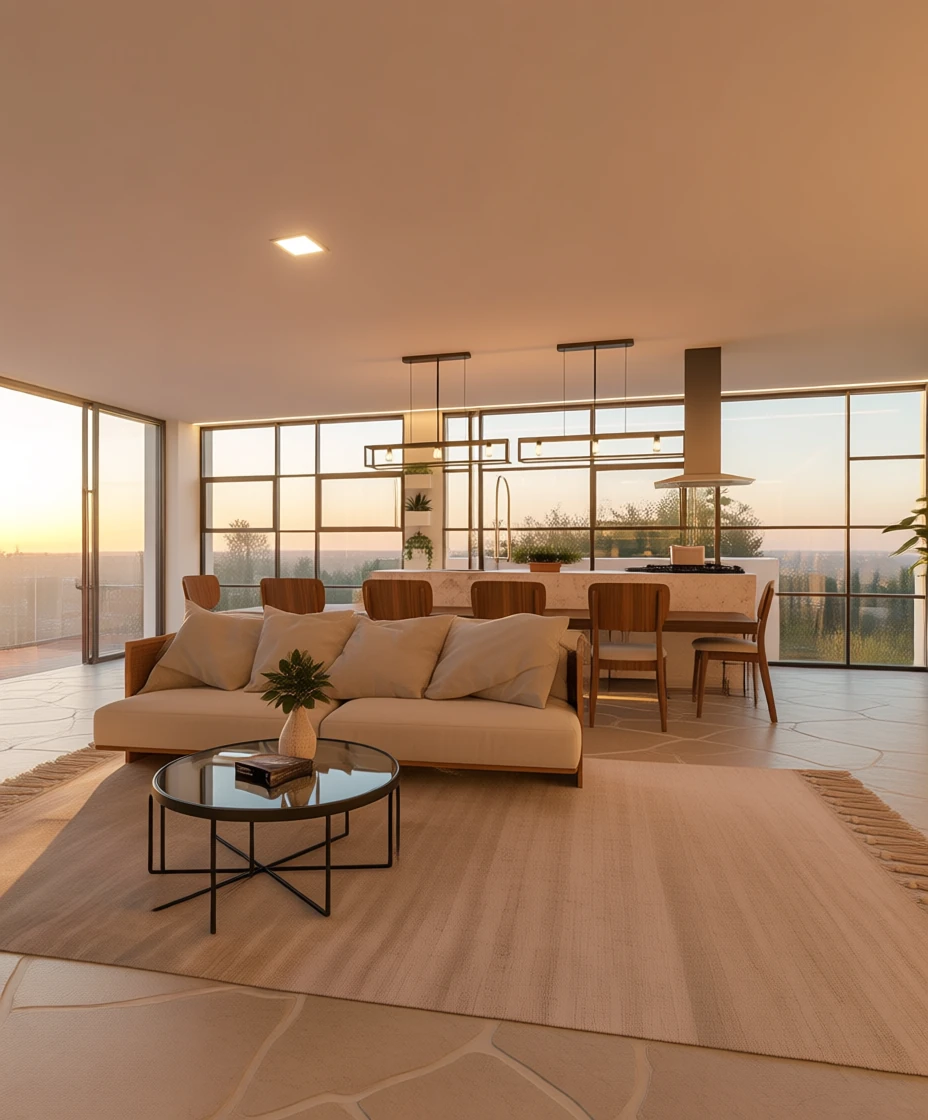
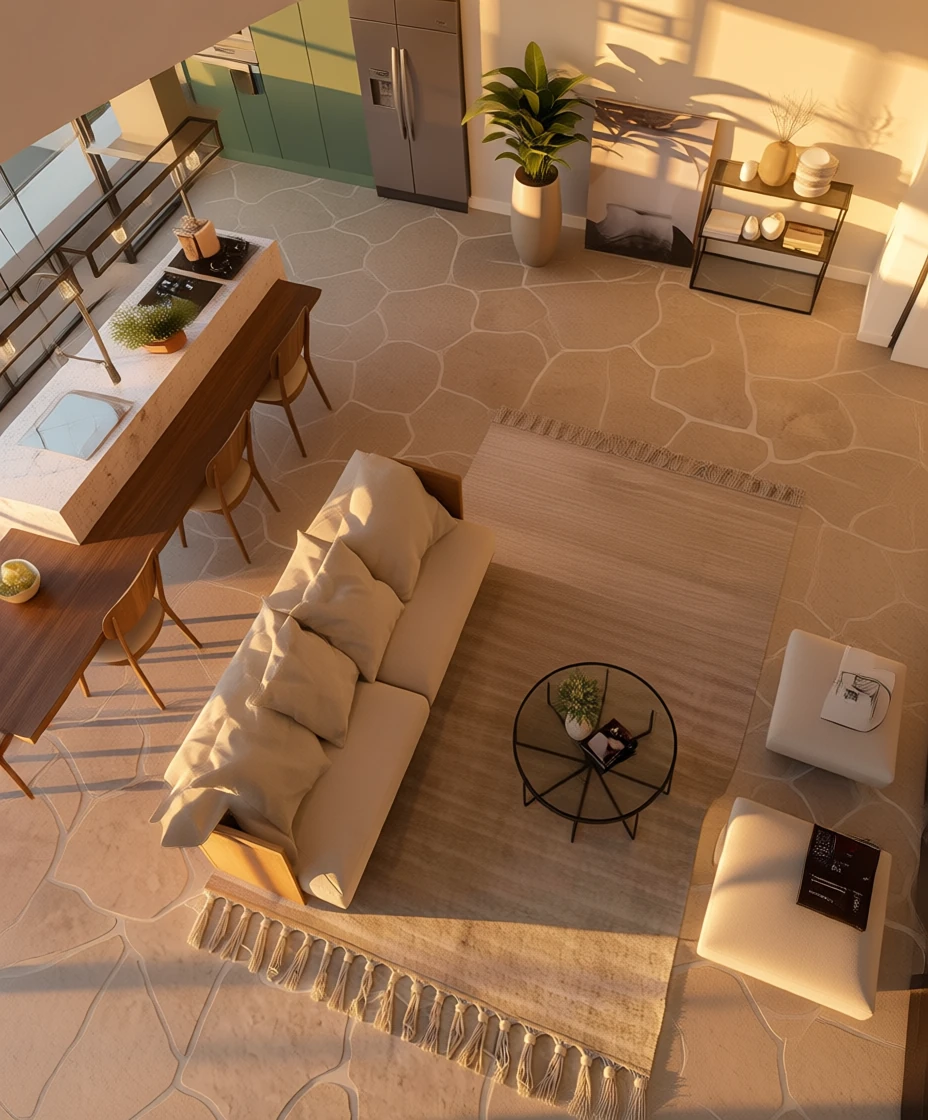
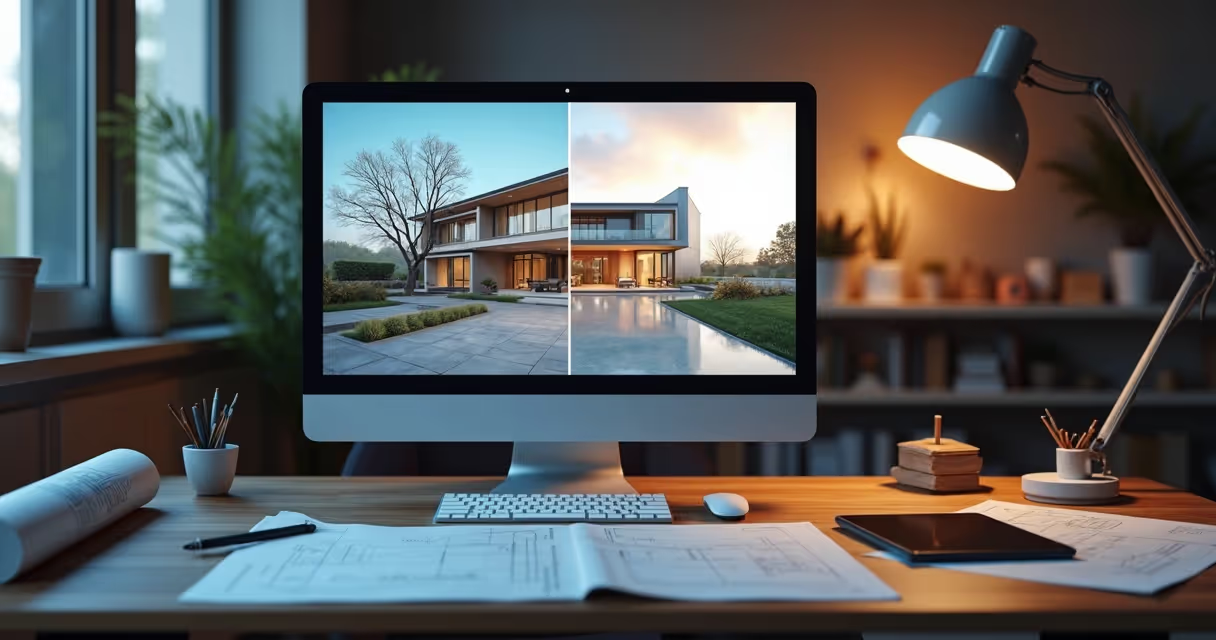
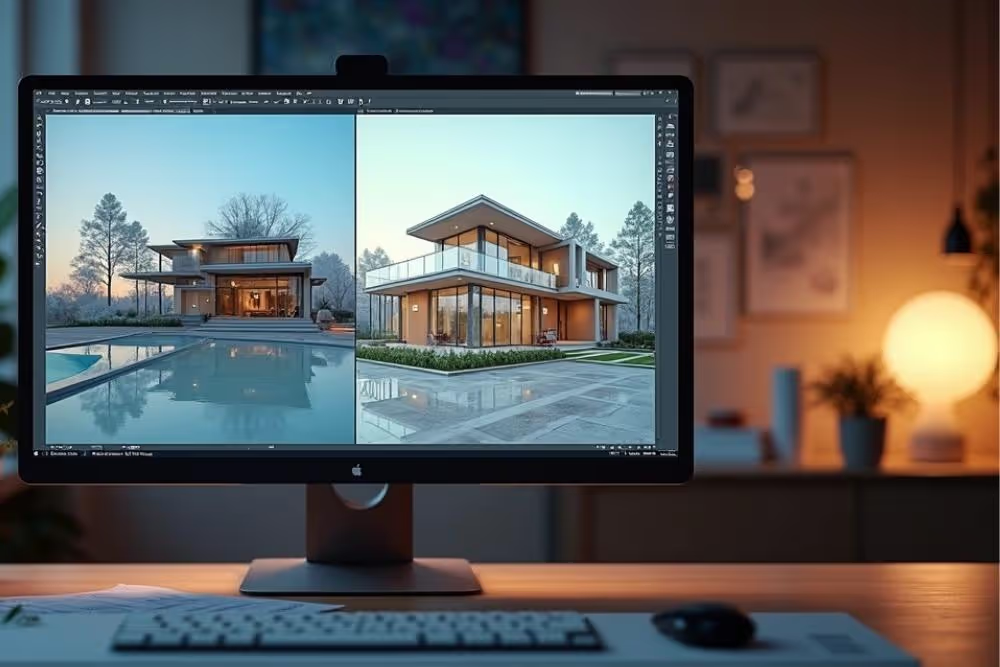
Redraw is the largest AI rendering platform for architecture in Latin America. Over 200,000 registered professionals, more than 800,000 renders generated per month, winner of South Summit 2026 in the Digital & Tech Solutions category. And it all started in Brazil.
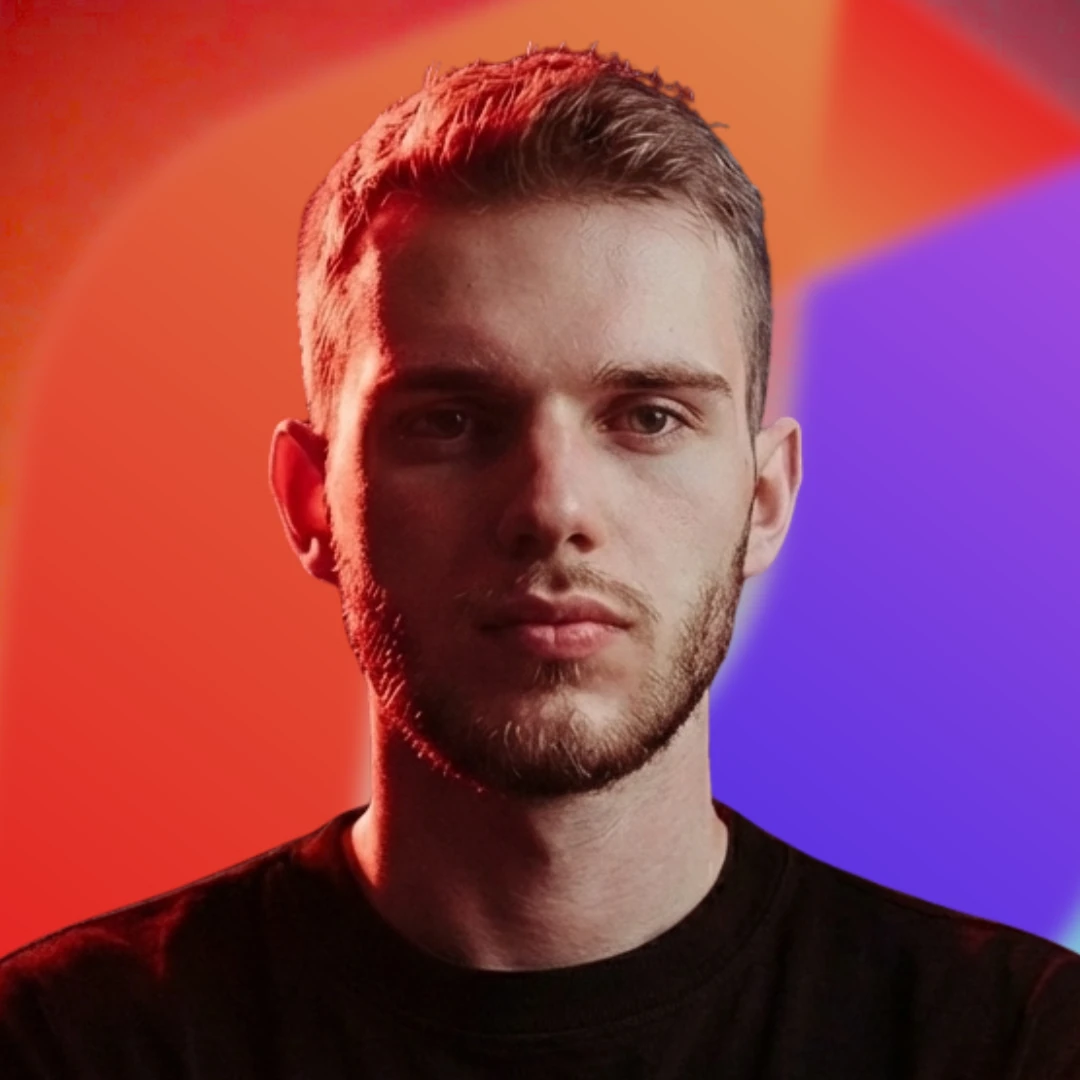
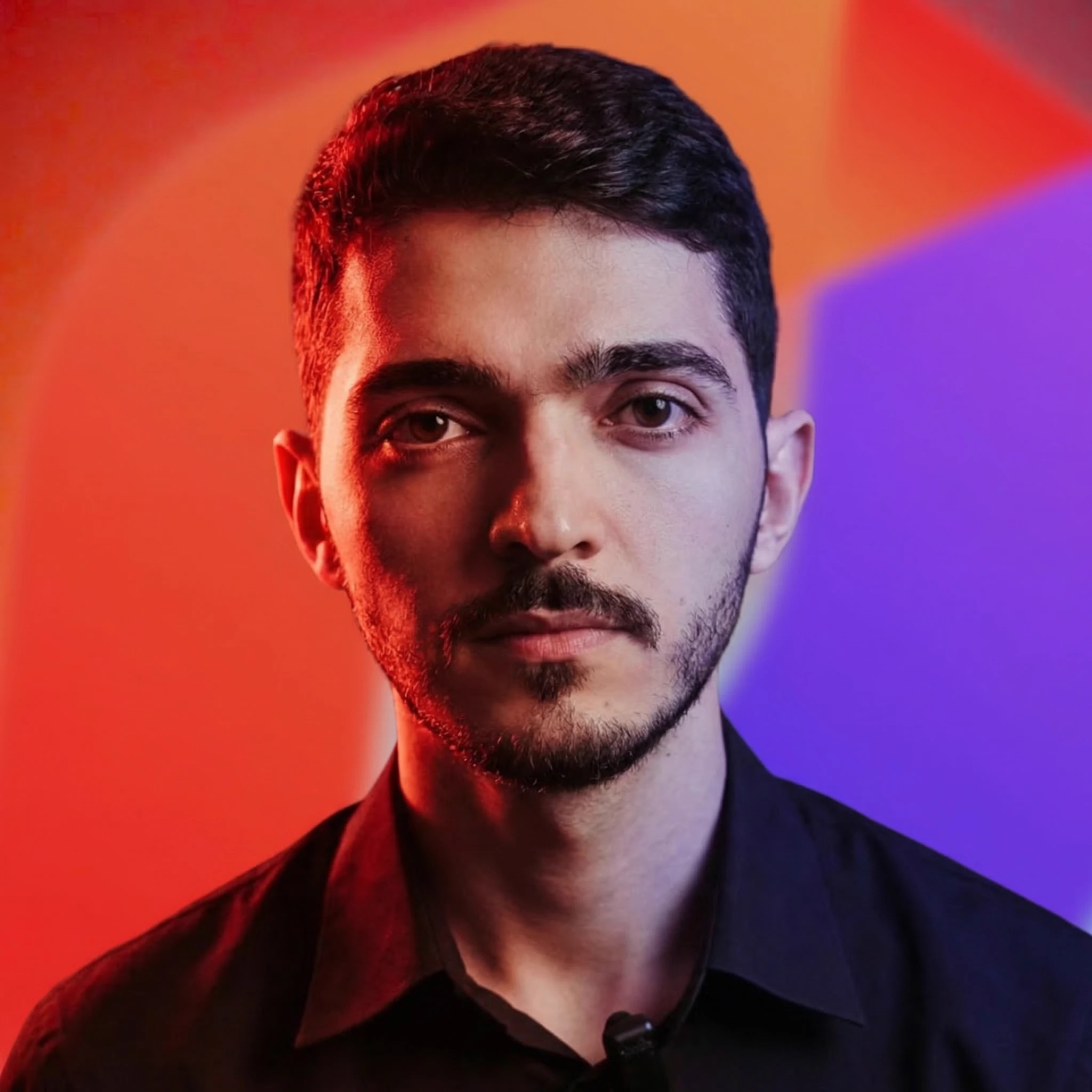
We sat down with Alexandre Kuhn, co-founder of Redraw, to talk about how the company got here, what sets their technology apart from the dozens of generic AIs that flooded the market, and where AI rendering is headed.
About Redraw's origins
How did the idea for Redraw come about?
In 2022, my partner Sergio Santos came to me showing some architecture images he was generating with AI. I was an architect, a marketer, and obsessed with building a SaaS company — so I wanted to launch this product with Sergio. We started developing the prototype. Early on it genuinely wasn't great, but AI was just getting started and everyone's output was rough. ChatGPT only knew how to complete words. Nano Banana didn't even exist.
After 5 months we managed to launch Redraw to a closed group of early users. 112 people signed up on launch day. We closed for a month, reopened, and sure enough: we ended the first month with 300 customers, the second with 600, the third with 1,200, the fourth with 2,500 — and kept going from there. Redraw kept growing, taking shape. Our product evolved, we launched new models, and we learned our customers' real pain points.
Most architects were using rendering software only superficially because they didn't have time to master it. When we saw the potential of generative AI for images, it was obvious this problem could be solved. It wasn't about building "yet another AI image tool." It was about building the AI that architects actually needed.
And a bit of background on me and Sergio: I'm from Cascavel, Paraná, Brasil, and he's from Paragominas, Pará, Brasil. How did we meet? Around age 15, we ended up in the same Counter-Strike match.
Why focus on architecture instead of generic AI?
It's simple. I graduated in architecture in early 2022. I was an architect living the architect's life. I saw an opportunity to make a difference in the field I studied. And Sergio knew me well enough to know we could launch a product in that space, since he was already working in marketing.
The beginning is always the beginning. That first year of Redraw was a crash course in business for us. We learned that what we think doesn't matter — what the client thinks does. We weren't starting in a competitive landscape, but we had a clear focus and a target audience. That's what led us to what Redraw is today.
We understood that the differentiator wasn't making beautiful images. It was making faithful images. And to do that, we had to train models specifically for architecture, engineering, and interior design. You can't adapt generic AI for that. You have to build from scratch.
About the technology
What sets Redraw apart from the other AIs that call themselves "for architecture"?
Proprietary models. That's the short answer.
What happened over the last two years is this: a wave of tools appeared that take the ChatGPT or Gemini API, put an interface on top, and sell it as "AI for architecture." No proprietary model. No investment in training. They're reselling generic AI with a markup. Some charge R$ 100 for 10 renders — R$ 10 per image that someone could generate directly in ChatGPT.
Redraw has a team of AI specialists working daily to develop and refine models trained exclusively for architecture. Millions of images of real projects. When these models go through benchmarks, they outperform any generic AI on project fidelity. Because that's what they were built for.
But you also integrate ChatGPT and other models inside Redraw. What's the difference?
The difference is we don't resell. We optimize.
ChatGPT inside Redraw is not the same ChatGPT you use on the OpenAI website. Our team prepared and tuned it to deliver results directed at architecture. Same with Nano Banana. Same engines, but tuned for our context.
And on top of all that, we have Redraw's own proprietary models, which outperform each of those when it comes to project rendering. Professionals can compare right inside the platform and see for themselves.
The idea is for Redraw to be a hub. You come in, you have access to the best AIs on the market, all optimized for architecture, and you also have our models, which are the most advanced for the sector. No need for 5 different subscriptions.
Redraw goes beyond static rendering. What else does the platform do?
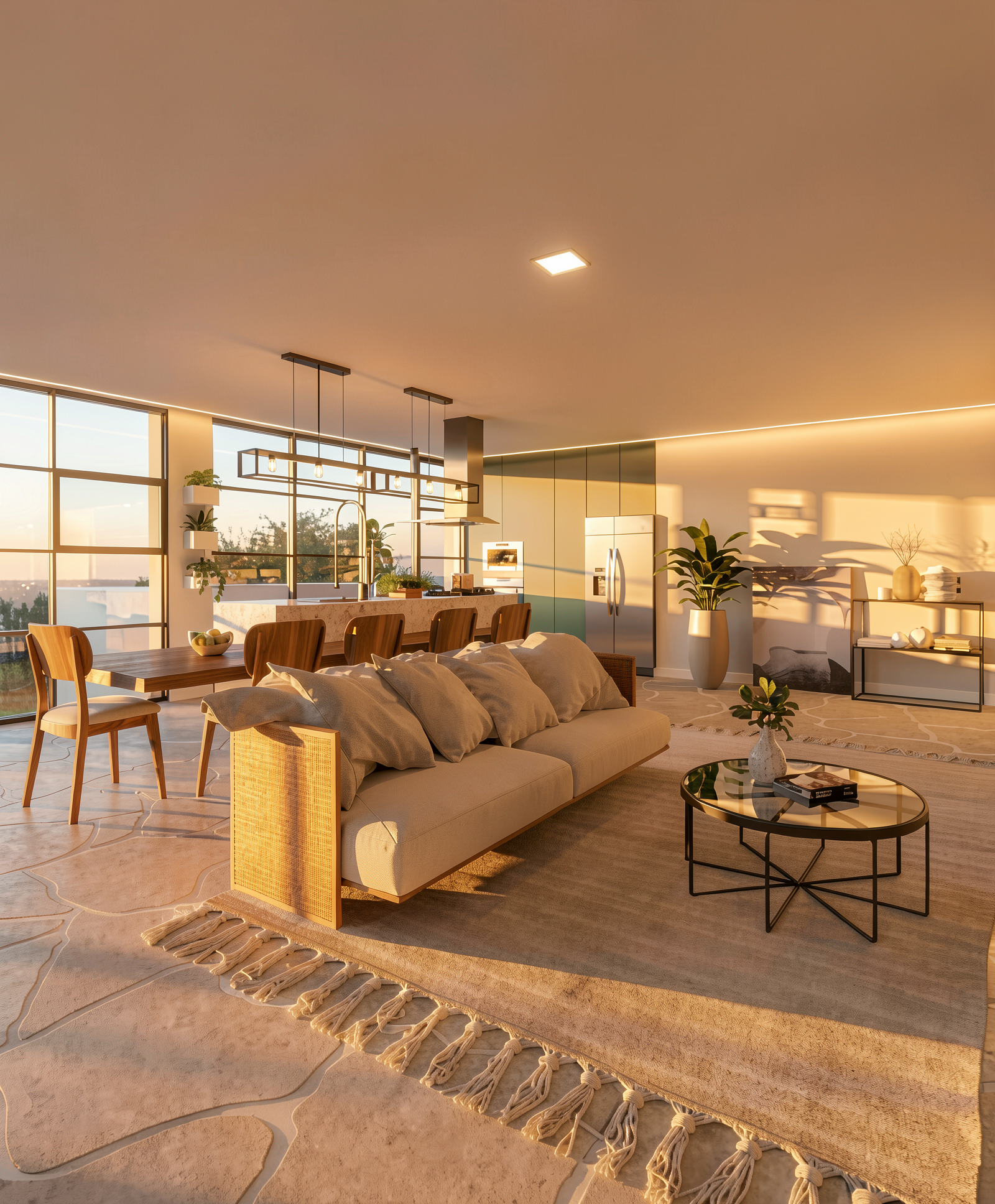
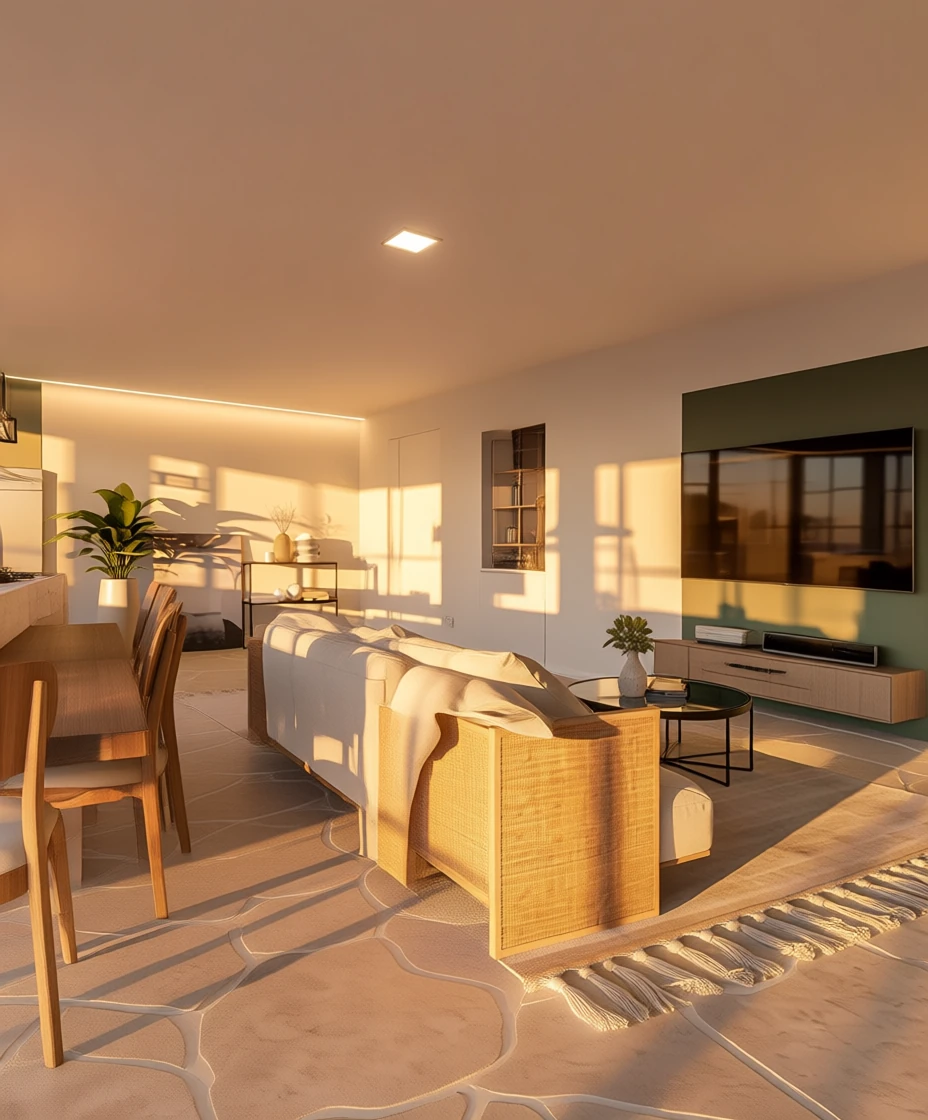
Photorealistic rendering is the core, but the platform has evolved a lot. Today Redraw has its own video generation tool for architecture, plus integrations with Veo 3 and Kling AI. You render the image, like the result, and turn it into a video — all within the same platform.
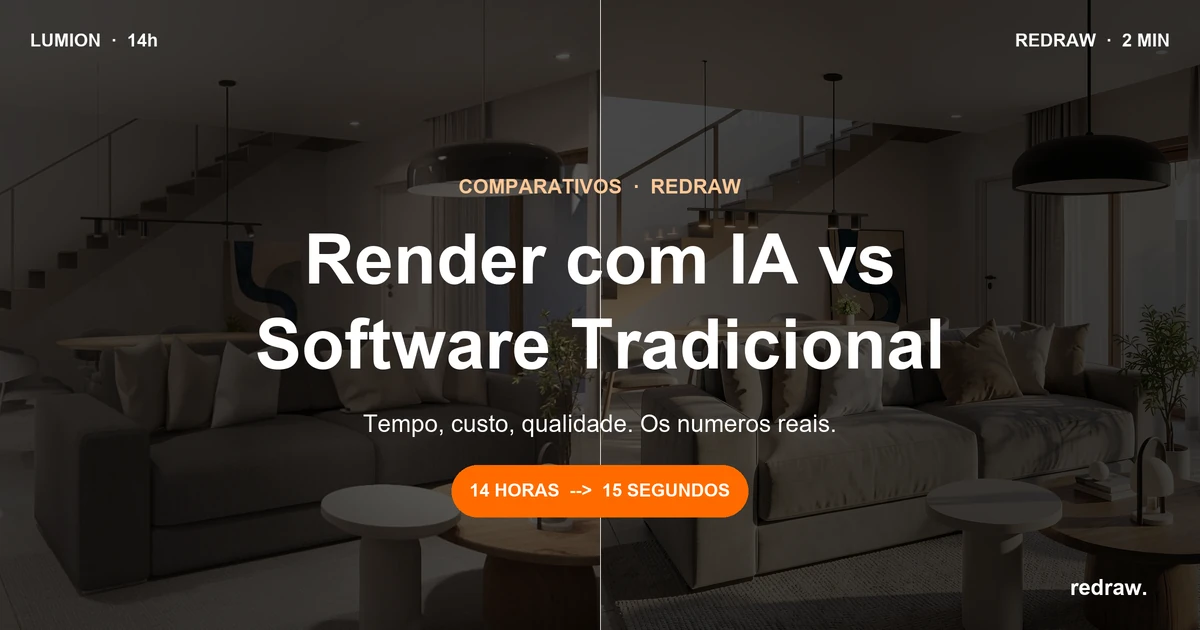
There's also Enhance Render, which takes a render from any software (Lumion, V-Ray, Enscape, anything) and elevates the quality in 30 seconds. A lot of professionals use this as a complement to the workflow they already have.
And more recently: a proprietary 3D object generation model for SketchUp. Need a piece of furniture, a light fixture, or vegetation that's not in your library? Generate it in Redraw and import it into your model.
The vision is for Redraw to be the complete AI platform for design professionals. Not a tool that does one thing. Beyond being a complete platform, we want to be an ecosystem for architecture.
About the market and competition
The AI-for-architecture market has grown a lot. How do you see the competition?
Real competition is small. Most of the tools that appeared are API resellers, like I said. They don't invest in proprietary technology. When the API changes its pricing or policy, they break.
The "competitors" we actually respect are the traditional software providers: V-Ray, Lumion, Enscape. They built the rendering market. They did important work. But their model is becoming obsolete. Local rendering, heavy GPU, hours of configuration. In 2026, that's unsustainable when AI delivers results in 30 seconds.
Chaos Group itself — which owns V-Ray, Corona, and Enscape — noticed this. They acquired Veras trying to enter the AI space. But buying a weak-quality tool doesn't solve the underlying problem.
We do have good competitors in the market, but by staying focused and talking to our clients every day, we manage to stand out. On the market side, we have a strong global focus. Redraw is currently the largest AI software for architecture in Latin America, and we want to reach the global stage too.
In the end, after the launch of many AIs on the market, Redraw only grew. The main profile we see is the client who has already tried everything, thought they could manage on their own, and ended up at Redraw. Because Redraw is easy and built for architects.
What about generic AIs? ChatGPT, ComfyUI, Stable Diffusion?
They're great tools for other purposes. ChatGPT is incredible for text, code, and analysis. ComfyUI is powerful for developers who want full customization. But none of them were built to render architecture projects.
The architect who tries to use ChatGPT for rendering quickly finds out: the image looks good but it's not their project. The AI invents everything. And then they enter a prompt engineering loop that takes more time than configuring V-Ray.
We see a lot of professionals arriving at Redraw frustrated with generic AI. They tried ChatGPT, tried ComfyUI, spent hours on it, and the result wasn't fit to present to a client. On Redraw, in 30 seconds, with the first render, the reaction is completely different.
About South Summit and expansion
Redraw won South Summit 2026 in Porto Alegre. What did that mean?
Over 2,000 companies entered from around the world, 50 finalists across 5 categories. Winning in the Digital & Tech Solutions category was recognition that the problem we're solving has global relevance. We were alongside incredible companies that are becoming world references. Being able to present Redraw at that level was an honor.
But the most important part was what came after: international visibility, contact with investors and strategic partners, and validation that what we're building has the potential to scale globally. We're also heading to South Summit in Spain. We were invited to attend as guests — we didn't enter the competition, but the invitation came and now we're going.
Redraw is Brazilian. What's it like competing globally from Latin America?
We were born in a market where professionals work with limited resources. A laptop instead of a workstation. A tight budget. Deliverables needed yesterday. Building a tool that works in that context forced us to be efficient. Accessible pricing, lightweight platform, fast results.
When we take that to markets like the US and Europe, where professionals have more resources, Redraw makes an even stronger impression. Because if it works on an architect's laptop in Minas Gerais, it works anywhere in the world.
Today we have over 200,000 users, most in Brazil, but with growing presence in Mexico, Colombia, Argentina, Chile, the US, Canada, and Europe. The platform operates in Portuguese, English, and Spanish, with native support in each language.
We also noticed that international users are more open to AI. We feel the drive to innovate from that audience. They're more plugged in and push AI all the way.
Where does Redraw go from here?
AI for architecture is just getting started. In 2 years, what we deliver today will seem basic. Models will get more precise, video generation will evolve, and 3D generation will integrate directly into modeling software.
Redraw will keep leading that. With our own AI team, our own models, and listening daily to the 200,000 professionals who use the platform. Every piece of feedback, every render, every use case helps us improve.
The goal hasn't changed since day one: give architects time back to design. The render is not the final product. The project is. We take care of the image so the professional can focus on what matters.
We are becoming an ecosystem for architects. It's not just a tool that fits into the rendering process. In Redraw, the professional can execute everything from start to finish.
About those just starting out
What advice would you give to architecture, engineering, and design students?
Tough one. Actually, I'll leave a reflection — for newcomers and veterans alike.
Think about the student entering university this year. It'll take 4 to 5 years to graduate. How much will AI technology have evolved by then? It's almost scary. The generation entering school right now will graduate into a market they can't predict. Everything might have changed. AI might have replaced 90% of the architectural process. Where will those professionals fit in?
We don't know what the future looks like. But we do know this: the professionals entering university today won't need to render, generate videos, or even model. They'll need to be smart enough to do their work with AI.
And that's a wake-up call. If you're thinking right now that AI won't reach your work — you're wrong. We need to adapt, to deliver the best and fastest results for our clients. And AI is how many professionals will do that.
What advice would you give to an architect who still isn't using AI?
Try it. Create a free account on Redraw, upload a screenshot of one of your projects, and see the result. It's 10 credits, no credit card, no commitment. The whole process takes 2 minutes.
Most people who try it don't go back to the old workflow. Not because we convinced them with an argument. Because the result speaks for itself. 30 seconds, a professional render, in the browser. When you compare that to 4 hours in V-Ray or 2 hours in Lumion, the decision is obvious.
And you don't need to abandon what you already use. A lot of people start with Enhance Render to elevate what they already produce with Lumion or Enscape. Then they start testing direct rendering in Redraw. And at some point they realize they don't need the traditional software anymore.
Every professional moves at their own pace. The important thing is not to stand still while the market moves forward.
Create a free Redraw account →