

Insights Redraw
Redraw Updates and Trends
What's new in AI for architectural visualization.



AI for SketchUp: 10 Plugins and Tools Every Architect Needs in 2026

AI for SketchUp in 2026: the 10 plugins and tools every architect needs. From modeling to photorealistic rendering in 30 seconds.

SketchUp is the most popular modeling software among architects in Brazil and worldwide. Easy to learn, fast to use, and with a plugin ecosystem that lets you do practically anything. But SketchUp alone has limitations. It's through plugins and external tools that it transforms from a "massing software" into a complete professional tool.
In 2026, AI entered this ecosystem with force. And the best part: the most powerful AI tool for SketchUp is not a plugin. It's easier than one. But before we get there, let's cover the essential plugins every architect should know.
Modeling plugins: SketchUp at its best
These plugins solve native SketchUp limitations and give you more control over modeling.
1. Curviloft
SketchUp struggles with organic shapes. Complex curves, flowing roofs, facades with non-linear geometry. Curviloft solves this. It creates surfaces from curves, smooth transitions between different profiles, and shapes that native SketchUp simply cannot produce. For architects designing contemporary buildings with curves, it's indispensable.
Free.
2. SubD (Subdivision Surfaces)
SubD adds subdivision modeling to SketchUp. You create a simple shape (low-poly) and the plugin smooths it in real time, generating complex organic surfaces. The trick is that you work on the simple model (fast and lightweight) and switch to the smoothed version when you need to see the result. Keeps the file light while allowing advanced geometries.
Paid (~$39).
3. Profile Builder
Creates custom profiles (baseboards, moldings, channels, metal profiles) and applies them along any path. Instead of manually modeling each detail, you define the profile once and the plugin extrudes it wherever you need. Saves hours in detailing work.
Paid (~$49).
4. Skatter 2
The most powerful scatter plugin for SketchUp. Vegetation, street furniture, stones, tiles — any object that needs to be repeated at scale. Skatter distributes objects across surfaces with control over density, random rotation, and region exclusion. It turns landscaping and urban scenes that would take hours into minutes.
Paid (~$69).
5. CleanUp³
Models imported from DWG, Revit, or other software arrive in SketchUp full of unnecessary geometry. Duplicate faces, stray edges, repeated materials. CleanUp clears everything automatically. Reduces file size, improves performance, and prevents problems at render time.
Free.
6. Solid Inspector²
Before exporting for 3D printing or any boolean operation, the model needs to be solid. Solid Inspector checks and automatically fixes geometry issues: reversed faces, internal edges, holes. It's the "doctor" for your model.
Free.
7. PlaceMaker
Draw a rectangle on the map and PlaceMaker imports 3D terrain, surrounding buildings, satellite imagery, and elevation data. It does in 2 minutes what would take a full day of manually modeling urban context. For site studies and shadow analysis, it's transformative.
Paid (~$100/year).
8. Skalp
Generates sections and elevations with hatching directly in SketchUp. For those who need technical drawings without leaving the software, Skalp creates sections with material patterns (concrete, earth, insulation) that update automatically when the model changes.
Paid (~$59).
AI plugins for SketchUp: what exists (and what's missing)
9. Redraw: the AI tool that isn't a plugin (and is better than one)
Redraw is not a SketchUp plugin. Nothing needs to be installed. And that's exactly why it works better.
The workflow is simple: take a screenshot of the 3D view in SketchUp, open Redraw in your browser, upload the image, and in 20 to 40 seconds receive a photorealistic render. Works with any version of SketchUp (Free, Go, Pro). No plugin compatibility required. No file weight added. No crashes.
AI plugins like SketchUp AI Render and Veras need to read the 3D geometry of the model, which creates version dependency, compatibility problems, and technical limitations. Redraw skips all of that. It works with the visual image of the model — which is what the AI actually needs.
And the result is superior. Redraw has proprietary models trained for architecture that understand materiality, natural lighting, and proportion. It's not generic AI with an architecture skin. These are models that know the difference between porcelain tile flooring and a wood deck, between sunset light and artificial lighting.
Inside Redraw, beyond the proprietary model, you access ChatGPT optimized for rendering, optimized Gemini, Nano Banana. You can generate project video (proprietary tool + Veo 3 + Kling AI). You can generate 3D objects to import back into SketchUp. You can enhance existing renders with Enhance Render.
It's more than any plugin offers. And easier to use.
Why "not being a plugin" is an advantage
It may seem counterintuitive. If Redraw were a SketchUp plugin, you could click directly from the software. But in practice, plugins create problems:
They depend on the SketchUp version. Update SketchUp and the plugin stops working until an update is released.
They weigh on the model. Render plugins add processing that makes SketchUp slower.
They limit use to one software. If tomorrow you model something in Revit or ArchiCAD, the SketchUp plugin is useless.
Redraw works with any software, on any machine, anywhere. Took a screenshot? Render it. Doesn't matter if it came from SketchUp Free on a Chromebook or SketchUp Pro on a workstation.
The complete SketchUp architect toolkit for 2026
| Function | Tool | Type | Cost |
|---|---|---|---|
| Organic shapes | Curviloft | Free plugin | Free |
| Subdivision | SubD | Paid plugin | ~$39 |
| Custom profiles | Profile Builder | Paid plugin | ~$49 |
| Scatter (vegetation) | Skatter 2 | Paid plugin | ~$69 |
| Model cleanup | CleanUp³ | Free plugin | Free |
| Solid verification | Solid Inspector² | Free plugin | Free |
| Urban context | PlaceMaker | Paid plugin | ~$100/year |
| Sections with hatching | Skalp | Paid plugin | ~$59 |
| AI render + video + 3D | Redraw | Web platform | $15/month |
Frequently asked questions
What is the best AI plugin for SketchUp?
Redraw is not a plugin but delivers superior results: photorealistic render in 30 seconds, nothing to install, with proprietary models trained for architecture.
Does Redraw work with SketchUp Free?
Yes. Since Redraw works with a screenshot of the model, it works with any version of SketchUp, including Free, Go, and Pro. No plugin or specific version required.
Which SketchUp plugins are free?
Curviloft, CleanUp³, and Solid Inspector² are free and essential.
Does Redraw generate 3D objects for SketchUp?
Yes. Redraw has a proprietary 3D object generation model that can be imported directly into SketchUp. Furniture, vegetation, lighting fixtures — any element missing from your library.
Is it worth paying for SketchUp plugins?
It depends on your workflow. SubD, Skatter, and PlaceMaker pay off the investment within a few weeks of use. For rendering, there's no point investing in a paid plugin when Redraw delivers more for $15/month with no installation.
Try Redraw → redraw.pro

Redraw Trends
Featured articles
AI for SketchUp: 10 Plugins and Tools Every Architect Needs in 2026



SketchUp is the most popular modeling software among architects in Brazil and worldwide. Easy to learn, fast to use, and with a plugin ecosystem that lets you do practically anything. But SketchUp alone has limitations. It's through plugins and external tools that it transforms from a "massing software" into a complete professional tool.
In 2026, AI entered this ecosystem with force. And the best part: the most powerful AI tool for SketchUp is not a plugin. It's easier than one. But before we get there, let's cover the essential plugins every architect should know.
Modeling plugins: SketchUp at its best
These plugins solve native SketchUp limitations and give you more control over modeling.
1. Curviloft
SketchUp struggles with organic shapes. Complex curves, flowing roofs, facades with non-linear geometry. Curviloft solves this. It creates surfaces from curves, smooth transitions between different profiles, and shapes that native SketchUp simply cannot produce. For architects designing contemporary buildings with curves, it's indispensable.
Free.
2. SubD (Subdivision Surfaces)
SubD adds subdivision modeling to SketchUp. You create a simple shape (low-poly) and the plugin smooths it in real time, generating complex organic surfaces. The trick is that you work on the simple model (fast and lightweight) and switch to the smoothed version when you need to see the result. Keeps the file light while allowing advanced geometries.
Paid (~$39).
3. Profile Builder
Creates custom profiles (baseboards, moldings, channels, metal profiles) and applies them along any path. Instead of manually modeling each detail, you define the profile once and the plugin extrudes it wherever you need. Saves hours in detailing work.
Paid (~$49).
4. Skatter 2
The most powerful scatter plugin for SketchUp. Vegetation, street furniture, stones, tiles — any object that needs to be repeated at scale. Skatter distributes objects across surfaces with control over density, random rotation, and region exclusion. It turns landscaping and urban scenes that would take hours into minutes.
Paid (~$69).
5. CleanUp³
Models imported from DWG, Revit, or other software arrive in SketchUp full of unnecessary geometry. Duplicate faces, stray edges, repeated materials. CleanUp clears everything automatically. Reduces file size, improves performance, and prevents problems at render time.
Free.
6. Solid Inspector²
Before exporting for 3D printing or any boolean operation, the model needs to be solid. Solid Inspector checks and automatically fixes geometry issues: reversed faces, internal edges, holes. It's the "doctor" for your model.
Free.
7. PlaceMaker
Draw a rectangle on the map and PlaceMaker imports 3D terrain, surrounding buildings, satellite imagery, and elevation data. It does in 2 minutes what would take a full day of manually modeling urban context. For site studies and shadow analysis, it's transformative.
Paid (~$100/year).
8. Skalp
Generates sections and elevations with hatching directly in SketchUp. For those who need technical drawings without leaving the software, Skalp creates sections with material patterns (concrete, earth, insulation) that update automatically when the model changes.
Paid (~$59).
AI plugins for SketchUp: what exists (and what's missing)
9. Redraw: the AI tool that isn't a plugin (and is better than one)
Redraw is not a SketchUp plugin. Nothing needs to be installed. And that's exactly why it works better.
The workflow is simple: take a screenshot of the 3D view in SketchUp, open Redraw in your browser, upload the image, and in 20 to 40 seconds receive a photorealistic render. Works with any version of SketchUp (Free, Go, Pro). No plugin compatibility required. No file weight added. No crashes.
AI plugins like SketchUp AI Render and Veras need to read the 3D geometry of the model, which creates version dependency, compatibility problems, and technical limitations. Redraw skips all of that. It works with the visual image of the model — which is what the AI actually needs.
And the result is superior. Redraw has proprietary models trained for architecture that understand materiality, natural lighting, and proportion. It's not generic AI with an architecture skin. These are models that know the difference between porcelain tile flooring and a wood deck, between sunset light and artificial lighting.
Inside Redraw, beyond the proprietary model, you access ChatGPT optimized for rendering, optimized Gemini, Nano Banana. You can generate project video (proprietary tool + Veo 3 + Kling AI). You can generate 3D objects to import back into SketchUp. You can enhance existing renders with Enhance Render.
It's more than any plugin offers. And easier to use.
Why "not being a plugin" is an advantage
It may seem counterintuitive. If Redraw were a SketchUp plugin, you could click directly from the software. But in practice, plugins create problems:
They depend on the SketchUp version. Update SketchUp and the plugin stops working until an update is released.
They weigh on the model. Render plugins add processing that makes SketchUp slower.
They limit use to one software. If tomorrow you model something in Revit or ArchiCAD, the SketchUp plugin is useless.
Redraw works with any software, on any machine, anywhere. Took a screenshot? Render it. Doesn't matter if it came from SketchUp Free on a Chromebook or SketchUp Pro on a workstation.
The complete SketchUp architect toolkit for 2026
| Function | Tool | Type | Cost |
|---|---|---|---|
| Organic shapes | Curviloft | Free plugin | Free |
| Subdivision | SubD | Paid plugin | ~$39 |
| Custom profiles | Profile Builder | Paid plugin | ~$49 |
| Scatter (vegetation) | Skatter 2 | Paid plugin | ~$69 |
| Model cleanup | CleanUp³ | Free plugin | Free |
| Solid verification | Solid Inspector² | Free plugin | Free |
| Urban context | PlaceMaker | Paid plugin | ~$100/year |
| Sections with hatching | Skalp | Paid plugin | ~$59 |
| AI render + video + 3D | Redraw | Web platform | $15/month |
Frequently asked questions
What is the best AI plugin for SketchUp?
Redraw is not a plugin but delivers superior results: photorealistic render in 30 seconds, nothing to install, with proprietary models trained for architecture.
Does Redraw work with SketchUp Free?
Yes. Since Redraw works with a screenshot of the model, it works with any version of SketchUp, including Free, Go, and Pro. No plugin or specific version required.
Which SketchUp plugins are free?
Curviloft, CleanUp³, and Solid Inspector² are free and essential.
Does Redraw generate 3D objects for SketchUp?
Yes. Redraw has a proprietary 3D object generation model that can be imported directly into SketchUp. Furniture, vegetation, lighting fixtures — any element missing from your library.
Is it worth paying for SketchUp plugins?
It depends on your workflow. SubD, Skatter, and PlaceMaker pay off the investment within a few weeks of use. For rendering, there's no point investing in a paid plugin when Redraw delivers more for $15/month with no installation.
Try Redraw → redraw.pro
AI for Revit: How to Render BIM Projects with Artificial Intelligence in 2026
Revit is the most complete modeling software for architecture. That is not an opinion. It is the global BIM market standard. The amount of information a Revit model carries — precise geometry, assigned materials, construction data, dimensions, quantities — has no equivalent in any other software.
And it is precisely that richness of information that makes Revit excellent for AI rendering.
A well-built 3D model in Revit, when used as a base for AI, delivers superior results compared to SketchUp. The geometry is more precise, materials are already defined in the project, and views are generated with technical accuracy. The AI receives an image with more context, more detail, and consequently produces a better render.
The problem was never Revit. The problem is what comes after.
Revit's bottleneck: rendering
Revit models like nothing else. But rendering inside Revit is painful. The native engine is limited and slow. Most professionals turn to plugins (V-Ray for Revit, Enscape for Revit) or export to other software.
Each of these options adds cost, complexity, and time:
V-Ray for Revit costs $540/yr. It demands powerful hardware and hours of configuration per render. The result is excellent if you master it, but the learning curve is long and time is short.
Enscape for Revit costs $575/yr. It is faster to render but results look generic. Photorealism in materials and lighting is lacking.
Exporting to Lumion or D5 Render adds yet another step (and another license). The file must be exported, imported, reconfigured. Materials are lost in conversion. It is rework.
In the end, the professional who uses Revit spends more time trying to render than modeling. The software that produces the best 3D model on the market is the one that suffers most when it comes to generating images.
Revit + Redraw: the perfect model meets the perfect render
With Redraw, the workflow changes completely. You take a screenshot of the 3D view in Revit and upload it to Redraw. In 20 to 40 seconds, the AI generates a photorealistic render.
No plugin. No export. No material configuration. No waiting 2 hours for a render.
And the result is better than most renders produced with V-Ray or Enscape by professionals who do not have time to configure everything perfectly. Because Redraw's AI was trained to understand architectural context: it identifies materials by appearance, applies realistic natural lighting, and preserves the exact geometry of the model.
If the Revit model is well optimized (and we will cover how to optimize it shortly), the AI render surpasses what SketchUp delivers. Because Revit generates cleaner views, with more defined geometry, and the AI can interpret them with greater precision.
How to optimize your Revit model for AI rendering
Not every screenshot produces an excellent result. The model needs to be presentable. Some practical tips:
Use a realistic 3D view, not wireframe. The AI interprets what it sees. If the view has edge lines, axes, and annotations, the render will reflect that. Enable Realistic or Shaded mode in Revit before taking the screenshot.
Position the camera as you would in a real photo. Eye level (1.50 m to 1.70 m for interiors), natural angle, no excessive distortion. The AI delivers better results when the perspective feels human.
Keep materials assigned. Revit allows you to assign materials to each element. Even if they are not fully renderable materials, the visual information they provide in the 3D view helps the AI interpret what is floor, wall, glass, wood.
Clean up the view. Hide elements that are not part of the scene: piping, exposed structure (if not intentional), grid lines. The cleaner the screenshot, the better the result.
Use full-screen resolution. Take the screenshot at the maximum monitor resolution. More pixels = more information for the AI.
With an optimized model, Revit delivers the best possible base for AI rendering. Better than SketchUp (more precise geometry), better than ArchiCAD (more configurable views), and much better than exports to other software that lose information along the way.
The complete workflow: Revit + Redraw at every project phase
Phase 1: Concept
The project is just beginning. Mass studies, massing, initial site placement. You have a basic Revit model and need to show the client how the project is progressing.
With Redraw, take a screenshot of the massing and generate a quick render. The client sees the project volume with realistic materiality and lighting. In 30 seconds. Without spending hours on a render that will change next week.
Want to explore styles? Use Redraw's idea generation. Brutalist, contemporary, tropical facade. Generate variations in seconds and align direction with the client before developing further.
Phase 2: Design Development
The model is advanced. Materials defined, spaces detailed, lighting considered. Now you need quality renders to validate with the client and make final adjustments.
Screenshot of the Revit 3D view, upload to Redraw, render in 30 seconds. The client asks for wood flooring instead of porcelain tile? Another 30 seconds. Prefers black frames instead of white? Another 30 seconds. In 10 minutes you have generated 15 variations that in the traditional workflow would take 2 days.
Phase 3: Client Presentation
Project approved — time to present with final quality. Facade renders, interiors, aerial perspectives. Material for the commercial proposal, portfolio, and social media.
Render in Redraw at maximum quality. Use Enhance Render to refine details. Generate a project video with Redraw's video tool (proprietary model, Veo 3, or Kling AI). Generate 3D objects missing from the model and import them into SketchUp/Revit.
Complete deliverable. One platform. One subscription.
Frequently Asked Questions
Do I need a plugin to use AI with Revit?
No. Redraw works through the browser. You take a screenshot of the Revit 3D view and upload it to the platform. No plugin to install, no file to export, no integration required.
Is a Revit model good for AI rendering?
Excellent. Revit generates precise geometry with assigned materials. When well optimized, a Revit screenshot delivers superior results to SketchUp for Revit AI rendering, because the AI receives more context and more detail.
Does Redraw replace V-Ray for Revit?
For the vast majority of everyday renders (presentations, variations, portfolio), yes. V-Ray retains an advantage only in scenarios requiring absolute control of every parameter. For everything else, Redraw is faster, cheaper, and the result is professional.
Can I render Revit sections and floor plans with AI?
Yes. Redraw accepts any image. If you generate a humanized section view or floor plan in Revit and upload it to Redraw, the AI can humanize and stylize it. Redraw has presets for humanized floor plans and architectural sections.
Does Revit run on Mac?
Not natively. Revit is Windows only. But BIM rendering AI with Redraw works on any system. You can model on Windows with Revit and render on Mac, tablet, or mobile through Redraw.
Try Redraw → redraw.pro

The AI for Architecture Leading Latin America Now Expanding to the US and Europe
Latin America is producing the world's largest AI rendering revolution. And Brazil is leading it.
While American and European companies try to adapt generic AIs to architecture, a Brazilian startup built from scratch the largest AI platform specialized in rendering for architects, engineers, and interior designers on the planet. With more than 200,000 registered users, over 500,000 renders generated per month, and a presence in dozens of countries.
The name is Redraw. If you work with architecture in Latin America — or anywhere in the world — and don't know it yet, this article explains why you should.
The numbers that position Redraw as the best AI rendering platform for architecture in Latin America
200,000 registered professionals. The majority are in Brazil, with accelerating expansion to Mexico, Colombia, Argentina, Chile, Peru, and English-speaking markets (US, Canada, Europe).
More than 500,000 renders per month. That is more than any other AI platform focused on architecture in the world produces. And the volume grows every month.
Platform in 3 languages. Portuguese, English, and Spanish. Native websites, support, and content in each language. Not automatic translation. Local operation.
Team of AI specialists. Proprietary models trained exclusively for architecture, engineering, and interior design. Constantly updated. Results that, in benchmarks, surpass any generic AI in project fidelity.

South Summit 2026: global recognition
In March 2026, Redraw won South Summit in Porto Alegre in the Digital and Tech Solutions category. South Summit is one of the largest global platforms connecting startups, investors, and major corporations. The Brazilian edition had more than 23,000 participants, around 3,000 startups registered, and 130 investment funds.
More than 2,000 companies entered globally. Only 50 reached the final, split across 5 categories. Redraw took the prize.
This recognition is not just a trophy. It is validation that the problem Redraw solves — accessible, fast, and faithful rendering for project professionals — has global relevance. And that the solution came from Latin America.
Why no competitor dominates Latin America
Redraw's main global competitors are American, European, and Chinese companies: Veras (Chaos Group, based in Bulgaria/US), LookX (China), Rendair (Turkey), ArchiVinci (US). None of them have a strong presence in Portuguese or Spanish.
They have no PT-BR support. They do not understand the particularities of the Latin American market. They do not know that here, the professional often works alone, with a laptop, without a hardware budget, and needs to deliver fast because the client asked yesterday.
Redraw was born in that context. Built by people who understand the reality of Brazilian and Latin American architects. And that shows in everything: accessible price (from US$15/month), 100% cloud platform (works on any machine), support in Portuguese and Spanish, and educational content in all 3 languages.
While competitors charge US$30 to US$60/month for generic results, Redraw delivers more for less. Because it was built for this market.
The global expansion that starts from Brazil
Redraw started in Brazil and is expanding to the world: US, Canada, Europe, Middle East. International traction grows every month, driven by the quality of proprietary models and the recognition from South Summit 2026.
But the core remains Latin America. This is where the 200,000 professionals who validated the platform are. This is where daily feedback shapes every update. Redraw is not an American company trying to translate a product for Brazil. It is a Brazilian company taking the best AI for architecture to the world.
That matters. Because when a Latin American professional needs support, they speak with someone who understands the context. When they suggest a feature, it is considered. When they complain, they are heard. Not "ticket #47832 with a response in 72 hours in English."
Warning: beware of the generic AIs flooding the market
With the growth of the AI for architecture market, a serious problem has emerged: dozens of new tools that charge high prices for results that are not worth it.
What these tools do: they take the ChatGPT or Gemini API, put an interface on top, add an "AI for architecture" label, and charge $10 per 10 renders — $1 per image generated by an AI anyone can access directly through ChatGPT for free.
They have no proprietary model. They do not invest in architecture-specific training. They have no AI team. They are intermediaries reselling generic API with absurd markup.
The result is predictable: generic images that do not maintain project fidelity, without consistency, without control. The professional pays a lot, gets a bad result, and concludes that "AI for architecture doesn't work." It does work. It just doesn't work with an API reseller.
How to identify these tools:
Ask if the platform has proprietary models trained for architecture. If the answer is vague or they say they "use the best models on the market" without specifying which ones are theirs, it is API resale.
Look at the price per render. If they charge $1+ per image, that is exploitation. Redraw delivers 300 renders for US$15/month (less than $0.05 per render).
Test with your real project. If the AI changes geometry, invents windows, and alters proportions, the underlying model is generic. The packaging does not matter.
What Redraw delivers that generic platforms cannot
Proprietary models. Trained with millions of real images from architecture, engineering, and interior design projects. Not ChatGPT with a skin. Proprietary AI that understands architectural projects.
Optimized AI hub. ChatGPT, Gemini, and Nano Banana inside Redraw, all prepared by the team to deliver superior results for architecture. The ChatGPT inside Redraw is not the same ChatGPT you use on OpenAI's website.
Complete ecosystem. Photorealistic render in 30 seconds. Enhance Render. Video generation with a proprietary tool + Veo 3 + Kling AI. 3D object generation for SketchUp. Everything in one platform, for one subscription.
Fair price. From US$15/month with ~300 renders. Free trial with 10 credits, no credit card. No tricks, no credits that expire in 24 hours.
Real support. In Portuguese and Spanish. WhatsApp, email, live chat. People who understand architecture responding, not a generic bot.
Frequently asked questions
What is the best AI for architecture in Latin America?
Redraw is the largest AI platform for architecture in Latin America, with over 200,000 users and 500,000 monthly renders. It serves professionals in Brazil, Mexico, Argentina, Chile, Colombia, Peru, the US, and Europe. Winner of South Summit 2026 in the Digital and Tech Solutions category.
Is Redraw a Brazilian company?
Yes. Founded in Brazil, operating in Portuguese, English, and Spanish. The development, AI, and support team operates from Brazil, with international expansion. The company is headquartered in the United States.
Are generic AI tools for architecture a scam?
Not all, but many charge excessive prices ($1+ per render) to resell the ChatGPT or Gemini API without any proprietary training. Before subscribing, verify whether the platform has proprietary models trained specifically for architecture.
Does Redraw work in other countries in Latin America?
Yes. The platform is available in Portuguese, English, and Spanish, with an active presence in Mexico, the United States, Canada, Colombia, Argentina, Chile, Peru, and other countries. Support is available in all languages.
How much does Redraw cost?
From US$15/month with ~300 renders. Free trial with 10 credits, no credit card required. It is the AI architecture platform with the best value for money in Latin America — and increasingly competitive globally.
Try Redraw → redraw.pro
cadastre-se
Exclusive content directly in your email


How to Render an Image

Introduction to the World of Rendering
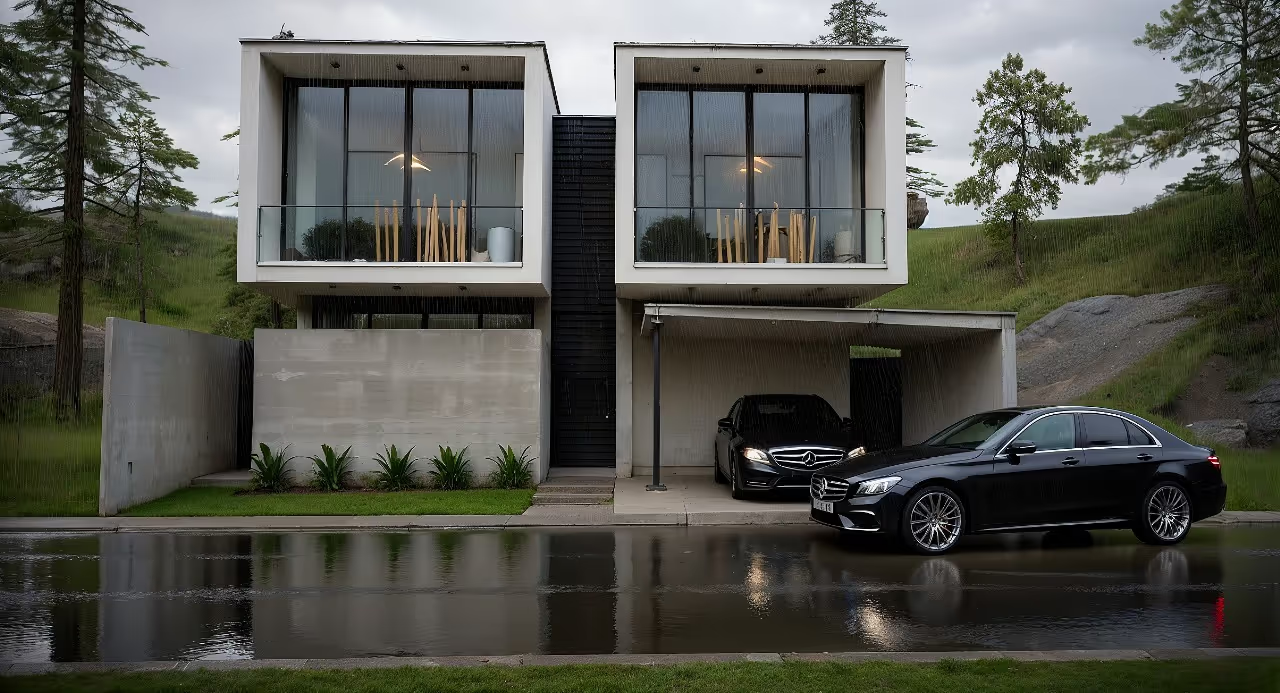
How to render an image is the question that hangs in the minds of architects, engineers and designers who have sweated a lot in SketchUp, Revit or Promob and now want to show their projects with another level of realism. Imagine revealing that gourmet kitchen of your dreams, but without crashing your computer or needing an 80-page manual just to install the renderer. Welcome to the world of artificial intelligence, where platforms like Redraw make everything more accessible. Spoiler: you can transform that simple sketch into an almost Instagram-worthy rendering with two clicks. If you want to see beautiful and fast rendering, stay here and discover Redraw.
Why rendering has become essential to your project
Back in the day, showing a project was synonymous with an A1 plank, ruler, and that plot smelling like toner. Today, the customer already arrives asking: “Is it possible to see in 3D?” The visual sells, and transmitting the concept of environment, materiality and lighting has become almost the rule. Renderings go beyond aesthetics: they help non-technicians to visualize the space, facilitate adjustments before the work and avoid disagreements later. It's not an exaggeration. A good rendering can be the difference between closing the project and listening to that dreaded “then we'll see”.
What you need to have before rendering an image
Before thinking about hyperrealistic effects, shadows, or textures, you need some basic items:
- A 3D model, whether from SketchUp, Revit, or another program
- Minimally applied materials and textures
- An idea of the lighting you want to convey - natural, artificial, or both
- (And yes, a desire to try something new, because AI changes the game)
Methods for rendering an image
Classic plugins and traditional renderers
If you've ever tried to render on a computer, you've probably stumbled across famous plugins. They deliver good results, especially for those who are already used to tinkering with light configurations, materials, and cameras. The less glamorous side? You can spend hours adjusting just to see the computer choke when the deadline is up.
AI tools for rendering (Redraw included)
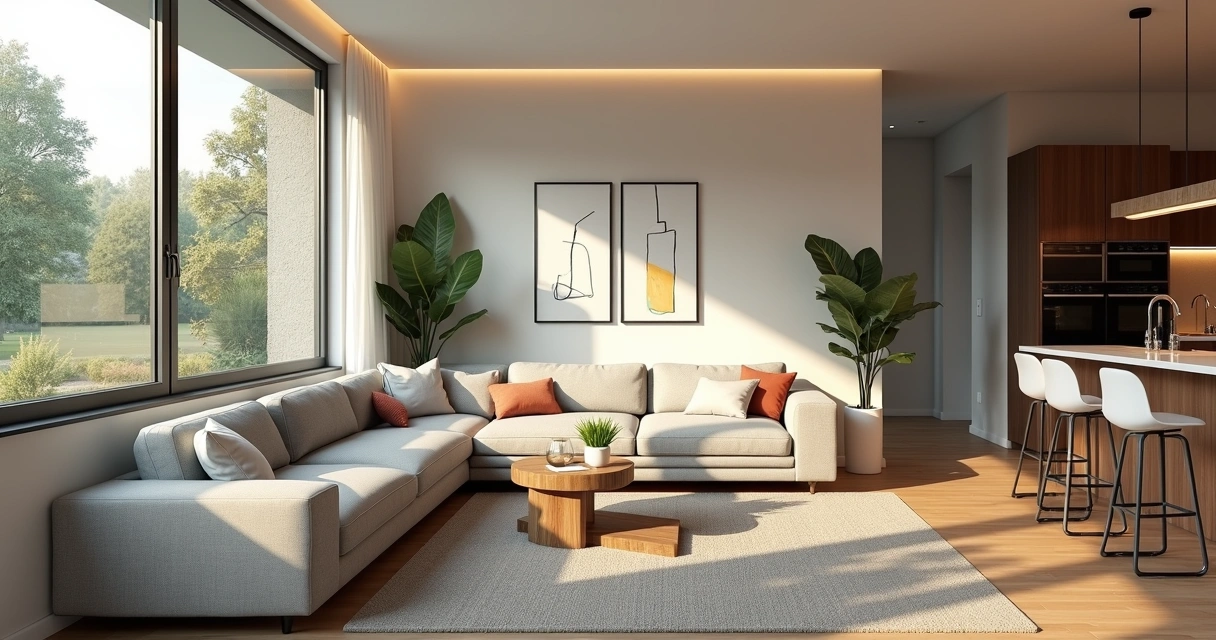
We arrived at the plot twist: artificial intelligence promises to save time and, frankly, patience. Platforms like Redraw do all the processing in the cloud. This eliminates that painful wait and, even better, doesn't require a top-of-the-line PC. You submit the file, choose the style, approve details and voilà — your rendering arrives quickly, beautifully and ready to present. It has filters, animation options, and it even generates automatic videos if you want to really impress. And that, let's face it, is a relief for those who are tired of hearing the notebook fan complain.
How to render an image without losing quality
Render quality doesn't just depend on a beautiful pixel. Do you want to avoid washed out or unrealistic results? Pay attention to these points:
- Use realistic textures and avoid those plated surfaces
- Adjust the lighting, trying to simulate real ambient conditions
- Check proportions: tables, chairs, lamps, everything needs to “talk”
- In Redraw, test different styles and levels of realism with quick previews
Less is more, but less poorly done becomes a meme.
Average rendering time and how to speed up the process
Classic renderers can take minutes or even hours - depending on the complexity of the project and the power of your computer. With AI, on the other hand, the process is almost instantaneous, because everything takes place on the remote server. That is, while you are having a coffee, your project is almost ready and ready for the client to approve.
- Quick previews
- Fine tune without wasting time rendering everything again
- In Redraw, rendering only takes a few seconds, no matter the PC
Your customer won't even have time to ask if it's ready yet.
Frequently Asked Questions
What does it mean to render an image?
To render is to transform the raw 3D model into a detailed image, simulating light, shadow, and materials. It serves to make the project more comprehensible and visually appealing.
How to use AI to render images?
You upload your 3D file to a platform like Redraw, adjust style preferences, lighting, and that's it. AI does all the heavy lifting in seconds, without depending on the local machine.
What are the best rendering sites?
There are several platforms, but Redraw stands out for its speed, ease of direct use in the browser and impressive results achieved with artificial intelligence.
Is rendering an image with AI safe?
Yes. Serious platforms like Redraw offer secure storage, data encryption, and respect for the privacy of projects sent to the cloud.
How much does it cost to render images with AI?
The values vary depending on the features and number of images. In Redraw there are paid plans, but the price pays off for the time and the final result. Consult our platform and choose the one that's best for you.
Next steps...
If you're still thinking about how to render that impactful image without complication, the time to test what AI can deliver is now. With Redraw, it doesn't need installation, requires no expensive hardware, and the learning curve is almost invisible. Experiment, compare your own results, and see the difference in your projects and customer reactions. Do you want to start right now? Get to know Redraw and take your images to the next level.
What is Rendering
Renderização: O Que É e Sua Importância
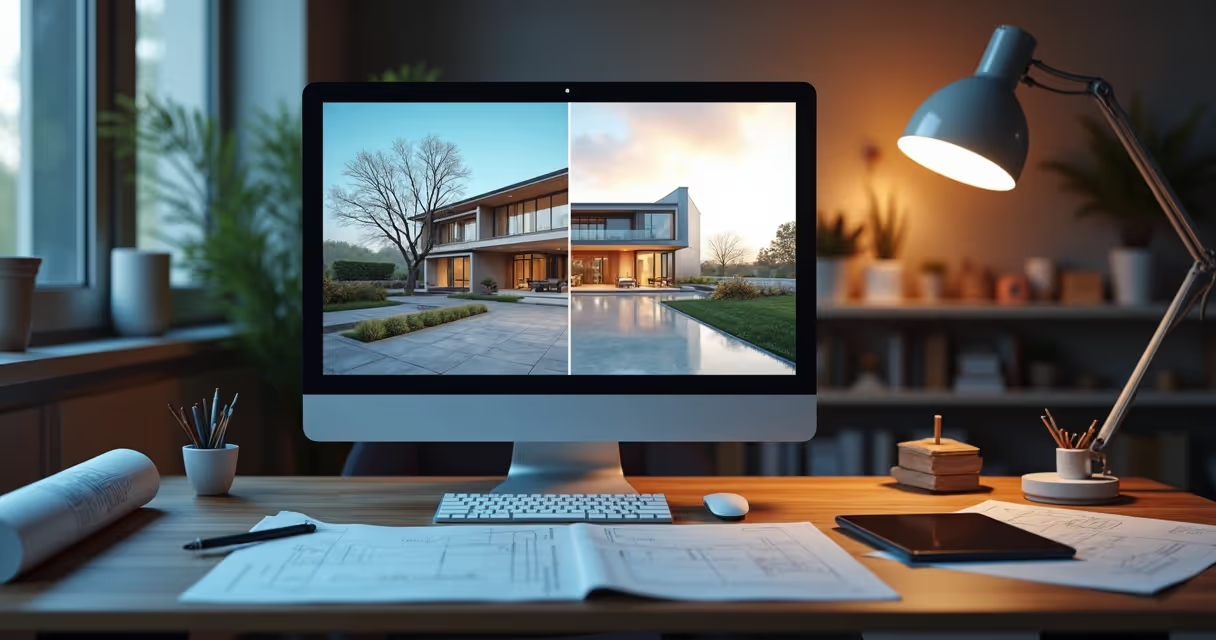
O que é renderizar e por que todo mundo está falando nisso? Sabe aquela dúvida que aparece na cabeça só de ouvir um arquiteto todo orgulhoso dizendo “vou renderizar essa planta”? Pois é, parece até conversa de outro planeta. Mas calma, esse processo está em todo lugar: do projeto mais básico ao design mais futurista. Renderizar significa transformar esquemas frios e secos em imagens que até parecem foto. Com cor, luz, sombra, textura, e aquele nível de detalhe que faz o cliente cair da cadeira de surpresa. E olha, hoje, plataformas como a Redraw tiram todo o peso disso das suas costas, graças à inteligência artificial. Quer ver seu projeto ganhar vida em minutos e ainda por cima direto do navegador? Então pronto, siga lendo, porque sim, isso é possível.
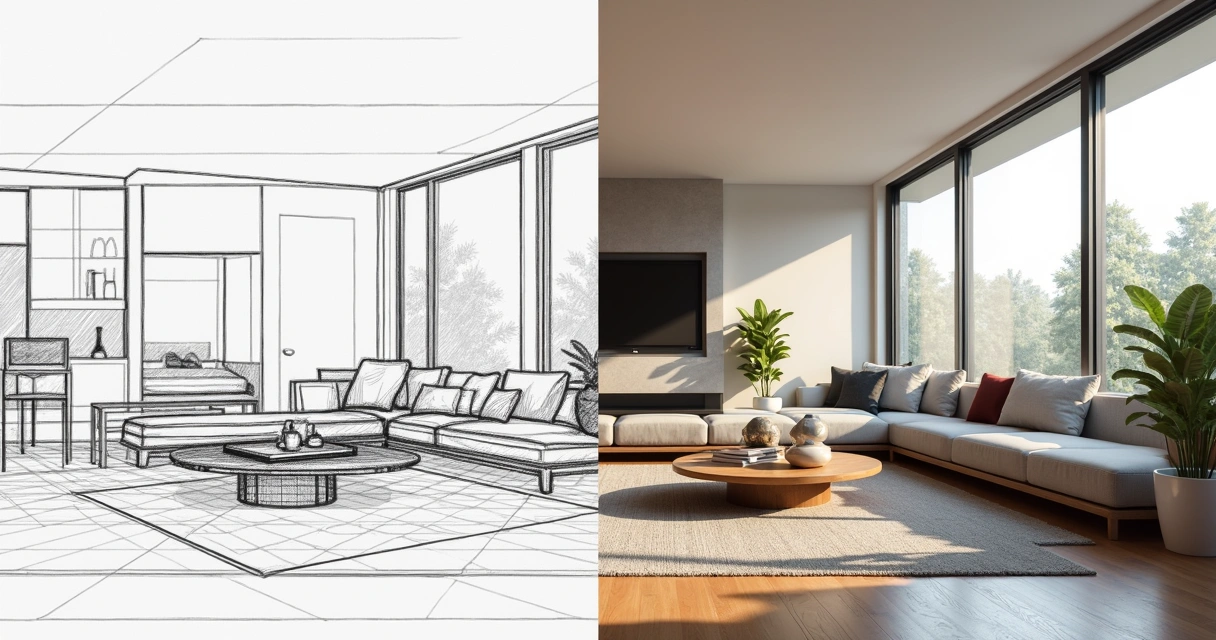
O que é renderizar e para que serve
Pense assim: você faz um modelo digital, um cubo cinza, talvez até com algumas formas legais. Legal, mas sem graça. Aí entra a mágica da renderização, ou seja, transformar essa massa de pixels em uma cena com cor, textura, vidro brilhando, reflexos na água. Serve, basicamente, para enganar o olho: a ideia é aproximar o máximo possível do que seria uma foto do projeto pronto.
Em arquitetura, engenharia e design, renderizar virou praticamente sinônimo de convencer cliente. Afinal, convenhamos, mostrar um cubo cinza não vende, mas uma imagem com pôr do sol entrando pela janela vende até ideia ruim. E hoje em dia ninguém mais tem tempo (ou paciência) para esperar dias por uma imagem apenas razoável. Plataformas de render com inteligência artificial, como a Redraw, chegaram justamente para agilizar esse espetáculo visual sem a dor de cabeça dos métodos antigos.
Como funciona o processo de renderização
Parece mágica, mas tem ciência e até muita matemática por trás. Imagine que, dentro do computador, existe um pequeno universo com um monte de luzes imaginárias e materiais diferentes. Renderizar, em termos simples, é mandar o computador simular como a luz interage com superfícies nesse universo falso, tipo: “e se essa luz do teto bater no chão de madeira, que cor fica?”
O render transforma a geometria do projeto em uma imagem final pixel por pixel. Dependendo da ferramenta e da técnica, esse processo pode ir de segundos a várias horas. A boa notícia é que, com IA, renderizar ficou tão rápido que até parece pegadinha.
Quais os principais tipos de render
Se engana quem acha que só existe um jeito de transformar o projeto em imagem bonita. Existem métodos clássicos e outros nascidos da onda da inteligência artificial. Cada tipo de renderização tem suas firulas (e limitações). Vamos aos mais falados?
Render em tempo real
Sabe aquele render que atualiza “ao vivo” enquanto você mexe no projeto? É esse. Ele permite navegar pelo espaço, mudar materiais e luzes e visualizar tudo na hora. Ideal para apresentações em reuniões corridas ou para quem gosta de ter feedback imediato.
Render por ray tracing
Aqui o processo simula o caminho da luz de forma quase nerd, calculando reflexos e transparências. O resultado? Sombra perfeita, reflexo do vidro mais real do que na vida e aquele brilho na torneira que parece até limpeza de propaganda. O problema é o custo: normalmente exige computador mais parrudo e tempo de processamento.
Render com inteligência artificial
Desde que IA começou a invadir as renderizações, tudo mudou. Agora, o sistema entende as intenções do projeto, analisa texturas, sugere ajustes e até gera imagens a partir de descrições textuais. O Redraw, por exemplo, consegue transformar croquis em imagens quase instantâneas, melhorar qualidade de projetos antigos e criar dezenas de variações visualmente atraentes com poucos cliques.
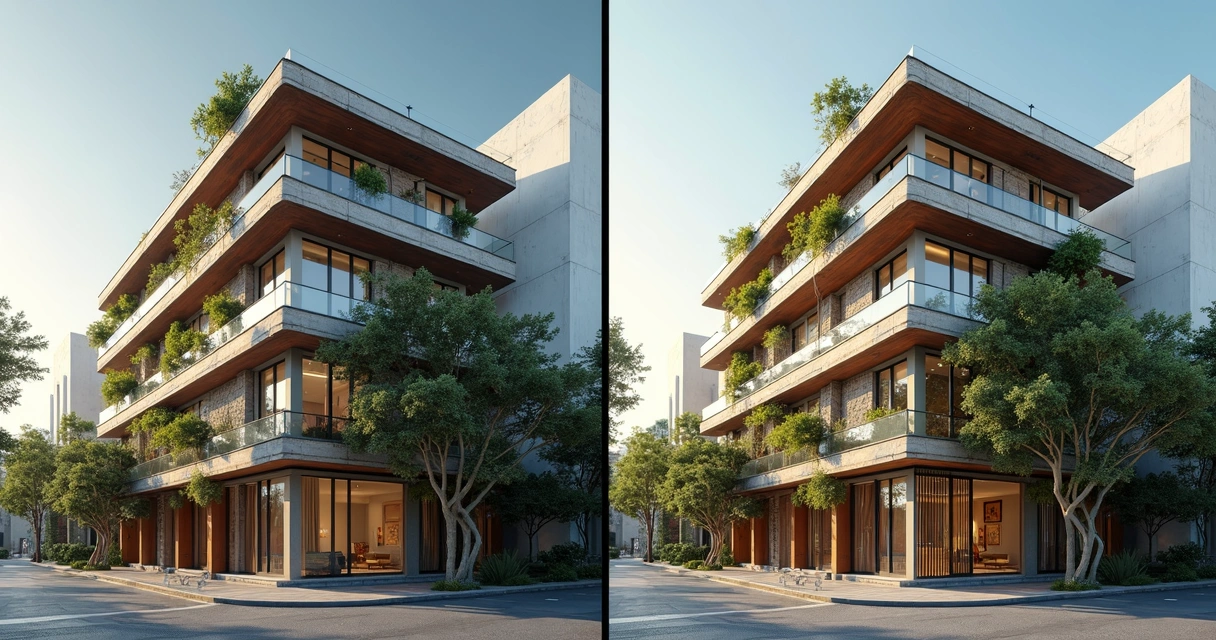
Onde a renderização é usada na arquitetura e design
Praticamente em tudo. Seja para mostrar para o cliente, enviar para aprovação em órgãos públicos ou até criar material de marketing. Veja alguns exemplos (e talvez se reconheça em algum deles):
- Apresentação para clientes: a imagem renderizada ajuda o projeto a “vender” antes mesmo de virar parede e concreto. E vende mesmo.
- Estudos de iluminação: simula como o sol vai invadir a sala às 16h no inverno. Isso resolve uma lista enorme de erros construtivos já na fase do projeto.
- Portfólio: aquela famosa “imagem de capa” que todo arquiteto e designer posta nas redes sociais, deixando os mortais babando.
- Render para vídeos: anima a cena, do nascer ao pôr do sol. Serve tanto para YouTube quanto para encantar investidores.
Pode parecer que é só para projetos grandes, mas nada impede que você use renderização até para aquele quartinho reformado na casa da avó. O objetivo é o mesmo: encantar.
Renderização com IA: como funciona e por que usar
Agora, com inteligência artificial, quase tudo mudou. Antigamente, renderizar era tanto um ato de fé quanto de paciência. Sabe aquele render que trava o computador ou exige colocar o café na mesa porque demora horas? Pois é. Hoje, plataformas como a Redraw usam IA para acelerar tudo. Você faz upload do projeto e, em segundos, está tudo pronto no navegador. E nem precisa de supermáquina para isso.
Entre os motivos para apostar em um render por IA estão:
- Rapidez absurda: minutos, e não horas. Dá pra renderizar em cafés.
- Resultado criativo: a IA sugere estilos, paletas de cor, texturas e até sabe corrigir errinhos de modelagem.
- Acessibilidade: seu computador pode ser “modesto” e ainda assim rodar tudo perfeitamente, porque o pesado fica na nuvem.
- Inovação: transformar esboço em imagem pronta, criar animacões ou mudar materiais só descrevendo o que você quer.
Não é exagero dizer que renderizar com IA é quase como dar um “estágio” para seu computador enquanto a nuvem faz o trabalho pesado.
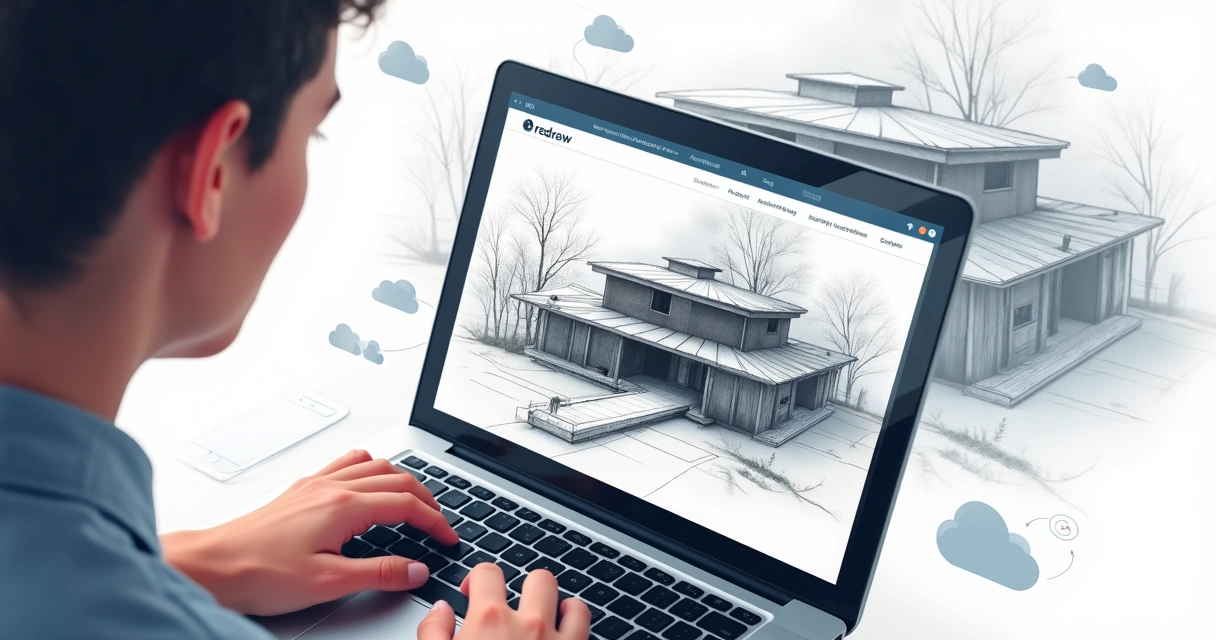
Ferramentas mais usadas para renderizar
Existe uma lista quase interminável de softwares, plugins e plataformas. Uns clássicos de prancheta digital e outros que entraram com IA para fazer o tempo render (não resisti ao trocadilho). Eis um resumo dos grupos principais:
Softwares tradicionais: V-Ray, Enscape, Lumion
Essas ferramentas são queridas por quem curte controlar todos os detalhes: do brilho da lâmpada até o reflexo no piso. Mas geralmente requerem instalação, hardware parrudo e um tempinho considerável para aprender e esperar o resultado.
IA para renderização: Redraw, Midjourney, Prome.ai
Agora, se a ideia é pular direto para o resultado, a nova onda é usar plataformas baseadas em IA. O Redraw, por exemplo, permite subir o modelo via navegador, gerar ideias só digitando textos e transformar até esboços em imagens realistas. É renderização sem enrolação, fazendo qualquer profissional parecer mágico diante do cliente.
Renderizar exige computador potente?
Muita gente acha que para obter um render incrível precisa de uma nave espacial debaixo da mesa. Isso era verdade até pouco tempo atrás, não para a galera do Redraw. Hoje, parte do processo roda na nuvem, dispensando placas de vídeo arrancadas de outro planeta ou upgrades caros.
"Seu computador não precisa ser um monstro para gerar imagens monstruosas."
Basta conexão com a internet e vontade de experimentar.
FAQ (Perguntas Frequentes)
O que significa renderizar no computador?
Renderizar no computador é pegar aquele modelo digital, normalmente feito em programas de modelagem, e transformá-lo em uma imagem ou vídeo mais próximo da realidade, com luzes, texturas e efeitos. É o processo que tira o projeto da fase de linhas e formas para virarem imagens palatáveis até para quem não entende nada de arquitetura.
Como funciona o processo de renderização?
Funciona assim: o programa simula o comportamento da luz em contato com as superfícies. É tipo um jogo de sinuca de fótons, onde cada raio bate, reflete, passa por vidro, escurece ou brilha. O computador calcula tudo isso e organiza os dados para formar uma imagem no final. Com IA, boa parte dessas decisões já vem “inteligente” de fábrica, acelerando o processo e melhorando o resultado final.
Para que serve a renderização em vídeos?
Renderizar vídeo permite criar animações, passeios virtuais e sequências que mostram o espaço como se você estivesse andando por dentro. Serve para apresentações super detalhadas, vídeos institucionais, marketing ou até como parte do portfólio. É um jeito de contar uma história visual do projeto sem precisar construir nada de verdade.
Quais são os tipos de renderização mais comuns?
Os tipos mais comuns são o render em tempo real, ideal para ajustes rápidos e navegação; o render com ray tracing, que foca nos detalhes ultrarrealistas de luz e sombra; e o render com inteligência artificial, que prioriza velocidade e criatividade, além de ferramentas que já facilitam todo o processo online.
Renderizar deixa o computador mais lento?
Nos métodos tradicionais, sim, especialmente se seu computador não for dos mais novos. O processamento pode consumir boa parte dos recursos, deixando tudo meio devagar quase parando. Já no caso de plataformas como Redraw, que fazem a mágica na nuvem, você escapa desse drama: o computador fica livre para outras tarefas e só recebe o resultado pronto.
Por que usar o Redraw para renderizar seus projetos
Depois desse passeio por luz, sombra, reflexo e inovação digital, fica claro: renderização não é mais privilégio só de quem tem orçamento infinito ou hardware de gamer. Hoje, até os projetos mais básicos podem conquistar aquele impacto visual com rapidez e praticidade. A Redraw surgiu para fazer parte dessa tendência, simplificando o processo com inteligência artificial, acessível de qualquer computador, até do café com wifi ruim.
“If the idea is to impress, accelerate, and explore limitless creativity, Redraw's AI may be your new shortcut.”
Did you like the idea of seeing your project born beautifully, quickly and without complications? Try Redraw and discover how simple rendering can be.
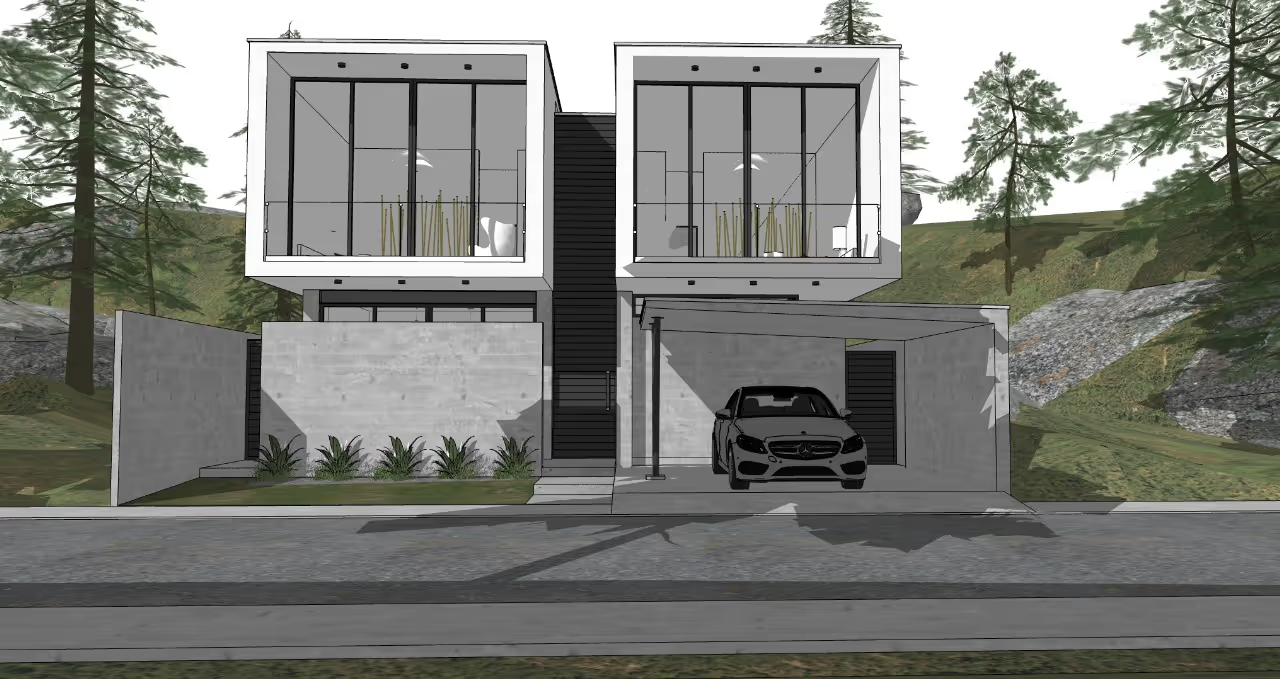
How to Make SketchUp Lighter and Faster
How to make SketchUp lighter using practical techniques
How to make sketchup lighter seems like a New Year's promise: everyone wants it, hardly anyone knows where to start. If you're tired of crashing files, time-consuming renderings, and that eternal feeling that you work more for the computer than for the project, you've come to the right place. Here is a manual, filled with light sarcasm, for those who have ever stared at the frozen screen thinking “just 5 more minutes”. We'll talk about cleaning, organization, and how platforms like Redraw can save you in the worst moments. Ready to transform your SketchUp into a less hostile environment? Then follow this step by step and, yes, don't forget to know up close what Redraw can do when it comes to rendering without pain.
Why SketchUp's performance is worth improving
Is there anything more annoying than opening a file and giving it time to make a coffee, talk about life, go back... and the business hasn't loaded yet? If you think it's “normal” to leave your PC rendering at night just because SketchUp choked up, you're living in the wrong. A fluid experience isn't a luxury: it increases your creative capacity, frees you from stress, and frees you up time for that well-deserved break, without being held hostage to progress bars. After all, no one wants a simple project to feel like an epic battle between you and your laptop.
Less crashing, more time to think about the project and less to curse the computer.
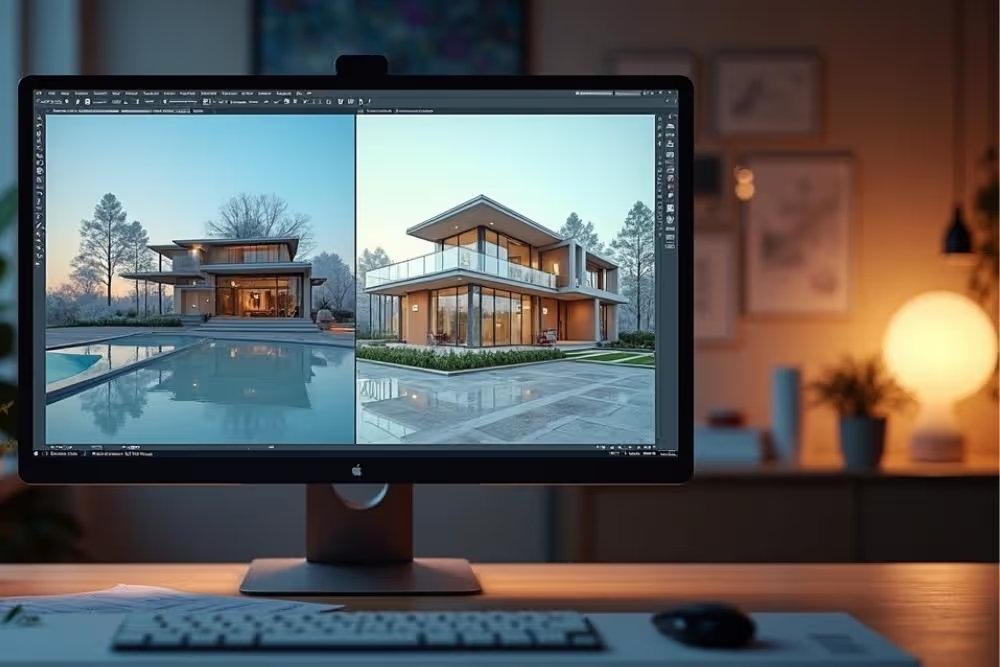
As a bonus, lightweight templates make it easy to share files with clients and teams, prevent silly mistakes (who hasn't wasted an afternoon of work with a “bug splat”?) , and, amazingly, they make interacting with cloud rendering platforms like Redraw much more efficient.
Preparing your project to be lighter in SketchUp
Before you start cutting through elements thinking that you have solved everything, a few previous steps make all the difference. First, review what really needs to be on your model. Seriously. Nobody misses that collection of bottles on the shelf every time they open the file. Remove information that doesn't contribute to the final result: giant textures, exaggerated decorative components and, of course, duplicate scenes just to be sure. Save versions, archive what you're not going to use, and take a deep breath. The general panic when opening very large files can be minimized with this simple initial filtering.
Tips for making SketchUp light
Use components and organize with tags/layers
If you have a habit that separates amateurs from professionals, it's the intelligent use of components and organization with tags. It sounds like mother's talk, but creating groups for walls, furniture, and separating commands by layers leaves everything outlined. Repeated components weigh less, facilitate changes, and prevent chaos. Use tags to temporarily hide parts while you work. And you know that friend who never names Layer? Be better than him!
Purge and cleaning tools in SketchUp
Legend has it that there are SketchUp files so full of digital debris that they could be studied in archeology courses. Fortunately, tools like “Purge Unused” are there for that. Do this ritual every time you finish a stage: purge unused components, materials, and styles. Internal plugins speed up this merciless cleaning. Thus, in addition to reducing file weight, you reduce the risks of random crashes worthy of Mexican soap operas.
Simple visual styles without shadows or effects
You can admit it: you were mesmerized trying out all the visual styles, marked shadows, activated thick profile lines, and were amazed. The problem is that all of this weighs, and it doesn't always collaborate with your real objective, which is to visualize and create the project, not a work of art in SketchUp. Prefer basic styles, without heavy textures, effects, or shadows. Every visual feature taken out of the way is a “cognitive relief” for your machine. And yes, your project remains interesting even without HQ outlines.
Manage scenes and hide unnecessary geometries
Have you ever thought that you don't need to see every detail all the time? Managing scenes and hiding geometries irrelevant to that stage is the favorite trick of experienced users. Activate only what your focus needs at the moment and have scenes saved for the different phases of the project. Gain speed and preserve your sanity. Nobody misses hidden chairs while planning the roof, believe me.
Reduce geometry: segmentation and proxy plugins
Alright, you love smooth curves and models detailed to the soul. But too much geometry leaves the file heavy and patience short. Reduce segments into circular elements and abuse so-called proxies: plugins that replace heavy parts with lightweight versions, especially in vegetation and decorative blocks.
If you've never tried, it's past time. In fact, platforms like Redraw handle simple files much better, accelerating rendering processes when they receive “lean” models. You, your computer, and your customers thank you.
How to make SketchUp lighter without installing plugins
Not every hero wears a cover, and not every user likes to fill SketchUp with plugins. If you are lazy or lack permission to install tools, don't worry: a lot can be done with standard functions alone. Separate components, group objects, delete duplicates manually, clean materials, adjust visual styles, and delete old scenes. The good old artisanal way still works. Of course, if you get tired of the limitations, experimenting with solutions like Redraw can be the key to accelerating without sacrificing quality.
Frequently Asked Questions
How to make SketchUp lighter quickly?
To streamline, start by erasing unused objects and materials, then use Purge. Simplify visual styles, remove shadows, and hide unnecessary groups. Keeping your tags organized also helps. In a few minutes, the file loads less and gains speed. If the rush is too much, convert the file to a clean version to send to the cloud and, if possible, render using platforms such as Redraw.
What plugins help optimize SketchUp?
There are plugins that clean files, create proxies, and optimize a large number of polygons. Many architects use plugins for general cleaning or for automatically adjusting textures. There are extensions for exporting heavy blocks in lighter versions. But remember: not every desktop environment allows you to install plugins, so get to know the native tools too.
How to reduce crashes in SketchUp?
Decreasing file weight, separating into smaller parts, and controlling what's visible are classic strategies. Disable heavy shadows and styles, avoid opening other programs together, and save backup copies at different steps. Prioritize suitable hardware, but if you can't, turn to cloud rendering like Redraw so you don't burden your computer while you work.
Is it worth simplifying 3D models?
It always works. Simplified files allow for quick edits, headache-free component changes, and less wasted time. Of course, you have to balance detail and lightness. Show the client what is necessary, but keep it practical to continue evolving the project. In the background, few notice the final detail of a doorknob, but everyone feels it when the file locks.
How to clean large files in SketchUp?
First, remove unused components and materials with the Purge function. Then delete old scenes, reduce high-resolution textures, and delete duplicate groups. If it's still heavy, break the project into smaller blocks and work in stages. Clean files not only prevent crashes but also facilitate exports and integrations with tools like Redraw.
Transform your workflow with Redraw
Not every project has to turn into an obstacle course to run smoothly in SketchUp. With some simple practices, a bit of organization and, yes, that digital cleaning that everyone likes to delay, you can transform even the heaviest models into light and agile files. And if you get lost in doubt or tiredness, platforms like Redraw emerge to prove that rendering and improving images can be fast, without requiring a computer from another planet and, perhaps, without losing your patience. Do you want to see in practice how to make your life easier in this process? Experience the Redraw world. Your creativity thanks you, and so does your computer.
How to Render in SketchUp
How to render in SketchUp using AI step by step
How to render in sketchup has never been so simple or fast. If before it was synonymous with pain, cold sweat and clear nights with the computer almost on fire, now just a few clicks and that's it, an image worthy of “wow” appears. Today you no longer have to pray for the rendering to finish before the coffee runs out. In this article, I show how it is possible to create realistic images directly from SketchUp, from classic methods to the magic of artificial intelligence. And yet, of course, I present solutions such as Redraw, the platform that promises super-fast renderings directly from the browser, without installation, without fuss. Don't you believe it? Take the next steps, test and enjoy, you may never want to know about gigantic plugins again.
If you're looking for practicality, beautiful visual results and plenty of time, you'll want to check out Redraw.
No more struggling to render in SketchUp.
Why learn to render in SketchUp
It even seems like a rhetorical question. But the truth is: more and more of your customers want to see, not just imagine. Showing the project in SketchUp in 3D is impressive, but the difference between a raw model and a realistic rendering is the size of the distance between “ok” and “wow”.
If you've ever found yourself showing off that dull gray model and hearing a “So, is it going to stay that way?” , it's time to go one step further. Mastering rendering means saving time for approval, delighting clients, valuing your portfolio, and saving your team from eternal meetings trying to explain light and texture with words.
- Your presentation is much more professional.
- It helps the client to understand real space and materials.
- Avoid rework and discussions in detail: everyone sees it the same way.
- Generate images for marketing, portfolio, or even for a contest.
Learning how to generate realistic images in SketchUp is no longer a fresh thing. It became a work tool even for those who were never a fan of technology.
Preparing your model in SketchUp
The story of good rendering begins within SketchUp, before any export or use of AI. If the 3D model is messy, full of inverted surfaces and “lost” faces, the final result will be doubtful to say the least. And nobody wants to be embarrassed (or at least, I don't want to).
Organizing and cleaning the model
- Well-used layers/labels: Separate floors, walls, furniture, lights into groups/layers.
- Groups and components: Never leave everything loose! Everything that is repeated, becomes a component.
- Clean geometries: Erase extra lines and faces, avoid leaks and overlays.
- Aligned normals: Check that the white faces are sticking out. Inverted faces give bizarre light effects.
- Mapped textures: Never throw away the texture anyway. Poor mapping = walls that are stretched or confused in the rendering.
That's that annoying detail that nobody likes to waste time on, but that saves lives down the road.
Scene and camera settings to render with SketchUp
Before you exit by clicking “render”, think:
- What is the best angle to tell the story of your project?
- Will it need cuts, internal views, external views, detailing?
Define scenes in SketchUp, make adjustments to Field of View, adjust camera height. Render loves it when you put in a little extra effort at this stage.
A clean template does half the rendering on its own.
Tools for rendering in SketchUp
If a well-done project is half the way, choosing the rendering tool is the other half. Here, the need is in charge: someone may only need a preview, another wants something almost indistinguishable from a photo.
Native tools without a plugin
Yes, some people still ask: “Doesn't SketchUp alone make a realistic rendering?” Well, the program even exports images in PNG or JPEG using the Export command, but the most you can get are shadows, stylized styles, and some cuter lines.
The look is interesting for digital sketches or quick presentations. But if the idea is to show finish, floor shine and glass reflection, you will need something beyond the basics.
- Standard image export: limited quality
- SketchUp styles: filters, artistic lines
- SketchUp shadows: only simulate outdoor lighting, there are no realistic effects
Conclusion: Native is only suitable for quick presentations or artistic sketches.
Traditional plugins
Here begins that game “the more, the better or does it just complicate?”. There are several famous plugins integrated with SketchUp, with advanced controls for materials, lights, cameras, and special effects.
- Plugins offer detailed control of reflection, material, exposure, and even post-production effects.
- Good for those who prefer to adjust every detail and have time to learn endless configuration curves.
- They usually consume powerful computer resources; ideally, have a machine with a dedicated video card.
But for many, the nightmare is real: extensive menus, options that even programmers miss, and time-consuming renderings that steal quality of life. Then a question arises: isn't there a simpler path?
AI tools (Redraw + comparison with alternatives)
Until recently, high-quality rendering was a mix of art, patience, and hardware. With AI, the story changed: just export the model (or even a sketch!) , send it to the cloud and let the server work for you.
Redraw enter this scenario as an option for architects, designers, engineers, companies and even those who are just starting out. One of the differentials? Renders finished in seconds, right in the browser, with the right to transform simple drawings into realistic images or animated videos.
- No plugin installation required: it works 100% via the web
- Fits any computer, even a notebook without a powerful graphics card
- The processing is done in the cloud, so you continue using the PC normally while the render “sprouts” out of nowhere
- Send the file, set the options and only receive the result, as easy as that
- Better: already more than 2 thousand Brazilian professionals use it on a daily basis
And if rendering became “clicked, quit”, why complicate it more?
Look to the future: let AI suffer for you.
How to render in SketchUp without plugins
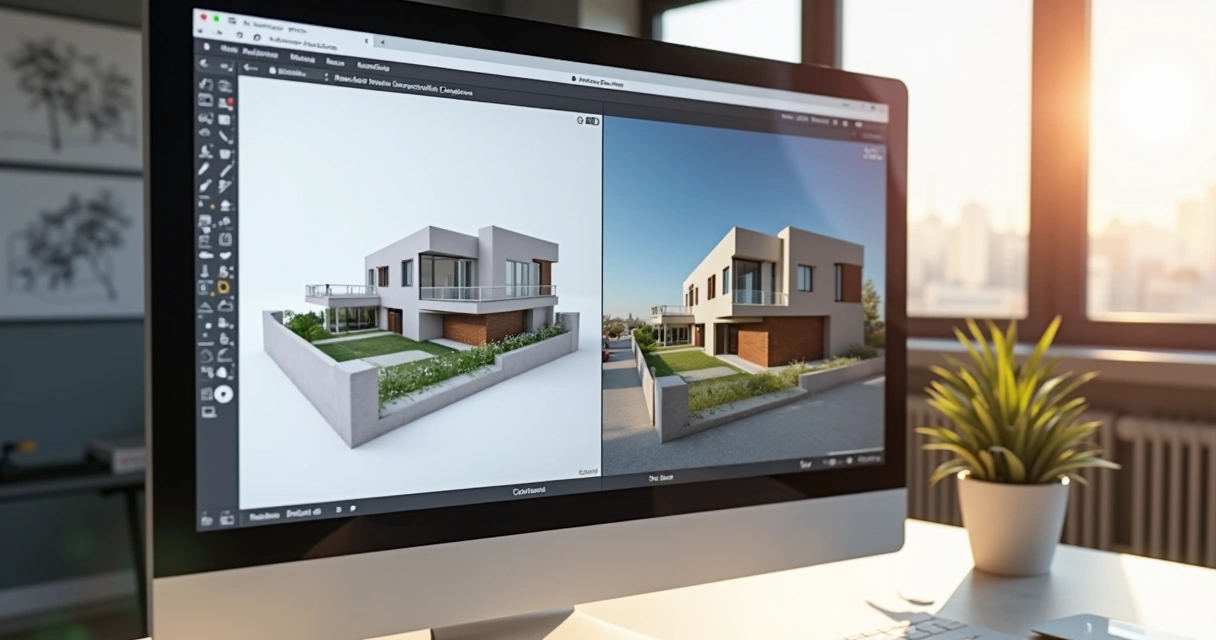
You can breathe a sigh of relief: yes, you can generate incredible images without installing any plugin. “How like that?” , simple, using online solutions, such as Redraw, that dispense with the old list of hardware requirements and versions of SketchUp. The flow is simpler than it seems:
- Finalize your model and save it in a compatible format (normally SKP or export as a high-resolution image, if it's a sketch or sketch done by hand).
- Access an online platform (Redraw is there showing how it works, by the way).
- Access the file upload function, upload your template or image.
- Choose the type of rendering you want (realistic, stylized, with natural lighting, etc.).
- Click on render and wait a few seconds. That's right, seconds.
- Download the finished image and use it however you want: client presentation, portfolio, publication, video.
This process is great for those who:
- You can't or don't want to install anything
- Are you in a hurry?
- You're still learning detailed adjustments to classic plugins
- Do you want a quick solution for intermediate steps or final versions?
Less time setting up, more time presenting.
Optimal lighting, textures, and settings
You may have noticed that the difference between a rendering that seems to have been made in 2005 and another that is impressive is in the details: light, materials, texture and camera angle.
Correct lighting makes all the difference
- Always prefer natural light (sun and sky) to add volume to the rooms
- Avoid excess lighting, unless it's part of the concept
- Adjust the intensity and color of the light So as not to pop white or leave everything “erased”
- Position the camera so that light enters from the side, not from the front, to create soft shadow and depth
IA knows how to work with light, but it helps a lot when you already orient the scene in the right way.
Textures and materials: less is more
- Choose high-resolution texture images (wood, stone, concrete, etc.)
- Keep the scale realistic. A huge wood on the wall totally undermines the credibility of the result
- Use reflection and shine (glossiness) only where it makes sense: metals, glass, polished surfaces
- Walls, plaster and matte surfaces look better without strong reflection
Final settings
- Set the output image resolution with your usage in mind: 1920x1080 for regular presentations, 4K or more for portfolio or print
- Plan the framework: centralize the focus on the environments or products that matter most
- If possible, play with depth of field, which generates that taste of a real photo
Just what's necessary: light, texture, angle and... it's over.
Average time and tips for speeding up rendering
Now we come to that controversial point: “How long does it take to render in SketchUp?”. Honestly, it depends. With classic plugins, it can range from minutes to hours, especially if the configuration isn't perfect. But I can say, with Redraw-like AI, it is possible to receive ready images in seconds or at most a few minutes, even for large projects.
Tips to speed up your rendering:
- Simplify the model: clear geometries that don't appear in the scene
- Lower resolution for quick tests only, increase in the final version
- Avoid mirrors and reflective surfaces too much (stress any rendering engine)
- Use cloud platforms whenever possible. A gain of time and peace.
Finally, develop a workflow: model, make the first quick render, adjust light and materials, refine, only render high in the last step. Avoid wasting time and patience.
Smart rendering is a life saver.
Frequently Asked Questions
What is rendering in SketchUp?
Rendering in SketchUp is the process of generating realistic images from the 3D model made in the program itself. The model, which is normally simple and “dry”, is simulated with light, shadow, texture, and materials to appear as a real photo of the built project. There are methods with plugins, manual export and new AI options, as provided by Redraw, that make everything more practical.
How do I render a project?
You can render a project in several ways: using plugins attached to SketchUp that allow detailed adjustments of light, materials and camera; exporting images from SketchUp itself (quite limited); or using artificial intelligence platforms, such as Redraw, where you just have to send the model file and receive the render in a few clicks. The important thing is to always clean your model beforehand to avoid problems.
What rendering plugins are recommended?
Traditional rendering plugins work well for those who like to customize everything, but they can be cumbersome and require a powerful computer. Modern and fast alternatives include cloud-based tools with AI, such as Redraw, which offers simple rendering with no installation required. The ideal is to try the options and see which one best fits your workflow and type of project.
Is rendering in SketchUp free?
The simplest rendering, via direct image export from SketchUp, is free but limited, does not generate realistic images, only improved sketches. Paid plugins and AI platforms, such as Redraw, offer plans with advanced features, but they generally allow initial tests or affordable plans. It is worth considering that saving time usually compensates for any investment.
How to improve render quality?
The secret to quality rendering lies in three pillars: well-organized model (without lost geometries or inverted faces), careful choice of textures and materials (high resolution, correct scale) and lighting designed from SketchUp. Modern AI platforms, such as Redraw, already make it a lot easier, but no magic works miracles with a bad model. Make every effort to prepare, choose the right platform, and the rest is a matter of final adjustments.
Transform your rendering experience in SketchUp
Now that you've discovered how to render in SketchUp in an easy and pleasurable way with the help of artificial intelligence, such as that offered by Redraw, you won't have to settle for less. Instead of wasting precious hours struggling with complicated plugins and complex configurations, choose a solution that's fast, efficient, and fully aligned with 21st century needs.
Sometimes the only thing you need is a simple click. Or a cloud platform that works for you. Or maybe just a little bit of courage to try something new. Don't just stick to theory: try Redraw, see your project come to life in a matter of seconds and join thousands of professionals who have already left the challenges of rendering behind them.
The future of rendering is now at your fingertips, directly from your browser.
Now it's your turn: do you want to visualize your idea transformed into a realistic image? Get to know Redraw, impress your customers, and take your time to create more and explain less.
.avif)
Professional Rendering with AI
Renderização IA: o que é e por que importa
Renderização, palavra tão presente no mundo de arquitetos, engenheiros e criativos, deixou de ser apenas uma etapa técnica. Virou protagonista. Hoje, criar uma boa imagem deixou de ser arte reservada a quem gasta noites em claro renderizando quadros demorados. Neste artigo, você vai ter clareza sobre como a inteligência artificial embarcou nesse universo, cortando processos longos, entregando qualidade superior e, sim, economizando aquele dinheiro que faz falta no cafezinho. Se você está curioso sobre como profissionais já otimizam ainda mais resultados visuais, prepare-se: a Redraw pode ser a ferramenta que faltava para o seu escritório dar um salto visual e técnico.
Se você já ficou parado esperando aquela imagem demorar uma eternidade pra aparecer, bem-vindo ao clube dos pacientes. Mas será que precisa mesmo ser assim? Respire fundo e acompanhe: a renderização automatizada chegou para virar o jogo.
Definição de renderização por IA
Vamos acertar primeiro o que falamos quando dizemos renderizar com inteligência artificial. Até pouco tempo atrás, gerar imagens realistas a partir de modelos 3D dependia apenas de cálculos matemáticos, luzes, materiais e poder de processamento. Agora a história é outra: a IA entra para aprender padrões visuais e otimizar decisões antes feitas no braço ou por tentativa e erro. No fundo, trata-se de construir imagens a partir de dados, algoritmos e treinamentos em datasets gigantescos, para simular o que vemos no mundo real ou até criar cenas inéditas.
Diferente do tradicional, o processo agora consegue adaptar detalhes da imagem conforme o contexto da cena, tornando o resultado mais inteligente e menos engessado. Estudos demonstram como modelos de aprendizado estão misturando técnicas clássicas de gráficos computacionais e redes neurais. O resultado: imagens quase indistinguíveis do real, com flexibilidade para manipulação, novos ângulos e inserção de objetos.
IA cria, aprende e surpreende. Renderização nunca mais é a mesma.
Vantagens: velocidade, qualidade, economia
Você já deve ter ouvido aquela frase: tempo é dinheiro. Em projetos visuais, não é só clichê. Ferramentas com IA prometem zerar aquela espera infinita. Enquanto métodos tradicionais podem levar horas, uma máquina com IA e nuvem pode devolver a mesma cena em menos de um minuto. A Redraw, para se ter uma ideia, trabalha com prazos de 20 a 40 segundos por imagem completa suficiente para um café rápido, mas não para perder o deadline.
Além disso, o ganho na etapa visual está na customização: materiais, luz, clima, até atmosfera podem ser ajustados com comandos simples ou exemplos. Isso tudo somado ao menor custo.
- Velocidade na entrega: menos espera, mais tempo para criar.
- Qualidade visual consistente: texturas e iluminação controlados com precisão automática.
- Menor custo operacional: dispensando máquinas caras e licenças complexas.
- Adaptabilidade: IA aprende com seu estilo e entrega resultados cada vez mais alinhados ao que você precisa.
Parece até brincadeira, mas é a nova realidade da renderização.
Compreendendo a tecnologia por trás
Como a IA acelera o processo
Aqui é onde as dúvidas aparecem. Como esse processo, por vezes tão pesado, ficou tão rápido? O segredo está em diferentes técnicas de inteligência artificial aplicadas, como DLSS para reconstrução de imagens, ray tracing acelerado por IA e redes neurais guiando decisões. Em vez de calcular cada raio de luz pelo método antigo, a IA aprende padrões, interpola resultados e entrega cenas que convencem até os mais exigentes.
Segundo tendências sobre softwares de visualização 3D usando nuvem, a computação remota veio para ficar: todo esse poder pode ser acionado do navegador, sem precisar de estação gráfica robusta. O peso fica na nuvem, não no seu bolso. Para estudios pequenos ou freelancers, virou sonho possível.
Mas não é só isso. Modelos de renderização neural permitem criar novas perspectivas, manipular imagens a partir de comandos de texto e até gerar animações suaves partindo de imagens estáticas. Imagine renderizar uma fachada, girar o ponto de vista ou trocar o material do piso em instantes, sim, tudo via IA.
Limitações atuais
Nem tudo são flores. Quem trabalha no dia a dia sabe que a tecnologia avança, mas ainda há desafios. Em cenas muito específicas ou modelos altamente detalhados, pode haver limitações na tradução fiel de algumas texturas ou na iluminação ultradetalhada.
Outro ponto: iniciar no universo da IA pode parecer assustador, principalmente para quem nunca trabalhou além do sketch ou CAD. Aqui entra o diferencial de plataformas como a Redraw, que funcionam em nuvem e baixam a curva de aprendizado ao mínimo possível. Não é perfeito, ainda demanda ajustes e sensibilidade do usuário, mas ninguém mais fica refém da complexidade de menus ou configurações místicas.
Nem tudo precisa ser difícil IA veio para descomplicar.
Casos de uso na arquitetura e design
Ideação rápida (fachadas, interiores)
Quantas vezes já ficou preso na etapa da ideia? O cliente pede “algo moderno, mas aconchegante”, e você precisa mostrar opções em poucas horas. Renderização com IA permite testar muitas variações sem retrabalho, seja modificando a paleta de cores de um ambiente, simulando posições do sol ao longo do dia, ou trocando móveis até achar o encaixe ideal.
No caso do Redraw, a ferramenta Gerador de Ideias usa IA para propor versões inéditas a partir de esboços ou até comandos em texto. O tempo de retorno permite que aquela chuva de ideias vire imagens reais não mais rabiscos confusos.
Pós-render – melhorar renderizações existentes
Imagine aquela cena não tão inspiradora que o render tradicional entregou. Tons lavados, iluminação estranha, objetos “fantasmas”. Ferramentas modernas, como o Brush do Redraw, permitem refinar pontos específicos das imagens: corrigir em segundos os detalhes que antes exigiriam edição externa ou, pior, rodar o projeto inteiro de novo. É ajuste cirúrgico, que economiza tempo e paciência.
- Corrige reflexos indesejados e sombras esquisitas
- Ajusta cores e luminosidade sem perder o realismo
- Substitui texturas de piso, paredes ou móveis quase em tempo real
IA não apaga seus erros. Ela te dá outro caminho para acertos.
Animação via vídeo
Só imagem parada já não basta. Clientes querem ver o fluxo do espaço, sentir movimento, quase viver ali antes das obras começarem. A renderização com IA cria vídeos a partir de imagens estáticas. O Redraw, por exemplo, permite transformar uma cena pronta em um vídeo suave, com deslocamento de câmera e efeitos de transição que aproximam seu projeto da apresentação cinematográfica, mas sem aqueles cortes e gambiarras do after effects.
É um diferencial que impressiona sem exigir habilidades de cinema.
Inserção de objetos e texturas
Precisa mostrar aquele sofá que o cliente ama, mas não tem modelado? Ou trocar a textura da parede porque mudou o material de última hora? Agora, basta indicar com exemplos ou descrição, que o algoritmo cuida de encaixar objetos ou atualizar superfícies no contexto da cena, mantendo perspectiva, luz, reflexo e proporção corretos.
Essa flexibilidade virou padrão esperado e aproxima as ferramentas IA do famoso “inserir objeto” do futuro. Com recursos como os do Redraw, ajustes que antes davam dor de cabeça agora ficam a poucos cliques de distância.
Texturas e móveis mudam. Seu fluxo de trabalho não precisa travar por isso.
Comparação com outras ferramentas de renderização
Redraw vs alternativas
Poucas plataformas conseguem unir no mesmo pacote: geração de ideias, aprimoramento visual, transformação de imagens em vídeos e adoção de nuvem total. Nesse contexto, a Redraw se posiciona como a primeira solução 100% brasileira com foco direto em arquitetura, design, engenharia e ensino. Enquanto outros players trazem recursos avançados, a Redraw aposta em simplicidade e custos acessíveis, sem armadilhas em trial ou dependência de infraestrutura local.
Isso não significa ausência de desafios. A concorrência internacional é feroz, e muitos usuários tradicionais ainda hesitam em migrar suas rotinas. Mas a tendência é clara: a flexibilidade somada ao custo-benefício pesa cada vez mais na escolha das equipes, como mostra o mercado de IA na renderização 3D, que deve crescer quase 28% ao ano até 2032, chegando a cifras bilionárias.
Benefícios exclusivos do Redraw
Entre os diferenciais, vale destacar:
- Plataforma 100% via navegador, hospedada na nuvem
- Processo de renderização otimizado, de 20 a 40 segundos por imagem
- Ferramentas inteligentes: Gerador de Ideias, Brush para refinamento, conversão direta para vídeo
- Custo até 99% menor em comparação a soluções tradicionais
- Suporte dedicado e interface pensada para quem não tem tempo a perder
Mais simples. Mais acessível. Finalmente brasileiro.
Guias práticos – passo a passo com Redraw
Como renderizar imagem com IA
Sentiu a ansiedade de experimentar? Aqui vai um guia reduzido que ajuda até quem nunca mexeu em simulação digital:
- Monte ou suba seu modelo: O Redraw aceita diversos formatos, inclusive imagens estáticas ou esboços em PDF/JPG.
- Escolha o objetivo: Precisa de ideia nova? Renderizar uma cena pronta? Indique logo no início o direcionamento.
- Ajuste parâmetros: Iluminação, materiais, ângulo da câmera, tudo guiado por sliders simples ou exemplos predefinidos.
- Pressione “renderizar”: Em segundos, o resultado aparece na tela. Se quiser, refine com a ferramenta Brush ou gere variações automáticas.
- Baixe e compartilhe: Salve a imagem final, crie um link de apresentação ou envie direto para o cliente — sem sustos na qualidade.
Sim, é rápido. Sim, você consegue na primeira tentativa.
Ferramentas: Gerador de Ideias, Brush, Vídeo
Each component has a clear function:
- Idea Generator: Create multiple options from scratch, ideal for conceptual disputes or first studies.
- Brush: Edit image details, correcting imperfections that escaped in the first generation.
- Video: Produce animations and virtual tours without mastering complex editing or animation techniques.
Ultimately, rendering ceased to be a technical nightmare and became an integrated process of creation, revision, and presentation all within the same environment.
Rendering FAQs
What is AI rendering?
AI rendering means using artificial intelligence to create realistic images from digital models, sketches, or even textual descriptions. AI understands lighting patterns, texture, and perspective, automating previously time-consuming steps. This allows for quick, customizable results that are more adapted to the creative intention, reducing the need for manual intervention and optimizing production time.
How does professional rendering work?
The process begins with the modeling of the project in 3D software, followed by the choice of materials, lighting and other visual parameters. In professional AI-guided rendering, this data is processed by algorithms that simulate light, shadow, reflection, and even atmosphere. The result is an image (or video) with quality close to the photograph, often created in a matter of seconds. Platforms like Redraw simplify this, dispensing with powerful machines and making access feasible even for those who do not have an advanced base in computer graphics.
Is it worth investing in 3D rendering?
With the growth of the 3D visualization market (which, according to market forecasts, can reach 34 billion dollars in eight years), investing in rendering has become almost mandatory for offices, independent professionals and companies from various segments. The return appears in the way of presenting projects, convincing clients and anticipating solutions, minimizing rework. Especially with AI and cloud-based platforms, the cost has decreased and accessibility has increased, making investment much more attractive and possible.
How much does a rendering service cost?
The prices vary a lot: they can start from a few tens of reais on automated platforms such as Redraw to add up to thousands, depending on the complexity, deadline and quantity of images. The difference between AI is that, with the same cloud structure, it is possible to perform multiple renderings without the need for expensive licenses or robust computers. At the end of the day, the cost is more predictable, scalable, and adaptable to the size of the project.
Where to find the best renders?
Today, the best images come from platforms that combine cutting-edge technology, intelligent support, and ease of use. Although there are varied options, national projects such as Redraw already stand out for democratizing access, accelerating processes, and ensuring professional quality for both large companies and beginners. If you are looking for maximum control, flexibility and low cost, it is worth trying what Brazilian artificial intelligence has offered to the architecture, design and engineering market.
Transform Your Vision: The Time to Act is Now
Artificial intelligence in rendering is no longer a promise; it's an accessible and transformative reality. With Redraw, even those who hesitate in the face of complex menus or who deal with outdated machines can generate impressive images in a matter of minutes. Imagine testing ideas, fine-tuning details, and wowing your customers like never before. The future of visual design is now, and it speaks your language.
Are you ready to give your viewing flow a boost? Get to know Redraw and discover how to simplify deliveries, enrich your portfolio, or expand your team's creativity. The rendering revolution has begun, and you don't want to be left out. What are you waiting for to experience how artificial intelligence can raise the quality of your projects?

The AI ecosystem for architects








Some examples
Impressive results
These are some of the results that several of our clients have achieved using Redraw