

Insights Redraw
Redraw Updates and Trends
What's new in AI for architectural visualization.



AI for SketchUp: 10 Plugins and Tools Every Architect Needs in 2026

AI for SketchUp in 2026: the 10 plugins and tools every architect needs. From modeling to photorealistic rendering in 30 seconds.

SketchUp is the most popular modeling software among architects in Brazil and worldwide. Easy to learn, fast to use, and with a plugin ecosystem that lets you do practically anything. But SketchUp alone has limitations. It's through plugins and external tools that it transforms from a "massing software" into a complete professional tool.
In 2026, AI entered this ecosystem with force. And the best part: the most powerful AI tool for SketchUp is not a plugin. It's easier than one. But before we get there, let's cover the essential plugins every architect should know.
Modeling plugins: SketchUp at its best
These plugins solve native SketchUp limitations and give you more control over modeling.
1. Curviloft
SketchUp struggles with organic shapes. Complex curves, flowing roofs, facades with non-linear geometry. Curviloft solves this. It creates surfaces from curves, smooth transitions between different profiles, and shapes that native SketchUp simply cannot produce. For architects designing contemporary buildings with curves, it's indispensable.
Free.
2. SubD (Subdivision Surfaces)
SubD adds subdivision modeling to SketchUp. You create a simple shape (low-poly) and the plugin smooths it in real time, generating complex organic surfaces. The trick is that you work on the simple model (fast and lightweight) and switch to the smoothed version when you need to see the result. Keeps the file light while allowing advanced geometries.
Paid (~$39).
3. Profile Builder
Creates custom profiles (baseboards, moldings, channels, metal profiles) and applies them along any path. Instead of manually modeling each detail, you define the profile once and the plugin extrudes it wherever you need. Saves hours in detailing work.
Paid (~$49).
4. Skatter 2
The most powerful scatter plugin for SketchUp. Vegetation, street furniture, stones, tiles — any object that needs to be repeated at scale. Skatter distributes objects across surfaces with control over density, random rotation, and region exclusion. It turns landscaping and urban scenes that would take hours into minutes.
Paid (~$69).
5. CleanUp³
Models imported from DWG, Revit, or other software arrive in SketchUp full of unnecessary geometry. Duplicate faces, stray edges, repeated materials. CleanUp clears everything automatically. Reduces file size, improves performance, and prevents problems at render time.
Free.
6. Solid Inspector²
Before exporting for 3D printing or any boolean operation, the model needs to be solid. Solid Inspector checks and automatically fixes geometry issues: reversed faces, internal edges, holes. It's the "doctor" for your model.
Free.
7. PlaceMaker
Draw a rectangle on the map and PlaceMaker imports 3D terrain, surrounding buildings, satellite imagery, and elevation data. It does in 2 minutes what would take a full day of manually modeling urban context. For site studies and shadow analysis, it's transformative.
Paid (~$100/year).
8. Skalp
Generates sections and elevations with hatching directly in SketchUp. For those who need technical drawings without leaving the software, Skalp creates sections with material patterns (concrete, earth, insulation) that update automatically when the model changes.
Paid (~$59).
AI plugins for SketchUp: what exists (and what's missing)
9. Redraw: the AI tool that isn't a plugin (and is better than one)
Redraw is not a SketchUp plugin. Nothing needs to be installed. And that's exactly why it works better.
The workflow is simple: take a screenshot of the 3D view in SketchUp, open Redraw in your browser, upload the image, and in 20 to 40 seconds receive a photorealistic render. Works with any version of SketchUp (Free, Go, Pro). No plugin compatibility required. No file weight added. No crashes.
AI plugins like SketchUp AI Render and Veras need to read the 3D geometry of the model, which creates version dependency, compatibility problems, and technical limitations. Redraw skips all of that. It works with the visual image of the model — which is what the AI actually needs.
And the result is superior. Redraw has proprietary models trained for architecture that understand materiality, natural lighting, and proportion. It's not generic AI with an architecture skin. These are models that know the difference between porcelain tile flooring and a wood deck, between sunset light and artificial lighting.
Inside Redraw, beyond the proprietary model, you access ChatGPT optimized for rendering, optimized Gemini, Nano Banana. You can generate project video (proprietary tool + Veo 3 + Kling AI). You can generate 3D objects to import back into SketchUp. You can enhance existing renders with Enhance Render.
It's more than any plugin offers. And easier to use.
Why "not being a plugin" is an advantage
It may seem counterintuitive. If Redraw were a SketchUp plugin, you could click directly from the software. But in practice, plugins create problems:
They depend on the SketchUp version. Update SketchUp and the plugin stops working until an update is released.
They weigh on the model. Render plugins add processing that makes SketchUp slower.
They limit use to one software. If tomorrow you model something in Revit or ArchiCAD, the SketchUp plugin is useless.
Redraw works with any software, on any machine, anywhere. Took a screenshot? Render it. Doesn't matter if it came from SketchUp Free on a Chromebook or SketchUp Pro on a workstation.
The complete SketchUp architect toolkit for 2026
| Function | Tool | Type | Cost |
|---|---|---|---|
| Organic shapes | Curviloft | Free plugin | Free |
| Subdivision | SubD | Paid plugin | ~$39 |
| Custom profiles | Profile Builder | Paid plugin | ~$49 |
| Scatter (vegetation) | Skatter 2 | Paid plugin | ~$69 |
| Model cleanup | CleanUp³ | Free plugin | Free |
| Solid verification | Solid Inspector² | Free plugin | Free |
| Urban context | PlaceMaker | Paid plugin | ~$100/year |
| Sections with hatching | Skalp | Paid plugin | ~$59 |
| AI render + video + 3D | Redraw | Web platform | $15/month |
Frequently asked questions
What is the best AI plugin for SketchUp?
Redraw is not a plugin but delivers superior results: photorealistic render in 30 seconds, nothing to install, with proprietary models trained for architecture.
Does Redraw work with SketchUp Free?
Yes. Since Redraw works with a screenshot of the model, it works with any version of SketchUp, including Free, Go, and Pro. No plugin or specific version required.
Which SketchUp plugins are free?
Curviloft, CleanUp³, and Solid Inspector² are free and essential.
Does Redraw generate 3D objects for SketchUp?
Yes. Redraw has a proprietary 3D object generation model that can be imported directly into SketchUp. Furniture, vegetation, lighting fixtures — any element missing from your library.
Is it worth paying for SketchUp plugins?
It depends on your workflow. SubD, Skatter, and PlaceMaker pay off the investment within a few weeks of use. For rendering, there's no point investing in a paid plugin when Redraw delivers more for $15/month with no installation.
Try Redraw → redraw.pro

Redraw Trends
Featured articles
AI for SketchUp: 10 Plugins and Tools Every Architect Needs in 2026



SketchUp is the most popular modeling software among architects in Brazil and worldwide. Easy to learn, fast to use, and with a plugin ecosystem that lets you do practically anything. But SketchUp alone has limitations. It's through plugins and external tools that it transforms from a "massing software" into a complete professional tool.
In 2026, AI entered this ecosystem with force. And the best part: the most powerful AI tool for SketchUp is not a plugin. It's easier than one. But before we get there, let's cover the essential plugins every architect should know.
Modeling plugins: SketchUp at its best
These plugins solve native SketchUp limitations and give you more control over modeling.
1. Curviloft
SketchUp struggles with organic shapes. Complex curves, flowing roofs, facades with non-linear geometry. Curviloft solves this. It creates surfaces from curves, smooth transitions between different profiles, and shapes that native SketchUp simply cannot produce. For architects designing contemporary buildings with curves, it's indispensable.
Free.
2. SubD (Subdivision Surfaces)
SubD adds subdivision modeling to SketchUp. You create a simple shape (low-poly) and the plugin smooths it in real time, generating complex organic surfaces. The trick is that you work on the simple model (fast and lightweight) and switch to the smoothed version when you need to see the result. Keeps the file light while allowing advanced geometries.
Paid (~$39).
3. Profile Builder
Creates custom profiles (baseboards, moldings, channels, metal profiles) and applies them along any path. Instead of manually modeling each detail, you define the profile once and the plugin extrudes it wherever you need. Saves hours in detailing work.
Paid (~$49).
4. Skatter 2
The most powerful scatter plugin for SketchUp. Vegetation, street furniture, stones, tiles — any object that needs to be repeated at scale. Skatter distributes objects across surfaces with control over density, random rotation, and region exclusion. It turns landscaping and urban scenes that would take hours into minutes.
Paid (~$69).
5. CleanUp³
Models imported from DWG, Revit, or other software arrive in SketchUp full of unnecessary geometry. Duplicate faces, stray edges, repeated materials. CleanUp clears everything automatically. Reduces file size, improves performance, and prevents problems at render time.
Free.
6. Solid Inspector²
Before exporting for 3D printing or any boolean operation, the model needs to be solid. Solid Inspector checks and automatically fixes geometry issues: reversed faces, internal edges, holes. It's the "doctor" for your model.
Free.
7. PlaceMaker
Draw a rectangle on the map and PlaceMaker imports 3D terrain, surrounding buildings, satellite imagery, and elevation data. It does in 2 minutes what would take a full day of manually modeling urban context. For site studies and shadow analysis, it's transformative.
Paid (~$100/year).
8. Skalp
Generates sections and elevations with hatching directly in SketchUp. For those who need technical drawings without leaving the software, Skalp creates sections with material patterns (concrete, earth, insulation) that update automatically when the model changes.
Paid (~$59).
AI plugins for SketchUp: what exists (and what's missing)
9. Redraw: the AI tool that isn't a plugin (and is better than one)
Redraw is not a SketchUp plugin. Nothing needs to be installed. And that's exactly why it works better.
The workflow is simple: take a screenshot of the 3D view in SketchUp, open Redraw in your browser, upload the image, and in 20 to 40 seconds receive a photorealistic render. Works with any version of SketchUp (Free, Go, Pro). No plugin compatibility required. No file weight added. No crashes.
AI plugins like SketchUp AI Render and Veras need to read the 3D geometry of the model, which creates version dependency, compatibility problems, and technical limitations. Redraw skips all of that. It works with the visual image of the model — which is what the AI actually needs.
And the result is superior. Redraw has proprietary models trained for architecture that understand materiality, natural lighting, and proportion. It's not generic AI with an architecture skin. These are models that know the difference between porcelain tile flooring and a wood deck, between sunset light and artificial lighting.
Inside Redraw, beyond the proprietary model, you access ChatGPT optimized for rendering, optimized Gemini, Nano Banana. You can generate project video (proprietary tool + Veo 3 + Kling AI). You can generate 3D objects to import back into SketchUp. You can enhance existing renders with Enhance Render.
It's more than any plugin offers. And easier to use.
Why "not being a plugin" is an advantage
It may seem counterintuitive. If Redraw were a SketchUp plugin, you could click directly from the software. But in practice, plugins create problems:
They depend on the SketchUp version. Update SketchUp and the plugin stops working until an update is released.
They weigh on the model. Render plugins add processing that makes SketchUp slower.
They limit use to one software. If tomorrow you model something in Revit or ArchiCAD, the SketchUp plugin is useless.
Redraw works with any software, on any machine, anywhere. Took a screenshot? Render it. Doesn't matter if it came from SketchUp Free on a Chromebook or SketchUp Pro on a workstation.
The complete SketchUp architect toolkit for 2026
| Function | Tool | Type | Cost |
|---|---|---|---|
| Organic shapes | Curviloft | Free plugin | Free |
| Subdivision | SubD | Paid plugin | ~$39 |
| Custom profiles | Profile Builder | Paid plugin | ~$49 |
| Scatter (vegetation) | Skatter 2 | Paid plugin | ~$69 |
| Model cleanup | CleanUp³ | Free plugin | Free |
| Solid verification | Solid Inspector² | Free plugin | Free |
| Urban context | PlaceMaker | Paid plugin | ~$100/year |
| Sections with hatching | Skalp | Paid plugin | ~$59 |
| AI render + video + 3D | Redraw | Web platform | $15/month |
Frequently asked questions
What is the best AI plugin for SketchUp?
Redraw is not a plugin but delivers superior results: photorealistic render in 30 seconds, nothing to install, with proprietary models trained for architecture.
Does Redraw work with SketchUp Free?
Yes. Since Redraw works with a screenshot of the model, it works with any version of SketchUp, including Free, Go, and Pro. No plugin or specific version required.
Which SketchUp plugins are free?
Curviloft, CleanUp³, and Solid Inspector² are free and essential.
Does Redraw generate 3D objects for SketchUp?
Yes. Redraw has a proprietary 3D object generation model that can be imported directly into SketchUp. Furniture, vegetation, lighting fixtures — any element missing from your library.
Is it worth paying for SketchUp plugins?
It depends on your workflow. SubD, Skatter, and PlaceMaker pay off the investment within a few weeks of use. For rendering, there's no point investing in a paid plugin when Redraw delivers more for $15/month with no installation.
Try Redraw → redraw.pro
AI for Revit: How to Render BIM Projects with Artificial Intelligence in 2026
Revit is the most complete modeling software for architecture. That is not an opinion. It is the global BIM market standard. The amount of information a Revit model carries — precise geometry, assigned materials, construction data, dimensions, quantities — has no equivalent in any other software.
And it is precisely that richness of information that makes Revit excellent for AI rendering.
A well-built 3D model in Revit, when used as a base for AI, delivers superior results compared to SketchUp. The geometry is more precise, materials are already defined in the project, and views are generated with technical accuracy. The AI receives an image with more context, more detail, and consequently produces a better render.
The problem was never Revit. The problem is what comes after.
Revit's bottleneck: rendering
Revit models like nothing else. But rendering inside Revit is painful. The native engine is limited and slow. Most professionals turn to plugins (V-Ray for Revit, Enscape for Revit) or export to other software.
Each of these options adds cost, complexity, and time:
V-Ray for Revit costs $540/yr. It demands powerful hardware and hours of configuration per render. The result is excellent if you master it, but the learning curve is long and time is short.
Enscape for Revit costs $575/yr. It is faster to render but results look generic. Photorealism in materials and lighting is lacking.
Exporting to Lumion or D5 Render adds yet another step (and another license). The file must be exported, imported, reconfigured. Materials are lost in conversion. It is rework.
In the end, the professional who uses Revit spends more time trying to render than modeling. The software that produces the best 3D model on the market is the one that suffers most when it comes to generating images.
Revit + Redraw: the perfect model meets the perfect render
With Redraw, the workflow changes completely. You take a screenshot of the 3D view in Revit and upload it to Redraw. In 20 to 40 seconds, the AI generates a photorealistic render.
No plugin. No export. No material configuration. No waiting 2 hours for a render.
And the result is better than most renders produced with V-Ray or Enscape by professionals who do not have time to configure everything perfectly. Because Redraw's AI was trained to understand architectural context: it identifies materials by appearance, applies realistic natural lighting, and preserves the exact geometry of the model.
If the Revit model is well optimized (and we will cover how to optimize it shortly), the AI render surpasses what SketchUp delivers. Because Revit generates cleaner views, with more defined geometry, and the AI can interpret them with greater precision.
How to optimize your Revit model for AI rendering
Not every screenshot produces an excellent result. The model needs to be presentable. Some practical tips:
Use a realistic 3D view, not wireframe. The AI interprets what it sees. If the view has edge lines, axes, and annotations, the render will reflect that. Enable Realistic or Shaded mode in Revit before taking the screenshot.
Position the camera as you would in a real photo. Eye level (1.50 m to 1.70 m for interiors), natural angle, no excessive distortion. The AI delivers better results when the perspective feels human.
Keep materials assigned. Revit allows you to assign materials to each element. Even if they are not fully renderable materials, the visual information they provide in the 3D view helps the AI interpret what is floor, wall, glass, wood.
Clean up the view. Hide elements that are not part of the scene: piping, exposed structure (if not intentional), grid lines. The cleaner the screenshot, the better the result.
Use full-screen resolution. Take the screenshot at the maximum monitor resolution. More pixels = more information for the AI.
With an optimized model, Revit delivers the best possible base for AI rendering. Better than SketchUp (more precise geometry), better than ArchiCAD (more configurable views), and much better than exports to other software that lose information along the way.
The complete workflow: Revit + Redraw at every project phase
Phase 1: Concept
The project is just beginning. Mass studies, massing, initial site placement. You have a basic Revit model and need to show the client how the project is progressing.
With Redraw, take a screenshot of the massing and generate a quick render. The client sees the project volume with realistic materiality and lighting. In 30 seconds. Without spending hours on a render that will change next week.
Want to explore styles? Use Redraw's idea generation. Brutalist, contemporary, tropical facade. Generate variations in seconds and align direction with the client before developing further.
Phase 2: Design Development
The model is advanced. Materials defined, spaces detailed, lighting considered. Now you need quality renders to validate with the client and make final adjustments.
Screenshot of the Revit 3D view, upload to Redraw, render in 30 seconds. The client asks for wood flooring instead of porcelain tile? Another 30 seconds. Prefers black frames instead of white? Another 30 seconds. In 10 minutes you have generated 15 variations that in the traditional workflow would take 2 days.
Phase 3: Client Presentation
Project approved — time to present with final quality. Facade renders, interiors, aerial perspectives. Material for the commercial proposal, portfolio, and social media.
Render in Redraw at maximum quality. Use Enhance Render to refine details. Generate a project video with Redraw's video tool (proprietary model, Veo 3, or Kling AI). Generate 3D objects missing from the model and import them into SketchUp/Revit.
Complete deliverable. One platform. One subscription.
Frequently Asked Questions
Do I need a plugin to use AI with Revit?
No. Redraw works through the browser. You take a screenshot of the Revit 3D view and upload it to the platform. No plugin to install, no file to export, no integration required.
Is a Revit model good for AI rendering?
Excellent. Revit generates precise geometry with assigned materials. When well optimized, a Revit screenshot delivers superior results to SketchUp for Revit AI rendering, because the AI receives more context and more detail.
Does Redraw replace V-Ray for Revit?
For the vast majority of everyday renders (presentations, variations, portfolio), yes. V-Ray retains an advantage only in scenarios requiring absolute control of every parameter. For everything else, Redraw is faster, cheaper, and the result is professional.
Can I render Revit sections and floor plans with AI?
Yes. Redraw accepts any image. If you generate a humanized section view or floor plan in Revit and upload it to Redraw, the AI can humanize and stylize it. Redraw has presets for humanized floor plans and architectural sections.
Does Revit run on Mac?
Not natively. Revit is Windows only. But BIM rendering AI with Redraw works on any system. You can model on Windows with Revit and render on Mac, tablet, or mobile through Redraw.
Try Redraw → redraw.pro

The AI for Architecture Leading Latin America Now Expanding to the US and Europe
Latin America is producing the world's largest AI rendering revolution. And Brazil is leading it.
While American and European companies try to adapt generic AIs to architecture, a Brazilian startup built from scratch the largest AI platform specialized in rendering for architects, engineers, and interior designers on the planet. With more than 200,000 registered users, over 500,000 renders generated per month, and a presence in dozens of countries.
The name is Redraw. If you work with architecture in Latin America — or anywhere in the world — and don't know it yet, this article explains why you should.
The numbers that position Redraw as the best AI rendering platform for architecture in Latin America
200,000 registered professionals. The majority are in Brazil, with accelerating expansion to Mexico, Colombia, Argentina, Chile, Peru, and English-speaking markets (US, Canada, Europe).
More than 500,000 renders per month. That is more than any other AI platform focused on architecture in the world produces. And the volume grows every month.
Platform in 3 languages. Portuguese, English, and Spanish. Native websites, support, and content in each language. Not automatic translation. Local operation.
Team of AI specialists. Proprietary models trained exclusively for architecture, engineering, and interior design. Constantly updated. Results that, in benchmarks, surpass any generic AI in project fidelity.

South Summit 2026: global recognition
In March 2026, Redraw won South Summit in Porto Alegre in the Digital and Tech Solutions category. South Summit is one of the largest global platforms connecting startups, investors, and major corporations. The Brazilian edition had more than 23,000 participants, around 3,000 startups registered, and 130 investment funds.
More than 2,000 companies entered globally. Only 50 reached the final, split across 5 categories. Redraw took the prize.
This recognition is not just a trophy. It is validation that the problem Redraw solves — accessible, fast, and faithful rendering for project professionals — has global relevance. And that the solution came from Latin America.
Why no competitor dominates Latin America
Redraw's main global competitors are American, European, and Chinese companies: Veras (Chaos Group, based in Bulgaria/US), LookX (China), Rendair (Turkey), ArchiVinci (US). None of them have a strong presence in Portuguese or Spanish.
They have no PT-BR support. They do not understand the particularities of the Latin American market. They do not know that here, the professional often works alone, with a laptop, without a hardware budget, and needs to deliver fast because the client asked yesterday.
Redraw was born in that context. Built by people who understand the reality of Brazilian and Latin American architects. And that shows in everything: accessible price (from US$15/month), 100% cloud platform (works on any machine), support in Portuguese and Spanish, and educational content in all 3 languages.
While competitors charge US$30 to US$60/month for generic results, Redraw delivers more for less. Because it was built for this market.
The global expansion that starts from Brazil
Redraw started in Brazil and is expanding to the world: US, Canada, Europe, Middle East. International traction grows every month, driven by the quality of proprietary models and the recognition from South Summit 2026.
But the core remains Latin America. This is where the 200,000 professionals who validated the platform are. This is where daily feedback shapes every update. Redraw is not an American company trying to translate a product for Brazil. It is a Brazilian company taking the best AI for architecture to the world.
That matters. Because when a Latin American professional needs support, they speak with someone who understands the context. When they suggest a feature, it is considered. When they complain, they are heard. Not "ticket #47832 with a response in 72 hours in English."
Warning: beware of the generic AIs flooding the market
With the growth of the AI for architecture market, a serious problem has emerged: dozens of new tools that charge high prices for results that are not worth it.
What these tools do: they take the ChatGPT or Gemini API, put an interface on top, add an "AI for architecture" label, and charge $10 per 10 renders — $1 per image generated by an AI anyone can access directly through ChatGPT for free.
They have no proprietary model. They do not invest in architecture-specific training. They have no AI team. They are intermediaries reselling generic API with absurd markup.
The result is predictable: generic images that do not maintain project fidelity, without consistency, without control. The professional pays a lot, gets a bad result, and concludes that "AI for architecture doesn't work." It does work. It just doesn't work with an API reseller.
How to identify these tools:
Ask if the platform has proprietary models trained for architecture. If the answer is vague or they say they "use the best models on the market" without specifying which ones are theirs, it is API resale.
Look at the price per render. If they charge $1+ per image, that is exploitation. Redraw delivers 300 renders for US$15/month (less than $0.05 per render).
Test with your real project. If the AI changes geometry, invents windows, and alters proportions, the underlying model is generic. The packaging does not matter.
What Redraw delivers that generic platforms cannot
Proprietary models. Trained with millions of real images from architecture, engineering, and interior design projects. Not ChatGPT with a skin. Proprietary AI that understands architectural projects.
Optimized AI hub. ChatGPT, Gemini, and Nano Banana inside Redraw, all prepared by the team to deliver superior results for architecture. The ChatGPT inside Redraw is not the same ChatGPT you use on OpenAI's website.
Complete ecosystem. Photorealistic render in 30 seconds. Enhance Render. Video generation with a proprietary tool + Veo 3 + Kling AI. 3D object generation for SketchUp. Everything in one platform, for one subscription.
Fair price. From US$15/month with ~300 renders. Free trial with 10 credits, no credit card. No tricks, no credits that expire in 24 hours.
Real support. In Portuguese and Spanish. WhatsApp, email, live chat. People who understand architecture responding, not a generic bot.
Frequently asked questions
What is the best AI for architecture in Latin America?
Redraw is the largest AI platform for architecture in Latin America, with over 200,000 users and 500,000 monthly renders. It serves professionals in Brazil, Mexico, Argentina, Chile, Colombia, Peru, the US, and Europe. Winner of South Summit 2026 in the Digital and Tech Solutions category.
Is Redraw a Brazilian company?
Yes. Founded in Brazil, operating in Portuguese, English, and Spanish. The development, AI, and support team operates from Brazil, with international expansion. The company is headquartered in the United States.
Are generic AI tools for architecture a scam?
Not all, but many charge excessive prices ($1+ per render) to resell the ChatGPT or Gemini API without any proprietary training. Before subscribing, verify whether the platform has proprietary models trained specifically for architecture.
Does Redraw work in other countries in Latin America?
Yes. The platform is available in Portuguese, English, and Spanish, with an active presence in Mexico, the United States, Canada, Colombia, Argentina, Chile, Peru, and other countries. Support is available in all languages.
How much does Redraw cost?
From US$15/month with ~300 renders. Free trial with 10 credits, no credit card required. It is the AI architecture platform with the best value for money in Latin America — and increasingly competitive globally.
Try Redraw → redraw.pro
cadastre-se
Exclusive content directly in your email


Complete AI Prompt Guide for Interior Renders
Why mastering prompts for interior renders changes everything
Mastering prompts for interior renders is one of the most valuable skills an architect or designer can develop when working with generative AI. A well-crafted prompt is the difference between a generic result and a render that faithfully preserves the project, materials, and desired atmosphere.
This guide brings together the most widely used professional prompts for rendering interior spaces, from living rooms to bathrooms, from inserting people to animals. For each prompt, you'll understand what it does, when to use it, and how to adapt it to your project.
Important note: These prompts were developed for text-based AI image generation tools. If you use Redraw, you don't need long prompts, the platform was built specifically for architecture and does this work for you in clicks, using the best integrated AIs like ChatGPT and Nano Banana.
Before the prompts: why you don't need them in Redraw
Redraw was built on a different premise: architects shouldn't need to learn machine language to generate a professional render.
Instead of writing warm late-afternoon natural light, long soft shadows entering from the side, in Redraw you click “Sunset”.
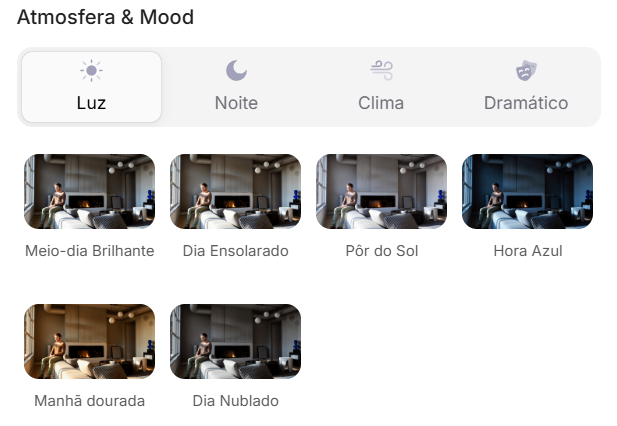
Atmosphere & Mood in Redraw: lighting in one click, no long prompt.
Instead of describing suburban residential street with visible neighbors in the background, you select the scene directly in the visual interface.
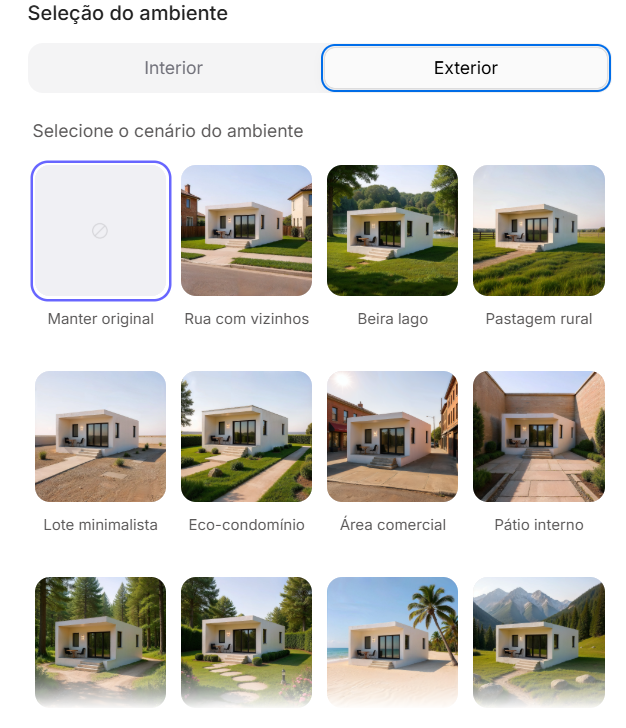
Environment Selection in Redraw: scene in one click, no text description.
Every choice you'd make in a long prompt, lighting, environment, style, camera, becomes a click. And because Redraw was trained exclusively for architecture, the model already “understands” the project context without you having to explain.
“In Redraw, the less prompt users write, the better the results.”
Comparison: text prompts vs. visual interface
| Feature | Text-Prompt Tools | Redraw |
|---|---|---|
| Prompt complexity | High, requires technical, long structure | Low, natural and simple language |
| Lighting control | Based on technical text | Based on visual clicks (Atmosphere & Mood) |
| Environment control | Based on descriptive text | Based on visual clicks (Environment Selection) |
| Fidelity to 3D project | Variable, depends on reference and prompt | High, processes the model geometry directly |
| Consistency between generations | Low | High |
| User focus | Learning to command the AI | Describing the architectural vision |
| Learning curve | Steep | Fast and intuitive |
| Time per render | High (prompt + tweaking + post-production) | Low (20–40 seconds, publishable result) |
The prompts in this guide remain valuable, understanding the logic makes you a more strategic user of any tool. But if you want to skip the learning curve and go straight to the result, Redraw solves it in clicks.
PART 1, Photorealistic Realism (Without Altering the Design)
The Master Realism Prompt
This is the base prompt for when you want to transform any project image into an ultra-realistic architectural photograph without modifying any element of the original design. It's the starting point for most workflows.
When to use: You have a simple render (SketchUp, Revit, or even a photo of the physical model) and want to elevate realism without risking the AI "inventing" elements.
The prompt:
Transform this image into an ultra photorealistic architectural photograph. Preserve 100% of the original architecture, layout, furniture placement, materials, colors, textures, proportions, decorative elements, and camera angle. Do NOT add, remove, redesign, or replace any element. Enhance realism only through: Physically accurate global illumination • Natural light behavior and realistic light bounce • Soft and natural shadow gradients • Ray traced reflections and refractions • Real-world material response. Apply subtle micro imperfections such as: Fabric fiber details • Natural wood grain variation • Slight surface irregularities • Minimal dust particles • Realistic glass reflections and transparency. Professional architectural photography style, balanced HDR exposure, natural color grading, cinematic yet realistic atmosphere. Ultra high resolution, 8K detail.
What each part does:
- Preserve 100% of the original, locks the geometry and composition of the project
- Enhance realism only through, directs the AI to improve only physical lighting
- Micro imperfections, what differentiates a render from a real photo
- 8K detail, ensures resolution for printing and presentation
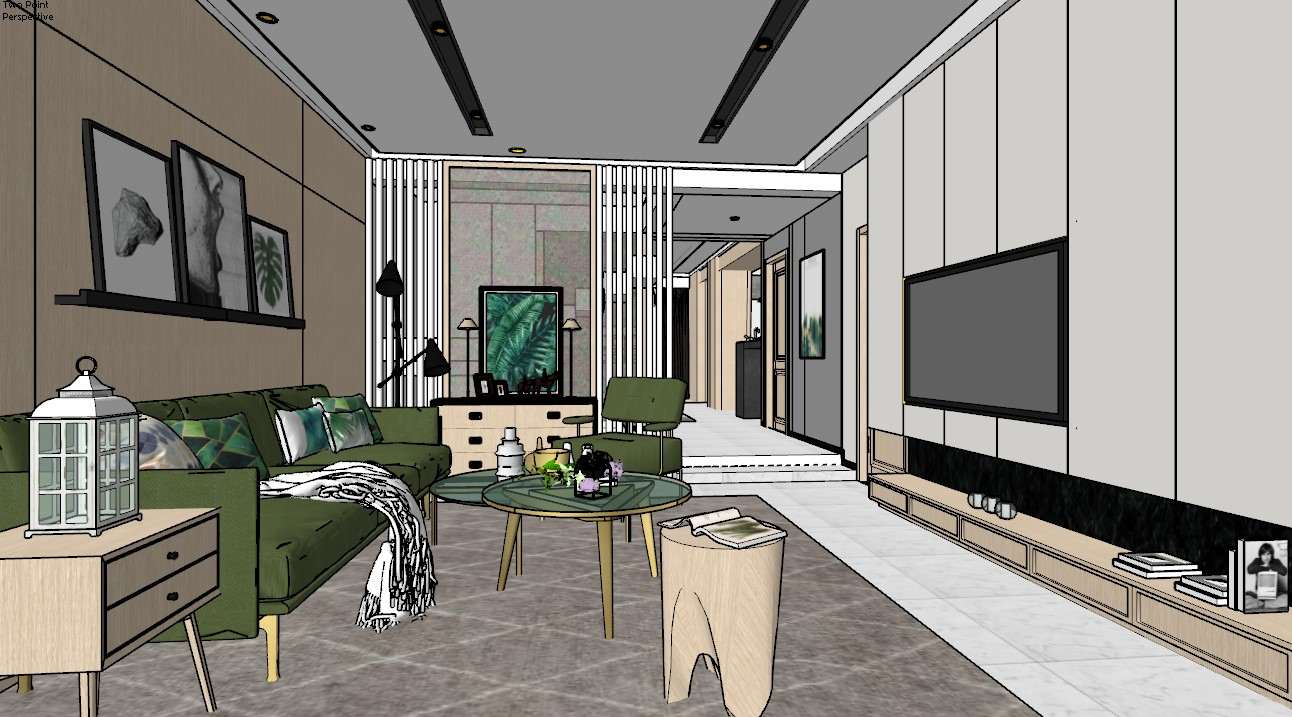
Before, original project image
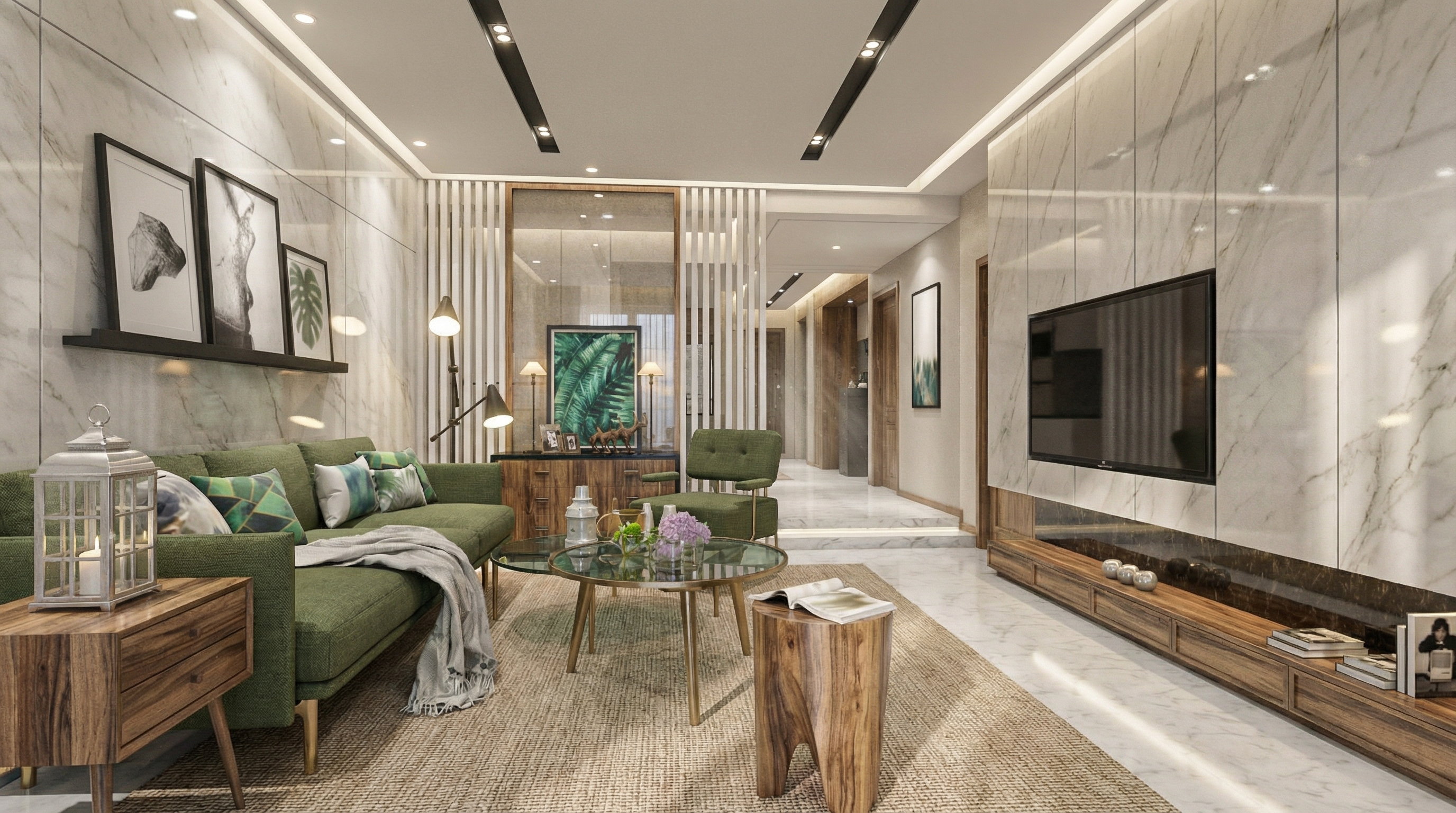
Result with Nano Banana
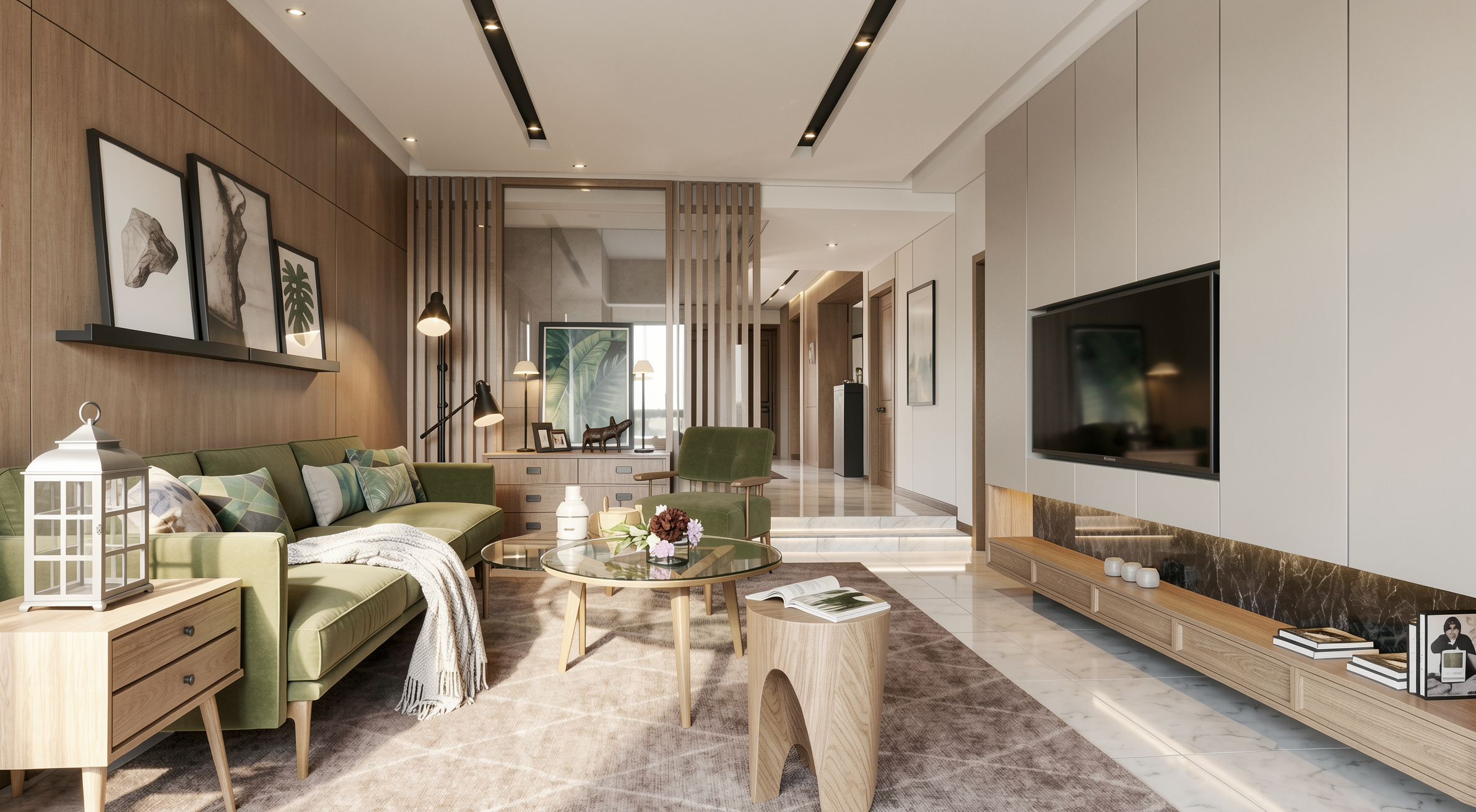
Result with Redraw
PART 2, Prompts by Room Type
2.1 High-End Living Room, Editorial Luxury
When to use: High-end residential projects where the client expects results with architectural magazine quality.
The prompt:
Create an ultra photorealistic luxury living room interior. Preserve 100% of the original architectural design, layout, furniture placement, materials, colors, and proportions. Enhance realism using physically accurate global illumination, natural daylight behavior, ray traced reflections, and soft shadow gradients. Apply high-resolution textures with micro imperfections such as fabric fibers, natural wood grain variation, subtle surface irregularities, minimal dust particles, and realistic glass reflections. Professional architectural editorial photography style, HDR balance, cinematic yet natural color grading, soft ambient occlusion, realistic depth of field, balanced white exposure. Ultra high resolution, 8K detail, interior magazine quality.
The instruction interior magazine quality calibrates the AI for editorial publication, more balanced lighting, more refined color grading, subtle depth of field.
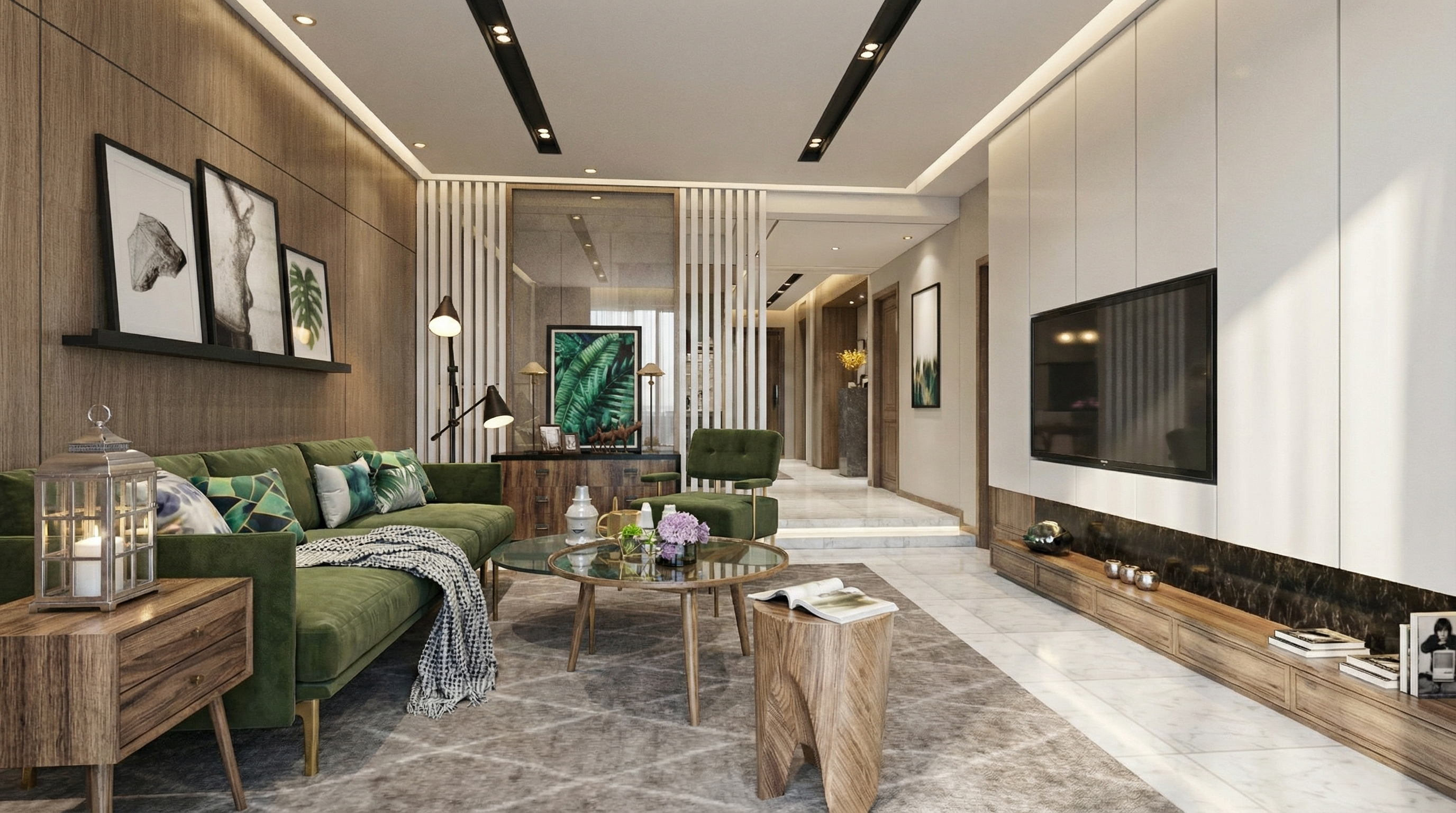
Result with Nano Banana
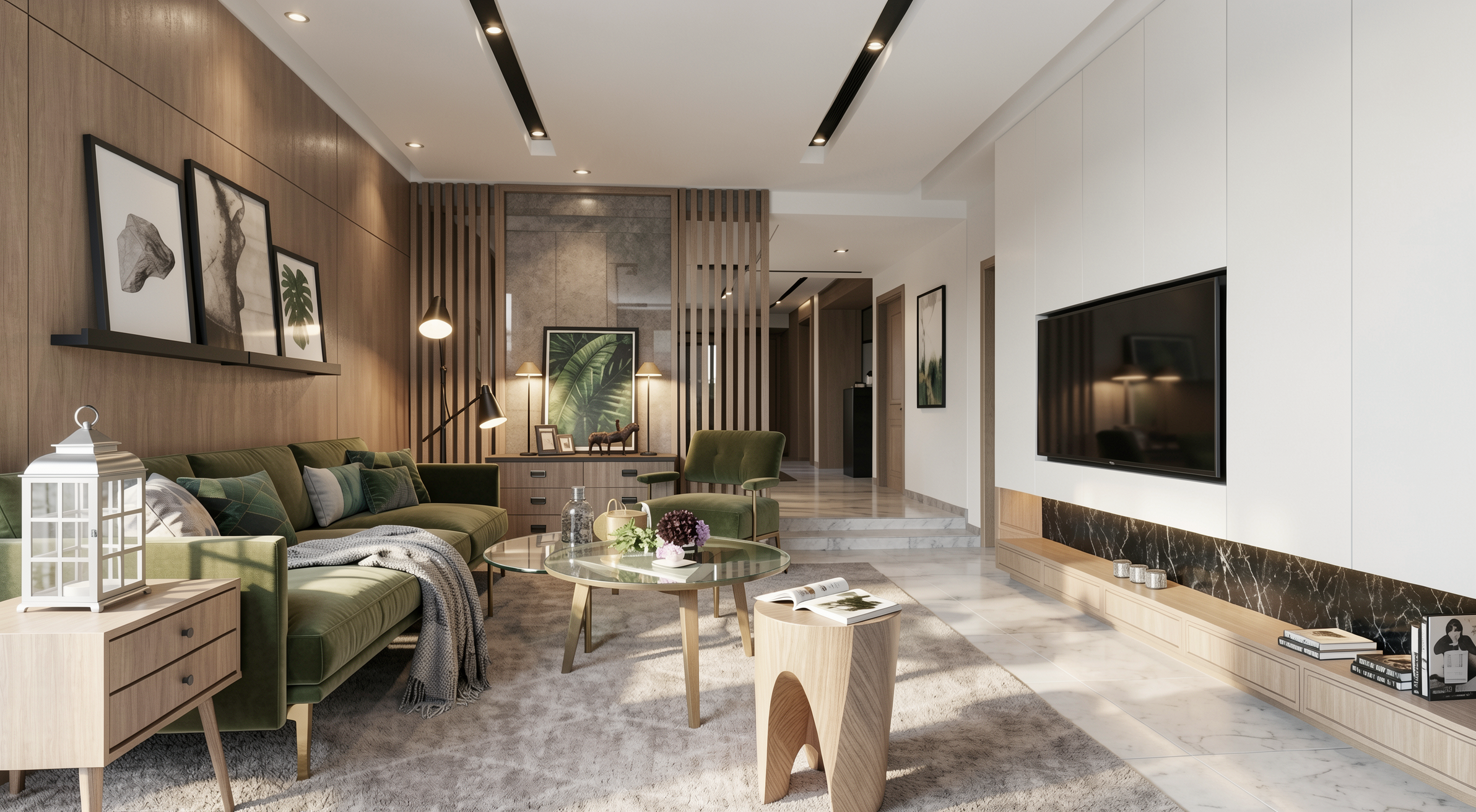
Result with Redraw
2.2 Minimalist Contemporary Living Room
When to use: Projects with a neutral palette, clean geometry, and calm atmosphere.
The prompt:
Create an ultra photorealistic minimalist contemporary living room interior. Neutral color palette, clean geometry, calm and elegant atmosphere. Preserve the original layout, furniture positioning, materials, and lighting concept. Enhance realism with soft natural light, accurate light bounce, subtle reflections, and realistic shadow softness. Apply smooth plaster walls with minimal imperfections, refined fabric textures, and matte surface response. Professional interior photography style, HDR lighting, natural white balance, 8K ultra detailed render.
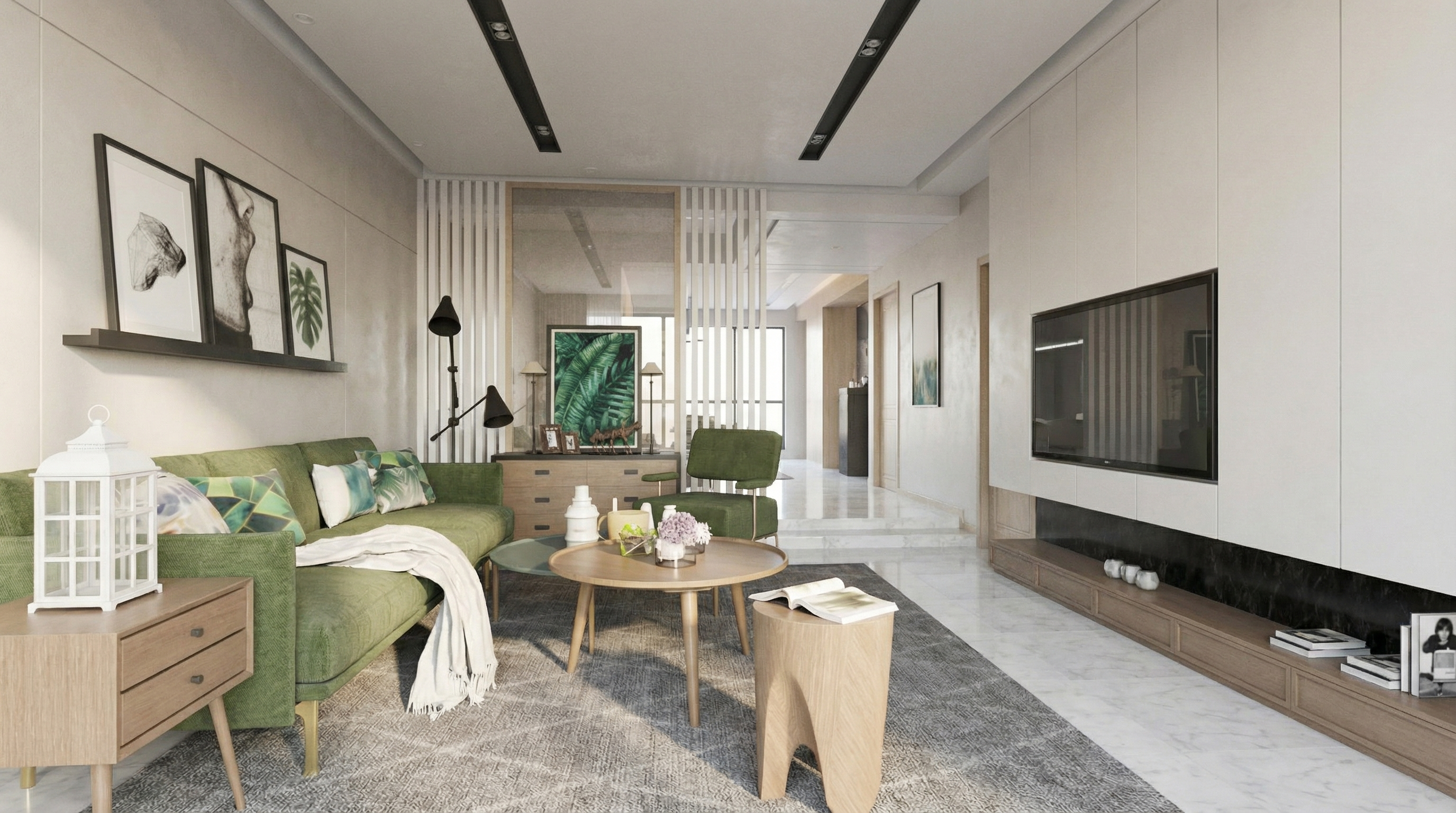
Result with Nano Banana
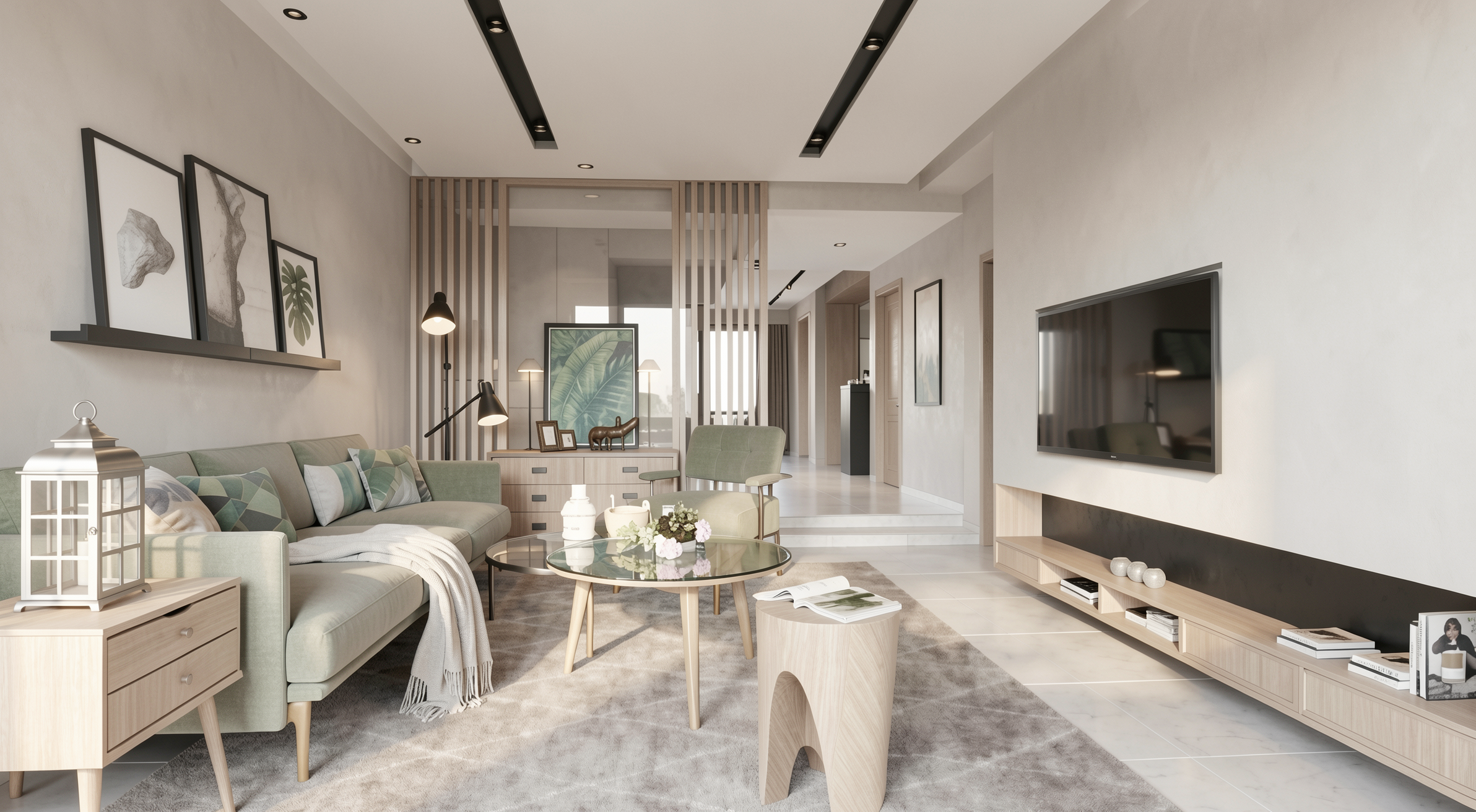
Result with Redraw
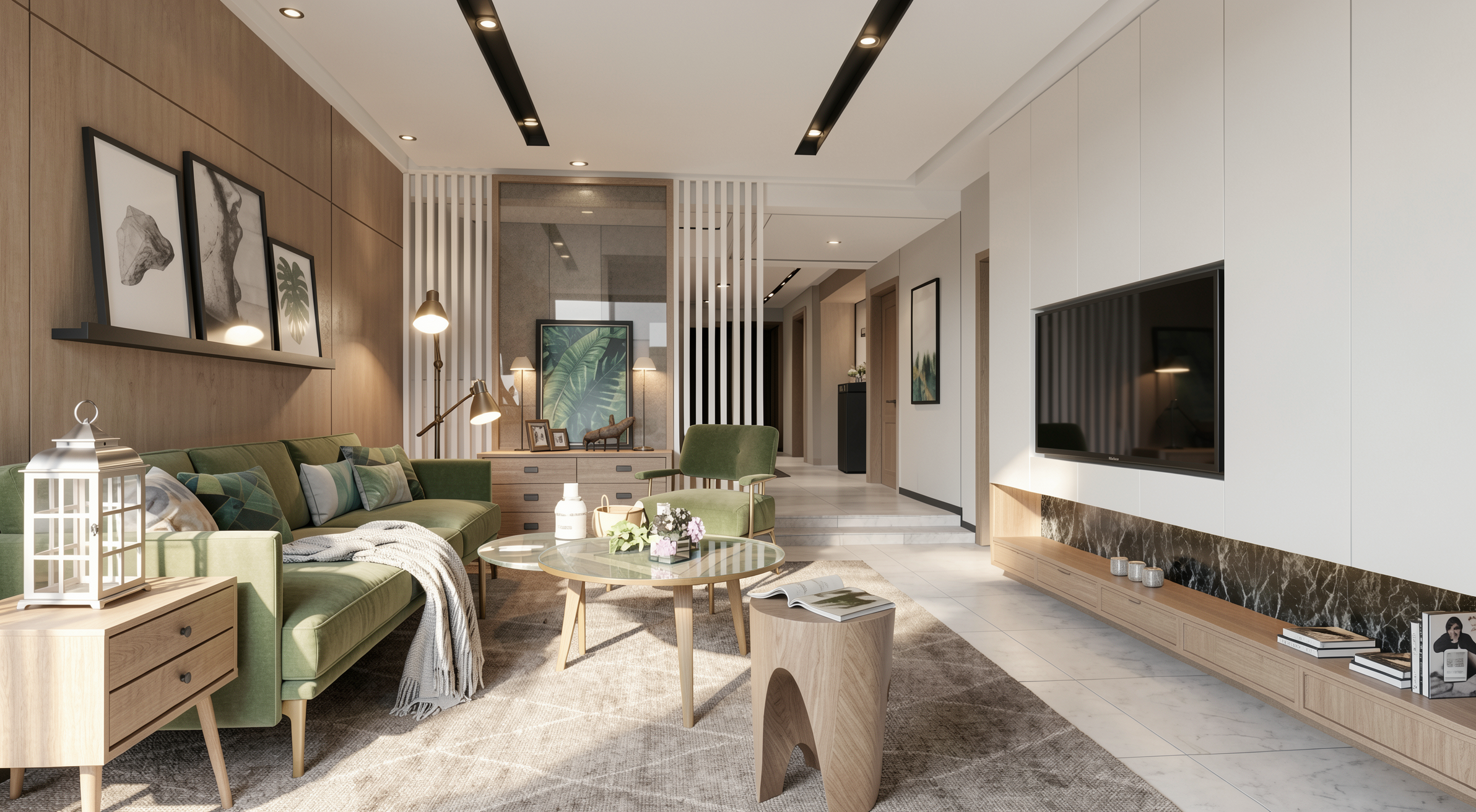
2.3 General Lighting Realism
When to use: The project already has good rendering quality, but the lighting needs refinement.
The prompt:
Enhance lighting realism while preserving the original lighting design. Improve natural light diffusion, realistic light bounce, and soft shadow transitions. Maintain balanced contrast, natural brightness distribution, and physically accurate light interaction with all materials. Avoid overexposure and maintain realistic color balance.
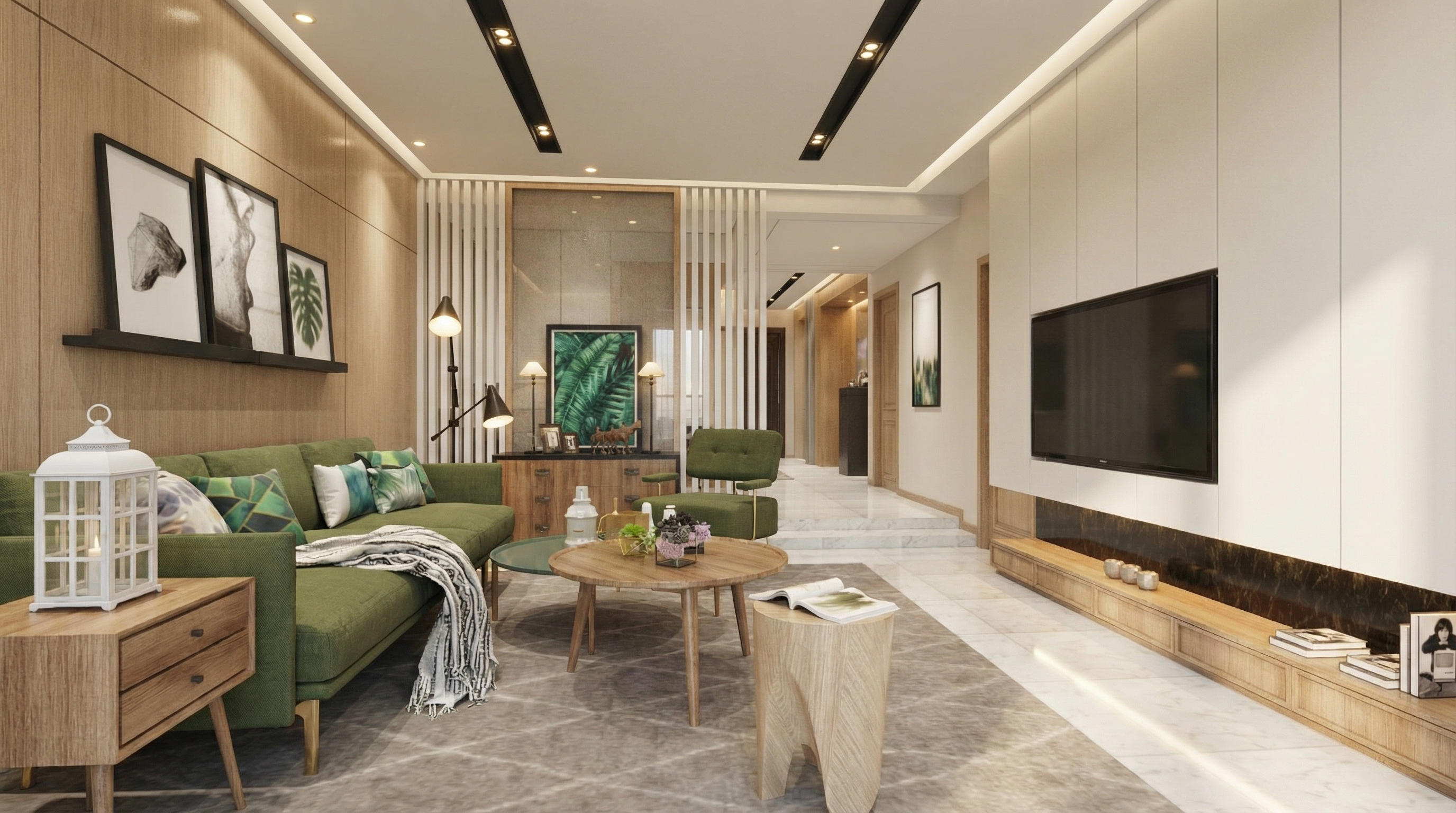
Result with Nano Banana
Result with Redraw
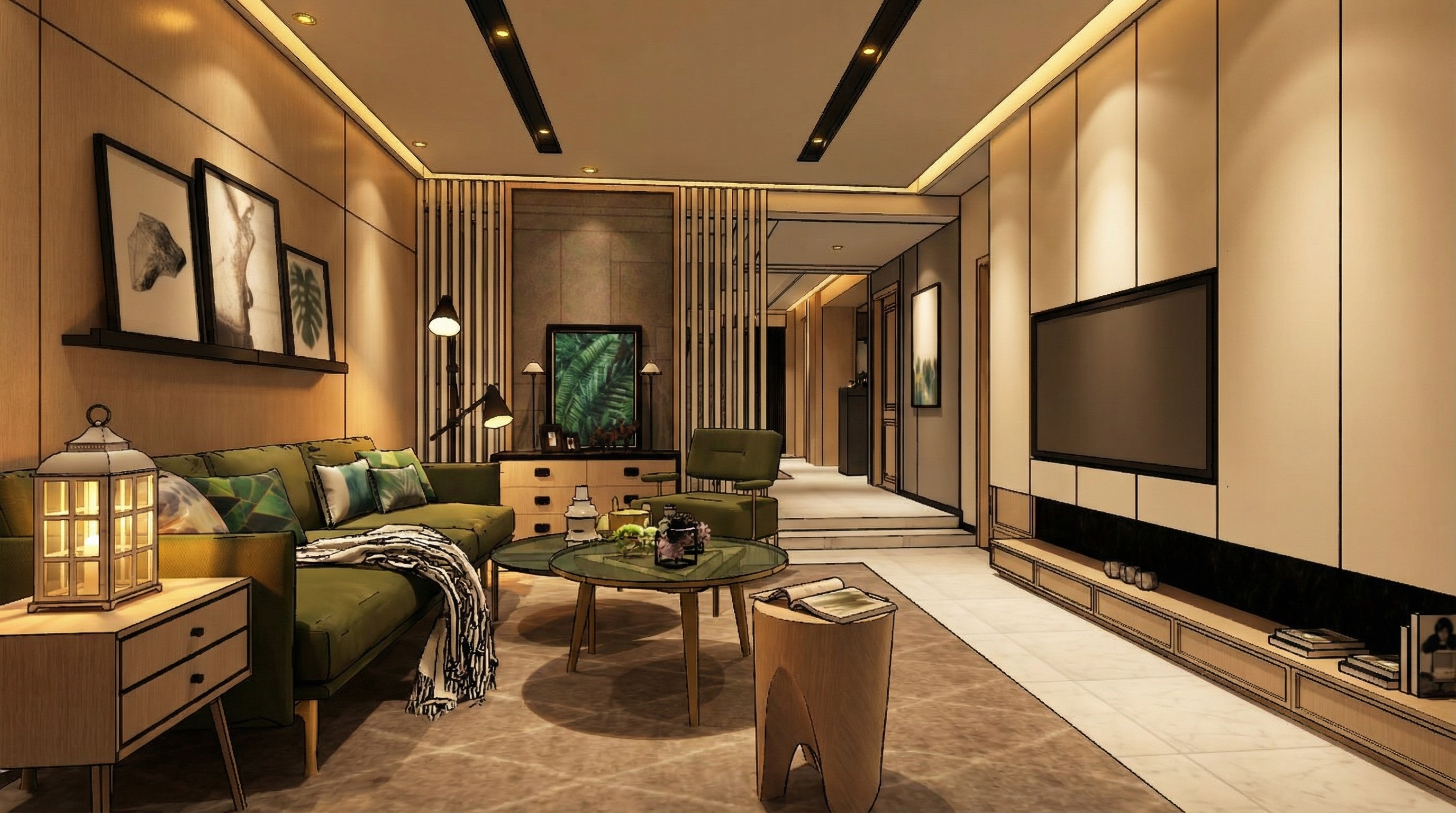
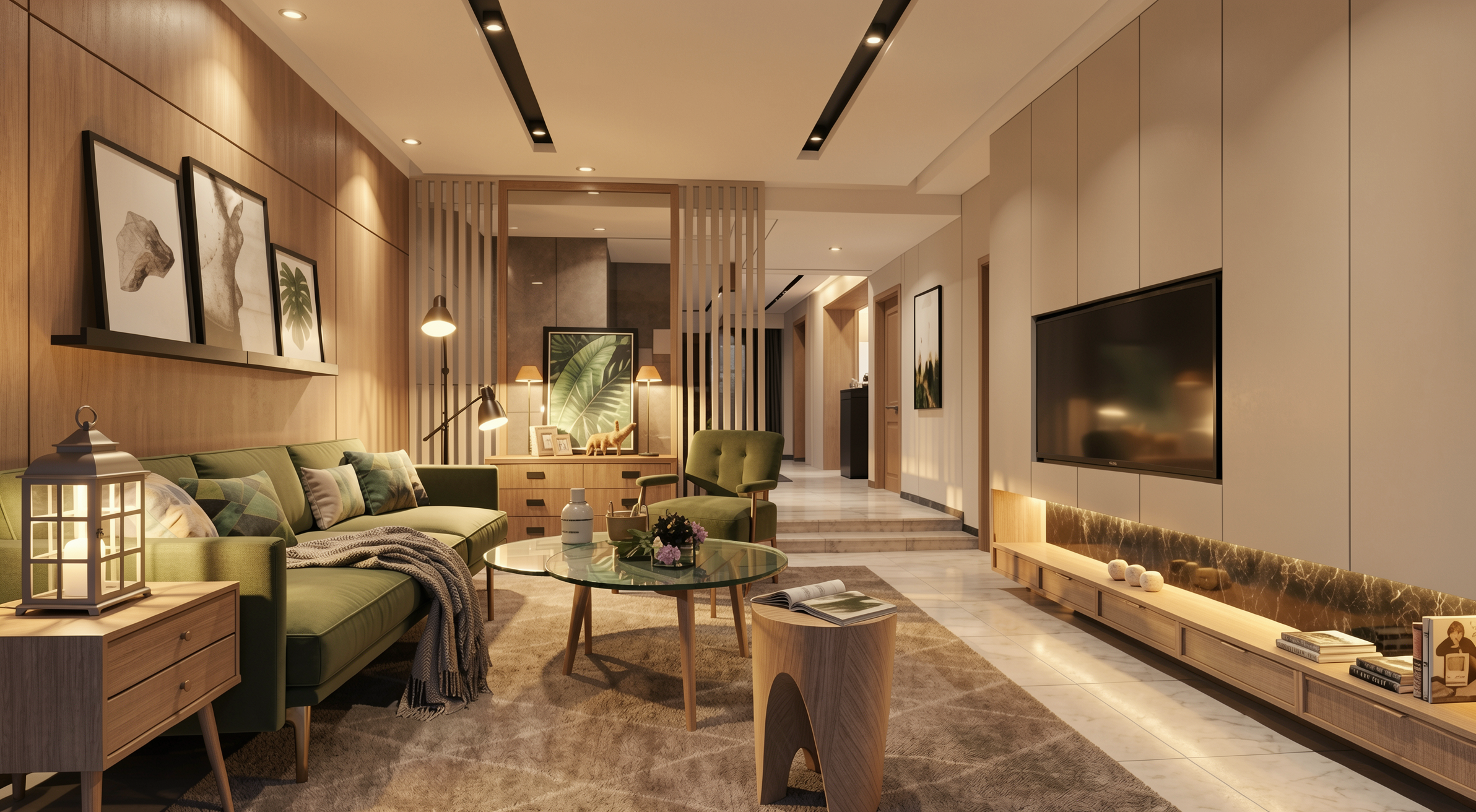
2.4 Cozy Atmosphere, Universal
When to use: Any indoor environment where you want to create a sense of warmth, comfort, and welcome.
The prompt:
Enhance the scene with a warm and inviting lighting atmosphere. Introduce subtle warmth into the lighting while maintaining realistic intensity and shadow behavior. Ensure smooth light gradients and comfortable visual balance without altering the original lighting composition.
Result with Nano Banana
Result with Redraw
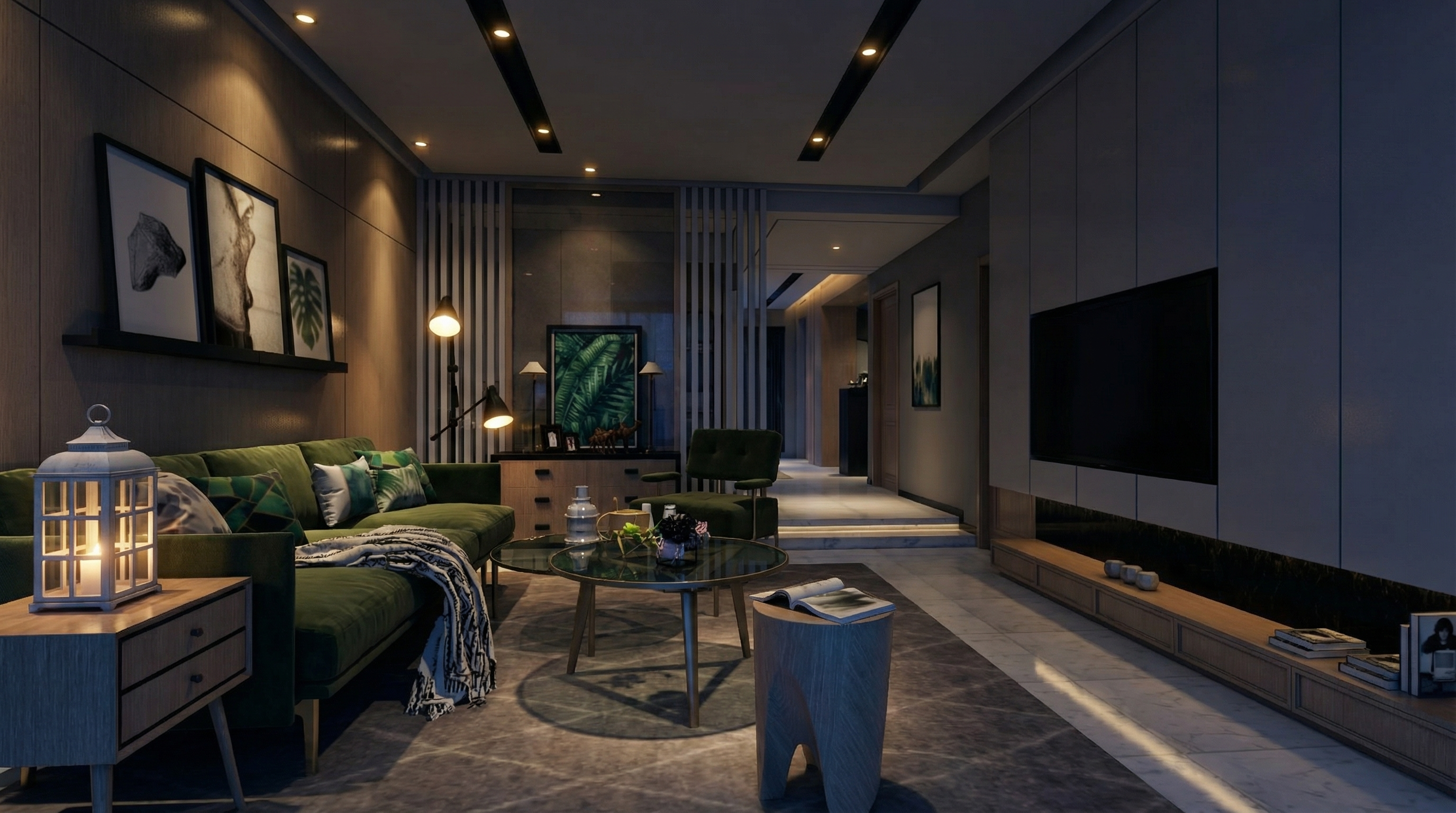
2.5 Night Atmosphere, Universal
When to use: Project presentations where the night environment is important.
The prompt:
Adjust the scene to simulate a realistic low-light environment. Enhance contrast between illuminated areas and darker surroundings while preserving natural light behavior. Maintain realistic reflections, ambient occlusion, and natural color balance suitable for evening environments.
Result with Nano Banana
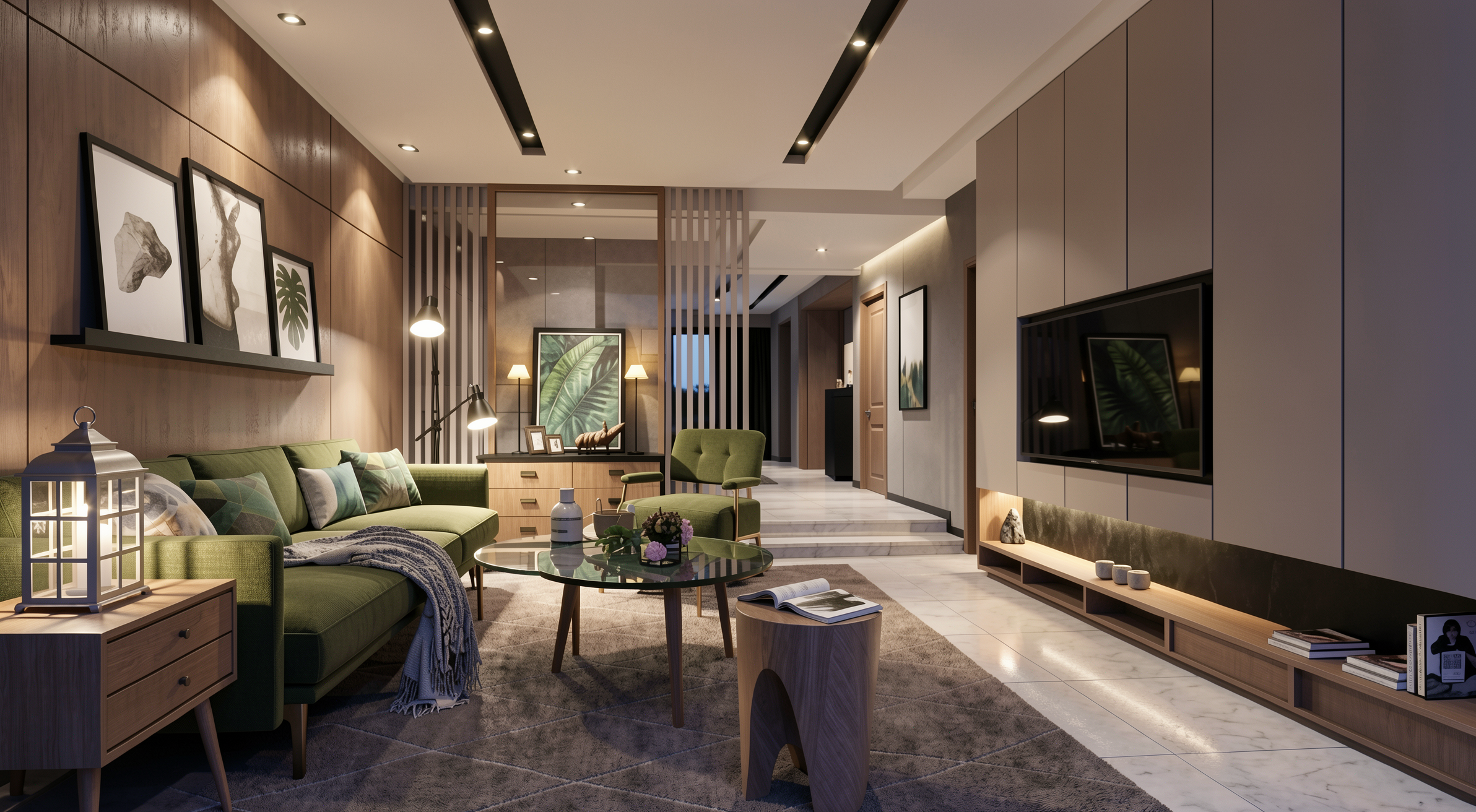
Result with Redraw
PART 3, Material Realism
The prompt:
Enhance natural materials with realistic surface variation, subtle tonal inconsistencies, micro texture detailing, and physically accurate light response. Maintain authentic material depth and natural imperfections.
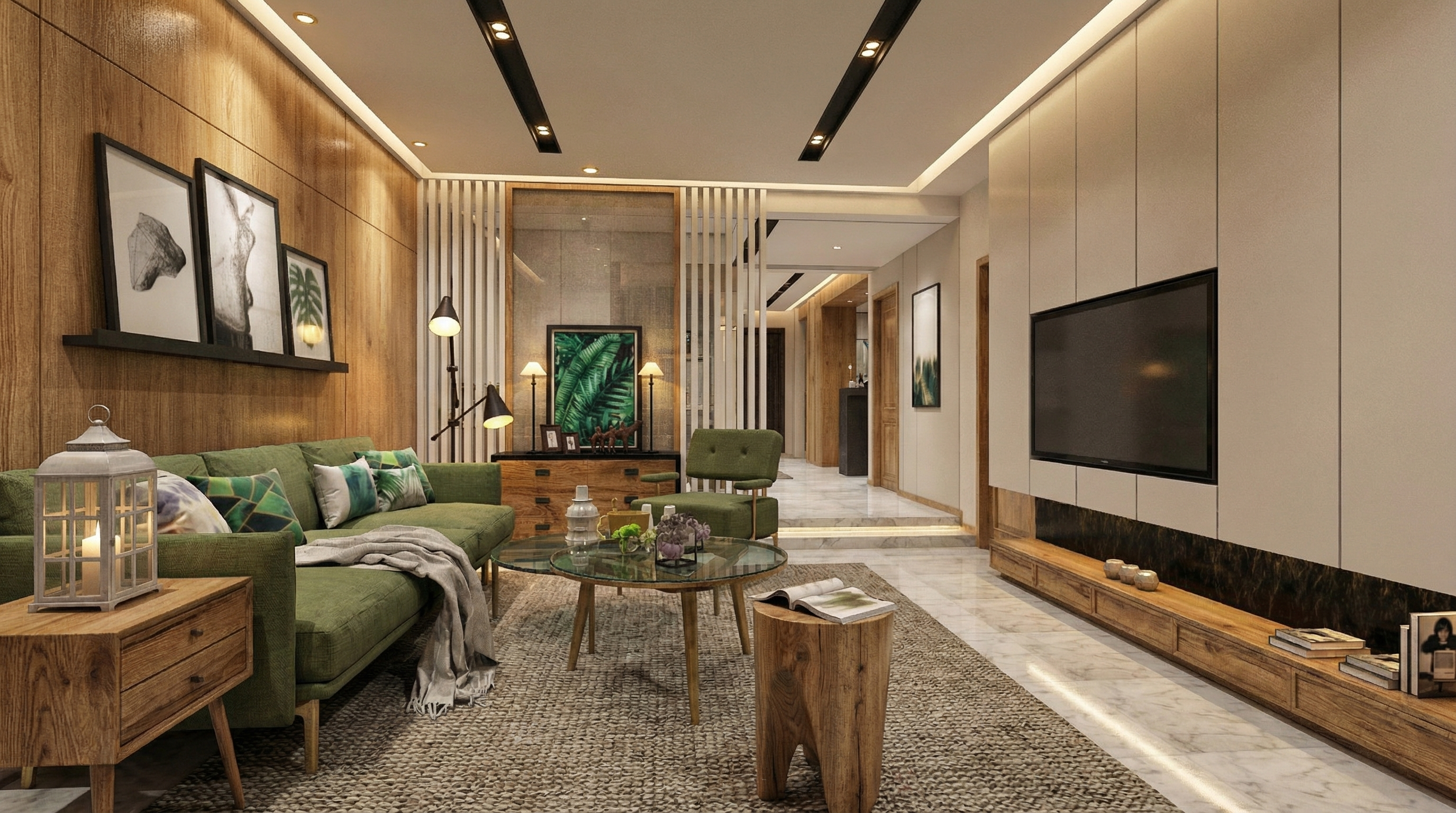
Result with Nano Banana
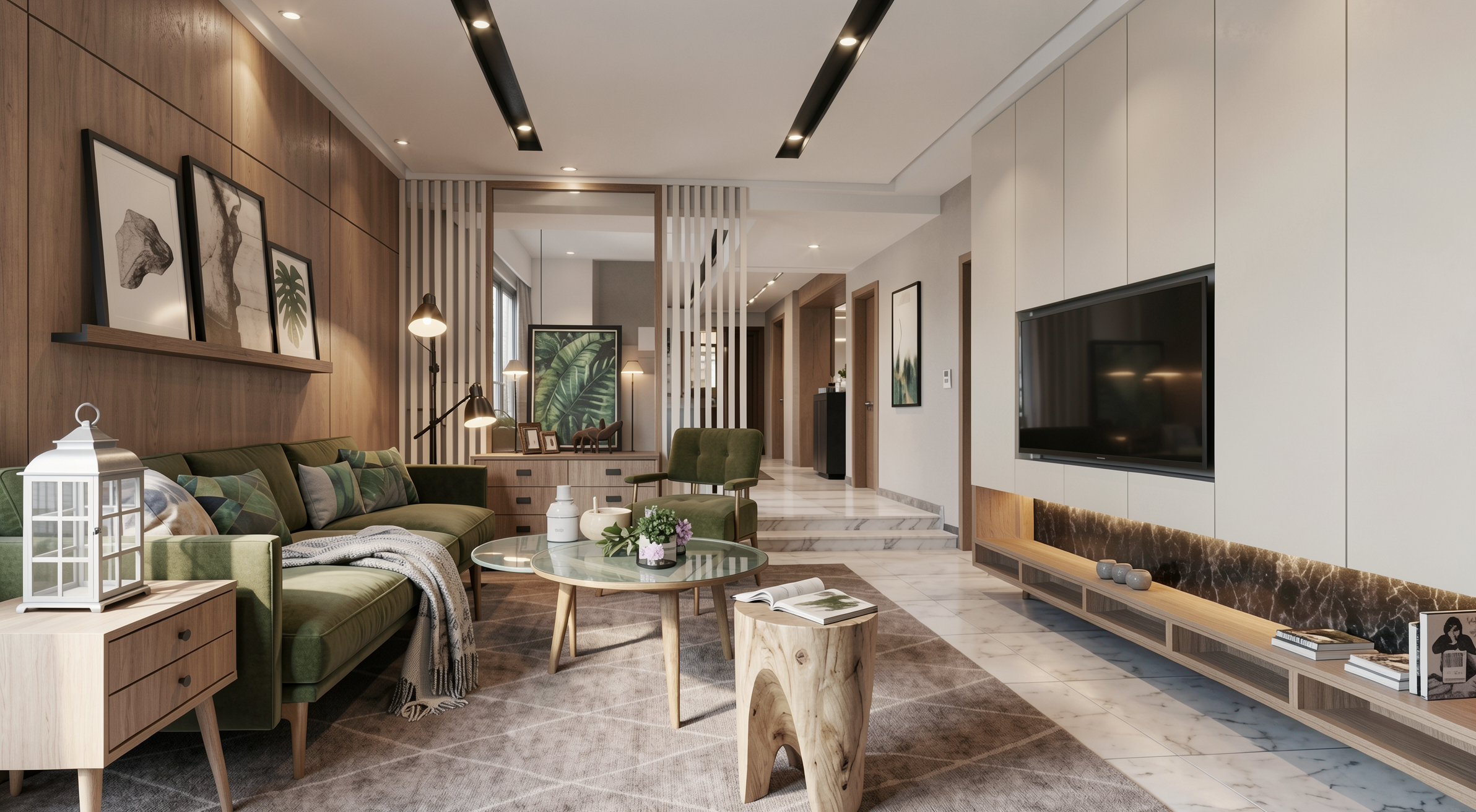
Result with Redraw
PART 4, Universal Prompts by Room
4.1 Living Room, Universal
Preserve 100% of the original architecture, layout, furniture placement, materials, colors, textures, proportions, decorative elements, lighting positions, and camera angle. Do NOT add, remove, redesign, or replace any element. Enhance realism through physically accurate global illumination, natural light behavior, realistic reflections, soft shadow gradients, real-world material response, subtle micro imperfections, balanced HDR exposure, natural color grading, and professional architectural photography quality. Enhance this living environment by improving spatial comfort perception, material depth, texture clarity, and visual harmony while maintaining a welcoming and sophisticated atmosphere.
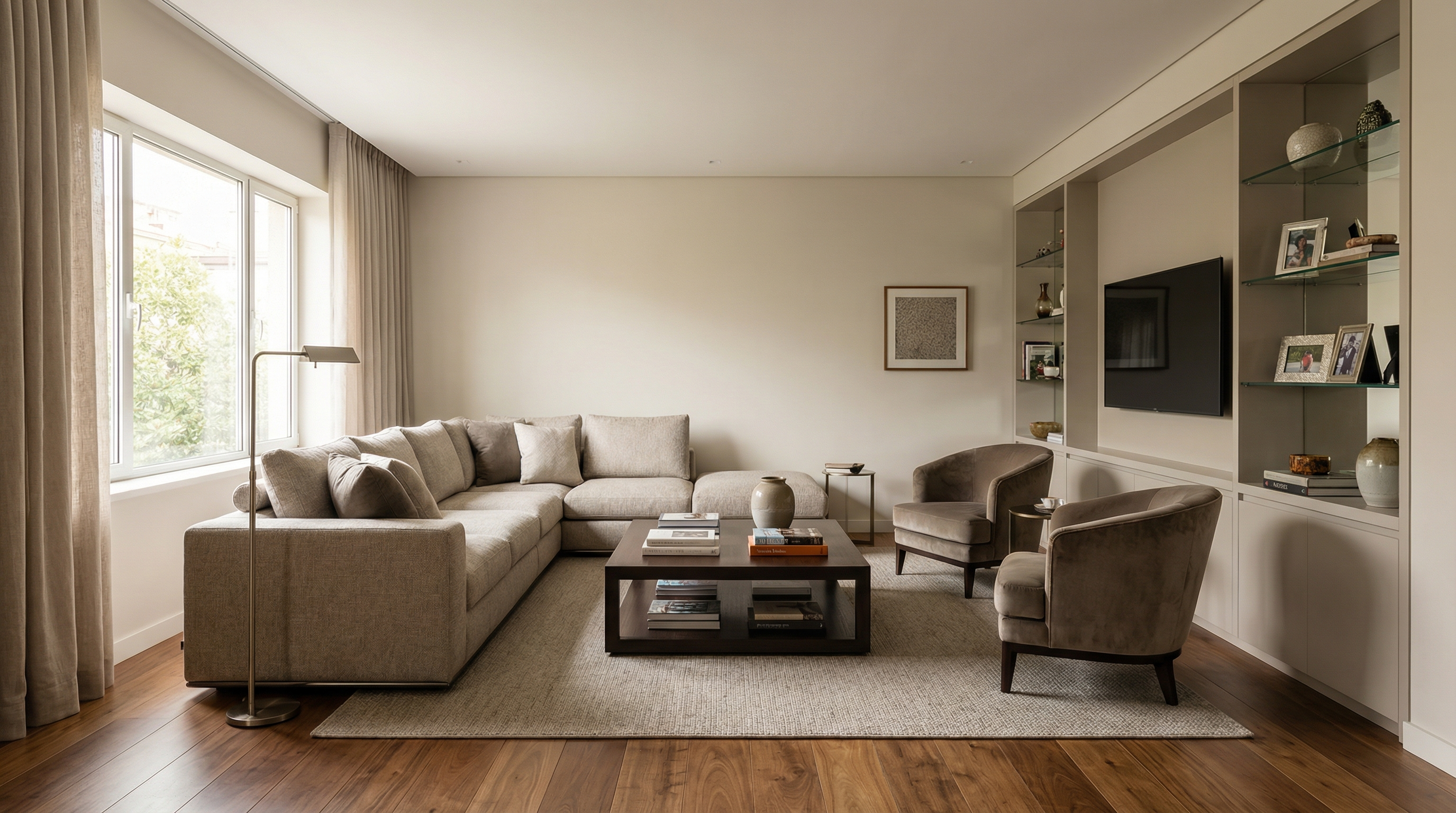
For exemplification, the AI model used was Nano Banana Pro, in models like Redraw V4, the results may be different and superior.
4.2 Dining Room, Universal
Preserve 100% of the original architecture, layout, furniture placement, materials, colors, textures, proportions, decorative elements, lighting positions, and camera angle. Do NOT add, remove, redesign, or replace any element. Enhance realism through physically accurate global illumination, natural light behavior, realistic reflections, soft shadow gradients, real-world material response, subtle micro imperfections, balanced HDR exposure, natural color grading, and professional architectural photography quality. Enhance this dining environment by improving visual elegance, material refinement, lighting balance, and spatial clarity while maintaining a comfortable and sophisticated atmosphere.
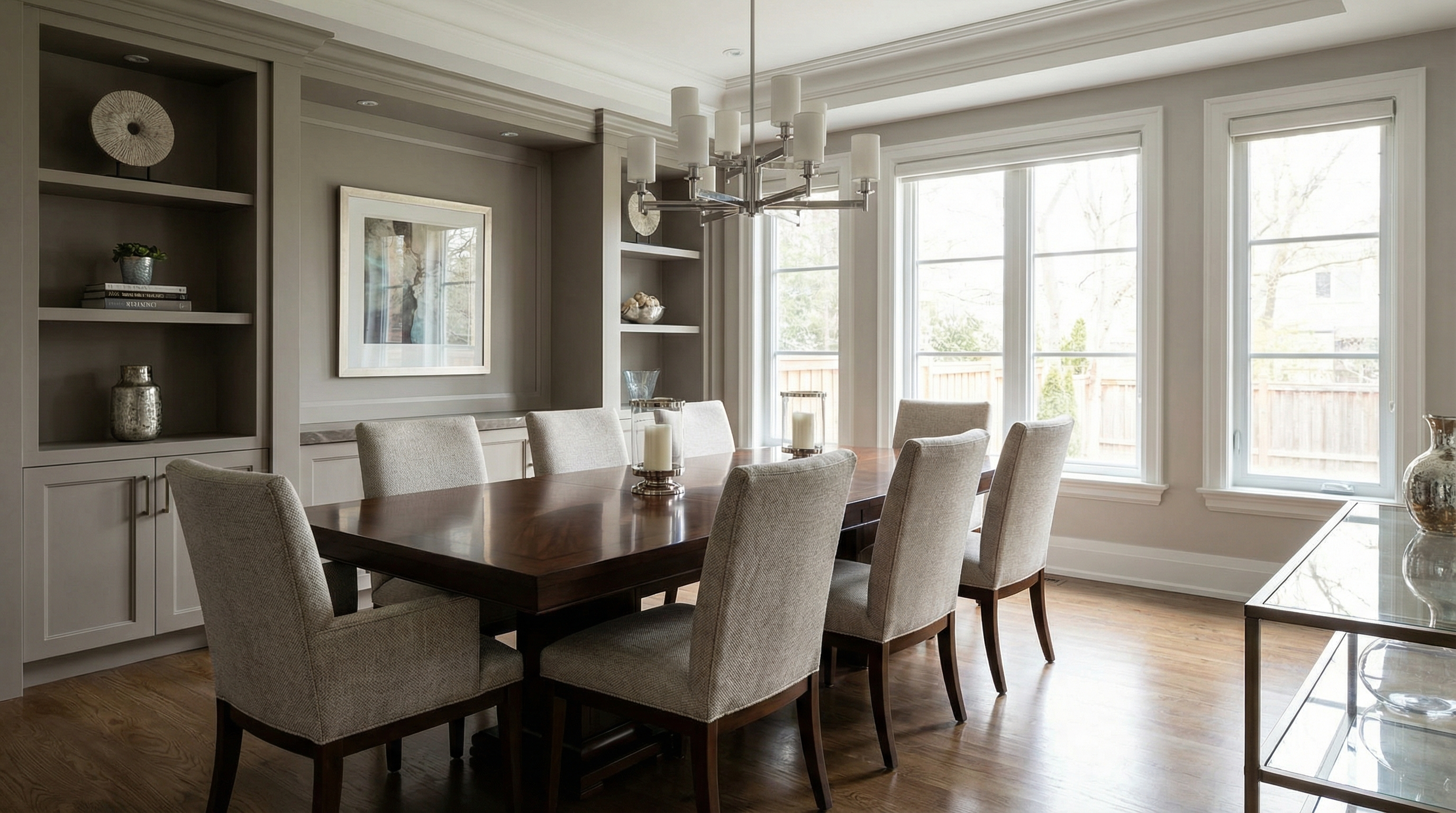
For exemplification, the AI model used was Nano Banana Pro, in models like Redraw V4, the results may be different and superior.
4.3 Kitchen, Universal
Preserve 100% of the original architecture, layout, furniture placement, materials, colors, textures, proportions, decorative elements, lighting positions, and camera angle. Do NOT add, remove, redesign, or replace any element. Enhance realism through physically accurate global illumination, natural light behavior, realistic reflections, soft shadow gradients, real-world material response, subtle micro imperfections, balanced HDR exposure, natural color grading, and professional architectural photography quality. Enhance this kitchen environment by improving surface clarity, reflective material behavior, texture realism, and spatial definition while maintaining functional clarity and visual sophistication.
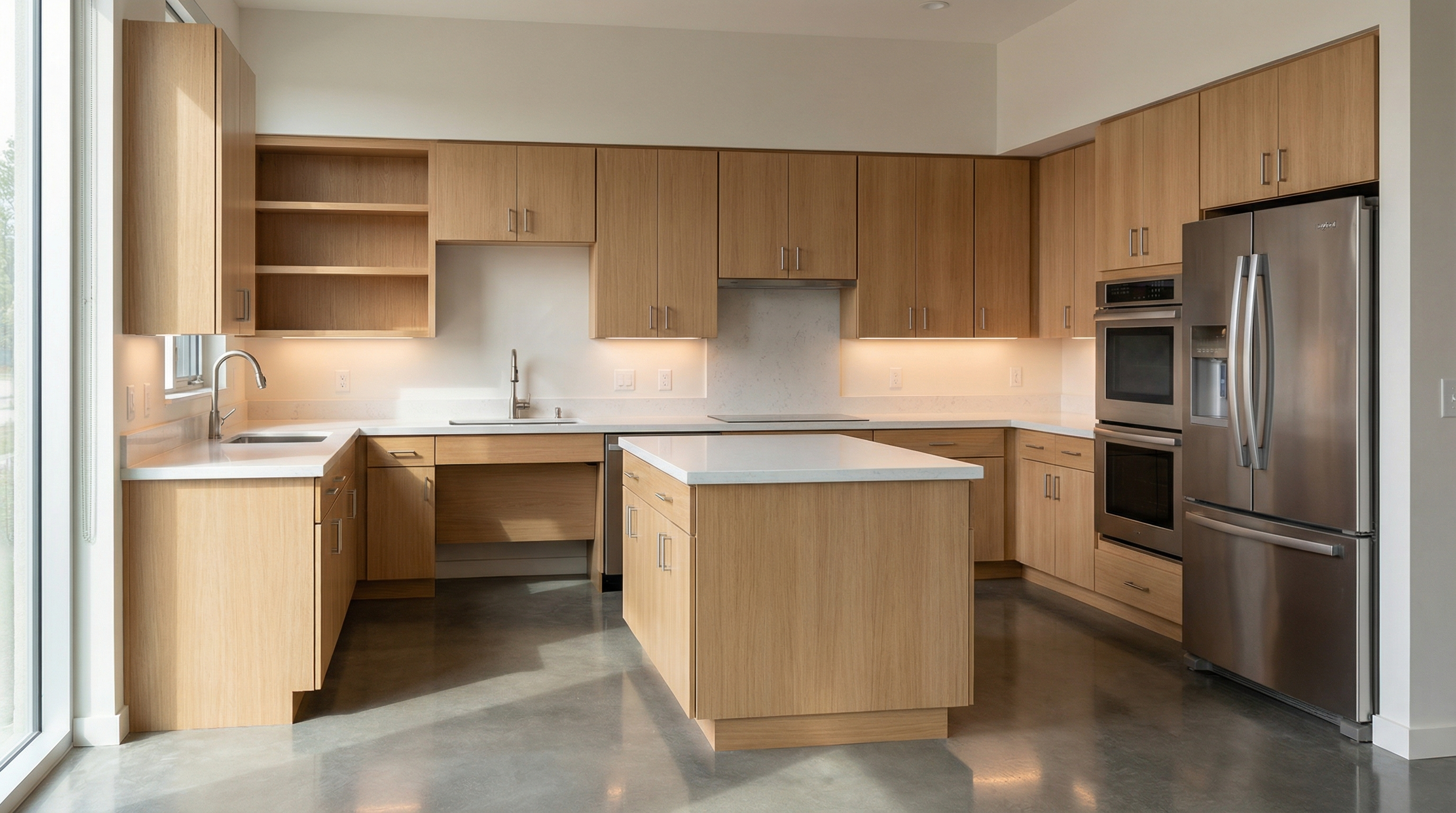
For exemplification, the AI model used was Nano Banana Pro, in models like Redraw V4, the results may be different and superior.
4.4 Bedroom, Universal
Preserve 100% of the original architecture, layout, furniture placement, materials, colors, textures, proportions, decorative elements, lighting positions, and camera angle. Do NOT add, remove, redesign, or replace any element. Enhance realism through physically accurate global illumination, natural light behavior, realistic reflections, soft shadow gradients, real-world material response, subtle micro imperfections, balanced HDR exposure, natural color grading, and professional architectural photography quality. Enhance this sleeping environment by improving lighting softness, material comfort perception, fabric detailing, and spatial depth while maintaining a calm and relaxing atmosphere.
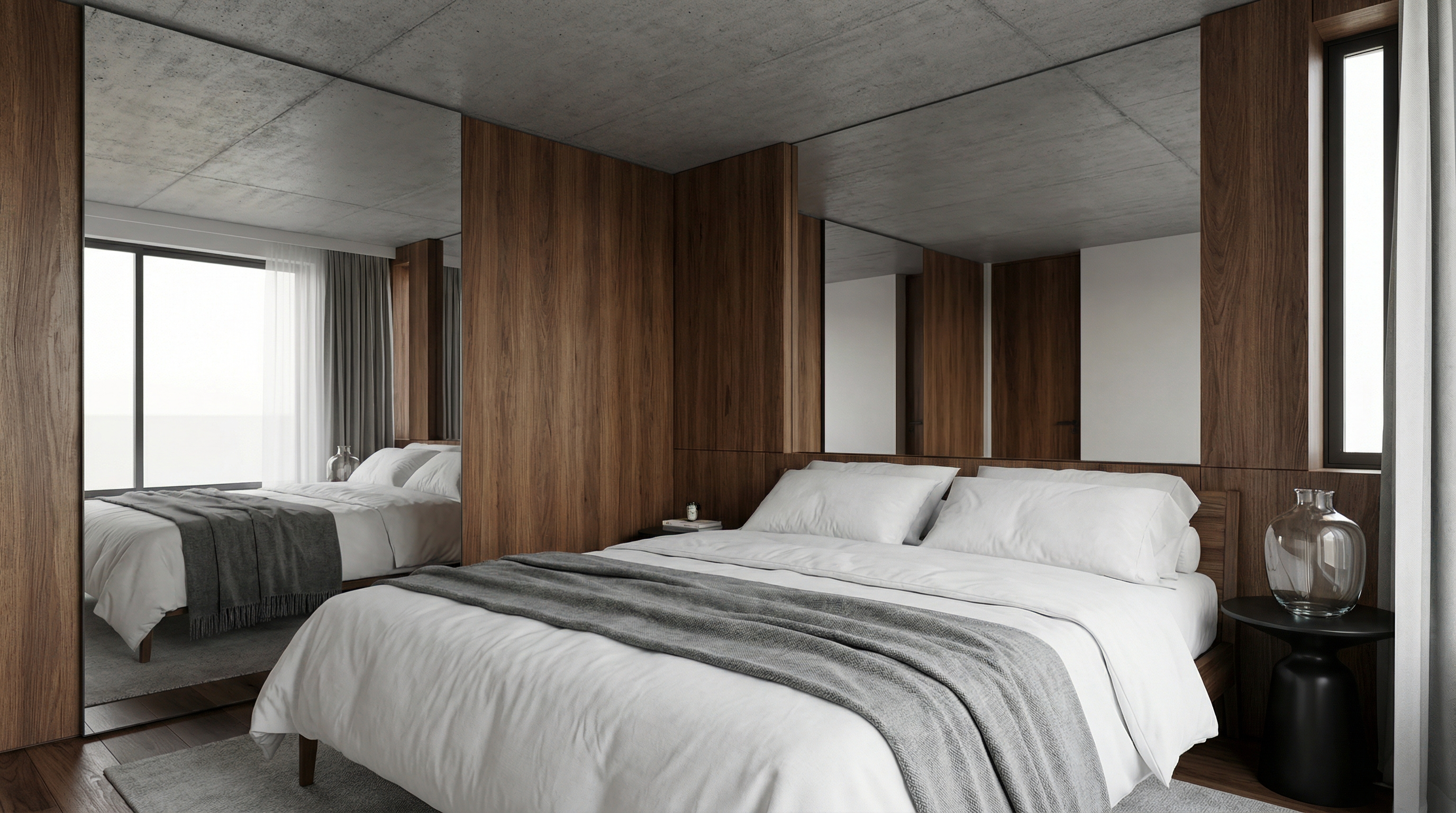
For exemplification, the AI model used was Nano Banana Pro, in models like Redraw V4, the results may be different and superior.
4.5 Bathroom, Universal
Preserve 100% of the original architecture, layout, furniture placement, materials, colors, textures, proportions, decorative elements, lighting positions, and camera angle. Do NOT add, remove, redesign, or replace any element. Enhance realism through physically accurate global illumination, natural light behavior, realistic reflections, soft shadow gradients, real-world material response, subtle micro imperfections, balanced HDR exposure, natural color grading, and professional architectural photography quality. Enhance this bathroom environment by improving reflective surface behavior, material detailing, lighting clarity, and clean spatial perception while maintaining refined visual realism.
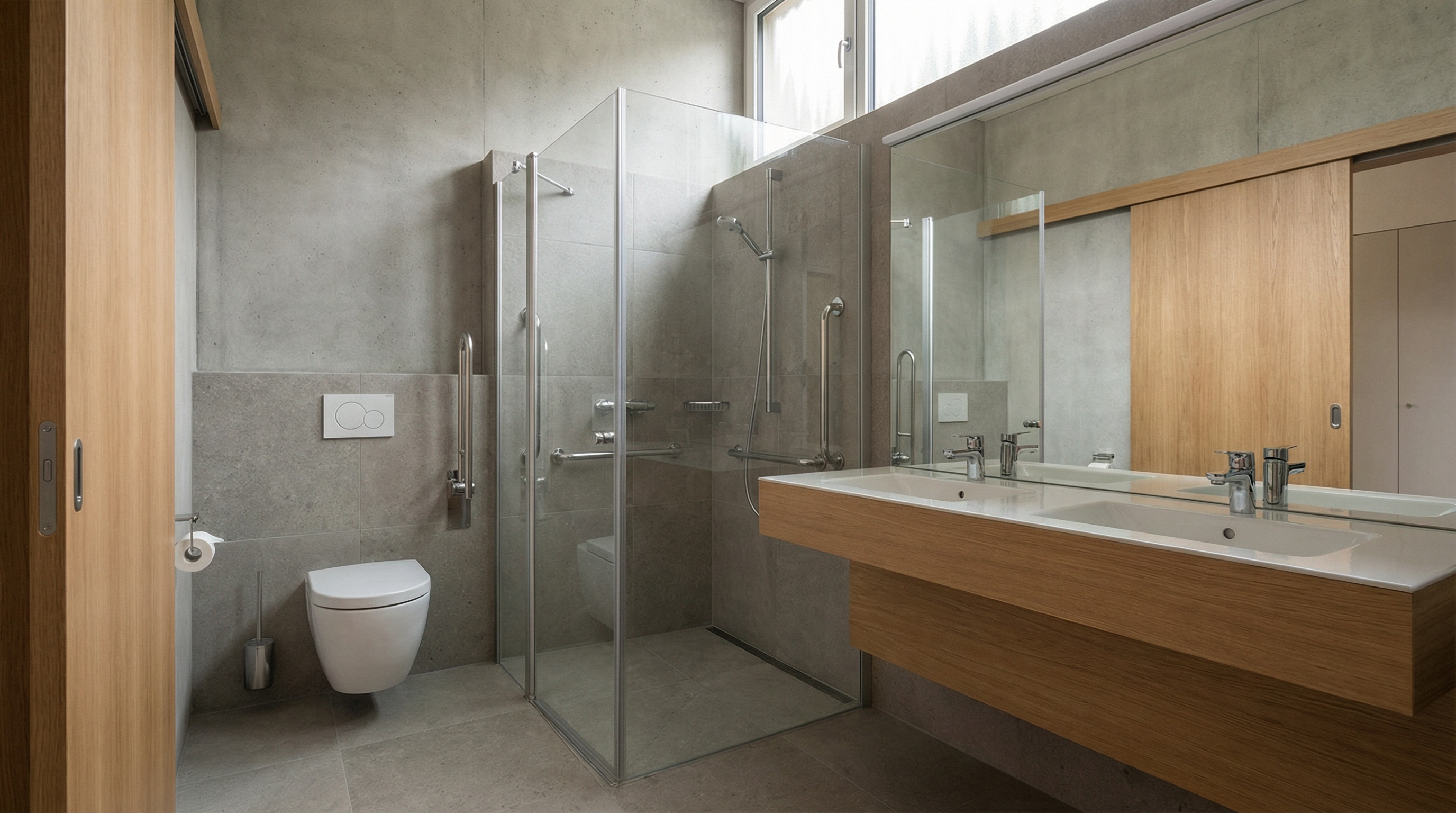
For exemplification, the AI model used was Nano Banana Pro, in models like Redraw V4, the results may be different and superior.
PART 5, Inserting Human and Animal Elements
5.1 Realistic Person Insertion
The prompt:
Add a realistic human presence into the scene while preserving 100% of the original architecture, layout, furniture placement, materials, lighting setup, composition, and camera angle. Do NOT modify, remove, redesign, or reposition any architectural or decorative element. The human figure must complement the scene naturally and realistically.
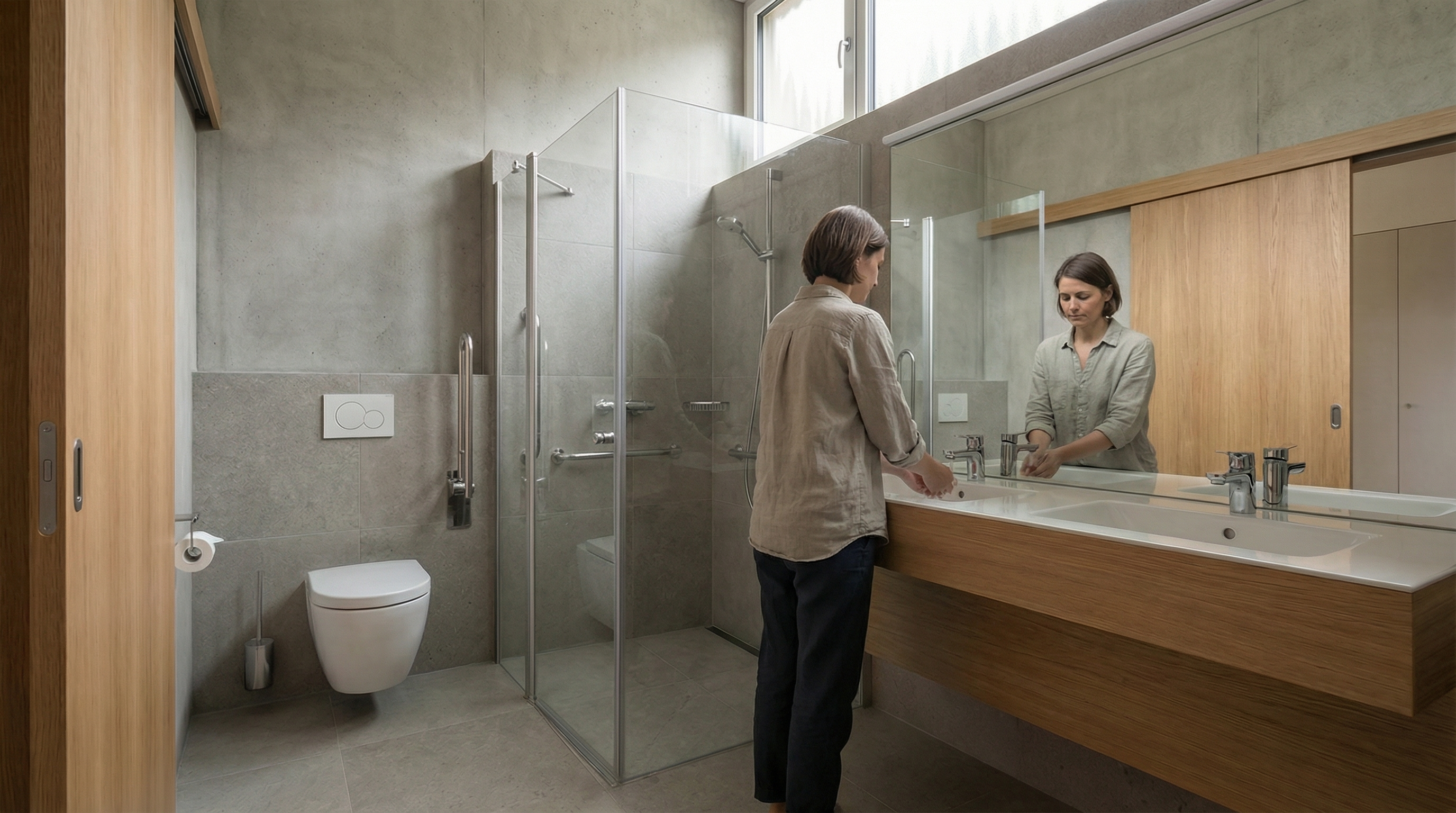
Model: Nano Banana Pro
5.2 Person in Motion (Motion Blur)
The prompt:
Preserve 100% of the original architecture, materials, colors, textures, lighting, furniture placement, proportions, decorative elements, composition and camera angle. Do NOT modify, redesign, reposition, remove, enhance or reinterpret any element of the image. Only add a realistic human silhouette passing in front of the camera, creating a subtle motion blur effect. The person must appear naturally integrated into the scene, as if walking across the frame during a real photograph. The human figure must: Be slightly translucent (70–85% opacity) • Have vertical motion blur consistent with walking movement • Show soft directional blur edges (no hard outline) • Maintain realistic scale relative to the environment • Respect the existing lighting direction • Cast a subtle, soft, slightly blurred contact shadow on the floor. Ultra realistic integration. Professional architectural photography style.
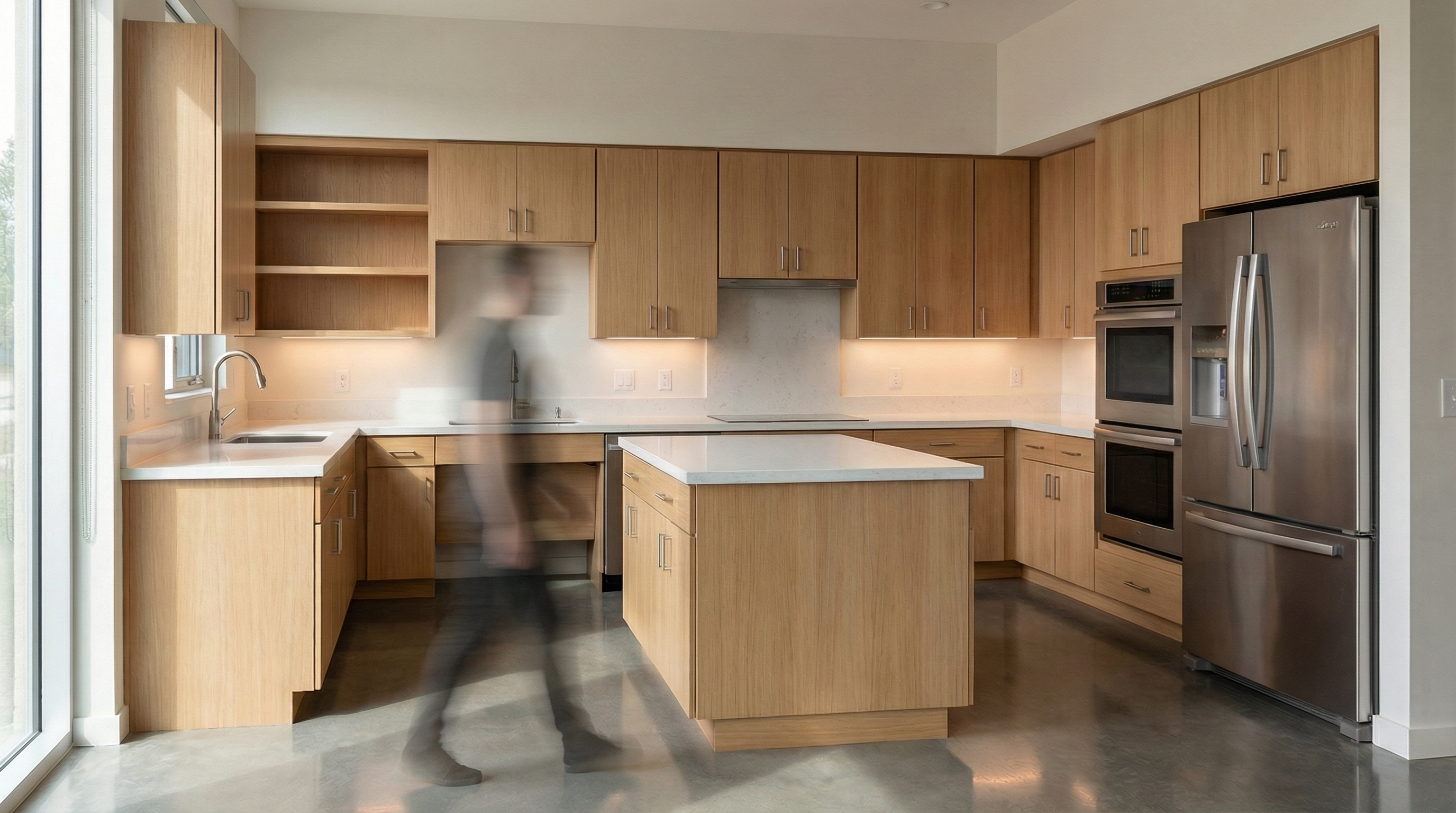
Model: Nano Banana Pro
5.3 Cat Insertion
The prompt:
Preserve 100% of the original architecture, layout, furniture placement, materials, colors, textures, proportions, decorative elements, lighting positions, and camera angle. Do NOT modify, remove, or redesign any existing element. Insert a realistic cat naturally integrated into the environment. The cat must have physically accurate fur texture, natural body proportions, realistic shadows, and correct interaction with the existing lighting conditions.
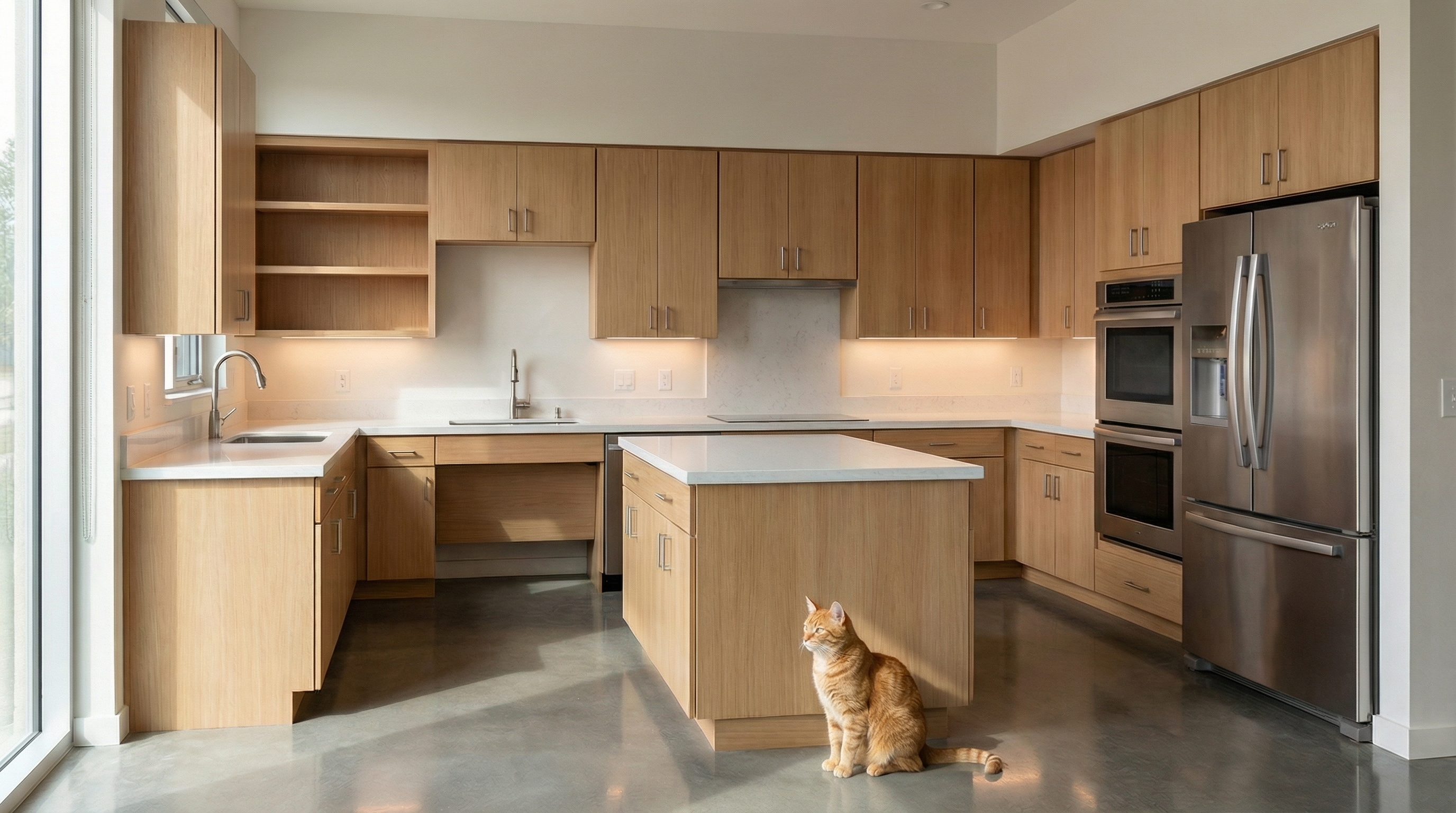
Model: Nano Banana Pro
5.4 Dog Insertion
The prompt:
Preserve 100% of the original architecture, layout, furniture placement, materials, colors, textures, proportions, decorative elements, lighting positions, and camera angle. Do NOT modify, remove, or redesign any existing element. Insert a realistic dog naturally integrated into the environment. The dog must display accurate fur detailing, realistic anatomy, proper scale, and physically accurate shadow behavior according to the existing lighting conditions.
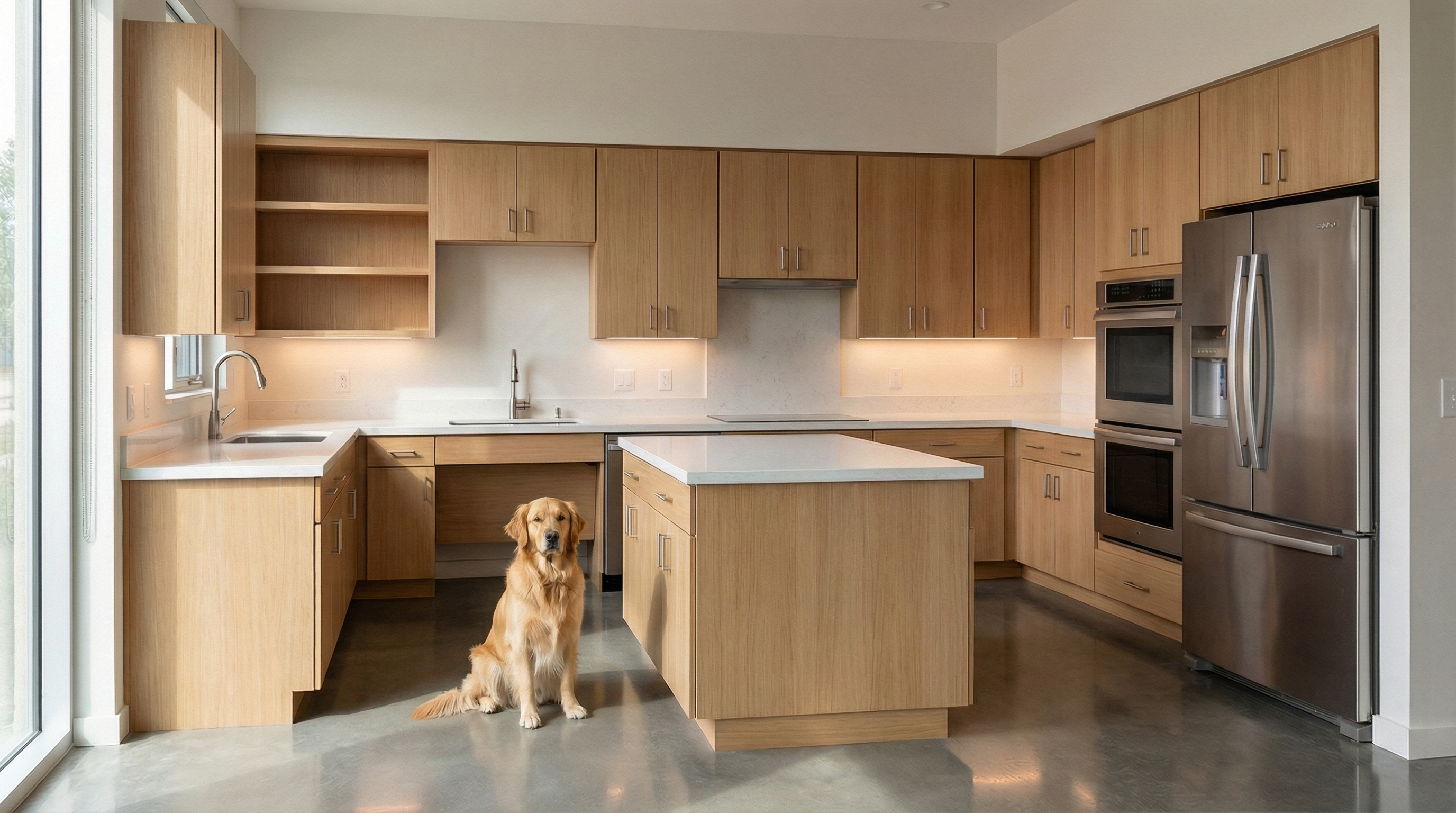
Model: Nano Banana Pro
AI Change Control System
The prompts below are complementary, they don't generate images on their own, but when added to the beginning or end of your main prompt, they act as a safety lock.
Total Change Lock
Use when: The AI keeps changing layout, furniture, or proportions.
Preserve 100% of the original architecture, layout, furniture placement, materials, colors, textures, decorative elements, proportions, lighting positions, and camera angle. Strictly forbid adding, removing, replacing, resizing, repositioning, or redesigning any element. The purpose of this transformation is ONLY to enhance realism, lighting behavior, and material response without altering the original design in any way.
Lighting Design Respect
Use when: The AI is ignoring the original lighting design and creating new light sources.
Preserve the original lighting design exactly as shown in the image. Do not add new light sources, remove existing lights, or modify lighting positions. Only enhance realism through natural light diffusion, realistic light bounce, soft shadow transitions, and accurate material interaction with existing lighting.
Material Protection
Use when: The AI is replacing or reinterpreting the project's materials.
Preserve all original materials and textures exactly as shown. Do not replace, reinterpret, or stylize materials. Enhance realism only through improved surface detailing, micro imperfections, and physically accurate light response.
Which AI to use for interior renders?
The prompts in this guide work with any text-based AI image generation tool. For interior renders with project fidelity, we recommend Redraw, the only platform built specifically for architecture. You upload the 3D model (SketchUp, Archicad, Revit, Rhino, 3DS), select the style and environment in clicks, and the render comes out in 20 to 40 seconds with fidelity to the original project.
How to Write AI Prompts for Architecture Rendering: Complete Guide for Architects
Why generic AI prompts fail in architectural rendering
If you've ever tried to render a project using an AI image generator, you've probably run into the same problem: the result doesn't look like what you had in mind. The lighting came out wrong, the geometry shifted, the style turned generic. And the fix everyone suggests is always the same — "improve your prompt."
But what actually makes a good prompt for architecture rendering? What do you need to write, in what order, and why? This guide breaks down the complete anatomy of an effective prompt for AI image tools like Nano Banana — and shows, at the end, why Redraw was built to eliminate this complexity from the architect's daily workflow.
What is a rendering prompt and why it matters
In text-based AI image tools, the prompt is the only communication channel between you and the model. The more precise and structured it is, the more control you have over the result.
For general use — creating an illustration, generating a texture, exploring a visual concept — a simple prompt works fine. But for technical architectural rendering, where you need to preserve geometry, control lighting, and guarantee project fidelity, a shallow prompt almost always fails.
The good news: there's a proven structure. And mastering it completely changes the output.
The anatomy of a complete AI prompt for architecture rendering
An effective prompt for architectural rendering isn't a sentence — it's a sequence of information layers. Each layer instructs the AI on a different aspect of the final image.
| Component | What it does | Applied example |
|---|---|---|
| Command | Defines the main action the AI must perform | Render this image / Turn this model into a photorealistic render |
| Context | Describes the general scene environment | Contemporary living room interior / Corner-lot residential facade |
| General Reference | Specifies the architectural style and what must be preserved | Brazilian minimalist architecture, preserving the original layout and geometry |
| Realism Rules | Technical parameters controlling visual fidelity | No geometry alteration, PBR materials, global illumination, ray tracing |
| Photography | Simulates real camera settings | 24mm lens, eye level, high sharpness, subtle depth of field |
| Composition | Defines framing and visual principles | Rule of thirds, balanced framing, clean space without distracting elements |
| Lighting | Describes light quality, direction, and temperature | Soft morning natural light, entering through side windows, neutral to cool temperature |
How each component affects the result
Command: It seems obvious, but different tools interpret commands differently. "Render" tells the AI to treat the image as a technical reference. "Create" or "Imagine" allow more creative freedom — which is a problem for project rendering.
Context: Without clear context, the AI fills gaps with its own "assumptions" based on training data. An interior without context can turn into a generic hotel room. Specify the environment type, the use, and the scale.
General Reference: This layer is critical for architectural projects. Explicitly instruct the AI to not alter what shouldn't be changed. Most fidelity errors happen because this instruction is absent.
Realism Rules: Technical terms like global illumination, ray tracing, physically-based rendering activate specific parameters in AI models that produce more photorealistic results. Without them, the output tends to look like a digital illustration, not a render.
Photography: The camera is the observer's point of view. A wide-angle lens (24mm, 28mm) gives scale and breadth — ideal for interiors and facades. Eye level creates a natural perspective. Subtle depth of field adds realism without distracting from the project.
Composition: Framing matters as much in rendering as in photography. Instructing the AI on composition avoids cropped, off-center results or unwanted elements in the foreground.
Lighting: This is the layer with the greatest impact on final realism. Describe the time of day (morning, afternoon, sunset), the light source (natural, artificial, mixed), the direction (lateral, zenithal, diffuse), and the color temperature (warm, neutral, cool). The more specific, the less the AI "invents."
Building the complete prompt: a real example
Applying all layers in sequence, a functional prompt for interior rendering looks like this:
"Render this image of a contemporary living room interior, minimalist architecture, preserving the original layout without altering the geometry, with realistic materials and global illumination, in professional architectural photography with a 24mm lens, eye level, high sharpness, subtle depth of field, balanced framing with rule of thirds, soft morning natural light entering through side windows, neutral temperature, realistic to the point of being indistinguishable from a real photograph."
It's an effective prompt — but also a long, technical one that takes practice to build. For each project, each angle, each space, you repeat this process.
When the prompt is enough — and when it isn't
Mastering prompts is a valid skill, especially for creative exploration, moodboards, and concept generation. But for professional, day-to-day use in architecture firms, there are structural limitations no prompt solves:
- The AI doesn't read the 3D model — it interprets a reference image. This means the project's geometry is always at risk of being reinterpreted.
- Consistency across generations is low. Two identical prompts rarely produce the same result.
- The time spent adjusting and refining prompts can exceed the time the render saves.
- Text prompts can't precisely control parameters like camera angle, light intensity, or material finish.
For occasional exploration, the prompt-based workflow works. For recurring project render production, the cost-benefit equation shifts.
The visual interface: what Redraw does differently
Redraw was built on a different premise: architects shouldn't need to learn machine language to generate a professional render.
Instead of writing warm late-afternoon natural light, long soft shadows, entering laterally, in Redraw you click "Sunset."
Instead of describing suburban residential street with neighbors visible in the background, you select the environment directly in the visual interface.
Every choice you'd make in a long prompt — lighting, environment, style, camera — becomes a click. And since Redraw was trained exclusively for architecture, the model already "understands" the project context without you having to explain it.
"In Redraw, the less prompt users add, the better the results."
Comparison: text prompts vs. visual interface
| Feature | Text Prompt Tools | Redraw |
|---|---|---|
| Prompt Complexity | High — requires long technical structure | Low — natural, simple language |
| Lighting Control | Text-based, technical | Visual clicks (Atmosphere & Mood) |
| Environment Control | Text-based, descriptive | Visual clicks (Environment Selection) |
| 3D Project Fidelity | Variable — depends on reference and prompt | High — processes model geometry directly |
| Consistency Across Generations | Low | High |
| User Focus | Learning to command the AI | Describing the architectural vision |
| Learning Curve | Steep | Fast and intuitive |
| Time per Render | High (prompt + adjustments + post-production) | Low (20–40 seconds, publishable result) |
FAQ — Frequently asked questions about AI prompts for architecture rendering
What is an AI prompt for architecture rendering?
A prompt is the text command you send to an AI image generator. For architecture rendering, an effective prompt must include: environment type, architectural style, realism parameters, camera settings, composition, and lighting. The more specific and structured, the closer the result to what you need.
Which keywords improve a rendering prompt?
For more realistic results, include terms like global illumination, ray tracing, physically-based rendering, architectural photography, photorealistic, 35mm lens, natural light. These activate specific parameters in AI models that increase visual fidelity.
Why doesn't my prompt preserve the project's geometry?
Because text-based AI image tools don't process 3D models — they interpret reference images. The geometry is never fully protected, even with explicit instructions like "do not alter the layout." For project-faithful rendering, tools that integrate the 3D model directly — like Redraw — are more reliable.
Is it worth learning to write rendering prompts?
It depends on the use case. For creative exploration, moodboards, and concept generation, yes — it's a useful skill. For recurring project render production in a firm, the time cost of prompt tuning tends to outweigh the benefit. Specialized tools deliver more output with less effort.
Does Redraw use prompts?
Redraw accepts natural language prompts, but doesn't rely on them to produce quality results. Most control — lighting, environment, style, camera — is done through visual interface clicks. The model was trained for architecture, so it understands the project context without needing detailed text input.
What's the difference between Nano Banana and Redraw for architectural rendering?
Nano Banana is an AI generation tool that operates from text prompts — versatile, but generic. For architectural project rendering with technical fidelity, Redraw was built specifically for this: it processes the 3D model, preserves geometry, and delivers publishable results in 20 to 40 seconds, without the prompt learning curve. (For a direct comparison between generic and specialized AI, see Redraw vs Midjourney for architecture.)
Conclusion
Knowing how to build a structured prompt is a real advantage when using AI image tools. This guide covers enough to start producing better results immediately — understanding what each prompt layer does and why it matters.
But mastering prompts has a ceiling. For architects who need project-faithful, consistent, fast renders every day, there's a more direct approach: an AI trained to understand architecture without you having to spell it out in machine language.
That's exactly what Redraw was built for.

Redraw: The AI Hub for Architecture | 200K Professionals
Redraw: the AI platform for architecture used by 200,000 professionals
In 2023, an architect needed an average of 4 to 8 hours to produce a presentable render. Today, with Redraw, the same render is delivered in 20 to 40 seconds — no gaming PC, no V-Ray, no render farm queue.
Redraw is a 100% cloud-based SaaS platform that brings together the leading AI tools for architecture, engineering, and interior design in a single place. With over 200,000 active users and 500,000 renders generated per month, Redraw is the most-used AI rendering platform among professionals in Brazil and across Latin America.
This guide covers what Redraw is, how each tool works, who it’s for, and why specialization matters when it comes to technical rendering.
What is Redraw?
Redraw is an AI platform specialized in architectural visualization. Unlike generic AI image tools, Redraw was trained and developed exclusively for architecture, interior design, and engineering — meaning it understands technical perspective, preserves the geometry of the original project, and delivers publishable results without requiring post-production.
The platform was founded in late 2022 by Sergio Moreira Santos and Alexandre Kuhn and officially launched in June 2023. In less than three years, it has become a category reference across Brazil with international expansion underway.
Redraw runs directly in the browser. There is no software to install, no licenses to configure, and no need for a high-performance computer. Processing happens on Redraw’s servers, and results arrive in seconds.
Tools available on Redraw
Redraw is not just a render generator. It’s a complete hub of AI tools designed around the architect and designer’s real workflow.
| Tool | What it does |
|---|---|
| Render Image | Turns 3D models (SketchUp, Archicad, 3DS, Revit, Rhino) or reference images into photorealistic renders in 20–40 seconds. |
| Improve Render | Enhances existing renders — improves lighting, textures, finishes, and details without regenerating from scratch. |
| Image from Text | Generates concept images from a text description, ideal for moodboards and early-stage style exploration. |
| Idea Generator | Proposes new design directions for a space — useful for showing clients alternatives quickly. |
| Render Traces | Interprets sketches and hand-drawn references, turning them into realistic visualizations. |
| Upscale | Increases image resolution up to 8K while preserving professional print quality. |
| AI Chat (ChatGPT) | Integrated ChatGPT access inside the platform to support briefings, presentation copy, project descriptions, and client communication. |
| Nano Banana | AI video generator integrated into the hub — create animations and project presentation videos directly inside the platform, with no external tools. |
| Video generation (Veo 3 / Kling) | High-quality generative video tools to create virtual tours, concept animations, and audiovisual project content. |
Why specialization matters
Generic AI image tools were built for any purpose — fine art, graphic design, content creation. That makes them versatile, but shallow when applied to a technical problem like architectural rendering. The output may capture the style of the project, but rarely the project itself. (For a head-to-head, see Redraw vs Midjourney for architecture.)
Redraw was built for one specific problem, and that choice translates into three concrete differences:
1. Project fidelity
Redraw processes the geometry of the 3D model. The output respects walls, openings, volumes, and proportions — because the model was trained exclusively on architecture data. Generic tools reinterpret freely, generating rework and inconsistencies clients notice.
2. Real workflow integration
Redraw connects directly to SketchUp, Archicad, 3DS, Revit, and Rhino. No exporting to another software, no intermediate steps. You start from the model you already have and render without leaving your workflow.
3. Publishable output, immediately
With generic tools, the render is the starting point for post-production. With Redraw, the result already arrives at presentation quality — ready to send to the client or publish to your portfolio.
Who is Redraw for?
Redraw was designed for professionals who need technical, fast, and project-faithful results:
- Architects and urban planners who need presentation renders without depending on outsourced studios.
- Interior designers who need to show the finished space before construction.
- Engineers who need to communicate the project visually to non-technical clients.
- Architecture students who need professional quality without paying for premium software.
- Mid-size and large firms that need to scale image production without growing the team.
How to get started with Redraw
Access to Redraw starts with a free plan that includes credits to test the main features without commitment. The basic flow is:
- Create an account at redraw.pro — no credit card required.
- Upload your 3D model or a reference image.
- Choose the desired style and environment.
- Generate the render in seconds.
- Download or share directly with your client.
Redraw supports models from SketchUp, Archicad, 3DS, Revit, and Rhino — with native SketchUp integration that fully removes the export step.
Redraw plans and pricing
Redraw offers a free plan with monthly credits and paid plans that scale with usage. Professional plans include unlimited renders, access to all styles and tools, and priority support. Current pricing is always up to date at redraw.pro/pricing.
FAQ — Frequently Asked Questions
What is Redraw?
Redraw is an AI platform specialized in rendering for architecture, interior design, and engineering. It runs 100% in the cloud and generates photorealistic renders in 20 to 40 seconds from 3D models or reference images.
Is Redraw free?
Yes, Redraw has a free plan with monthly credits to test the main tools. For professional use with higher render volumes, there are paid plans with scalable pricing available at redraw.pro/pricing.
Do I need to install any software to use Redraw?
No. Redraw runs directly in the browser, with no installation. Processing happens in the cloud, so you don’t need a high-performance computer.
Does Redraw work with SketchUp, Archicad, and Revit?
Yes. Redraw has native SketchUp integration and supports models exported from Archicad, 3DS, Revit, and Rhino. The integration lets you render directly from the model, with no intermediate conversion steps.
Does Redraw preserve the original project geometry?
Yes. This is the core difference compared with generic AI tools. Redraw was trained to process the structure of the 3D model and generate the render preserving the proportions, volumes, and characteristics of the designed project — not a free stylistic interpretation.
What is the Redraw AI Hub?
Beyond rendering, Redraw consolidates other AI tools inside the platform: integrated ChatGPT for communication and copywriting, Nano Banana for video generation, and Veo 3 and Kling for high-quality generative video. The goal is for architects to avoid juggling multiple subscriptions and tools — everything in one place.
What’s the difference between an AI specialized in architecture and a generic image AI?
A generic image AI was trained on visual data from any domain. It can produce beautiful images with an architectural aesthetic, but it doesn’t understand the project itself — it doesn’t preserve proportions, doesn’t read 3D models, and doesn’t maintain consistency between generations. Redraw was trained exclusively for architecture, which means it processes the real geometry of the project and delivers a result faithful to what was designed.
Is Redraw suitable for architecture students?
Yes. The free plan is ideal for students who need professional quality without investing in paid software. Many universities in Brazil already recommend Redraw as a support tool for project presentations.
Conclusion
Redraw is not just another AI tool. It’s a specialized hub built for the architect’s real workflow — from 3D model to publishable render in less than a minute, with complementary text, video, and communication tools integrated into the same platform.
For anyone still relying on outsourced render farms, V-Ray, or wasting hours trying to extract technical fidelity from tools that weren’t built for it, Redraw represents a paradigm shift: less time on tools, more time on what matters — designing.
Redraw vs Midjourney: Which Is Better for Rendering Architecture Projects in 2026?
You spent hours refining the project in SketchUp or Revit. Now you need an image that will convince the client — and you have two paths in front of you: throw the model into Midjourney and hope it produces something close to what you designed, or use a tool that was built specifically for this.
That's the core of this comparison. Midjourney is an image generation tool. Redraw is an AI rendering platform for architecture. The difference seems semantic, but in practice it changes everything: the kind of control you have, fidelity to the original project, time spent, and the result delivered to the client.
In 2026, with over 200,000 users and 500,000 renders generated per month, Redraw consolidated a clear proposition: professional rendering without losing the project. This article explains, point by point, why that matters.
What each tool was built to do
Midjourney
Midjourney is a diffusion model trained to generate images from text prompts. It is extraordinary for artistic creation, concept art, moodboards, and free visual exploration. But it was not designed for technical rendering. It does not read 3D files, does not respect floor plans, and does not maintain structural consistency between generations.
Using Midjourney to render an architecture project is possible — but it requires a series of workarounds: exporting perspectives as references, using ControlNet to try to maintain structure, tuning long prompts, and accepting that the result will diverge from the actual project.
Redraw
Redraw was built specifically for the architect's workflow. It receives the 3D model directly (via integration with SketchUp, Revit, Rhino, or a reference image) and generates photorealistic renders that preserve the project's geometry. In 20 to 40 seconds, you have a publishable image — without depending on a gaming PC, without render farm queues, and without losing the project's identity.
Technical comparison: what really matters for the architect
| Criterion | Redraw | Midjourney |
|---|---|---|
| 3D model integration | ✅ Native (SketchUp, Revit, Rhino) | ❌ Not supported |
| Fidelity to the original project | ✅ High — geometry preserved | ⚠️ Low — freely interpreted |
| Render time | ✅ 20–40 seconds | ⚠️ Variable, depends on workflow |
| Style control | ✅ Per-environment styles + customization | ✅ High via prompts |
| Learning curve | ✅ Low (visual interface) | ⚠️ Medium-high (prompt mastery) |
| Professional use in presentations | ✅ Direct, no adjustments | ⚠️ Requires post-production |
| Cloud processing | ✅ Yes | ✅ Yes |
| Base price | Starts with a free plan | From US$ 10/month |
| Architecture niche focus | ✅ Total | ❌ Generic |
When Midjourney makes sense
Being honest here is part of the argument. Midjourney has legitimate uses in an architect's creative workflow:
- Concept moodboards: before defining the project, to align aesthetic expectations with the client
- Style exploration: testing visual references with no technical commitment
- Texture and material generation: creating visual patterns to use in other software
- Quick ideation: when the goal is inspiration, not presentation
The problem arises when the architect tries to use Midjourney to replace the technical render. That's where the hidden cost kicks in: hours tweaking prompts, inconsistent results, clients questioning details that don't match the project.
Why specialization matters
Generic AI image tools were trained on a massive universe of visual data. That makes them versatile — but also superficial when applied to a specific task.
Redraw was trained and optimized exclusively for rendering architecture, interior design, and engineering. That means:
- The model understands architectural perspective
- It preserves structural proportions
- The available styles were developed for real environments (residential, commercial, exteriors, interiors)
- The interface was designed for the architect's workflow, not the digital artist's
It's the difference between a generalist and a specialist. For professional presentation rendering, specialization delivers consistency.
Workflow in practice
With Midjourney (real flow)
- Export the model perspective as an image
- Upload as a reference in Midjourney (img2img or ControlNet)
- Write a detailed prompt trying to describe the project
- Generate 4 options, evaluate, pick the best
- Notice that the geometry was altered
- Adjust prompt, run again
- Use Photoshop to fix distortions
- Deliver — with caveats
Estimated total time: 2–4 hours per image
With Redraw (real flow)
- Export the model or open via direct integration
- Choose style and environment
- Generate render
- Deliver
Estimated total time: 5–10 minutes per image
The verdict
If the goal is render for project presentation, Redraw wins without discussion. The geometry is preserved, the time is 10x shorter, and the result is publishable directly.
If the goal is creative exploration or moodboard, Midjourney is a valid and powerful tool.
The question is not which tool is "better" in absolute terms — it's which one solves the right problem. And for the architect who has to present a project to a client next week, a specialized tool beats a generic tool every time.
Ready to try it? Create your free Redraw account and render your first project in under 30 seconds.
Frequently asked questions
Can I use Midjourney to render architecture projects?
Yes, it's possible — but with significant limitations. Midjourney does not read 3D files, so you must rely on reference images and text prompts. The output tends to diverge from the original geometry of the project, requiring time-consuming adjustments and post-production. For technical presentations, specialized tools like Redraw deliver more accurate and reliable results.
Are Redraw and Midjourney direct competitors?
Not exactly. Midjourney is a generic, general-purpose AI image generation platform. Redraw is an AI rendering platform built exclusively for architecture and interior design. They can coexist in the workflow: Midjourney for concept and moodboard, Redraw for the final technical render.
Which tool is cheaper?
It depends on usage volume. Midjourney starts at US$ 10/month with limited generations. Redraw has a free plan with monthly renders included and paid plans for professional use. For studios with high render volume, Redraw tends to be more cost-efficient by delivering the final result without needing rework.
Does Redraw maintain fidelity to the original project?
Yes. That's the main technical difference. Redraw processes the geometry of the 3D model and generates the render preserving the designed structure — walls, openings, volumes, and proportions. The result is faithful to what was designed, not a free artistic interpretation.
Do I need a powerful PC to use Redraw?
No. Redraw runs entirely in the cloud. You only need an internet connection and a browser. Renders are generated on Redraw's servers in 20 to 40 seconds, regardless of your computer's hardware.
Can Redraw integrate with SketchUp or Revit?
Yes. Redraw has native integration with SketchUp and supports models exported from Revit, Rhino, and other common architecture software. The integration eliminates intermediate steps and reduces export and configuration time.
Midjourney or Redraw: which one to use for the portfolio?
For portfolio renders representing real projects, Redraw is the safer choice. The result preserves the project's identity and is produced in minutes. Midjourney can be useful for creating conceptual atmosphere images, but it does not replace the technical render when fidelity to the project matters.
Conclusion
The "Redraw vs Midjourney" question reveals a common confusion in the market: treating AI image tools as equivalents. They are not. One is generic and powerful for free creation. The other was built to solve a specific problem — professional rendering inside the architect's real workflow.
For those who design and need to present, the choice is clear. Redraw delivers what Midjourney can't: your project, exactly as you designed it, ready in under a minute.

The Ultimate Guide to Redraw: The AI Revolution in Architecture
Architecture, engineering, and design are undergoing an unprecedented transformation, driven by artificial intelligence. At the center of this revolution is Redraw, an AI platform redefining the standards of speed, quality, and accessibility in architectural visualization.
This complete guide explores everything you need to know about the tool that has consolidated as the leader in Latin America and is now expanding its vision globally.
What is Redraw and how did it start?
Redraw is a 100% cloud-based software-as-a-service (SaaS) platform that uses artificial intelligence to generate and enhance renders and images for architecture in a matter of seconds.
Its mission is to eliminate the barriers that limit creativity and productivity for professionals: dependence on expensive computers and long waiting hours for rendering.
From a 2022 prototype to global launch
Redraw's story began in late 2022, born from the vision of Sergio Moreira Santos, an AI scholar, and the experience of Alexandre Kuhn, an architect and marketing specialist.
They identified a central pain point in the market: architects spent more time on technical processes than on the act of creating. Together, they developed a prototype that validated the idea that AI could be a powerful ally, not a replacement.
In June 2023, Redraw was officially launched, marking the beginning of a new era for architectural visualization.
Redraw features: the architect's creative arsenal
Redraw's power lies in its set of intuitive tools, which operate with a credit system (coins), ensuring users pay only for what they use. Each function was designed to meet a specific need in the architect's workflow.
Render Image
Transforms basic 3D models or sketches into realistic, detailed renders. It replaces hours of traditional rendering in just a few seconds.
Improve Render
Enhances the lighting, textures, and details of an existing render, raising its quality without redoing the project from scratch.
Image from Text
Creates conceptual images from a simple text description, ideal for brainstorming and initial client presentations.
Idea Generator
Generates new design proposals for spaces, serving as a creative partner when you need to explore project variations.
Render Traces
Interprets sketches and hand drawings, transforming them into elaborate visualizations. Perfect for those who prefer to start with pencil and paper.
Upscale
Increases the resolution of any image up to 8K, ensuring maximum quality for presentations, prints, and marketing materials.
How Redraw grew: from prototype to leader in Latin America
Redraw's growth was exponential. Initially launched for a select group of 100 professionals, the rapid feedback enabled accelerated improvement.
By October 2023, the platform already had 2,500 customers and quickly reached the 30,000 user mark. Its success was driven by a clear differentiator: being the only AI software for architecture actually built by architects, for architects.
In 2024, Redraw consolidated as the largest AI software for architecture in Latin America. Global expansion was the next step, with the company being formalized in the United States in March 2025, establishing a solid presence in the international market.
What is the best AI for architecture?
While traditional rendering software like V-Ray, Lumion, and Enscape require high processing power and time, the new AI tools focus on agility. Direct competitors like Veras and LookX AI offer interesting solutions, but Redraw stands out for three strategic pillars.
Spatial intelligence
Trained by architects, Redraw understands the nuances of design, maintaining the fidelity and coherence of the original project — something generic AIs cannot replicate.
Total accessibility
Being 100% cloud-based, it democratizes access to high-quality renders. You can generate professional visualization from any computer with internet — no dedicated GPU, no expensive license, no waiting for installation.
Extreme speed
Reducing rendering time from hours to seconds is not just an efficiency gain, but a revolution in the client feedback cycle, enabling iterations and approvals in real time.
For these reasons, Redraw is not just an alternative, but the natural evolution — positioning itself as the superior AI solution for the modern architect.
How to render with AI for free?
For professionals who want to experience the power of AI without commitment, Redraw offers a free trial plan. It grants 10 coins to test the platform's main features, allowing users to see firsthand the speed and quality of the results.
No credit card, no commitment, no strings attached.
Business impact: pricing and profitability
The questions "How to price projects?" and "How much does an architect earn?" are directly linked to productivity.
By automating the most time-consuming and technical task of the design process, Redraw frees architects to take on more projects, focus on client prospecting, and dedicate themselves to the strategic side of the business.
The ability to deliver high-quality visualizations in record time adds immense value to the service, allowing professionals to position themselves more competitively and, consequently, increase their profitability.
The end of the architect? Far from it.
The rise of AI generates a common fear about the replacement of professionals. However, Redraw's vision is clear: AI is a tool to empower, not replace, the architect.
By delegating repetitive and mechanical tasks to artificial intelligence, the professional gains time to focus on what really matters: creativity, complex problem-solving, client relationships, and the strategic vision of the project.
The architect of the future is not the one who knows how to operate software, but the one who knows how to use technology to deliver more value. Those who use AI replace those who don't — not the other way around.
Conclusion: the future is now
Redraw represents more than a tool — it is a new paradigm for architecture, engineering, and design. It offers the speed, intelligence, and accessibility necessary so that professionals not only survive in the new digital era but thrive.
By combining the sensitivity of human design with the power of artificial intelligence, Redraw establishes itself as the definitive guide for those seeking relevance, competitiveness, and, above all, freedom to create.
Experience the future of architecture today. Create your free Redraw account and turn your ideas into reality in seconds.
Frequently asked questions about Redraw
What is Redraw and who is it for?
Redraw is a 100% cloud-based SaaS platform that uses artificial intelligence to generate and enhance architectural renders in seconds. It is designed for architects, engineers, interior designers, and students who want to produce high-quality visualizations without depending on expensive computers or waiting hours for rendering.
How does the Redraw coin system work?
Redraw works with credits called coins. Each feature (Render Image, Improve Render, Image from Text, Idea Generator, Render Traces, and Upscale) consumes a specific amount of coins. You only pay for what you use, which makes Redraw more accessible than software with fixed monthly licenses.
Can I try Redraw for free?
Yes. Redraw offers a free plan with 10 coins for you to experience the main features. Just create an account at redraw.pro and start rendering — no credit card required.
Does Redraw replace V-Ray, Lumion, or Enscape?
For most cases of fast, conceptual visualization and client presentations, yes. Redraw delivers in seconds what these software programs do in hours, with comparable quality and without requiring a powerful computer. For projects demanding advanced technical rendering (long animations, complex ray tracing), traditional renderers remain complementary.
How long does Redraw's AI take to generate a render?
Generation takes a few seconds per image for most features. The process that used to take hours in traditional renderers happens in near real-time, allowing you to iterate and approve projects with clients in the same meeting.
Will AI replace the architect?
No. AI automates repetitive technical tasks (such as rendering) and frees the architect to focus on what is irreplaceable: creativity, problem-solving, client relationships, and strategic vision. Architects who use AI replace those who don't — not the other way around.

Unraveling Redraw's Coins: Your Complete Guide to Optimizing Use
What are Coins and why are they important?
In the Redraw universe, Coins Are the currency that drives your creativity. They work like credits that allow access to all of the platform's powerful artificial intelligence tools, from rendering images to creating videos. Understanding how coins work is essential to optimize your projects, ensure the best use of your plan and, consequently, achieve extraordinary results.
In this article, we will dive deep into the Redraw coin system, clarifying the main questions and offering valuable tips for you to get the most out of the platform.
Monthly Renewal: How Does Your Coin Cycle Work?
One of the main features of the Redraw coin system is its Monthly Renewal. This means that, each month, your coin balance is reset and renewed according to the contracted plan. For example, if you signed up for the plan on the 15th, the 15th of the following month, your coins will be renewed.
It is important to note that the coins They are not cumulative. In other words, if you don't use all your coins within one month's cycle, they won't be transferred to the next. Therefore, it is essential to plan the use of your coins to get the most out of your investment.
All Generations Are Billed: Understand the Cost of Processing
It is essential to understand that Do all generations carried out on the platform consume coins, regardless of the final result. Even if an image does not reach the desired quality, the processing has already been carried out and, therefore, the cost in coins is debited from your account.
Redraw does not offer refunds for generations that were not satisfactory. However, if an error occurs on the platform and the generation is not completed, but coins are still charged, you can and should contact the support team to resolve the issue.
To avoid wasting coins, we recommend that you carefully review the settings of each tool before generating an image or video. If you have questions, don't hesitate to contact support for guidance and to ensure that you're using the best options for your project.
Generations Statement: How to Track the Use of Your Coins
To facilitate the control and management of your coins, Redraw offers a Detailed extract of all your generations. To access it, simply click on your profile, in the upper right corner of the screen, and select the option “My Redraw Coins”.
In this section, you'll find a complete history of all your transactions, including:
- The date of each generation
- The tool used
- The cost in coins of each operation
This functionality is extremely useful for you to understand how you are using your coins, identify possible optimizations and, if necessary, contact support with accurate information about any problem or question.
Conclusion: Optimize Your Workflow and Boost Your Results
The Redraw coin system was designed to be simple, transparent, and efficient. By understanding how monthly renewal, billing per generation, and statement of transactions work, you'll be better prepared to optimize your workflow, avoid waste and, most importantly, enhance your results.
Remember that the Redraw support team is always on hand to help you get the most out of the platform. Don't hesitate to contact them to answer questions, get tips, and ensure that your projects reach a new level of quality and realism.


The AI ecosystem for architects








Some examples
Impressive results
These are some of the results that several of our clients have achieved using Redraw