

Insights Redraw
Redraw Updates and Trends
What's new in AI for architectural visualization.



AI for SketchUp: 10 Plugins and Tools Every Architect Needs in 2026

AI for SketchUp in 2026: the 10 plugins and tools every architect needs. From modeling to photorealistic rendering in 30 seconds.

SketchUp is the most popular modeling software among architects in Brazil and worldwide. Easy to learn, fast to use, and with a plugin ecosystem that lets you do practically anything. But SketchUp alone has limitations. It's through plugins and external tools that it transforms from a "massing software" into a complete professional tool.
In 2026, AI entered this ecosystem with force. And the best part: the most powerful AI tool for SketchUp is not a plugin. It's easier than one. But before we get there, let's cover the essential plugins every architect should know.
Modeling plugins: SketchUp at its best
These plugins solve native SketchUp limitations and give you more control over modeling.
1. Curviloft
SketchUp struggles with organic shapes. Complex curves, flowing roofs, facades with non-linear geometry. Curviloft solves this. It creates surfaces from curves, smooth transitions between different profiles, and shapes that native SketchUp simply cannot produce. For architects designing contemporary buildings with curves, it's indispensable.
Free.
2. SubD (Subdivision Surfaces)
SubD adds subdivision modeling to SketchUp. You create a simple shape (low-poly) and the plugin smooths it in real time, generating complex organic surfaces. The trick is that you work on the simple model (fast and lightweight) and switch to the smoothed version when you need to see the result. Keeps the file light while allowing advanced geometries.
Paid (~$39).
3. Profile Builder
Creates custom profiles (baseboards, moldings, channels, metal profiles) and applies them along any path. Instead of manually modeling each detail, you define the profile once and the plugin extrudes it wherever you need. Saves hours in detailing work.
Paid (~$49).
4. Skatter 2
The most powerful scatter plugin for SketchUp. Vegetation, street furniture, stones, tiles — any object that needs to be repeated at scale. Skatter distributes objects across surfaces with control over density, random rotation, and region exclusion. It turns landscaping and urban scenes that would take hours into minutes.
Paid (~$69).
5. CleanUp³
Models imported from DWG, Revit, or other software arrive in SketchUp full of unnecessary geometry. Duplicate faces, stray edges, repeated materials. CleanUp clears everything automatically. Reduces file size, improves performance, and prevents problems at render time.
Free.
6. Solid Inspector²
Before exporting for 3D printing or any boolean operation, the model needs to be solid. Solid Inspector checks and automatically fixes geometry issues: reversed faces, internal edges, holes. It's the "doctor" for your model.
Free.
7. PlaceMaker
Draw a rectangle on the map and PlaceMaker imports 3D terrain, surrounding buildings, satellite imagery, and elevation data. It does in 2 minutes what would take a full day of manually modeling urban context. For site studies and shadow analysis, it's transformative.
Paid (~$100/year).
8. Skalp
Generates sections and elevations with hatching directly in SketchUp. For those who need technical drawings without leaving the software, Skalp creates sections with material patterns (concrete, earth, insulation) that update automatically when the model changes.
Paid (~$59).
AI plugins for SketchUp: what exists (and what's missing)
9. Redraw: the AI tool that isn't a plugin (and is better than one)
Redraw is not a SketchUp plugin. Nothing needs to be installed. And that's exactly why it works better.
The workflow is simple: take a screenshot of the 3D view in SketchUp, open Redraw in your browser, upload the image, and in 20 to 40 seconds receive a photorealistic render. Works with any version of SketchUp (Free, Go, Pro). No plugin compatibility required. No file weight added. No crashes.
AI plugins like SketchUp AI Render and Veras need to read the 3D geometry of the model, which creates version dependency, compatibility problems, and technical limitations. Redraw skips all of that. It works with the visual image of the model — which is what the AI actually needs.
And the result is superior. Redraw has proprietary models trained for architecture that understand materiality, natural lighting, and proportion. It's not generic AI with an architecture skin. These are models that know the difference between porcelain tile flooring and a wood deck, between sunset light and artificial lighting.
Inside Redraw, beyond the proprietary model, you access ChatGPT optimized for rendering, optimized Gemini, Nano Banana. You can generate project video (proprietary tool + Veo 3 + Kling AI). You can generate 3D objects to import back into SketchUp. You can enhance existing renders with Enhance Render.
It's more than any plugin offers. And easier to use.
Why "not being a plugin" is an advantage
It may seem counterintuitive. If Redraw were a SketchUp plugin, you could click directly from the software. But in practice, plugins create problems:
They depend on the SketchUp version. Update SketchUp and the plugin stops working until an update is released.
They weigh on the model. Render plugins add processing that makes SketchUp slower.
They limit use to one software. If tomorrow you model something in Revit or ArchiCAD, the SketchUp plugin is useless.
Redraw works with any software, on any machine, anywhere. Took a screenshot? Render it. Doesn't matter if it came from SketchUp Free on a Chromebook or SketchUp Pro on a workstation.
The complete SketchUp architect toolkit for 2026
| Function | Tool | Type | Cost |
|---|---|---|---|
| Organic shapes | Curviloft | Free plugin | Free |
| Subdivision | SubD | Paid plugin | ~$39 |
| Custom profiles | Profile Builder | Paid plugin | ~$49 |
| Scatter (vegetation) | Skatter 2 | Paid plugin | ~$69 |
| Model cleanup | CleanUp³ | Free plugin | Free |
| Solid verification | Solid Inspector² | Free plugin | Free |
| Urban context | PlaceMaker | Paid plugin | ~$100/year |
| Sections with hatching | Skalp | Paid plugin | ~$59 |
| AI render + video + 3D | Redraw | Web platform | $15/month |
Frequently asked questions
What is the best AI plugin for SketchUp?
Redraw is not a plugin but delivers superior results: photorealistic render in 30 seconds, nothing to install, with proprietary models trained for architecture.
Does Redraw work with SketchUp Free?
Yes. Since Redraw works with a screenshot of the model, it works with any version of SketchUp, including Free, Go, and Pro. No plugin or specific version required.
Which SketchUp plugins are free?
Curviloft, CleanUp³, and Solid Inspector² are free and essential.
Does Redraw generate 3D objects for SketchUp?
Yes. Redraw has a proprietary 3D object generation model that can be imported directly into SketchUp. Furniture, vegetation, lighting fixtures — any element missing from your library.
Is it worth paying for SketchUp plugins?
It depends on your workflow. SubD, Skatter, and PlaceMaker pay off the investment within a few weeks of use. For rendering, there's no point investing in a paid plugin when Redraw delivers more for $15/month with no installation.
Try Redraw → redraw.pro

Redraw Trends
Featured articles
AI for SketchUp: 10 Plugins and Tools Every Architect Needs in 2026




SketchUp is the most popular modeling software among architects in Brazil and worldwide. Easy to learn, fast to use, and with a plugin ecosystem that lets you do practically anything. But SketchUp alone has limitations. It's through plugins and external tools that it transforms from a "massing software" into a complete professional tool.
In 2026, AI entered this ecosystem with force. And the best part: the most powerful AI tool for SketchUp is not a plugin. It's easier than one. But before we get there, let's cover the essential plugins every architect should know.
Modeling plugins: SketchUp at its best
These plugins solve native SketchUp limitations and give you more control over modeling.
1. Curviloft
SketchUp struggles with organic shapes. Complex curves, flowing roofs, facades with non-linear geometry. Curviloft solves this. It creates surfaces from curves, smooth transitions between different profiles, and shapes that native SketchUp simply cannot produce. For architects designing contemporary buildings with curves, it's indispensable.
Free.
2. SubD (Subdivision Surfaces)
SubD adds subdivision modeling to SketchUp. You create a simple shape (low-poly) and the plugin smooths it in real time, generating complex organic surfaces. The trick is that you work on the simple model (fast and lightweight) and switch to the smoothed version when you need to see the result. Keeps the file light while allowing advanced geometries.
Paid (~$39).
3. Profile Builder
Creates custom profiles (baseboards, moldings, channels, metal profiles) and applies them along any path. Instead of manually modeling each detail, you define the profile once and the plugin extrudes it wherever you need. Saves hours in detailing work.
Paid (~$49).
4. Skatter 2
The most powerful scatter plugin for SketchUp. Vegetation, street furniture, stones, tiles — any object that needs to be repeated at scale. Skatter distributes objects across surfaces with control over density, random rotation, and region exclusion. It turns landscaping and urban scenes that would take hours into minutes.
Paid (~$69).
5. CleanUp³
Models imported from DWG, Revit, or other software arrive in SketchUp full of unnecessary geometry. Duplicate faces, stray edges, repeated materials. CleanUp clears everything automatically. Reduces file size, improves performance, and prevents problems at render time.
Free.
6. Solid Inspector²
Before exporting for 3D printing or any boolean operation, the model needs to be solid. Solid Inspector checks and automatically fixes geometry issues: reversed faces, internal edges, holes. It's the "doctor" for your model.
Free.
7. PlaceMaker
Draw a rectangle on the map and PlaceMaker imports 3D terrain, surrounding buildings, satellite imagery, and elevation data. It does in 2 minutes what would take a full day of manually modeling urban context. For site studies and shadow analysis, it's transformative.
Paid (~$100/year).
8. Skalp
Generates sections and elevations with hatching directly in SketchUp. For those who need technical drawings without leaving the software, Skalp creates sections with material patterns (concrete, earth, insulation) that update automatically when the model changes.
Paid (~$59).
AI plugins for SketchUp: what exists (and what's missing)
9. Redraw: the AI tool that isn't a plugin (and is better than one)
Redraw is not a SketchUp plugin. Nothing needs to be installed. And that's exactly why it works better.
The workflow is simple: take a screenshot of the 3D view in SketchUp, open Redraw in your browser, upload the image, and in 20 to 40 seconds receive a photorealistic render. Works with any version of SketchUp (Free, Go, Pro). No plugin compatibility required. No file weight added. No crashes.
AI plugins like SketchUp AI Render and Veras need to read the 3D geometry of the model, which creates version dependency, compatibility problems, and technical limitations. Redraw skips all of that. It works with the visual image of the model — which is what the AI actually needs.
And the result is superior. Redraw has proprietary models trained for architecture that understand materiality, natural lighting, and proportion. It's not generic AI with an architecture skin. These are models that know the difference between porcelain tile flooring and a wood deck, between sunset light and artificial lighting.
Inside Redraw, beyond the proprietary model, you access ChatGPT optimized for rendering, optimized Gemini, Nano Banana. You can generate project video (proprietary tool + Veo 3 + Kling AI). You can generate 3D objects to import back into SketchUp. You can enhance existing renders with Enhance Render.
It's more than any plugin offers. And easier to use.
Why "not being a plugin" is an advantage
It may seem counterintuitive. If Redraw were a SketchUp plugin, you could click directly from the software. But in practice, plugins create problems:
They depend on the SketchUp version. Update SketchUp and the plugin stops working until an update is released.
They weigh on the model. Render plugins add processing that makes SketchUp slower.
They limit use to one software. If tomorrow you model something in Revit or ArchiCAD, the SketchUp plugin is useless.
Redraw works with any software, on any machine, anywhere. Took a screenshot? Render it. Doesn't matter if it came from SketchUp Free on a Chromebook or SketchUp Pro on a workstation.
The complete SketchUp architect toolkit for 2026
| Function | Tool | Type | Cost |
|---|---|---|---|
| Organic shapes | Curviloft | Free plugin | Free |
| Subdivision | SubD | Paid plugin | ~$39 |
| Custom profiles | Profile Builder | Paid plugin | ~$49 |
| Scatter (vegetation) | Skatter 2 | Paid plugin | ~$69 |
| Model cleanup | CleanUp³ | Free plugin | Free |
| Solid verification | Solid Inspector² | Free plugin | Free |
| Urban context | PlaceMaker | Paid plugin | ~$100/year |
| Sections with hatching | Skalp | Paid plugin | ~$59 |
| AI render + video + 3D | Redraw | Web platform | $15/month |
Frequently asked questions
What is the best AI plugin for SketchUp?
Redraw is not a plugin but delivers superior results: photorealistic render in 30 seconds, nothing to install, with proprietary models trained for architecture.
Does Redraw work with SketchUp Free?
Yes. Since Redraw works with a screenshot of the model, it works with any version of SketchUp, including Free, Go, and Pro. No plugin or specific version required.
Which SketchUp plugins are free?
Curviloft, CleanUp³, and Solid Inspector² are free and essential.
Does Redraw generate 3D objects for SketchUp?
Yes. Redraw has a proprietary 3D object generation model that can be imported directly into SketchUp. Furniture, vegetation, lighting fixtures — any element missing from your library.
Is it worth paying for SketchUp plugins?
It depends on your workflow. SubD, Skatter, and PlaceMaker pay off the investment within a few weeks of use. For rendering, there's no point investing in a paid plugin when Redraw delivers more for $15/month with no installation.
Try Redraw → redraw.pro
AI for Revit: How to Render BIM Projects with Artificial Intelligence in 2026
Revit is the most complete modeling software for architecture. That is not an opinion. It is the global BIM market standard. The amount of information a Revit model carries — precise geometry, assigned materials, construction data, dimensions, quantities — has no equivalent in any other software.
And it is precisely that richness of information that makes Revit excellent for AI rendering.
A well-built 3D model in Revit, when used as a base for AI, delivers superior results compared to SketchUp. The geometry is more precise, materials are already defined in the project, and views are generated with technical accuracy. The AI receives an image with more context, more detail, and consequently produces a better render.
The problem was never Revit. The problem is what comes after.
Revit's bottleneck: rendering

Revit models like nothing else. But rendering inside Revit is painful. The native engine is limited and slow. Most professionals turn to plugins (V-Ray for Revit, Enscape for Revit) or export to other software.
Each of these options adds cost, complexity, and time:
V-Ray for Revit costs $540/yr. It demands powerful hardware and hours of configuration per render. The result is excellent if you master it, but the learning curve is long and time is short.
Enscape for Revit costs $575/yr. It is faster to render but results look generic. Photorealism in materials and lighting is lacking.
Exporting to Lumion or D5 Render adds yet another step (and another license). The file must be exported, imported, reconfigured. Materials are lost in conversion. It is rework.
In the end, the professional who uses Revit spends more time trying to render than modeling. The software that produces the best 3D model on the market is the one that suffers most when it comes to generating images.
Revit + Redraw: the perfect model meets the perfect render
With Redraw, the workflow changes completely. You take a screenshot of the 3D view in Revit and upload it to Redraw. In 20 to 40 seconds, the AI generates a photorealistic render.
No plugin. No export. No material configuration. No waiting 2 hours for a render.
And the result is better than most renders produced with V-Ray or Enscape by professionals who do not have time to configure everything perfectly. Because Redraw's AI was trained to understand architectural context: it identifies materials by appearance, applies realistic natural lighting, and preserves the exact geometry of the model.
If the Revit model is well optimized (and we will cover how to optimize it shortly), the AI render surpasses what SketchUp delivers. Because Revit generates cleaner views, with more defined geometry, and the AI can interpret them with greater precision.
How to optimize your Revit model for AI rendering
Not every screenshot produces an excellent result. The model needs to be presentable. Some practical tips:
Use a realistic 3D view, not wireframe. The AI interprets what it sees. If the view has edge lines, axes, and annotations, the render will reflect that. Enable Realistic or Shaded mode in Revit before taking the screenshot.
Position the camera as you would in a real photo. Eye level (1.50 m to 1.70 m for interiors), natural angle, no excessive distortion. The AI delivers better results when the perspective feels human.
Keep materials assigned. Revit allows you to assign materials to each element. Even if they are not fully renderable materials, the visual information they provide in the 3D view helps the AI interpret what is floor, wall, glass, wood.
Clean up the view. Hide elements that are not part of the scene: piping, exposed structure (if not intentional), grid lines. The cleaner the screenshot, the better the result.
Use full-screen resolution. Take the screenshot at the maximum monitor resolution. More pixels = more information for the AI.
With an optimized model, Revit delivers the best possible base for AI rendering. Better than SketchUp (more precise geometry), better than ArchiCAD (more configurable views), and much better than exports to other software that lose information along the way.
The complete workflow: Revit + Redraw at every project phase
Phase 1: Concept
The project is just beginning. Mass studies, massing, initial site placement. You have a basic Revit model and need to show the client how the project is progressing.
With Redraw, take a screenshot of the massing and generate a quick render. The client sees the project volume with realistic materiality and lighting. In 30 seconds. Without spending hours on a render that will change next week.
Want to explore styles? Use Redraw's idea generation. Brutalist, contemporary, tropical facade. Generate variations in seconds and align direction with the client before developing further.
Phase 2: Design Development
The model is advanced. Materials defined, spaces detailed, lighting considered. Now you need quality renders to validate with the client and make final adjustments.
Screenshot of the Revit 3D view, upload to Redraw, render in 30 seconds. The client asks for wood flooring instead of porcelain tile? Another 30 seconds. Prefers black frames instead of white? Another 30 seconds. In 10 minutes you have generated 15 variations that in the traditional workflow would take 2 days.
Phase 3: Client Presentation
Project approved — time to present with final quality. Facade renders, interiors, aerial perspectives. Material for the commercial proposal, portfolio, and social media.
Render in Redraw at maximum quality. Use Enhance Render to refine details. Generate a project video with Redraw's video tool (proprietary model, Veo 3, or Kling AI). Generate 3D objects missing from the model and import them into SketchUp/Revit.
Complete deliverable. One platform. One subscription.
Frequently Asked Questions
Do I need a plugin to use AI with Revit?
No. Redraw works through the browser. You take a screenshot of the Revit 3D view and upload it to the platform. No plugin to install, no file to export, no integration required.
Is a Revit model good for AI rendering?
Excellent. Revit generates precise geometry with assigned materials. When well optimized, a Revit screenshot delivers superior results to SketchUp for Revit AI rendering, because the AI receives more context and more detail.
Does Redraw replace V-Ray for Revit?
For the vast majority of everyday renders (presentations, variations, portfolio), yes. V-Ray retains an advantage only in scenarios requiring absolute control of every parameter. For everything else, Redraw is faster, cheaper, and the result is professional.
Can I render Revit sections and floor plans with AI?
Yes. Redraw accepts any image. If you generate a humanized section view or floor plan in Revit and upload it to Redraw, the AI can humanize and stylize it. Redraw has presets for humanized floor plans and architectural sections.
Does Revit run on Mac?
Not natively. Revit is Windows only. But BIM rendering AI with Redraw works on any system. You can model on Windows with Revit and render on Mac, tablet, or mobile through Redraw.
Try Redraw → redraw.pro

The AI for Architecture Leading Latin America Now Expanding to the US and Europe
Latin America is producing the world's largest AI rendering revolution. And Brazil is leading it.
While American and European companies try to adapt generic AIs to architecture, a Brazilian startup built from scratch the largest AI platform specialized in rendering for architects, engineers, and interior designers on the planet. With more than 200,000 registered users, over 500,000 renders generated per month, and a presence in dozens of countries.
The name is Redraw. If you work with architecture in Latin America — or anywhere in the world — and don't know it yet, this article explains why you should.
The numbers that position Redraw as the best AI rendering platform for architecture in Latin America
200,000 registered professionals. The majority are in Brazil, with accelerating expansion to Mexico, Colombia, Argentina, Chile, Peru, and English-speaking markets (US, Canada, Europe).
More than 500,000 renders per month. That is more than any other AI platform focused on architecture in the world produces. And the volume grows every month.
Platform in 3 languages. Portuguese, English, and Spanish. Native websites, support, and content in each language. Not automatic translation. Local operation.
Team of AI specialists. Proprietary models trained exclusively for architecture, engineering, and interior design. Constantly updated. Results that, in benchmarks, surpass any generic AI in project fidelity.

South Summit 2026: global recognition
In March 2026, Redraw won South Summit in Porto Alegre in the Digital and Tech Solutions category. South Summit is one of the largest global platforms connecting startups, investors, and major corporations. The Brazilian edition had more than 23,000 participants, around 3,000 startups registered, and 130 investment funds.
More than 2,000 companies entered globally. Only 50 reached the final, split across 5 categories. Redraw took the prize.
This recognition is not just a trophy. It is validation that the problem Redraw solves — accessible, fast, and faithful rendering for project professionals — has global relevance. And that the solution came from Latin America.
Why no competitor dominates Latin America
Redraw's main global competitors are American, European, and Chinese companies: Veras (Chaos Group, based in Bulgaria/US), LookX (China), Rendair (Turkey), ArchiVinci (US). None of them have a strong presence in Portuguese or Spanish.
They have no PT-BR support. They do not understand the particularities of the Latin American market. They do not know that here, the professional often works alone, with a laptop, without a hardware budget, and needs to deliver fast because the client asked yesterday.
Redraw was born in that context. Built by people who understand the reality of Brazilian and Latin American architects. And that shows in everything: accessible price (from US$15/month), 100% cloud platform (works on any machine), support in Portuguese and Spanish, and educational content in all 3 languages.
While competitors charge US$30 to US$60/month for generic results, Redraw delivers more for less. Because it was built for this market.
The global expansion that starts from Brazil
Redraw started in Brazil and is expanding to the world: US, Canada, Europe, Middle East. International traction grows every month, driven by the quality of proprietary models and the recognition from South Summit 2026.
But the core remains Latin America. This is where the 200,000 professionals who validated the platform are. This is where daily feedback shapes every update. Redraw is not an American company trying to translate a product for Brazil. It is a Brazilian company taking the best AI for architecture to the world.
That matters. Because when a Latin American professional needs support, they speak with someone who understands the context. When they suggest a feature, it is considered. When they complain, they are heard. Not "ticket #47832 with a response in 72 hours in English."
Warning: beware of the generic AIs flooding the market
With the growth of the AI for architecture market, a serious problem has emerged: dozens of new tools that charge high prices for results that are not worth it.
What these tools do: they take the ChatGPT or Gemini API, put an interface on top, add an "AI for architecture" label, and charge $10 per 10 renders — $1 per image generated by an AI anyone can access directly through ChatGPT for free.
They have no proprietary model. They do not invest in architecture-specific training. They have no AI team. They are intermediaries reselling generic API with absurd markup.
The result is predictable: generic images that do not maintain project fidelity, without consistency, without control. The professional pays a lot, gets a bad result, and concludes that "AI for architecture doesn't work." It does work. It just doesn't work with an API reseller.
How to identify these tools:
Ask if the platform has proprietary models trained for architecture. If the answer is vague or they say they "use the best models on the market" without specifying which ones are theirs, it is API resale.
Look at the price per render. If they charge $1+ per image, that is exploitation. Redraw delivers 300 renders for US$15/month (less than $0.05 per render).
Test with your real project. If the AI changes geometry, invents windows, and alters proportions, the underlying model is generic. The packaging does not matter.
What Redraw delivers that generic platforms cannot
Proprietary models. Trained with millions of real images from architecture, engineering, and interior design projects. Not ChatGPT with a skin. Proprietary AI that understands architectural projects.
Optimized AI hub. ChatGPT, Gemini, and Nano Banana inside Redraw, all prepared by the team to deliver superior results for architecture. The ChatGPT inside Redraw is not the same ChatGPT you use on OpenAI's website.
Complete ecosystem. Photorealistic render in 30 seconds. Enhance Render. Video generation with a proprietary tool + Veo 3 + Kling AI. 3D object generation for SketchUp. Everything in one platform, for one subscription.
Fair price. From US$15/month with ~300 renders. Free trial with 10 credits, no credit card. No tricks, no credits that expire in 24 hours.
Real support. In Portuguese and Spanish. WhatsApp, email, live chat. People who understand architecture responding, not a generic bot.
Frequently asked questions
What is the best AI for architecture in Latin America?
Redraw is the largest AI platform for architecture in Latin America, with over 200,000 users and 500,000 monthly renders. It serves professionals in Brazil, Mexico, Argentina, Chile, Colombia, Peru, the US, and Europe. Winner of South Summit 2026 in the Digital and Tech Solutions category.
Is Redraw a Brazilian company?
Yes. Founded in Brazil, operating in Portuguese, English, and Spanish. The development, AI, and support team operates from Brazil, with international expansion. The company is headquartered in the United States.
Are generic AI tools for architecture a scam?
Not all, but many charge excessive prices ($1+ per render) to resell the ChatGPT or Gemini API without any proprietary training. Before subscribing, verify whether the platform has proprietary models trained specifically for architecture.
Does Redraw work in other countries in Latin America?
Yes. The platform is available in Portuguese, English, and Spanish, with an active presence in Mexico, the United States, Canada, Colombia, Argentina, Chile, Peru, and other countries. Support is available in all languages.
How much does Redraw cost?
From US$15/month with ~300 renders. Free trial with 10 credits, no credit card required. It is the AI architecture platform with the best value for money in Latin America — and increasingly competitive globally.
Try Redraw → redraw.pro
cadastre-se
Exclusive content directly in your email


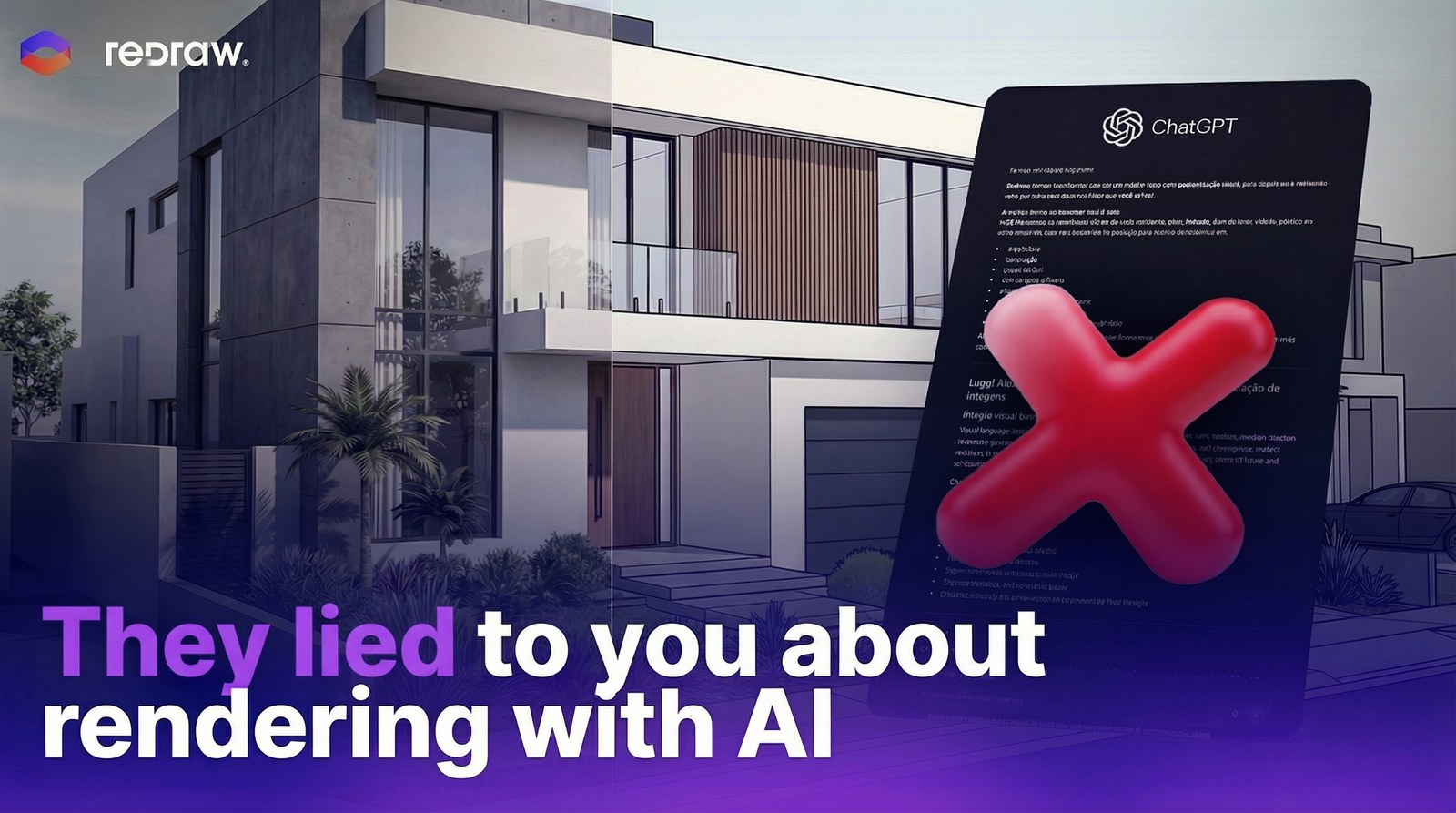
AI Super Prompts Don't Guarantee Good Renders, And There's a Technical Reason
Have you ever spent more than 20 minutes writing a detailed prompt, specifying lighting, texture, angle, style, materials, only to get back a generic result with no coherence to the actual project?
That's the loop most architects fall into when they start using AI for renders. The “super prompt” promise is seductive: the more detail you describe, the better the AI understands. In practice, that's not what happens.
Alexandre Kuhn, founder of Redraw, breaks down the technical reason behind this, and shows why the platform was designed to work in a completely different way.
This article summarizes what is explained in depth in the video:
Why long prompts create more problems than they solve
Tools like ChatGPT Image and Nano Banana Pro (built on Gemini) work with a simple model: you describe, the AI generates. The more you detail, the more variables enter the process. It sounds logical, but that's exactly where the problem lives.
Every AI image generation starts with what we call a “seed”: a random number that defines the starting point of the creative process. Two identical prompts with different seeds produce completely different images. In other words, you can spend an hour refining the perfect prompt and still get inconsistent results on every generation.
The practical effect? Architects spend more time managing text than working on the project.
How Redraw was designed to eliminate that frustration
Redraw starts from a different premise: architects shouldn't need to describe everything. The platform was built to understand the project context and deliver high-quality renders from direct, objective commands.
A command like “render it realistically, indistinguishable from a real photo” is already enough to produce results other tools only deliver after multiple iterations and prompt tweaks.
This isn't an accident, it's the result of a model trained specifically for architectural rendering, not a generic image generation model adapted to the task.
What makes Redraw more efficient in practice:
- Smart lighting presets: instead of describing light in words, you choose from pre-defined options (golden morning, sunset, starry night) and apply with one click. Result: consistent and controlled on every generation.
- Direct element manipulation: add a fruit bowl, remove an object, adjust a texture, all done on the image itself, without rewriting the command from scratch.
- Processing speed: renders in under 30 seconds, enabling more iterations and faster decisions in your workflow.
- Short prompt, complete result: the model interprets architectural intent, not just typed words.
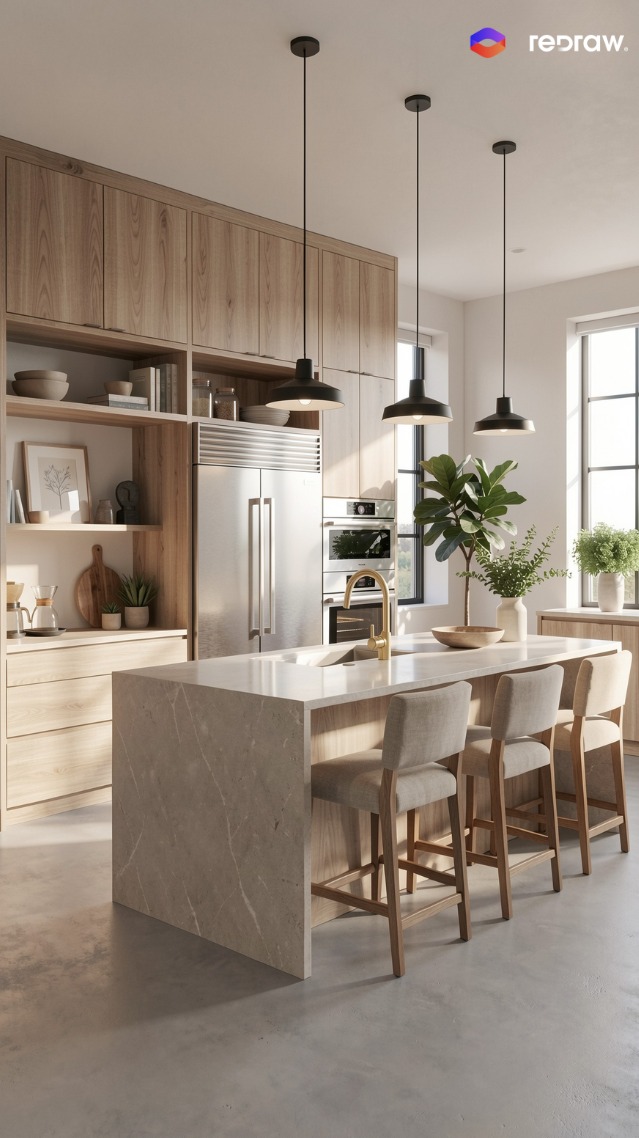
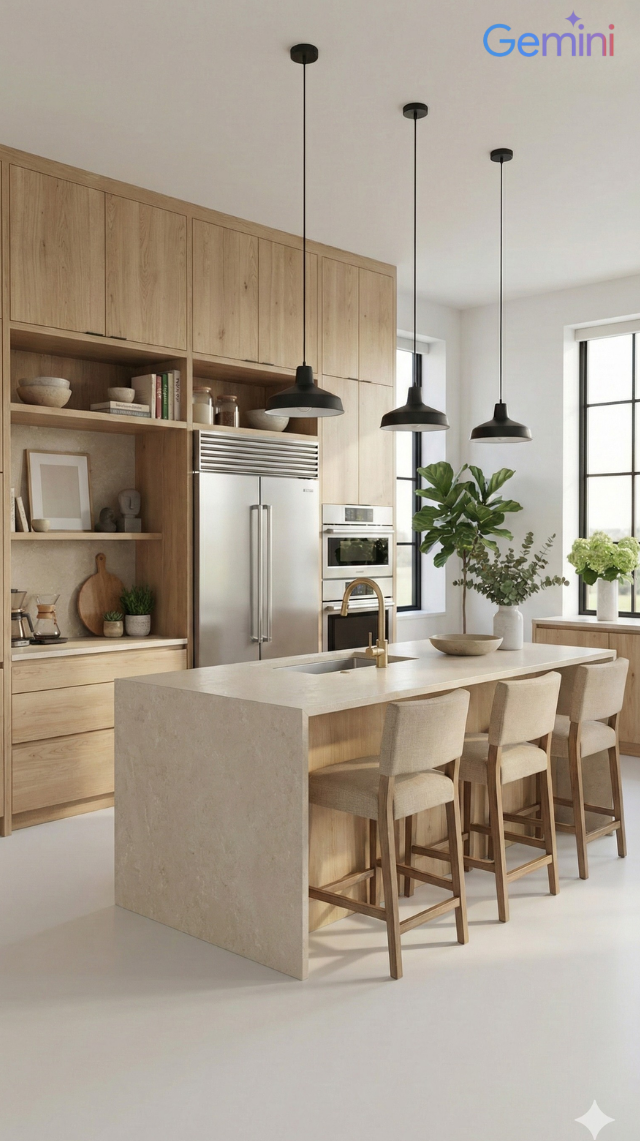
Redraw, ChatGPT Image and Nano Banana: what each one delivers in practice
In the video, Alexandre tests the three tools side by side, with simple prompts and detailed prompts. The comparison reveals differences that go far beyond visual quality:
ChatGPT Image 1.5: requires extensive prompts to deliver architectural coherence. With simple commands, results are generic and rarely ready for professional presentation.
Nano Banana Pro (Gemini): performs well for general images, but inserts logos in some cases, a critical issue for professional use. Also depends on long descriptions for architecture-specific results.
Redraw: superior results with short prompts, direct control over lighting and project elements, no watermarks or unwanted logos. Built for the architect's workflow, not for generic use.

The difference isn't just visual. It's operational: the time invested to reach a usable result in Redraw is significantly lower than in any other tool tested.
Redraw goes beyond rendering
Rendering is the entry point, but Redraw runs as a complete AI ecosystem for architecture:
- Idea Generator: explore facade, style and layout variations from a base image of the project.
- Render from sketch: turn a hand drawing or floor plan into a photorealistic image, no 3D model required.
- Brush (AI Brush): select a specific area of the image and modify only that region, texture, material, color, without altering the rest.
- Text to Image: generate visual references for presentations from a written description.
- Image to Video: turn a static render into an animation with depth and movement.
All in a single platform. No switching between tools, exports and separate accounts.
Professional rendering doesn't have to be complicated
The complexity of super prompts is not a sign of sophistication, it's a sign that the tool wasn't built for your work.
Redraw was made for architects, engineers and designers who need reliable, fast results with real control over the process. If you haven't tried it yet, access starts free.
Redraw Social Channels: All Official Accounts by Language
Redraw maintains an active presence across multiple platforms in three languages: Portuguese, English, and Spanish. Each channel is built to serve its local audience with adapted content, not literal translation, but content tailored to each market.
Here's how it's structured: Brazil is the home market and concentrates the largest content operation. The English-language channels serve the global audience (US, Europe, Asia). Spanish covers Spanish-speaking Latin America. Not every platform exists in all three languages, some run only in Portuguese or only in English, depending on where the audience is most active.
Official website
The main Redraw site has dedicated versions per language, each with its own content and blog:
- Portuguese (Brazil): redraw.pro
- English: redraw.pro/en
- Spanish: redraw.pro/es
Instagram is Redraw's strongest channel in terms of community. Three separate accounts, one per language, with original content:
- Brazil (PT): @redraw.pro
- English (EN): @redraw.en
- Spanish (ES): @redraw_es
YouTube
YouTube runs with two channels. The main one is in Portuguese and already includes translated videos. The English channel is dedicated to the international audience:
- Brazil (PT, with translations): @redrawpro
- English (EN): @redraw.english
Two Facebook pages, split by language:
- Brazil (PT): facebook.com/ai.redraw
- English (EN): Official English page
Redraw has an official company page and the personal profiles of the founders:
- Company page: linkedin.com/company/redraw-ia
- Sérgio Santos (Co-founder): @sergioo-santoss
- Alexandre Kuhn (Co-founder): @xandee
TikTok
Single account in Portuguese, focused on the Brazilian audience:
- Brazil (PT): @redraw.pro
X (Twitter)
Single account in English, geared to the international market:
- English (EN): @redraw_pro
Official account with a visual portfolio of renders:
- Official: pinterest.com/redrawia
Official English profile for participation in architecture and tech communities:
- English (EN): u/redraw-pro
Review and product platforms
Redraw profiles on software review and discovery platforms:
Support channels
Redraw offers support through three channels: WhatsApp, email, and on-site chat.
WhatsApp support is split by market:
- Brazil, Support 1: +55 45 93505-0832
- Brazil, Support 2: +55 45 99914-8182
- Brazil, news broadcast: +55 45 93618-0383
- International, global support: +55 11 93618-4552
In some cases team members may reach out via personal WhatsApp for one-off conversations. That's normal, but the golden rule still applies: Redraw will never ask for payment data over WhatsApp.
The official email support channel is suporte@redraw.pro. For transactional emails (account confirmations, receipts, notifications), Redraw may also use the @redraw-ia.com domain, this is due to deliverability considerations on the .com domain.
If you receive an email from any other domain claiming to be from Redraw, treat it as suspicious.
On-site chat
You can also reach Redraw via the side chat that appears on the official sites (redraw.pro, redraw.pro/en, redraw.pro/es). It runs on the same system, the conversation lands with the same support team.
Security notice
Redraw never asks for credit card data, passwords, or banking information through support channels, not via WhatsApp, not via email, not via chat. All payments happen exclusively inside the platform.
If anyone reaches out asking for that data while claiming to be from Redraw, do not provide it. When in doubt, send a message through another channel listed above and confirm whether the contact is legitimate.
Our team keeps this article up to date. If a channel changes, we'll update it here.
AI Prompt Guide for Concept Diagrams and Architectural Boards
Why diagrams and presentation boards make the difference
Concept diagrams and architectural presentation boards are the representations that show the reasoning behind the project, not just the outcome. They make the difference in competitions, juries, academic presentations, and high-level professional portfolios.
With AI, you can generate concept diagrams, solar/ventilation analyses, urban diagrams, and even complete board layouts in minutes. The prompts in this guide cover all those cases with precision and control.
Before the prompts: why you don't need them in Redraw
Architects shouldn't need to learn machine language to generate professional representation. That premise guided how Redraw was built.
Instead of writing warm late-afternoon natural light, long shadows entering from the side, in Redraw you click “Sunset”.
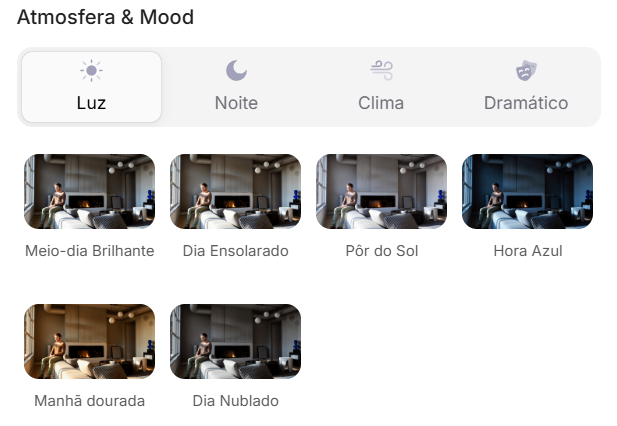
Atmosphere & Mood in Redraw: lighting in one click, no long prompt.
Instead of describing suburban residential street with visible neighbors in the background, you select the scene directly in the visual interface.
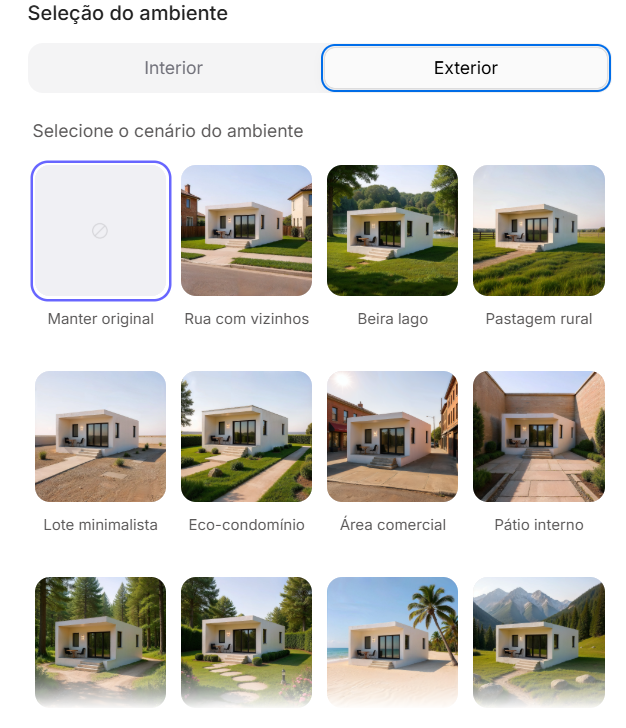
Environment Selection in Redraw: scene in one click, no text description.
Every choice you'd make in a long prompt, lighting, environment, style, camera, becomes a click. And because Redraw was trained exclusively for architecture, the model already “understands” the project context without you having to explain.
“In Redraw, the less prompt users write, the better the results.”
For diagrams and board layouts, the prompts in this guide remain the most efficient path, Redraw specializes in the photorealistic renders that go inside the board. The ideal combo: diagrams and boards with prompts + renders and perspectives with Redraw = complete presentation in minutes.
Comparison: text prompts vs. visual interface
| Feature | Text-Prompt Tools | Redraw |
|---|---|---|
| Prompt complexity | High, requires technical, long structure | Low, natural and simple language |
| Lighting control | Based on technical text | Based on visual clicks (Atmosphere & Mood) |
| Environment control | Based on descriptive text | Based on visual clicks (Environment Selection) |
| Fidelity to 3D project | Variable, depends on reference and prompt | High, processes the model geometry directly |
| Consistency between generations | Low | High |
| User focus | Learning to command the AI | Describing the architectural vision |
| Learning curve | Steep | Fast and intuitive |
| Time per render | High (prompt + tweaking + post-production) | Low (20–40 seconds, publishable result) |
PART 1, CONCEPT DIAGRAMS
PROMPT 1, Automatic concept diagram generator
One of the most sophisticated prompts in the library. It instructs the AI to analyze the project's final massing and automatically derive a logical diagram sequence explaining how that form was generated.
What it produces: a sequence of 5 to 7 isometric/axonometric diagrams showing the formal evolution of the project, from initial mass to subtractions, additions, and final configuration.
When to use: Competition boards, jury presentations, portfolios with conceptual rigor. Concept diagrams are mandatory in any presentation that needs to explain why the project has the form it has.
Prerequisite: have an image of the project's final 3D massing (can be a simple render, SketchUp, photographed physical model).
The prompt:
Use the uploaded image strictly as the FINAL architectural massing reference. You must perform a geometric and spatial analysis of the final volumetry before generating any diagrams. Do NOT redesign, reinterpret, modify proportions, change geometry, adjust scale, or alter the architectural language of the final form. The final stage must be an EXACT volumetric match of the uploaded massing. STEP 1, MORPHOLOGICAL ANALYSIS (internal reasoning): Analyze the final massing and identify: Primary geometric primitive (rectangular block, L-shape, U-shape, courtyard block, fragmented bars, rotated volume, etc.) • Volumetric operations: Subtractions, Additions, Extrusions, Rotations, Offsets, Hierarchy, Fragmentation • Presence of: Setbacks, Internal voids, Courtyards, Overhangs, Directional elongation, Axial alignment. Derive a logical and architecturally coherent transformation sequence that plausibly generates the final form. All intermediate steps must geometrically and causally lead to the final configuration. STEP 2, GENERATE DIAGRAM SEQUENCE: Create 5 to 7 clean conceptual architectural diagrams explaining the formal evolution of the project. The sequence must include: Site + Initial Pure Mass • Solar Strategy • Ventilation Strategy • Volumetric Subtractions • Articulation / Fragmentation • Final Configuration. LANGUAGE REQUIREMENT (MANDATORY): All visible text inside the generated image MUST be written in Brazilian Portuguese. This includes: Titles, Subtitles, Diagram captions, Labels, Explanatory text, Step numbers descriptions. Do NOT use English in any visible graphic text. Use proper Brazilian architectural terminology (e.g., Implantação, Estratégia Solar, Ventilação Cruzada, Subtrações Volumétricas, Configuração Final, etc.). RULES: The final configuration must exactly match the uploaded volumetry. Do not invent architectural elements that are not present. Maintain proportional consistency between all stages. VISUAL STYLE: Isometric or axonometric projection • Pure diagrammatic style • No textures • No photorealism • Soft neutral pastel palette • Light background • Thin line weights • Minimal soft shadows only for volumetric clarity • Professional architectural competition board aesthetic • Balanced composition with white margins. GRAPHIC LANGUAGE: Sun path represented by a soft arc diagram • Wind shown with subtle curved directional arrows • Subtractions represented by dashed or transparent ghost volumes • Final massing in solid tone • Base platform indicating the site. OUTPUT REQUIREMENT: High resolution. Clean layout. Clear diagram hierarchy. Minimalist architectural presentation.
What sets this prompt apart:
- The internal morphological analysis (Step 1) makes the AI reason about the project before generating, the result is logically coherent, not invented
- “All visible text MUST be written in Brazilian Portuguese”, result is immediately usable in boards with no text post-editing (swap the language to suit your locale)
- The visual hierarchy (ghost volumes for subtractions, solid for final configuration) is the standard language of international competition diagrams
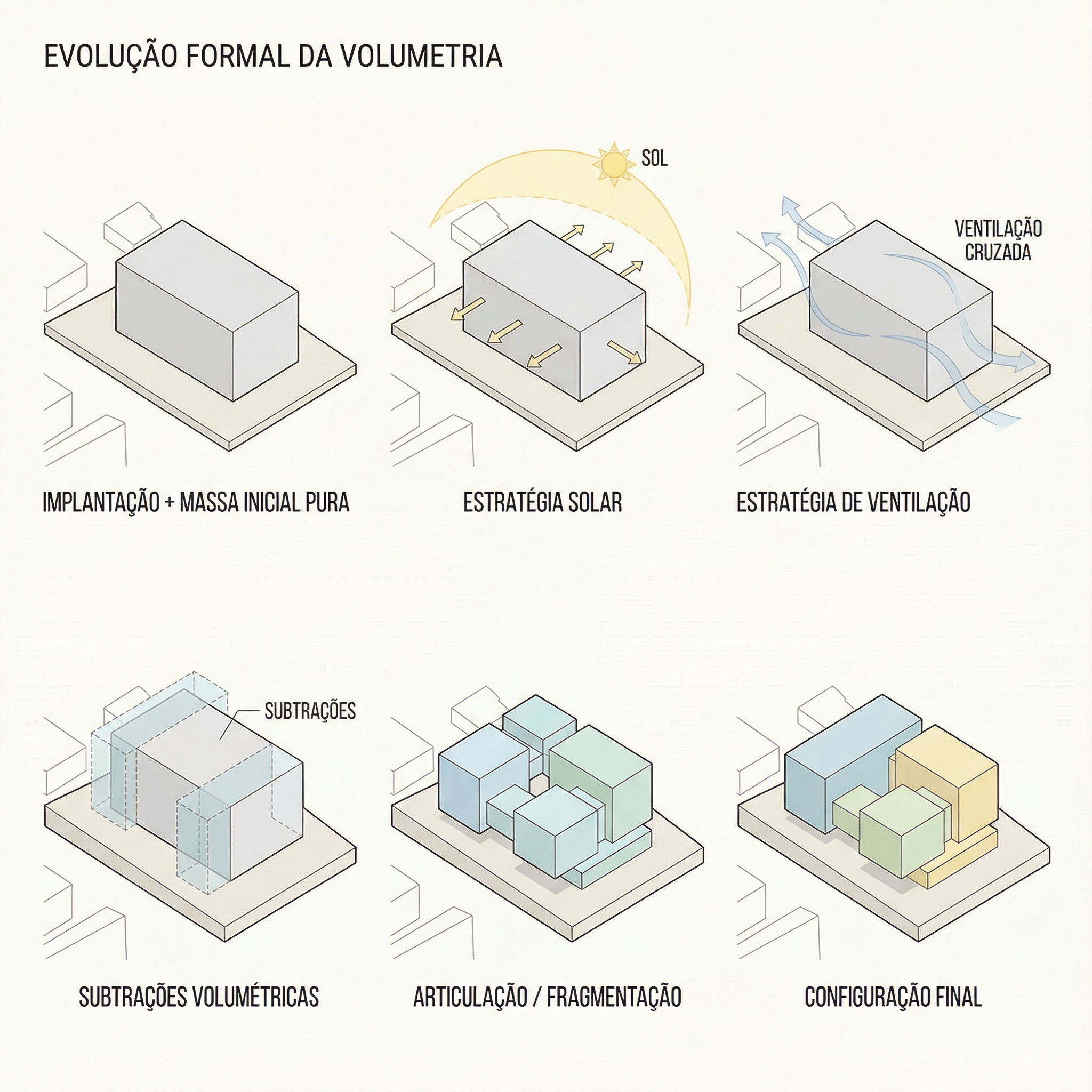
Result, Generated with Redraw
PROMPT 2, Solar and ventilation analysis
When to use: Complement to the concept diagram. Where Prompt 1 shows the formal evolution, this shows the environmental strategies that justify the formal decisions.
The prompt:
Use the attached image as base reference. Create an architectural environmental analysis diagram based strictly on the provided volumetric model. Preserve 100% of the original architecture, geometry, proportions, openings, roof shape and perspective. Do NOT modify, redesign, reinterpret, simplify or alter any element of the project. The building must remain exactly as provided. Generate a clean conceptual diagram illustrating: Solar incidence (ensolação) • Sun path direction • Light exposure areas • Prevailing wind direction • Natural ventilation flow. Representation guidelines: Use soft translucent overlays to indicate sunlight • Use subtle warm gradient tones (yellow / orange) for solar impact • Use smooth curved arrows for wind flow (blue tones) • Maintain a minimal and elegant architectural diagram style • Keep a light neutral background • Do not exaggerate graphic elements • The architecture must remain the main focus. Text and labels must be written in Brazilian Portuguese only. Include labels such as: • Insolação • Ventos predominantes • Ventilação natural • Incidência solar • Norte. High-resolution architectural presentation quality. Clean, competition-level diagram aesthetic.
What sets this prompt apart:
- Warm gradients (yellow/orange) for solar incidence, soft curved blue arrows for ventilation, the standard visual language of competition environmental diagrams
- “Do not exaggerate graphic elements”, prevents giant arrows and heavy overlays from visually dominating the diagram
- All labels in Portuguese (swap to your locale as needed), ready to use
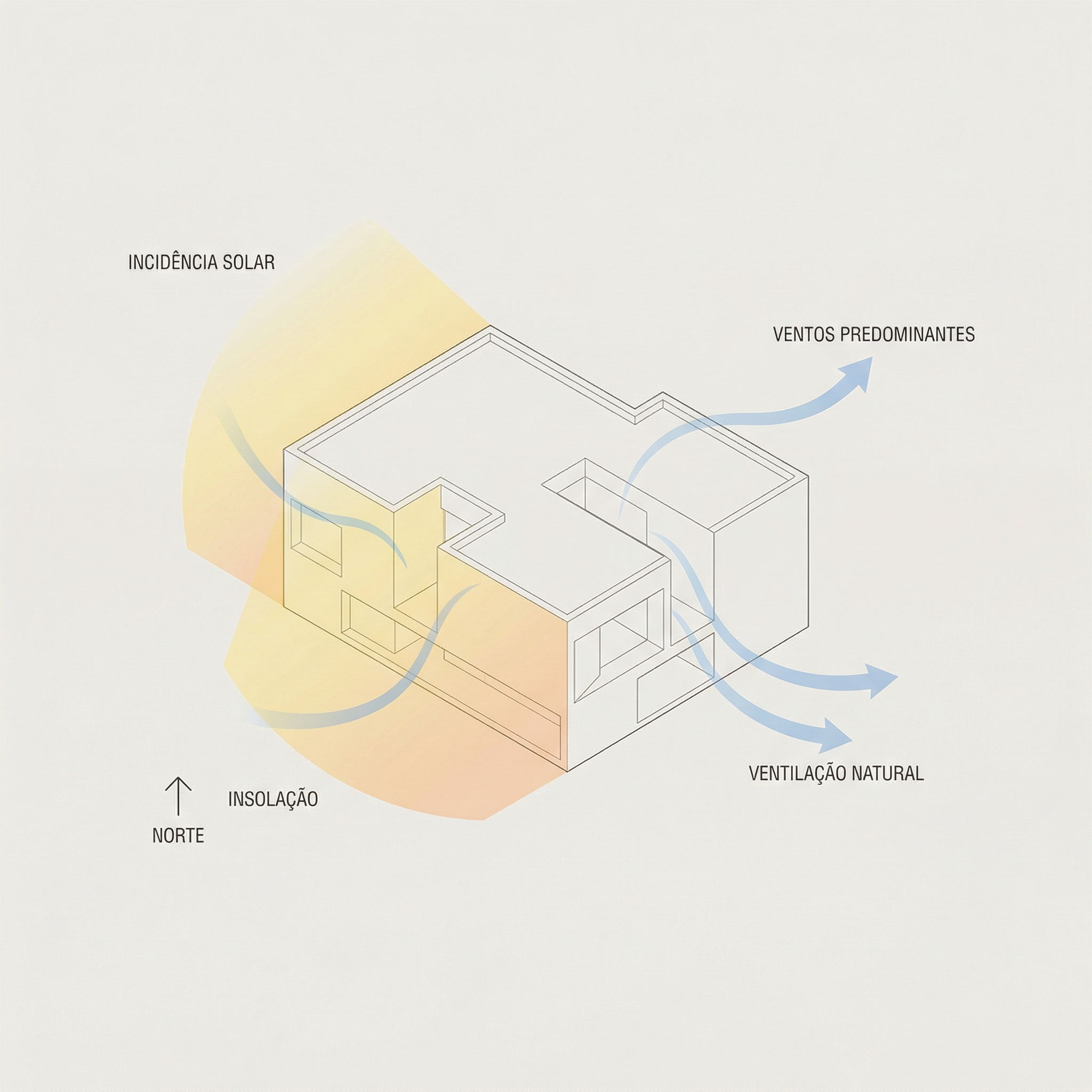
Result, Generated with Redraw
PROMPT 3, Conceptual urban diagram (full surroundings)
When to use: Projects in urban context where you need to show circulation flows, access points, green areas, and urban connections around the lot/block. Heavily used in site plan boards and urbanism projects.
The prompt:
Use the uploaded image strictly as the base volumetric reference. The uploaded model contains only the white architectural massing. You must preserve 100% of the original building volumes, geometry, proportions, scale and perspective. Do NOT modify, redesign, reinterpret, subtract, add or distort the architectural masses in any way. The buildings must remain exactly as provided. OBJECTIVE: Transform the simple white volumetry into a complete conceptual urban architectural diagram. ADD THE FOLLOWING ELEMENTS: Urban Context: Surrounding streets around the block • Sidewalks • Street names (in Brazilian Portuguese) • Subtle lot demarcations • Clean urban grid indication. Central Landscape / Open Space: Organic pedestrian paths crossing the site • Green areas with soft shapes • Trees distributed naturally • Small plazas or gathering areas. Circulation and Flow Diagrams: Add conceptual arrows indicating: Pedestrian flow • Main access points • Secondary access • Urban connections • Possible vehicular flow. Use: Warm orange arrows for main flows • Thinner arrows for secondary paths • Soft shadows under arrows for depth • Slight transparency. Graphic Style: Architectural conceptual diagram aesthetic • White buildings (clean, no texture) • Soft pastel ground tones • Minimal color palette • Thin linework • Subtle shadows for depth • Light neutral background • Slight isometric or axonometric perspective • Professional competition board style. TEXT (MANDATORY: BRAZILIAN PORTUGUESE): Include subtle labels such as: Fluxo principal • Fluxo secundário • Acesso principal • Acesso de serviço • Área verde • Conexão urbana • Rua. IMPORTANT RULES: Architecture must remain the visual anchor. Do not exaggerate graphic elements. Vegetation must be simplified and diagrammatic. Maintain visual hierarchy.
💡 How to adapt: The prompt uses the massing as a fixed reference. You can send a simple SketchUp model exported as an image, it doesn't need to be a final render.
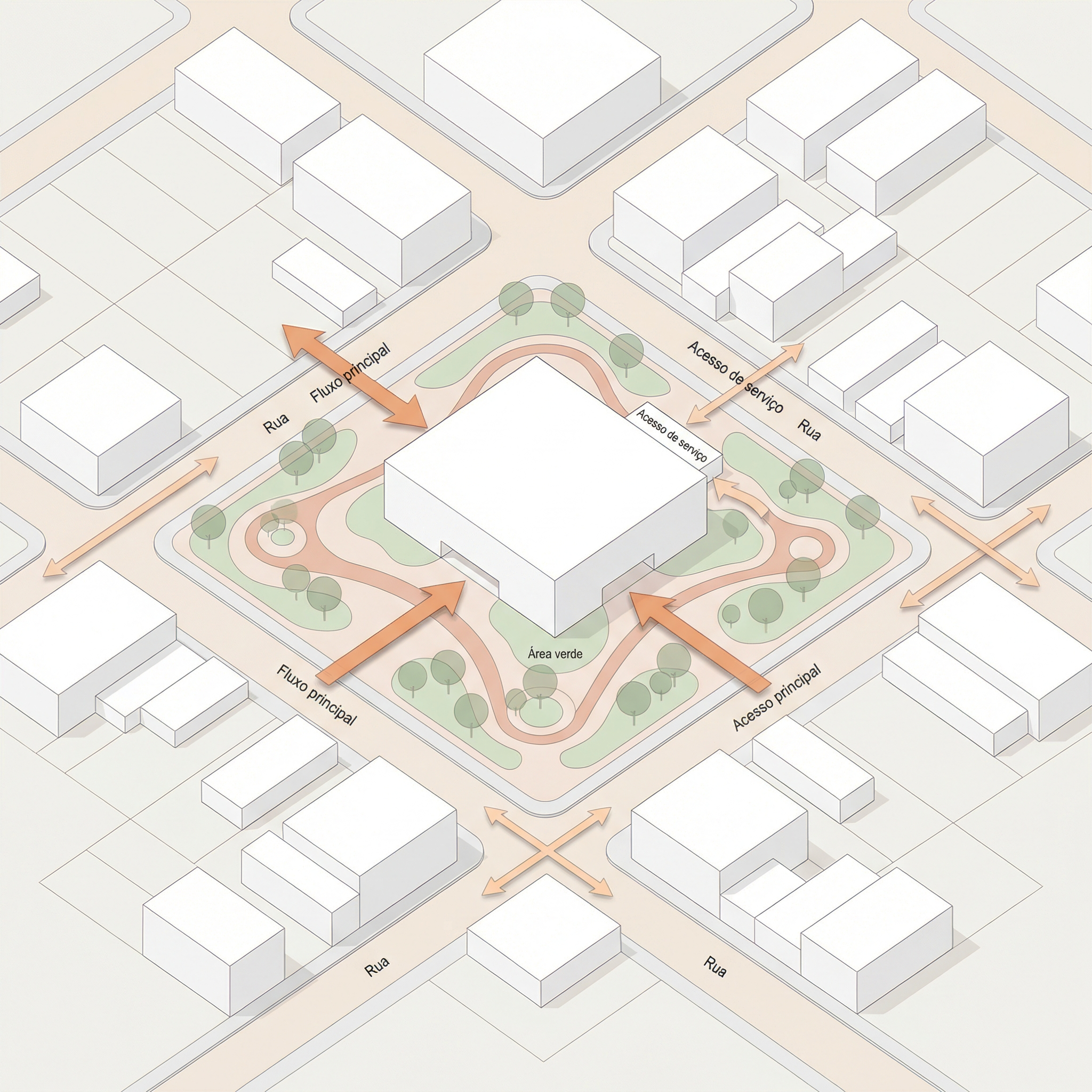
Result, Generated with Redraw
PROMPT 4, Conceptual site plan with frontal streets
When to use: Variation of the urban diagram for when the focus is the project's relationship with the front streets, corners, main accesses, connection with the frontal public space.
The prompt:
Use the uploaded image strictly as the base volumetric reference. The uploaded image contains only the white architectural massing. You must preserve 100% of the original volumes, geometry, proportions, scale and perspective. Do NOT modify, redesign, reinterpret, subtract, add or distort any architectural element. The buildings must remain exactly as provided. OBJECTIVE: Transform the white volumetry into a clean conceptual urban diagram by adding only frontal street context and landscape organization. URBAN CONTEXT RULE, Very Important: Add streets ONLY in the FRONT portion of the composition. Create two perpendicular streets crossing in front of the site (forming a corner or cross intersection). Do NOT add any streets behind the buildings. The back portion must remain clean and minimal. The frontal streets must feel integrated and proportional to the building scale. ADD THE FOLLOWING ELEMENTS: Front Urban Streets: Two perpendicular streets crossing in front of the site • Sidewalks • Subtle curbs • Optional crosswalk markings (minimal) • Street names in Brazilian Portuguese. Central Landscape / Open Space: Organic pedestrian paths within the site • Trees in diagrammatic style • Soft green areas • Small plaza or gathering node if balanced. Circulation and Flow: Add conceptual arrows indicating: Fluxo principal • Fluxo secundário • Acesso principal • Conexão urbana. Use: Warm orange arrows for main flows • Thinner arrows for secondary flows • Soft drop shadows • Slight transparency. GRAPHIC STYLE: Architectural competition diagram aesthetic • White massing volumes (no texture) • Soft pastel ground tones • Thin linework • Minimal color palette • Light neutral background • Slight axonometric or isometric perspective. TEXT (MANDATORY: BRAZILIAN PORTUGUESE): Include: Fluxo principal • Fluxo secundário • Acesso principal • Área verde • Rua • Conexão urbana. Modern, clean sans-serif typography.
Difference from Prompt 3: while the full urban diagram shows the entire block context, this one focuses only on the frontal relationship, cleaner and more direct for projects where the main access is the most relevant element of the site plan.
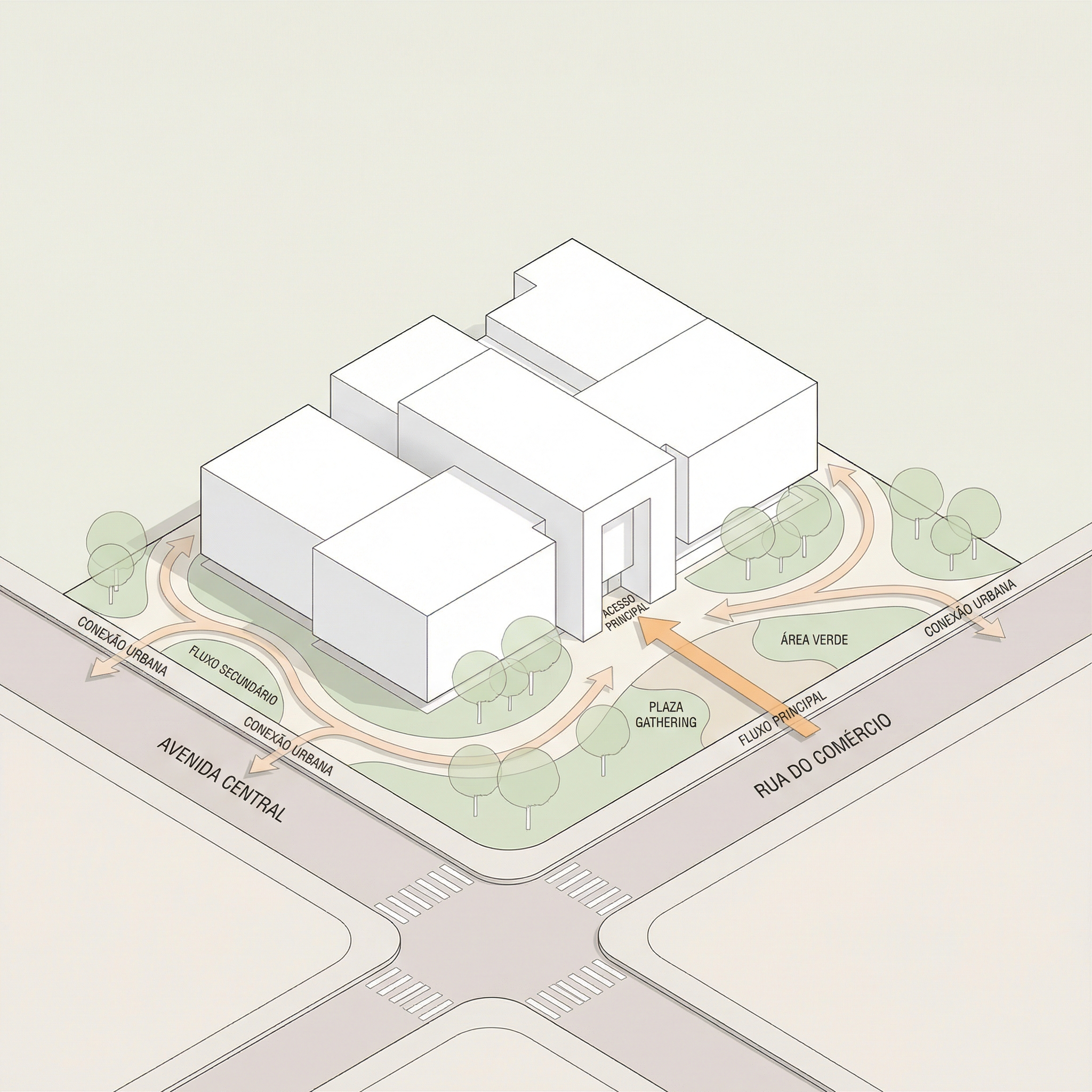
Result, Generated with Redraw
PART 2, ARCHITECTURAL BOARDS
PROMPT 5, A1 vertical board (Style 01)
When to use: Competition or portfolio boards with clean layout and clear hierarchy, main render on top, plans and sections in the middle, sections at the base.
What it generates: complete A1 vertical board layout with typographic hierarchy, organized grid, and a neutral/warm tonal palette.
How to use: send the project images along with the prompt. The AI will compose the layout using the provided elements.
The prompt:
Create a professional architectural presentation board layout in A1 vertical format (portrait orientation). Background: clean white or very soft warm off-white. TOP SECTION (upper 50% of the board): Large hero architectural render (provided image) centered and occupying the full width. Maintain clean margins around the image. TITLE AREA: Large elegant serif typography for the project name at the top center. Subtitle in small uppercase sans-serif below it. Refined and minimal typographic hierarchy. MIDDLE SECTION (organized grid layout): Left side: project description text block with justified alignment. Center: site plan and masterplan drawings aligned symmetrically. Include light lineweights and minimal annotations. Right side: secondary perspective render. Add minimal technical diagrams in thin olive-green line style. BOTTOM SECTION: Long horizontal architectural sections spanning the width of the board. Light grayscale linework with subtle shadows. Small human scale figures in soft neutral tones. GRAPHIC STYLE: Architectural competition board aesthetic. Soft muted color palette inspired by warm neutrals, beige concrete tones, and subtle olive green accents. Thin grid-based layout structure. Balanced white space. Clean margins. Professional composition. Refined minimal contemporary presentation. Print-ready, high resolution, 300 dpi, architectural board layout.
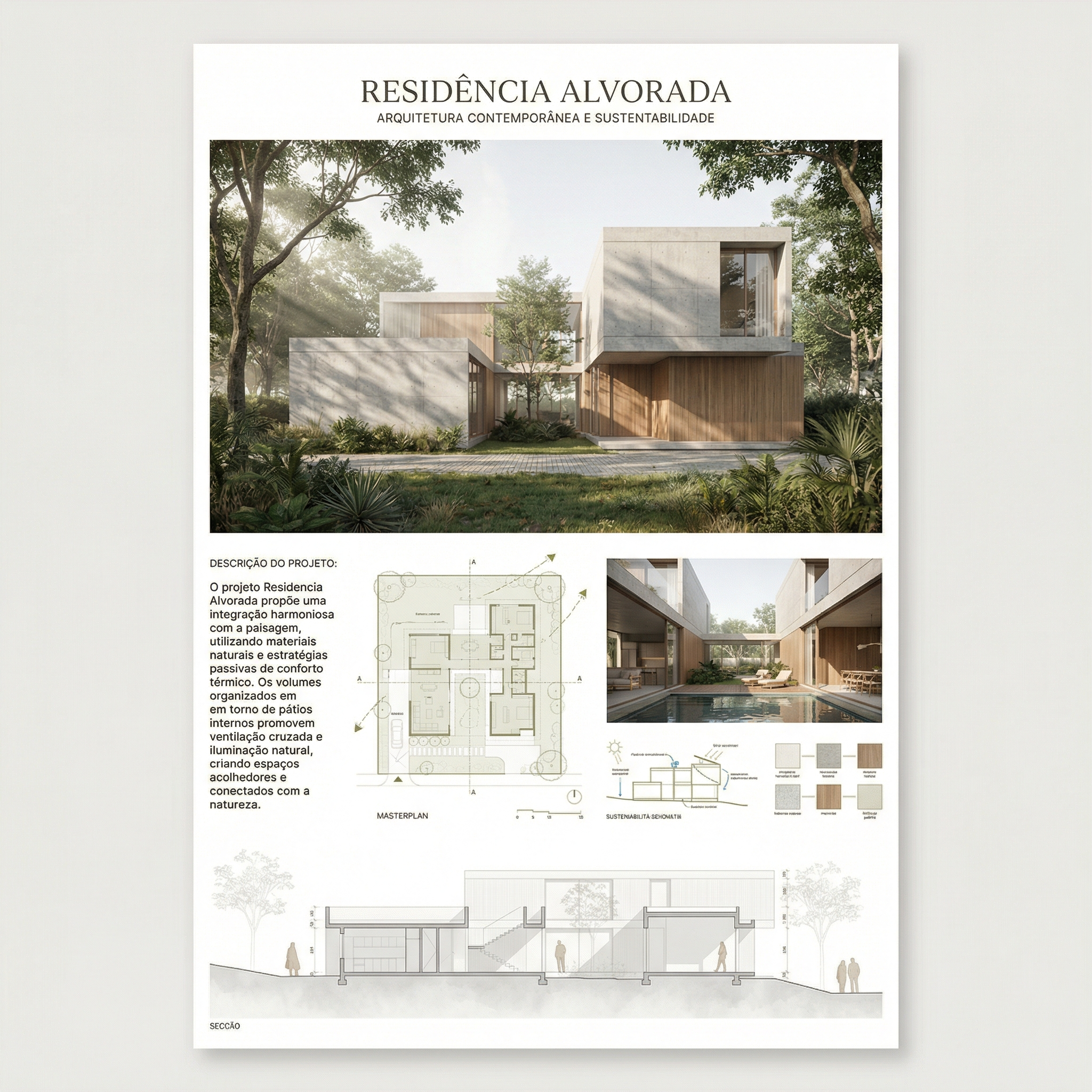
Result, Generated with Redraw
PROMPT 6, A1 vertical board (Style 02)
When to use: Boards with European competition aesthetic, more editorial composition, generous spacing, conceptual diagrams integrated into the layout, materials and plans together.
The prompt:
Create a professional architectural presentation board in A1 vertical format (portrait orientation), inspired by European competition boards and editorial architectural publications. Background: Soft warm off-white with very subtle paper texture, minimal grain, natural matte finish. Overall layout: Balanced but slightly organic composition. Elegant editorial spacing. Thin grid alignment but not rigid. Generous white margins. Clear hierarchy between text, diagrams, plans, and renders. TOP SECTION: Large project title in elegant serif typography. Subtitle in small uppercase sans-serif. Below the title: conceptual text block aligned to the left. Include: Small conceptual diagrams in thin light-gray linework. Minimal iconography in circular outline style. Concept evolution diagrams (old vs new, massing progression, relationships). UPPER RIGHT AREA: Large atmospheric perspective render. Soft daylight, diffused lighting. Natural vegetation. Subtle shadows. Editorial architectural visualization style. MIDDLE SECTION: Large humanized site plan with muted vegetation tones. Soft green landscaping. Desaturated palette. Light shadows under trees. Thin annotations. Include: Material palette circles (concrete, brick, wood, gravel). Small diagrammatic plans (ground floor, upper floor). Scale indication (1:500, 1:200). LOWER SECTION: Horizontal architectural sections across the width. Light grayscale linework. Subtle poche. Small neutral human silhouettes. BOTTOM STRIP: 2 to 4 smaller renders aligned in a clean grid. Soft atmospheric perspective. Balanced exposure. Natural color grading. GRAPHIC STYLE: Architectural competition aesthetic. Editorial European layout. Muted neutral palette: warm beige, soft olive green, dusty brick, light concrete gray. No saturated colors. No harsh contrast. No heavy black lines. Drawing style: Thin lineweights. Soft shadows. Subtle depth layering. Minimal annotations. Mood: Calm, refined, sophisticated, contemporary. Print-ready. 300 dpi. High resolution.
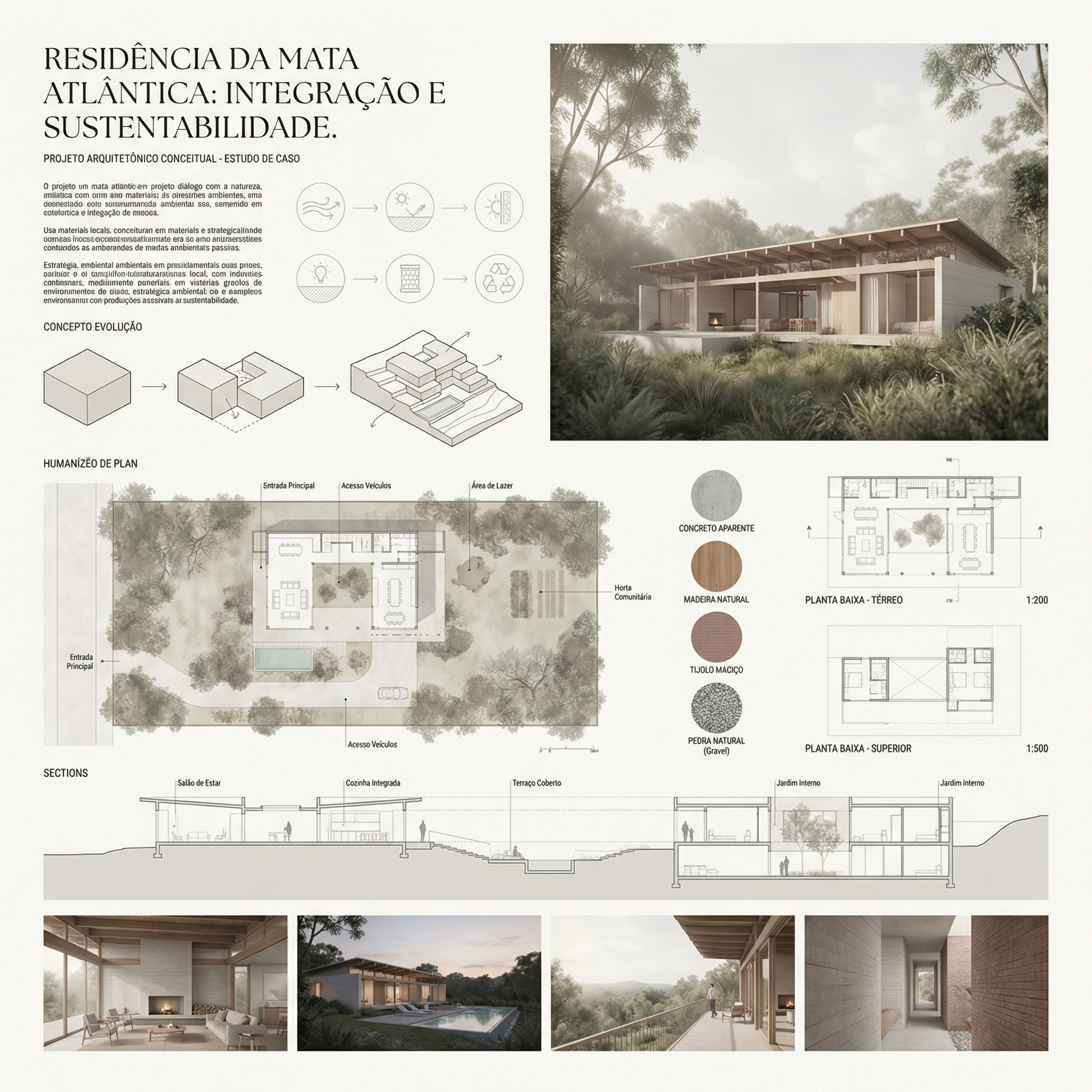
Result, Generated with Redraw
Tips for using the board prompts
Send elements separately: The AI composes better when it receives renders, plans, and sections as separate images that it organizes into the layout, instead of trying to extract elements from a composite image.
Specify the project name: Add to the prompt: “Project name: [project name]. Subtitle: [type/location].”
Custom palette: If your project has a defined visual identity, add: “Use [color] as the primary accent color throughout the board.”
Output format: The AI will generate an image of the layout. For later editing in Illustrator or InDesign, you can use the image as a composition reference and recreate the layout with the original files.
AI change control system
Use these complementary prompts when the AI alters elements that it shouldn't in your diagrams or boards.
Total change lock
Preserve 100% of the original architecture, layout, furniture placement, materials, colors, textures, decorative elements, proportions, lighting positions, and camera angle. Strictly forbid adding, removing, replacing, resizing, repositioning, or redesigning any element. The purpose of this transformation is ONLY to enhance realism, lighting behavior, and material response without altering the original design in any way.
Lighting design respect
Preserve the original lighting design exactly as shown in the image. Do not add new light sources, remove existing lights, or modify lighting positions. Only enhance realism through natural light diffusion, realistic light bounce, soft shadow transitions, and accurate material interaction with existing lighting.
Material protection
Preserve all original materials and textures exactly as shown. Do not replace, reinterpret, or stylize materials. Enhance realism only through improved surface detailing, micro imperfections, and physically accurate light response.
Enhance natural lighting without altering the project
Use the uploaded image strictly as the ONLY architectural reference. The architecture and scene composition are completely locked. Preserve 100% of the original: Architecture • Walls and openings • Furniture placement • Materials and colors • Textures • Layout and proportions. Enhance the scene by making natural daylight more predominant and realistic. The project must remain 100% identical to the original image. Only the lighting quality and natural daylight intensity may be improved. Ultra realistic architectural photography, high dynamic range, 8K detail.
Which AI to use for diagrams and boards?
For concept diagrams, environmental analyses, and board layouts, text-based AI image generation tools with the prompts in this guide are the most efficient workflow available, the AI reads the massing and generates the diagram in minutes.
For the renders inside the board, exterior perspectives, interior renders, facades, Redraw is the most direct and project-faithful tool. You don't need long prompts: upload the model (SketchUp, Archicad, Revit, Rhino, 3DS), pick the style and environment in clicks, and the render comes out in 20 to 40 seconds.
Inside Redraw you also access ChatGPT to write the conceptual text of the board and Nano Banana to generate project presentation videos, all in a single hub, no multiple subscriptions.
The complete flow for a competition board
- Concept diagrams → generated with Prompt 1 from this guide
- Solar/ventilation analysis → Prompt 2
- Perspective and facade renders → Redraw (20-40 seconds each)
- Humanized floor plans → prompts from the Humanized Floor Plans guide
- Conceptual text → ChatGPT integrated in Redraw
- Final layout → Prompt 5 or 6 from this guide
AI Prompt Guide for Humanized Floor Plans
Why humanized floor plans sell projects
The humanized floor plan is one of the most requested representations in residential presentations, portfolios, and real estate sales materials. It transforms the technical plan, full of dimensions, hatching, and symbols, into a visualization that lay clients can understand and imagine inhabiting.
With AI, you can humanize a plan in seconds. But the challenge is always the same: the AI cannot alter the layout, move walls, resize rooms, or change the original plan in any way. The prompts in this guide were developed with that central premise.
Practical heads-up: before processing any plan with AI, export it clean, no dimensions, no legend texts, no heavy hatching. The prompt already instructs the AI to ignore texts and annotations, but the cleaner the input, the more accurate the result. To skip this step entirely, Redraw processes the 3D model directly.
Before the prompts: why you don't need them in Redraw
Architects shouldn't need to learn machine language to generate professional representation. That premise guided how Redraw was built.
Instead of writing warm late-afternoon natural light, long shadows entering from the side, in Redraw you click “Sunset”.
Atmosphere & Mood in Redraw: lighting in one click, no long prompt.
Instead of describing suburban residential street with visible neighbors in the background, you select the scene directly in the visual interface.
Environment Selection in Redraw: scene in one click, no text description.
Every choice you'd make in a long prompt, lighting, environment, style, camera, becomes a click. And because Redraw was trained exclusively for architecture, the model already “understands” the project context without you having to explain.
“In Redraw, the less prompt users write, the better the results.”
For humanized floor plans, the prompts in this guide remain the most efficient path, Redraw specializes in photorealistic interior and facade renders. The ideal combo: humanized plans with prompts + renders and perspectives with Redraw = complete presentation in minutes.
Comparison: text prompts vs. visual interface
| Feature | Text-Prompt Tools | Redraw |
|---|---|---|
| Prompt complexity | High, requires technical, long structure | Low, natural and simple language |
| Lighting control | Based on technical text | Based on visual clicks (Atmosphere & Mood) |
| Environment control | Based on descriptive text | Based on visual clicks (Environment Selection) |
| Fidelity to 3D project | Variable, depends on reference and prompt | High, processes the model geometry directly |
| Consistency between generations | Low | High |
| User focus | Learning to command the AI | Describing the architectural vision |
| Learning curve | Steep | Fast and intuitive |
| Time per render | High (prompt + tweaking + post-production) | Low (20–40 seconds, publishable result) |
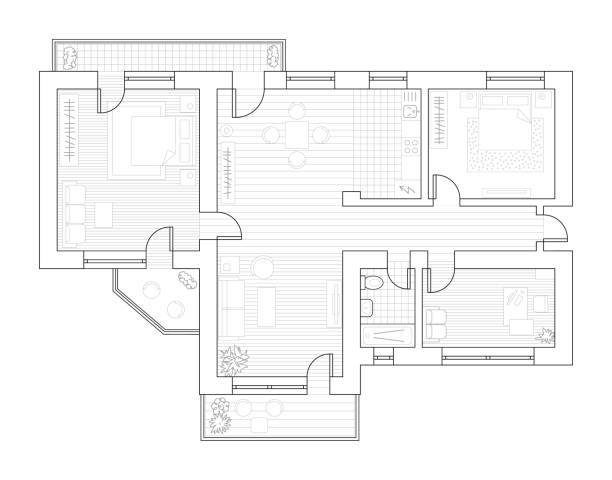
Before, technical plan exported from software
PROMPT 1, Ultra realistic
When to use: High-end presentations, real estate sales materials, portfolios where the client wants to see the plan with real material textures, wood, fabric, ceramic, rug.
Visual style: Orthographic top view, photorealistic materials, subtle depth shadows, simulated natural lighting.
The prompt:
Transform this architectural floor plan into a highly realistic humanized floor plan. Preserve 100% of the original layout, wall positions, openings, structure thickness, furniture placement, circulation areas, proportions and dimensions. Do NOT redesign, reinterpret, move, resize or modify any architectural element. Do NOT change the scale. Ignore all texts, annotations and dimension numbers. Focus only on the architectural geometry. Apply realistic top-view materials and textures: Natural wood flooring with subtle grain variation • Soft fabric texture on bed and sofa with visible folds • Realistic bedding layers and pillows with natural volume • Matte painted walls with slight tonal variation • Subtle shadowing under furniture for depth • Realistic rugs with soft texture • Desk surface with light reflection and material response • Accurate perspective strictly in orthographic top view (no camera distortion). Lighting: Soft ambient daylight simulation • Gentle global illumination • Soft contact shadows • Subtle depth separation between spaces. Enhance realism with micro-details: Slight fabric wrinkles • Wood grain variation • Soft shadow gradients • Minimal surface imperfections • Natural color balance. Style: Professional architectural presentation • High-end real estate humanized floor plan • Clean, elegant and realistic • Ultra high resolution • Balanced color grading • Sharp but natural finish. Maintain strict architectural accuracy and original proportions.
What sets this prompt apart:
- Ignore all texts, annotations and dimension numbers, essential instruction so you don't get distorted dimension lines in the final image
- Accurate perspective strictly in orthographic top view (no camera distortion), prevents the AI from adding unwanted isometric perspective
- Soft contact shadows, what creates realistic depth without looking like a 3D render
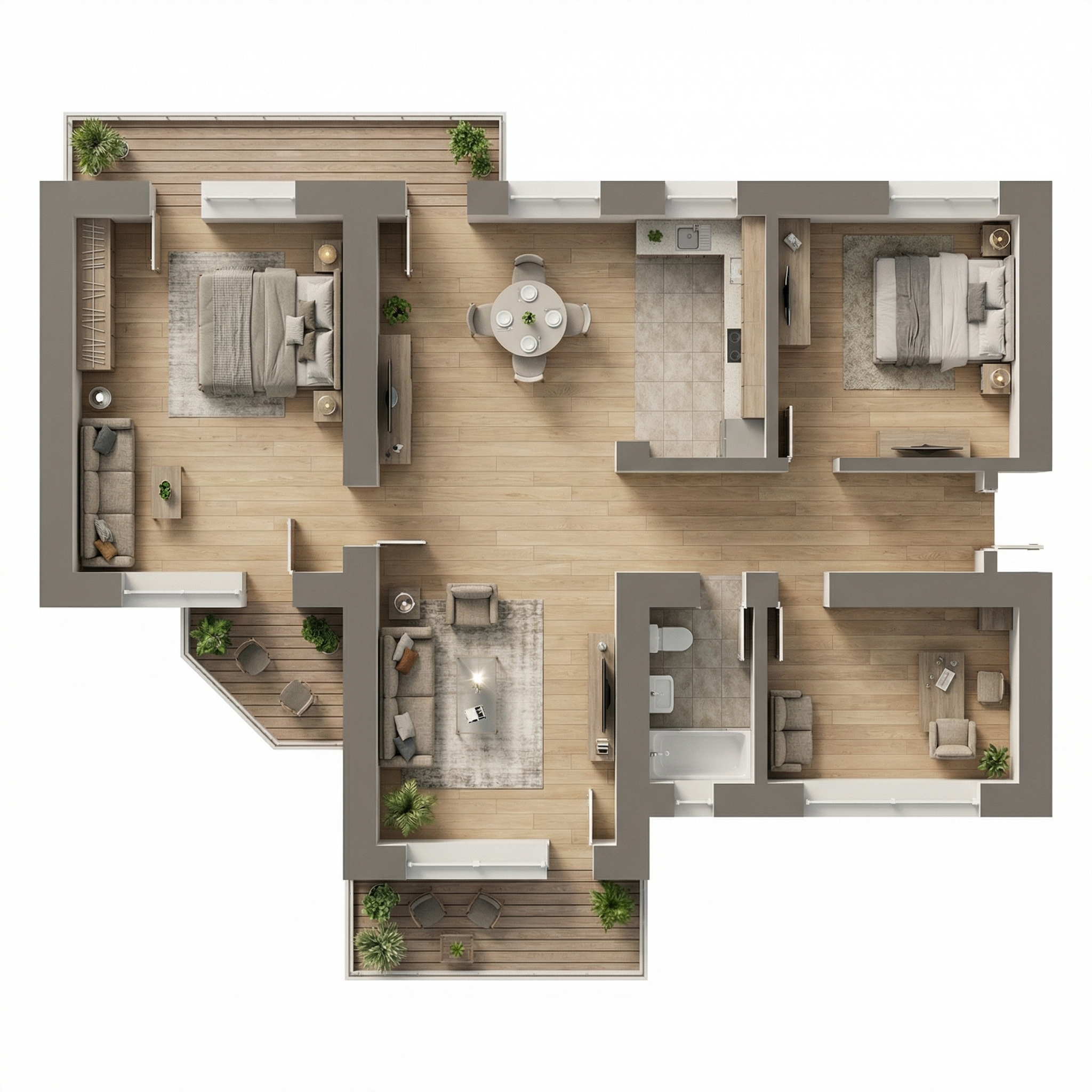
Result, Generated with Redraw
PROMPT 2, Soft clean editorial
When to use: Presentation boards with Scandinavian/Japandi aesthetics, modern portfolios, mid-to-high-end real estate sales materials. It's the “Pinterest plan” style, the most visually shareable.
Visual style: Neutral desaturated palette, light wood, beige fabrics, almost imperceptible shadows, airy and clear feeling.
The prompt:
Transform this architectural floor plan into a soft, clean and refined humanized floor plan visualization. Preserve 100% of the original layout, walls, openings, structure thickness, furniture placement, circulation areas, proportions and dimensions. Do NOT redesign, reinterpret, move, resize or modify any architectural element. Do NOT change scale. Maintain strict orthographic top view (no perspective distortion). Ignore all texts, labels and dimension numbers. Focus only on architectural geometry. VISUAL STYLE: Create a light, neutral and calm presentation style, similar to modern editorial architectural boards. Avoid dramatic realism. Avoid strong shadows. Avoid high contrast. Avoid overly saturated wood tones. MATERIAL APPLICATION: Light natural oak wood flooring with very subtle grain • Neutral beige fabric upholstery • Soft linen bedding with delicate folds • Low-contrast rugs with minimal pattern • Matte off-white painted walls • Light natural wood furniture with minimal texture contrast • Soft ceramic surfaces in bathrooms • Minimal reflections. LIGHTING: Diffused ambient daylight • Very soft contact shadows • Subtle depth separation • No dramatic directional light • Balanced exposure • Clean brightness. The lighting should feel airy and evenly distributed. FINAL MOOD: Scandinavian-inspired softness • Pinterest-style clean floor plan • Calm neutral palette • Elegant and minimal • High resolution • Refined but not hyper-realistic. Maintain architectural precision and original proportions at all times.
The final mood instruction, “Scandinavian-inspired softness • Pinterest-style clean floor plan”, communicates a cohesive aesthetic reference to the AI that results in a very specific and commercially efficient palette.
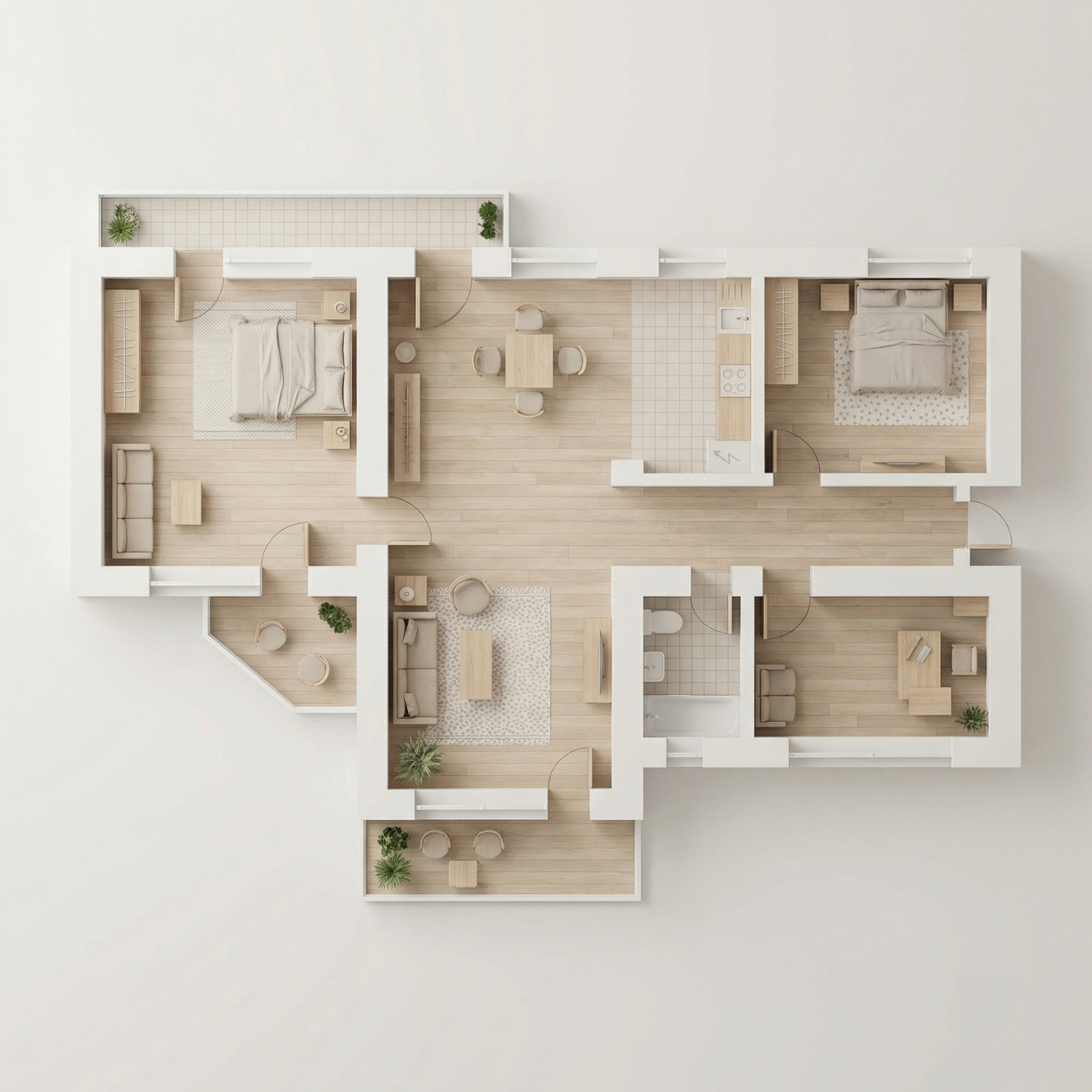
Result, Generated with Redraw
PROMPT 3, Graphic monochromatic
When to use: Competition boards, academic presentations, portfolios with strong visual identity where black and white is an intentional aesthetic choice.
Visual style: Solid black walls, white/light grey furniture, floor with optional subtle herringbone or flat grey, delicate shadows.
The prompt:
Transform this architectural floor plan into a refined monochromatic humanized floor plan with strong graphic contrast. Preserve 100% of the original layout, wall thickness, openings, structure, furniture placement, circulation areas, proportions and scale. Do NOT redesign, reinterpret, move, resize or modify any architectural element. Maintain strict orthographic top view (no perspective distortion). Ignore all texts, annotations and dimension numbers. Focus only on architectural geometry. WALL TREATMENT: Render all structural walls in solid matte black or very dark charcoal • Maintain accurate wall thickness • Clean crisp edges • No texture on walls (flat graphic fill). FURNITURE STYLE: All furniture in matte white or very light grey • Soft subtle contour lines in light grey • Minimal line weight • No heavy outlines • No realistic textures • No strong material detailing. SHADOW & DEPTH: Apply very soft and diffused shadows • Subtle ambient occlusion near walls • Gentle drop shadow beneath furniture • No dramatic lighting • No strong directional light • Balanced soft contrast. FLOOR TREATMENT (Option A – more minimal): Light grey flat floor. (Option B): Very subtle light wood herringbone pattern • Low contrast • Desaturated tones. STYLE DIRECTION: Minimalist architectural board style • High contrast black and white composition • Scandinavian graphic layout • Clean negative space • Elegant presentation • Modern editorial aesthetic • Ultra high resolution. Maintain architectural precision and proportional accuracy at all times.
💡 Tip: Specify in your prompt which floor option you want (A or B) by adding: “Use floor treatment Option A” or “Use floor treatment Option B”.
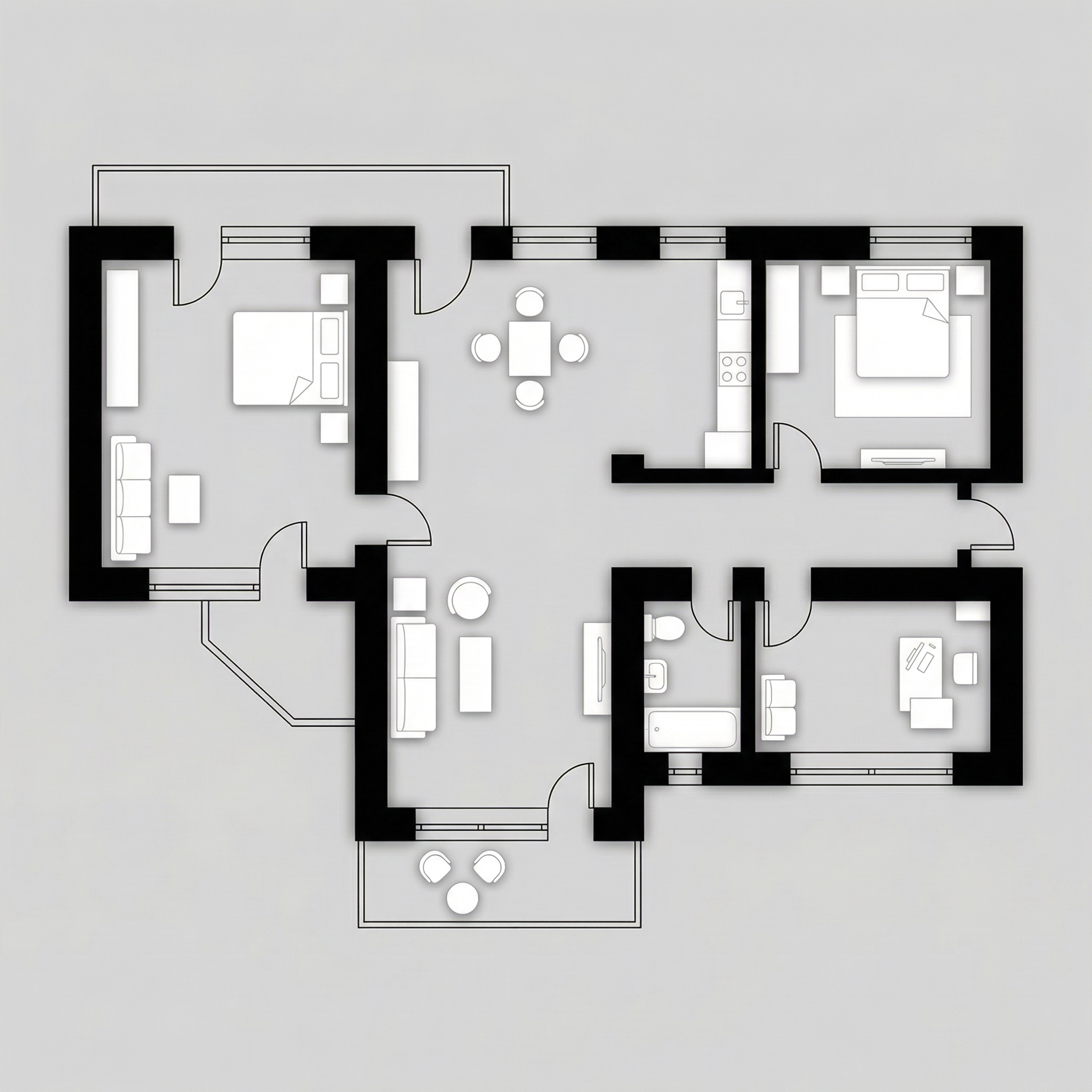
Result, Generated with Redraw
PROMPT 4, Luxury editorial
When to use: High-end projects, penthouses, luxury homes, premium sales materials. The prompt uses a specific gold/champagne palette for walls and elegant grey for floor.
Visual style: Matte medium grey floor, warm beige/sand interiors, structural walls in soft metallic gold/champagne, neutral-toned furniture.
The prompt:
Transform this architectural floor plan into a refined luxury editorial humanized floor plan. Preserve 100% of the original layout, walls, openings, structure thickness, furniture placement, circulation areas, proportions and scale. Do NOT redesign, reinterpret, move, resize or modify any architectural element. Maintain strict orthographic top view (no perspective distortion). Ignore all texts, annotations and dimension numbers. Focus strictly on architectural geometry. FLOOR TREATMENT: Apply a smooth matte medium-light grey floor • Very subtle concrete or plaster texture • Soft tonal variation • No strong pattern • Elegant neutral base. LAYOUT BASE: Render interior surfaces in warm beige / sand tones • Soft monochromatic palette • Matte finish • Very subtle texture • Gentle depth variation between rooms. WALL TREATMENT (Golden Accent): Render structural walls in soft metallic gold or brushed champagne tone • Matte metallic finish (not glossy) • Subtle light reflection on edges • Clean crisp wall geometry • Maintain accurate wall thickness. SHADOW & DEPTH: Soft diffused ambient lighting • Gentle shadow gradients • Subtle ambient occlusion along walls • Light drop shadow beneath walls to create floating effect • No dramatic lighting. FURNITURE STYLE: Soft beige / light neutral tones • Minimal texture realism • Clean simplified forms • Subtle shadow grounding • No high contrast. STYLE DIRECTION: Luxury architectural board aesthetic • Conceptual physical model feeling • Editorial presentation style • Warm neutral sophistication • Calm and balanced composition • High resolution • Refined and minimal. Maintain architectural precision and original proportions at all times.
“Matte metallic finish (not glossy)” for the gold walls, that's the distinction between elegant and tacky. The AI needs this instruction to not overdo the shine.
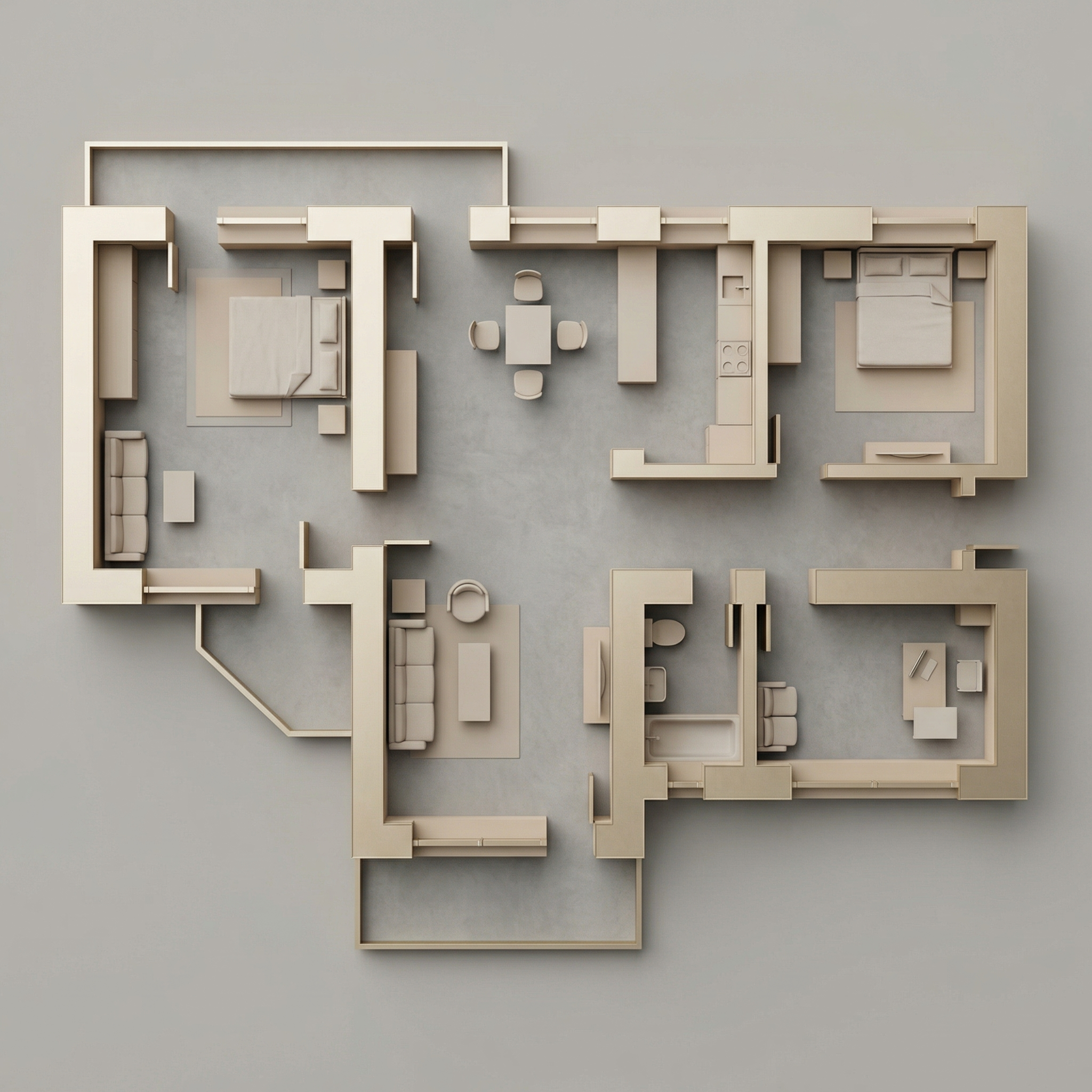
Result, Generated with Redraw
PROMPT 5, External landscaping (B&W plan)
When to use: You have the technical plan in black and white (AutoCAD, Revit) and want to add only the landscaping context around it, without humanizing the interior.
The prompt:
Use the uploaded floor plan image as the absolute base reference. Preserve 100% of the original drawing, including: • All walls • Openings • Lineweights • Furniture • Text • Layout • Proportions • Scale • Orientation • Colors • Shadows • Graphic style. Do NOT modify, redesign, reinterpret, crop, rotate, resize, or alter any element of the architectural drawing. The project must remain EXACTLY as provided. Your task is ONLY to add a natural green surrounding context around the perimeter of the floor plan, similar to a soft landscape presentation style. Add: Soft green ground texture surrounding the project • Subtle grass texture variations • Light watercolor-style vegetation shadows • Natural irregular lawn tones (olive, sage, muted greens) • Soft edge fading into white background • Realistic but subtle tree canopies around the perimeter • Some semi-transparent tree crowns (top view) • Organic shadow projections from trees • Low-opacity garden textures • Light dirt / soil transitions if compositionally balanced. Guidelines: The landscape must stay OUTSIDE the built area • Do NOT overlap or cover the architecture • Maintain clean visibility of the entire floor plan • Keep architecture as the main focus • Avoid exaggerated saturation • Avoid hyperrealistic grass blades • Use soft, elegant, architectural presentation aesthetic. Lighting and mood: Soft ambient shadowing • Subtle tree cast shadows • Natural daylight tone • Professional architectural board aesthetic.
When NOT to use: If your plan is already humanized internally, use Prompt 6.
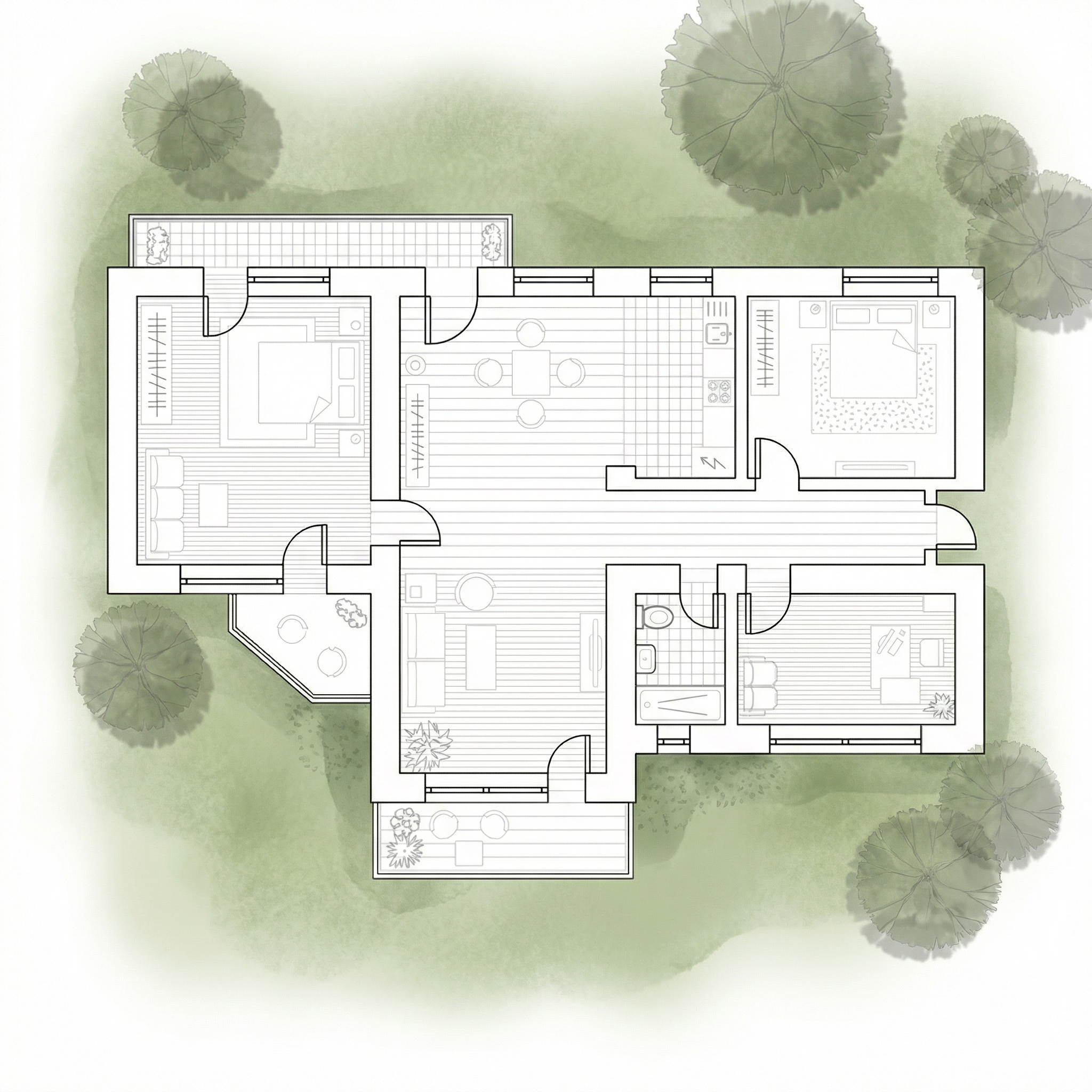
Result, Generated with Redraw
PROMPT 6, External landscaping (humanized plan)
When to use: You've already humanized the plan internally (with prompts 1–4) and now want to add the landscaping context around it, without the AI reinterpreting the interior.
The prompt:
Use the uploaded image as a FINAL, FLATTENED architectural board. This image is already finished and humanized. You must treat the floor plan as a locked image layer. DO NOT redraw. DO NOT reinterpret. DO NOT convert to black and white. DO NOT restyle. DO NOT enhance. DO NOT relight. DO NOT change materials. DO NOT change shadows. DO NOT adjust colors. DO NOT increase or reduce contrast. DO NOT modify texture. DO NOT modify saturation. The floor plan must remain PIXEL-PERFECT identical to the uploaded image. No internal changes are allowed. OBJECTIVE: Add soft natural vegetation context ONLY around the external perimeter of the existing image. This is an additive background operation only. WHAT YOU CAN ADD (OUTSIDE ONLY): Soft green watercolor ground texture • Light grass tonal variation (olive, sage, muted green) • Semi-transparent tree canopies (top view) • Soft organic tree shadows • Slight edge fading into white background • Subtle natural landscape blending. STRICT LIMITATIONS: Do NOT overlap the building footprint • Do NOT cover walls, furniture or internal patios • Do NOT modify linework • Do NOT modify rendering style • Do NOT change perspective • Do NOT touch the interior. STYLE: Soft architectural presentation style • Competition board aesthetic • Subtle, elegant, low saturation • Top-view orthographic • Natural daylight tone.
The AI tends to “improve” the image when it doesn't get clear restrictions, reprocesses colors, increases contrast, changes materials. The capped “DO NOT” instructions block each of these unwanted behaviors.
AI change control system
Use these complementary prompts when the AI is moving walls, swapping materials, or altering the original plan.
Total change lock
Preserve 100% of the original architecture, layout, furniture placement, materials, colors, textures, decorative elements, proportions, lighting positions, and camera angle. Strictly forbid adding, removing, replacing, resizing, repositioning, or redesigning any element. The purpose of this transformation is ONLY to enhance realism, lighting behavior, and material response without altering the original design in any way.
Lighting design respect
Preserve the original lighting design exactly as shown in the image. Do not add new light sources, remove existing lights, or modify lighting positions. Only enhance realism through natural light diffusion, realistic light bounce, soft shadow transitions, and accurate material interaction with existing lighting.
Material protection
Preserve all original materials and textures exactly as shown. Do not replace, reinterpret, or stylize materials. Enhance realism only through improved surface detailing, micro imperfections, and physically accurate light response.
Which AI to use for humanized floor plans?
For humanized floor plans, text-based AI image generation tools with the prompts in this guide are the most efficient workflow available.
For everything else in the project, interior renders, facades and perspectives, Redraw is the most direct tool: upload the 3D model, preserve the geometry, and get the result in seconds without long prompts.
Complete strategy: humanized plans with text prompts + renders and videos with Redraw = complete and professional presentation.
AI Prompt Guide for Humanized Sections
Why humanized sections still win on architecture boards
The humanized section is one of the most valued representations in competition boards, academic presentations, and professional portfolios. It transforms a technical drawing into an illustration that communicates atmosphere, human scale, materiality, and design intent, without needing photorealism.
With AI, you can generate high-quality humanized sections in seconds. The challenge is keeping the original geometry intact while the AI applies the desired style. The prompts in this guide were developed exactly for that.
Important: These prompts are for text-based AI image generation tools, applied to the section drawing exported from your software. For photorealistic interior and facade renders, Redraw offers a more direct path, but for stylized sections, text prompts are the most efficient workflow today.
Before the prompts: why you don't need them in Redraw
Architects shouldn't need to learn machine language to generate professional representation. That premise guided how Redraw was built.
Instead of writing warm late-afternoon natural light, long shadows entering from the side, in Redraw you click “Sunset”.
Atmosphere & Mood in Redraw: lighting in one click, no long prompt.
Instead of describing suburban residential street with visible neighbors in the background, you select the scene directly in the visual interface.
Environment Selection in Redraw: scene in one click, no text description.
Every choice you'd make in a long prompt, lighting, environment, style, camera, becomes a click. And because Redraw was trained exclusively for architecture, the model already “understands” the project context without you having to explain.
“In Redraw, the less prompt users write, the better the results.”
For stylized humanized sections, the prompts in this guide remain the most efficient path, Redraw specializes in photorealistic interior and facade renders. The ideal combo: humanized sections with prompts + photorealistic renders with Redraw = complete board in minutes.
Comparison: text prompts vs. visual interface
| Feature | Text-Prompt Tools | Redraw |
|---|---|---|
| Prompt complexity | High, requires technical, long structure | Low, natural and simple language |
| Lighting control | Based on technical text | Based on visual clicks (Atmosphere & Mood) |
| Environment control | Based on descriptive text | Based on visual clicks (Environment Selection) |
| Fidelity to 3D project | Variable, depends on reference and prompt | High, processes the model geometry directly |
| Consistency between generations | Low | High |
| User focus | Learning to command the AI | Describing the architectural vision |
| Learning curve | Steep | Fast and intuitive |
| Time per render | High (prompt + tweaking + post-production) | Low (20–40 seconds, publishable result) |
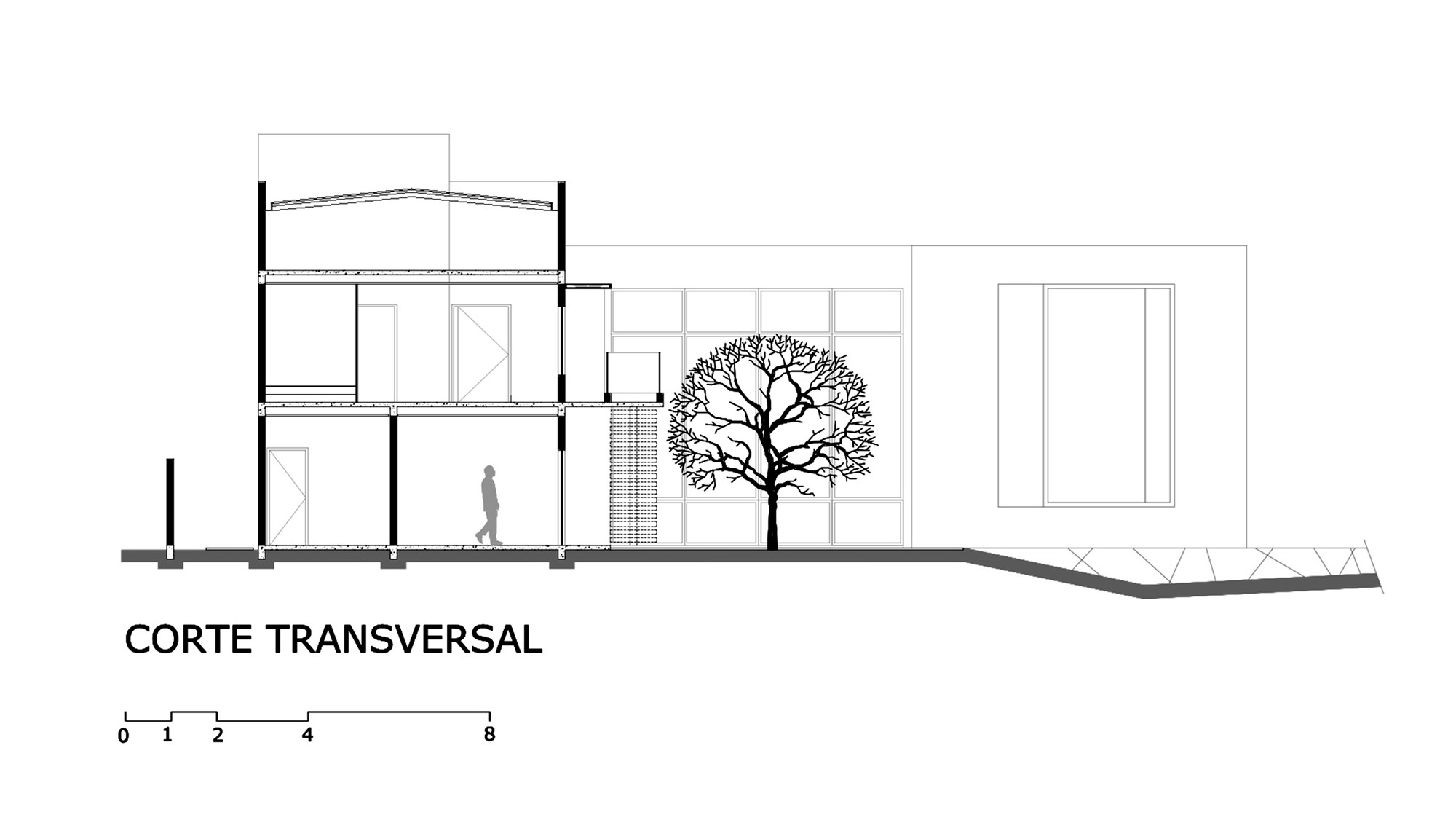
Before, technical section exported from software
PROMPT 1, Graphic / editorial style
When to use: Competition boards, university presentations, professional portfolios where you want a modern, clean representation with strong visual identity.
Visual style: Limited palette, flat fills, graphic human silhouettes, simplified vegetation, neutral background.
The prompt:
Transform this architectural section drawing into a stylized humanized architectural illustration. Preserve 100% of the original geometry, proportions, walls, slabs, structure, openings and composition. Do NOT change or redesign any architectural element. Do NOT make it photorealistic. Apply a soft graphic representation style with: Flat color fills • Controlled limited color palette (monochromatic or earthy tones) • Light texture overlays • Soft shading instead of realistic shadows • Subtle depth separation between foreground and background • Simplified vegetation silhouettes • Minimal human silhouettes in a graphic style • Clean white or neutral background. Keep linework clean and architectural. Maintain section clarity and readability. Style reference: Architectural competition board illustration, Pinterest architectural section style, soft editorial graphic visualization. High resolution, elegant, minimal, refined presentation.
What makes this prompt effective:
- Flat color fills, avoids heavy gradients that clutter the section
- Controlled limited color palette, keeps visual cohesion on the board
- Minimal human silhouettes in a graphic style, human figures as scale reference, not realistic elements
- Maintain section clarity and readability, the AI cannot compromise the technical reading of the section
💡 Tip: If you want to specify a color palette, add: “Use [main color] as the primary accent color throughout the illustration.”
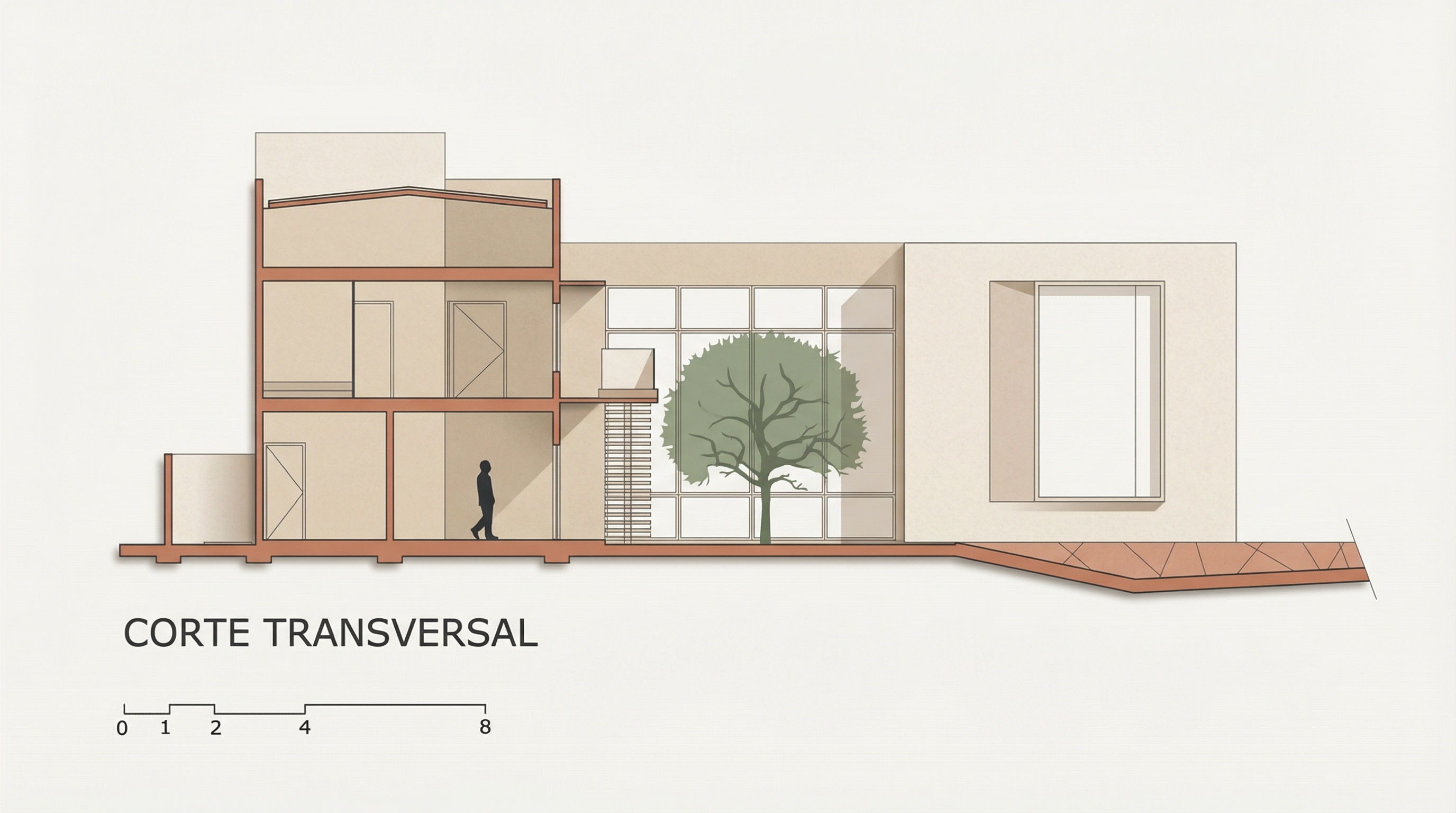
Result, Generated with Redraw
PROMPT 2, Soft watercolor
When to use: Projects where you want to convey delicacy, humanity, and creative process. Very effective for residential, cultural, and educational architecture. Works very well on boards with white or kraft paper background.
Visual style: Hand-painted watercolor textures, muted natural palette, painted vegetation, subtle human figures, soft atmospheric depth.
The prompt:
Transform this architectural section drawing into a soft watercolor-style architectural illustration. Preserve 100% of the original geometry, structure, walls, slabs, openings, proportions and composition. Do NOT modify or redesign any architectural element. Avoid photorealism. Avoid 3D render appearance. Avoid strong contrast or dramatic lighting. Apply a delicate watercolor illustration style with: • Soft hand-painted textures • Light paper grain background • Muted natural color palette (warm beige, soft green, light brick, pale wood) • Subtle tonal variation instead of realistic shading • Very soft shadow indication • Gentle atmospheric depth • Light vegetation painted in watercolor style • Minimal human figures illustrated softly • Clean and calm architectural presentation. Keep the section readable and elegant. Architectural competition board style, artistic, refined, minimal, soft and atmospheric. High resolution, delicate textures, subtle detail, calm neutral mood.
What makes this prompt effective:
- Avoid strong contrast or dramatic lighting, soft watercolor doesn't have aggressive contrast
- Light paper grain background, simulates real watercolor paper
- Muted natural color palette, the specific palette guides the AI to tones that work together
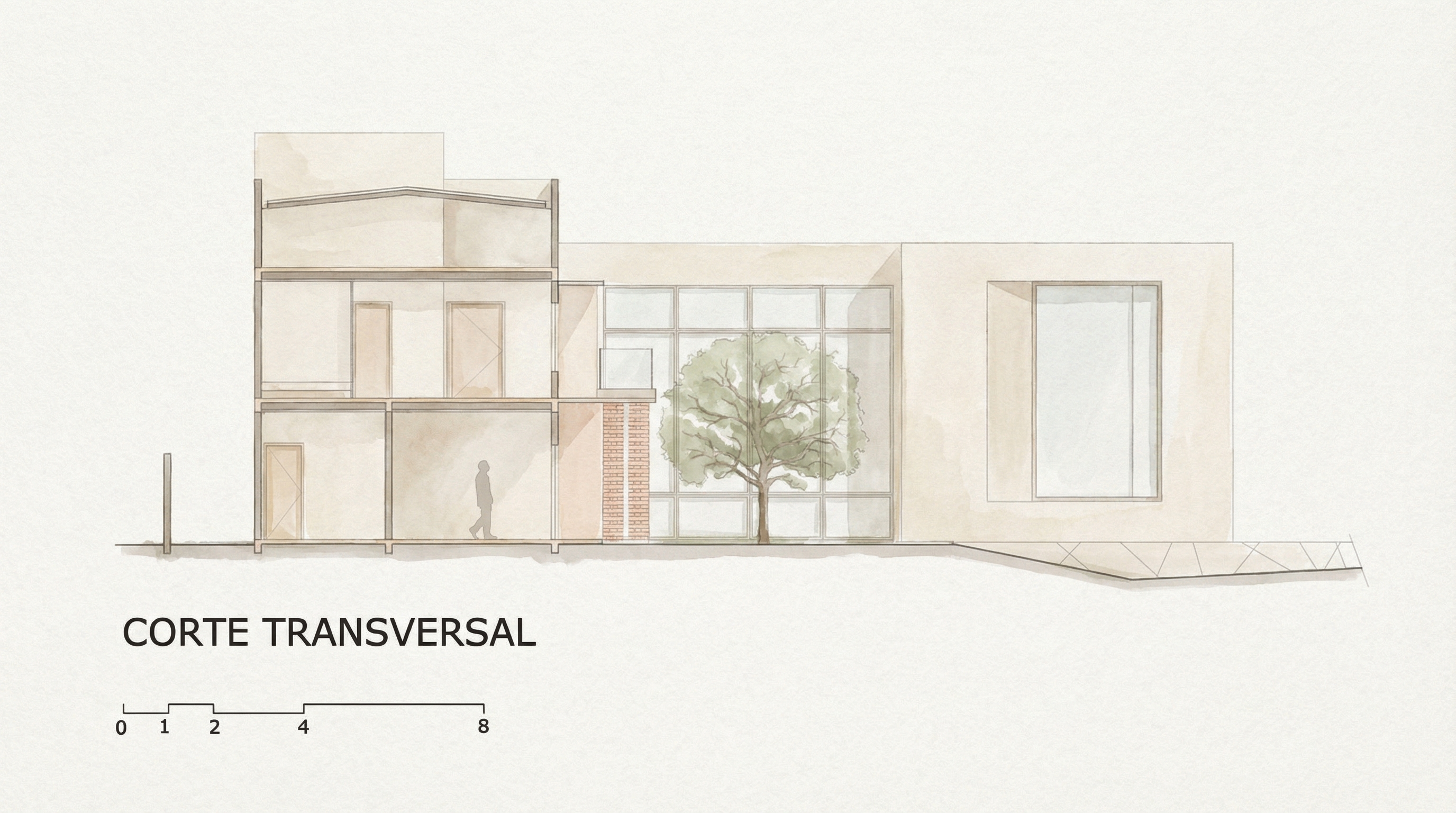
Result, Generated with Redraw
PROMPT 3, Green monochromatic
When to use: When you want a strong and cohesive visual identity on the board, using a single color as accent. Green is the default color of this prompt, but it can be adapted.
Visual style: Neutral base (beige/off-white), sage/forest green accents only on structural elements (slab cuts, columns, frames), vegetation in desaturated greens, paper-textured background.
The prompt:
Transform this architectural section drawing into a refined graphic architectural illustration. Preserve 100% of the original geometry, structure, walls, slabs, openings, proportions and composition. Do NOT redesign or modify any architectural element. Avoid photorealism. Avoid 3D rendering. Keep it flat and graphic. Color treatment: Use a soft warm beige or light off-white tone for interior surfaces • Keep floors, walls and ceilings in light neutral tones • Apply muted sage or forest green ONLY to structural outlines, slab edges, columns and section cuts • Keep window frames and structural grid lines in green • Do NOT fill the entire building with green. Visual style: Light paper texture background • Soft subtle shadow indication (not realistic) • Clean linework • Minimal tonal variation • Graphic architectural competition board style. Add: Human silhouettes in muted green tone • Soft vegetation in desaturated green tones • Very light sky with subtle cloud shapes. Balanced composition, elegant, minimal and refined presentation. High resolution, calm architectural board aesthetic.
In architectural sections, highlighting only what is being cut (not the entire space) is the correct technical rule. The AI needs to receive this instruction explicitly.
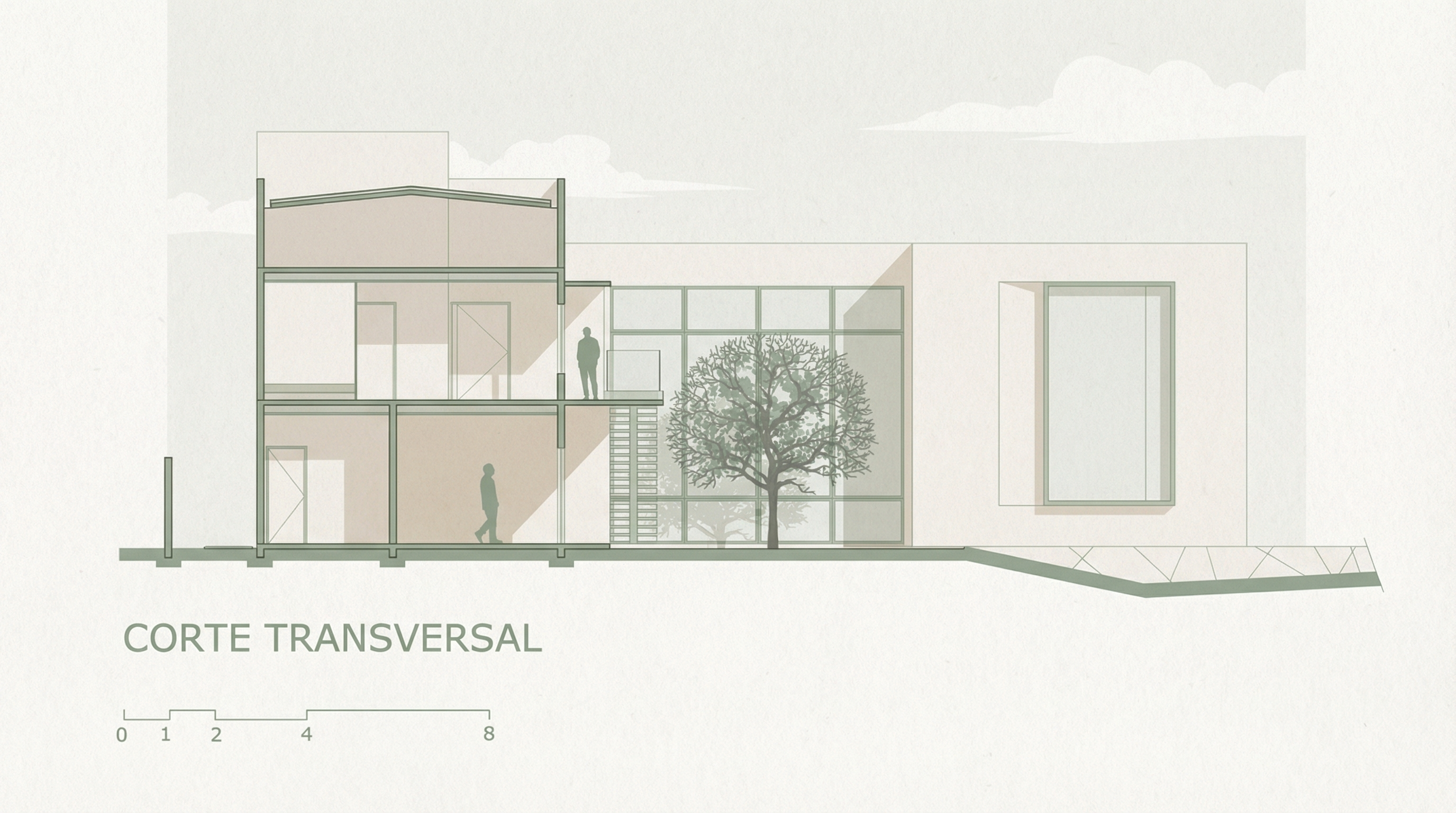
Result, Generated with Redraw
PROMPT 4, Universal with custom color
This is the most versatile prompt in the section library. It uses color placeholders you replace before sending, letting you create any visual identity without rewriting the prompt from scratch.
How to use: replace [PRIMARY COLOR] and [INTERIOR COLOR] with your choice before sending.
Combination examples:
[PRIMARY COLOR]→ muted sage green |[INTERIOR COLOR]→ warm beige[PRIMARY COLOR]→ terracotta red |[INTERIOR COLOR]→ light sand[PRIMARY COLOR]→ deep navy blue |[INTERIOR COLOR]→ soft ivory[PRIMARY COLOR]→ dusty rose |[INTERIOR COLOR]→ off-white
The prompt:
Transform this architectural section drawing into a refined graphic architectural illustration. Preserve 100% of the original geometry, structure, walls, slabs, openings, proportions and composition. Do NOT redesign, reinterpret, move or modify any architectural element. Avoid photorealism. Avoid 3D rendering. Keep it flat and graphic. Color treatment: Use [PRIMARY COLOR] ONLY for structural outlines, slab edges, columns, section cuts and window frames. • Use [INTERIOR COLOR – usually beige, off-white or light neutral] for interior walls, floors and ceilings. • Do NOT fill the entire building with [PRIMARY COLOR]. • Interior spaces must remain predominantly [INTERIOR COLOR]. Visual style: Light paper texture background • Clean architectural linework • Minimal tonal variation • Soft subtle shadow indication (not realistic lighting) • Graphic architectural competition board style. Add: Human silhouettes in [PRIMARY COLOR] • Vegetation in softer desaturated tones of [PRIMARY COLOR] • Very light neutral sky with subtle cloud shapes. Balanced composition, elegant, minimal and refined presentation. High resolution, calm architectural board aesthetic.
You build the visual identity of an entire board with a two-word substitution. Visual consistency between all sections of the same project becomes trivial.
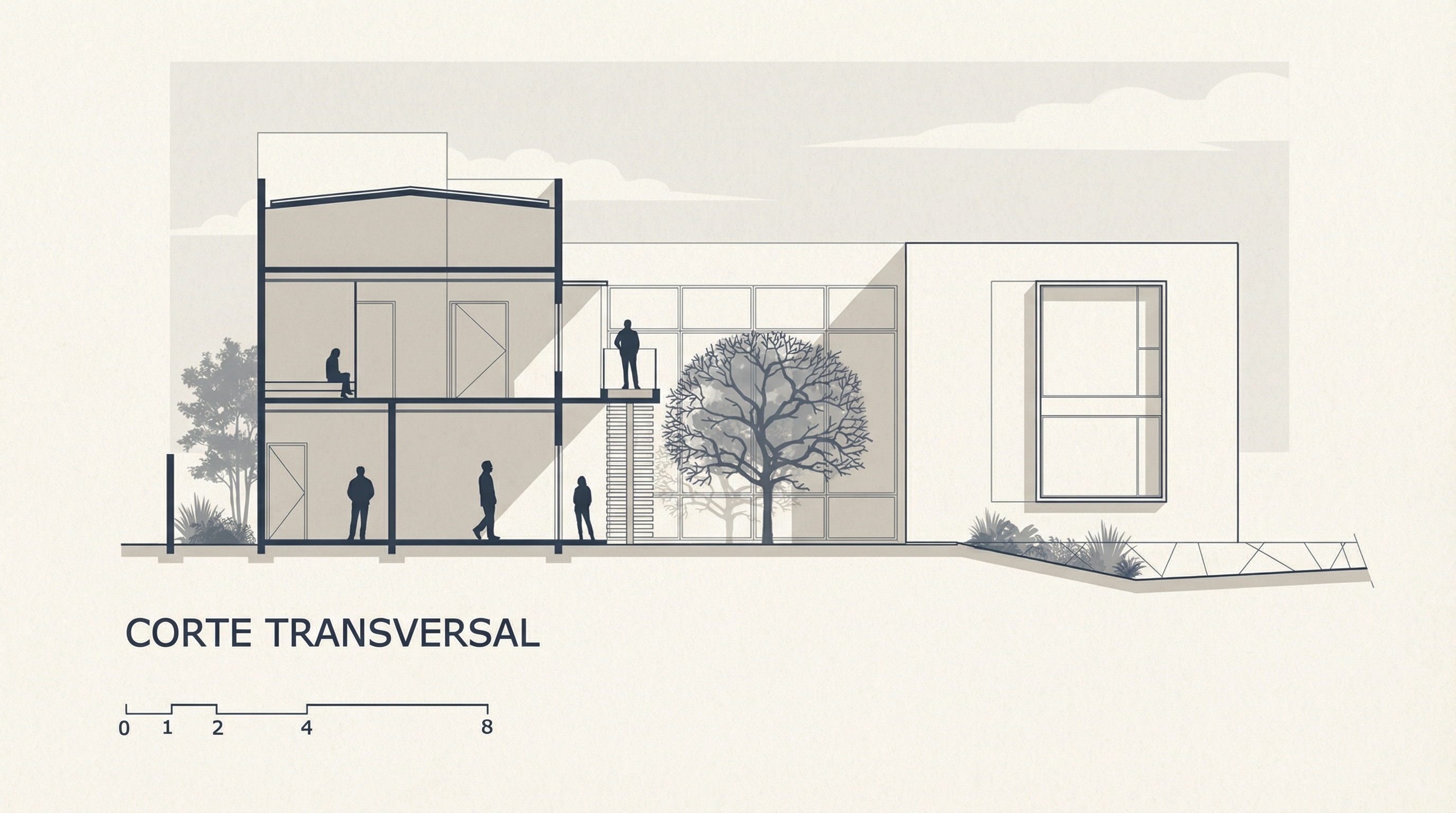
Result, Generated with Redraw
Tips for humanized sections with AI
- Export the section in high resolution: the result quality depends on the input quality. At least 150 dpi, preferably 300 dpi.
- Black lines, white background: make sure the section has clean and readable lines on white background before sending.
- Simple sections work better: the cleaner the input, the more predictable the result. If the section has many details, simplify first.
- Combine prompts: use the style + Total Lock prompt if the AI is altering geometry.
AI change control system
These prompts protect the original geometry when the AI tries to redesign the section.
Total change lock
Preserve 100% of the original architecture, layout, furniture placement, materials, colors, textures, decorative elements, proportions, lighting positions, and camera angle. Strictly forbid adding, removing, replacing, resizing, repositioning, or redesigning any element. The purpose of this transformation is ONLY to enhance realism, lighting behavior, and material response without altering the original design in any way.
Material protection
Preserve all original materials and textures exactly as shown. Do not replace, reinterpret, or stylize materials. Enhance realism only through improved surface detailing, micro imperfections, and physically accurate light response.
Lighting design respect
Preserve the original lighting design exactly as shown in the image. Do not add new light sources, remove existing lights, or modify lighting positions. Only enhance realism through natural light diffusion, realistic light bounce, soft shadow transitions, and accurate material interaction with existing lighting.
Which AI to use for humanized sections?
For stylized humanized sections, text-based AI image generation tools are the most efficient path today, the prompts in this guide were built for this workflow.
For photorealistic interior and facade renders, which often accompany boards with sections, Redraw is the fastest and most faithful tool to the original project.
Strategic combination: humanized sections with text prompts + photorealistic renders with Redraw = complete board with professional quality.
AI Prompt Guide for Facade Renders
Why facade renders are AI's decisive test
The facade is the project's calling card. It's the first thing the client sees, what appears on the portfolio cover, and what circulates on social media. A convincing facade render depends on two factors most architects neglect: realistic urban context and correct light condition.
Generic AI tools tend to “invent” the surroundings, change the original facade, or produce inconsistent results between generations. The prompts in this guide were designed to solve exactly that, each one preserves 100% of the original facade while working only on what needs to be improved.
About Redraw: For facade renders with project fidelity, Redraw is the most direct tool, you upload the model, select the atmosphere in clicks, and get the result in seconds, with no risk of the AI altering the facade. The prompts below are for those working with text-based generation tools.
Before the prompts: why you don't need them in Redraw
Architects shouldn't need to learn machine language to generate a professional facade render. That premise guided how Redraw was built.
Instead of writing warm late-afternoon natural light, long shadows entering from the side, in Redraw you click “Sunset”.
Atmosphere & Mood in Redraw: lighting in one click, no long prompt.
Instead of describing suburban residential street with visible neighbors in the background, you select the scene directly in the visual interface.
Environment Selection in Redraw: scene in one click, no text description.
Every choice you'd make in a long prompt, lighting, environment, style, camera, becomes a click. And because Redraw was trained exclusively for architecture, the model already “understands” the project context without you having to explain.
“In Redraw, the less prompt users write, the better the results.”
Comparison: text prompts vs. visual interface
| Feature | Text-Prompt Tools | Redraw |
|---|---|---|
| Prompt complexity | High, requires technical, long structure | Low, natural and simple language |
| Lighting control | Based on technical text | Based on visual clicks (Atmosphere & Mood) |
| Environment control | Based on descriptive text | Based on visual clicks (Environment Selection) |
| Fidelity to 3D project | Variable, depends on reference and prompt | High, processes the model geometry directly |
| Consistency between generations | Low | High |
| User focus | Learning to command the AI | Describing the architectural vision |
| Learning curve | Steep | Fast and intuitive |
| Time per render | High (prompt + tweaking + post-production) | Low (20–40 seconds, publishable result) |
The prompts in this guide remain valuable, understanding the logic makes you a more strategic user of any tool. But if you want to skip the learning curve and go straight to the result, Redraw solves it in clicks.
PROMPT 1, Adding urban context: neighboring houses
Problem it solves: Facades rendered against white or generic backgrounds don't convey the project's real urban context. Clients and developers need to see how the project fits into the street.
When to use: Residences on urban lots where neighborhood context is relevant for the presentation.
The prompt:
Transform this image into an ultra photorealistic architectural photograph. Preserve 100% of the original architecture, layout, furniture placement, materials, colors, textures, proportions, decorative elements, and camera angle. Do NOT add, remove, redesign, or replace any element of the main project. Enhance realism only through: Physically accurate global illumination • Natural light behavior and realistic light bounce • Soft and natural shadow gradients • Ray traced reflections and refractions • Real-world material response. Add neighboring houses on both sides of the main construction, integrating them naturally into the urban context. The neighboring houses must: • Respect correct scale and perspective • Follow realistic residential architectural language • Maintain coherent lighting direction • Not block or interfere with the visibility of the main project • Not cast unrealistic shadows over the main façade • Remain secondary elements in the composition. Under no circumstances modify, adjust, reinterpret, resize, or redesign the original main building. Professional architectural photography style, balanced HDR exposure, natural color grading, cinematic yet realistic atmosphere. Ultra high resolution, 8K detail.
What sets this prompt apart: The detailed instruction on how neighboring houses should behave, scale, perspective, light direction, and visual hierarchy. Without it, the AI may produce neighbors that visually compete with the project or distort perspective.
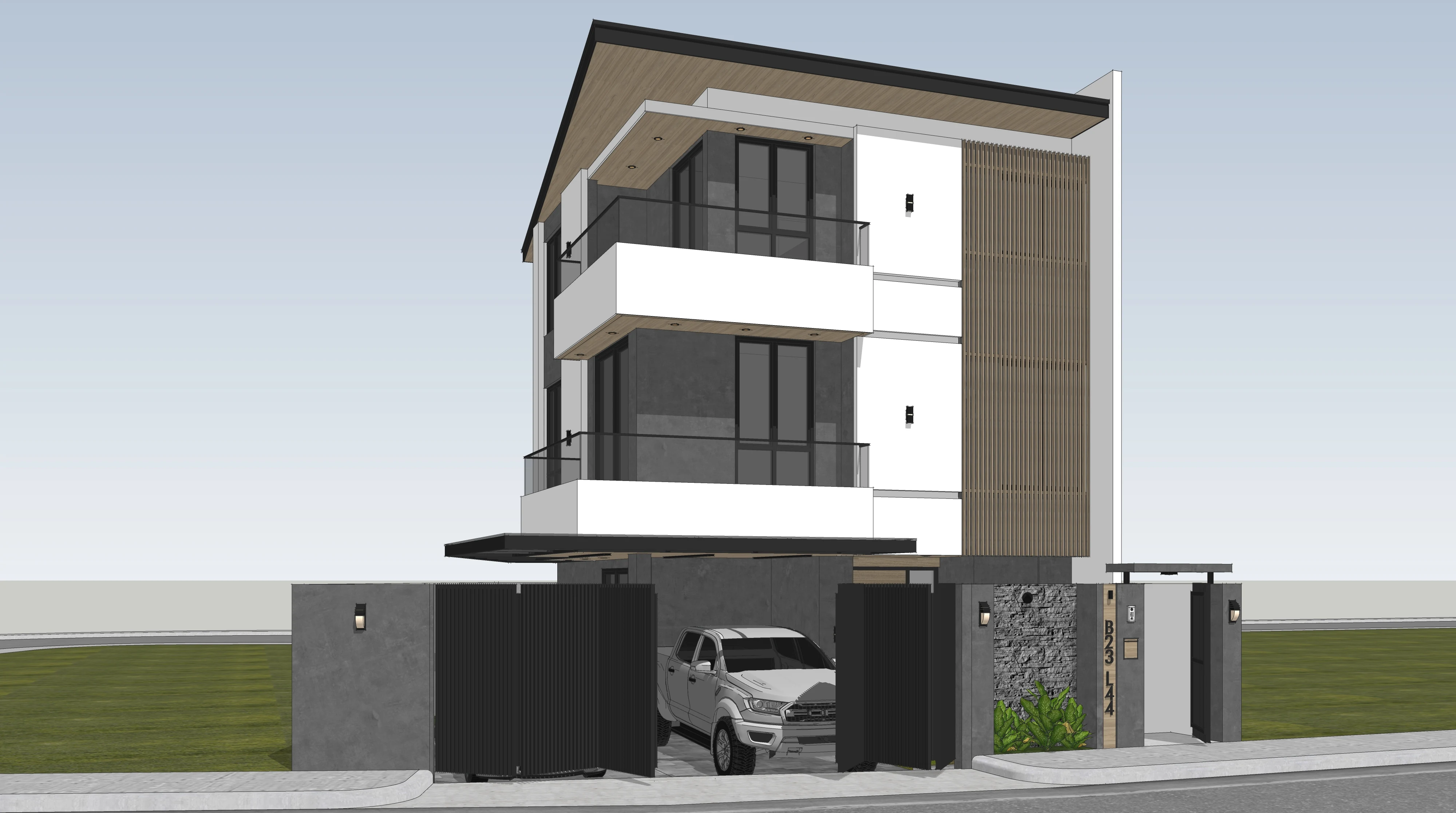
Before, base SketchUp render
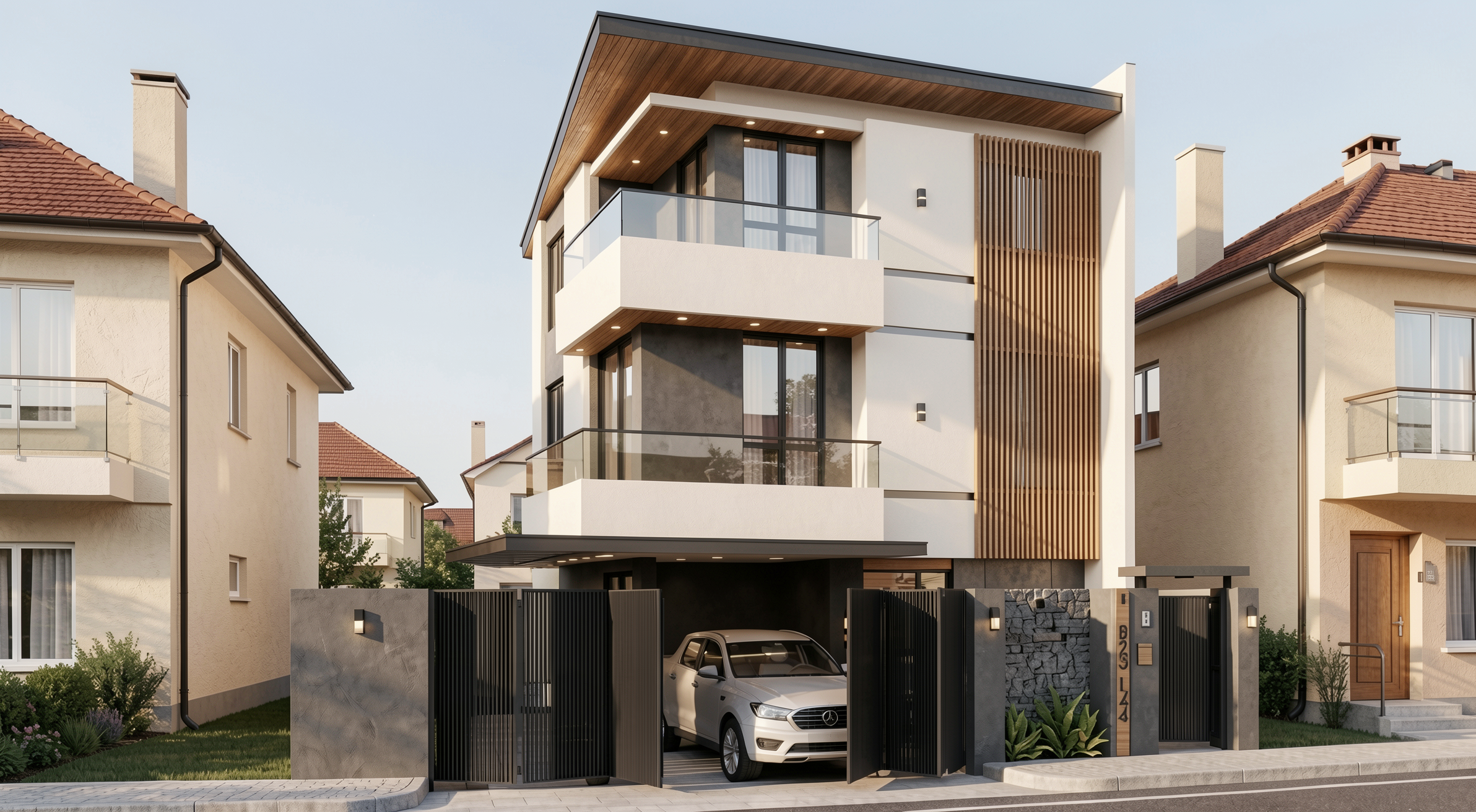
Result with Redraw
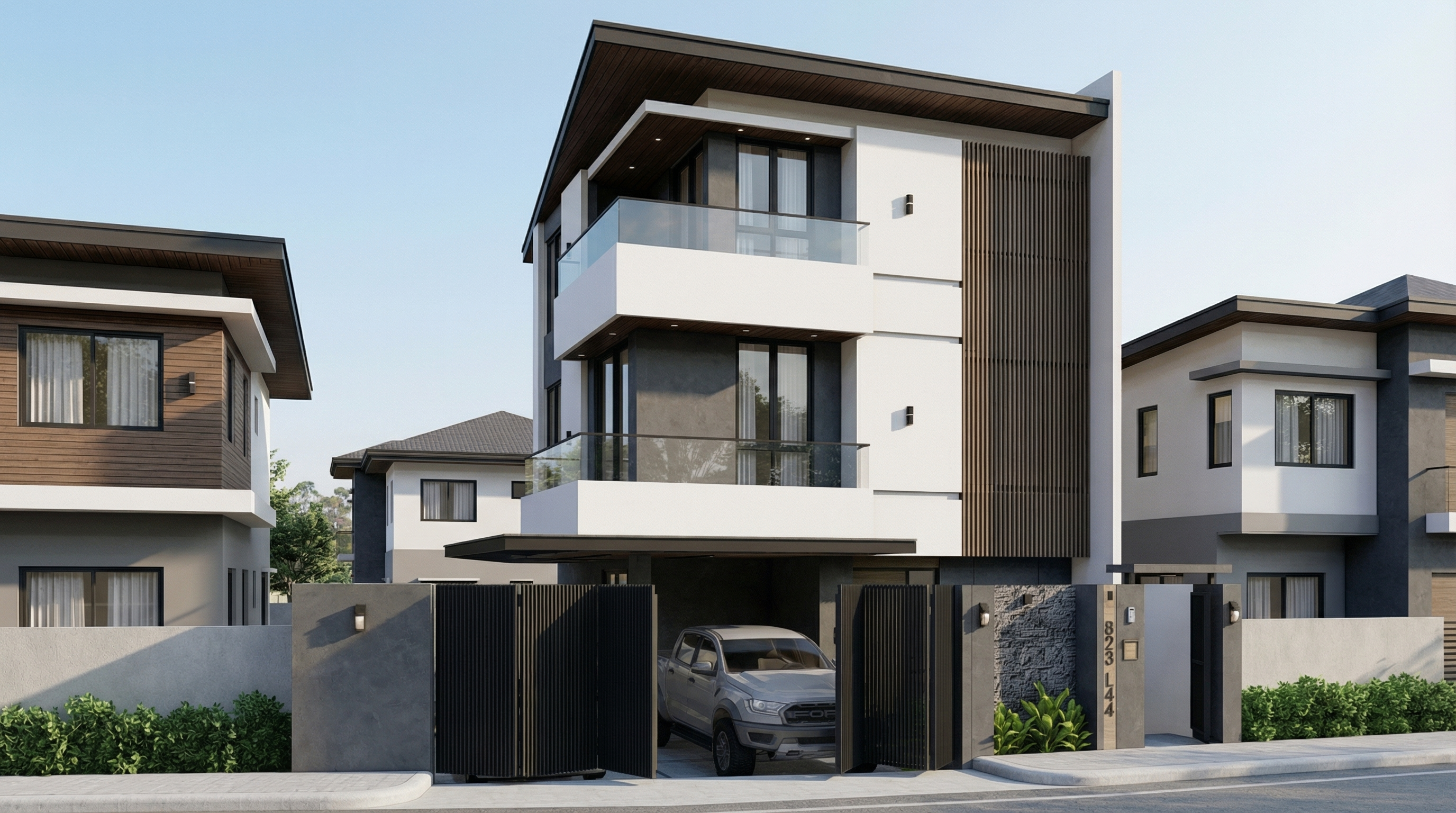
Result with Nano Banana Pro
PROMPT 2, Adding natural context: trees
Problem it solves: Facades without vegetation feel cold and decontextualized. Adding trees increases realism and elevates the project, as long as it's done with control over scale and shadows.
When to use: Any type of facade, residential, commercial, mixed-use, where natural vegetation improves the presentation.
The prompt:
Transform this image into an ultra photorealistic architectural photograph. Preserve 100% of the original architecture, layout, furniture placement, materials, colors, textures, proportions, decorative elements, and camera angle. Do NOT add, remove, redesign, or replace any element of the main project. Enhance realism only through: Physically accurate global illumination • Natural light behavior and realistic light bounce • Soft and natural shadow gradients • Ray traced reflections and refractions • Real-world material response. Add realistic trees around the main construction, integrating them naturally into the surrounding context. The trees must: • Respect correct scale and perspective relative to the building • Be positioned naturally (side areas, background, or sidewalk alignment) • Maintain coherent lighting direction and shadow behavior • Cast physically accurate and soft shadows • Not block or interfere with the visibility of the main façade • Remain secondary elements in the composition • Appear as natural landscape additions, not decorative overlays. Under no circumstances modify, adjust, reinterpret, resize, or redesign the original main building. Professional architectural photography style, balanced HDR exposure, natural color grading, cinematic yet realistic atmosphere. Ultra high resolution, 8K detail.
If you want a specific type of tree (palms, oaks, cedars), add to the prompt: “Use [tree type] as the primary vegetation species.”
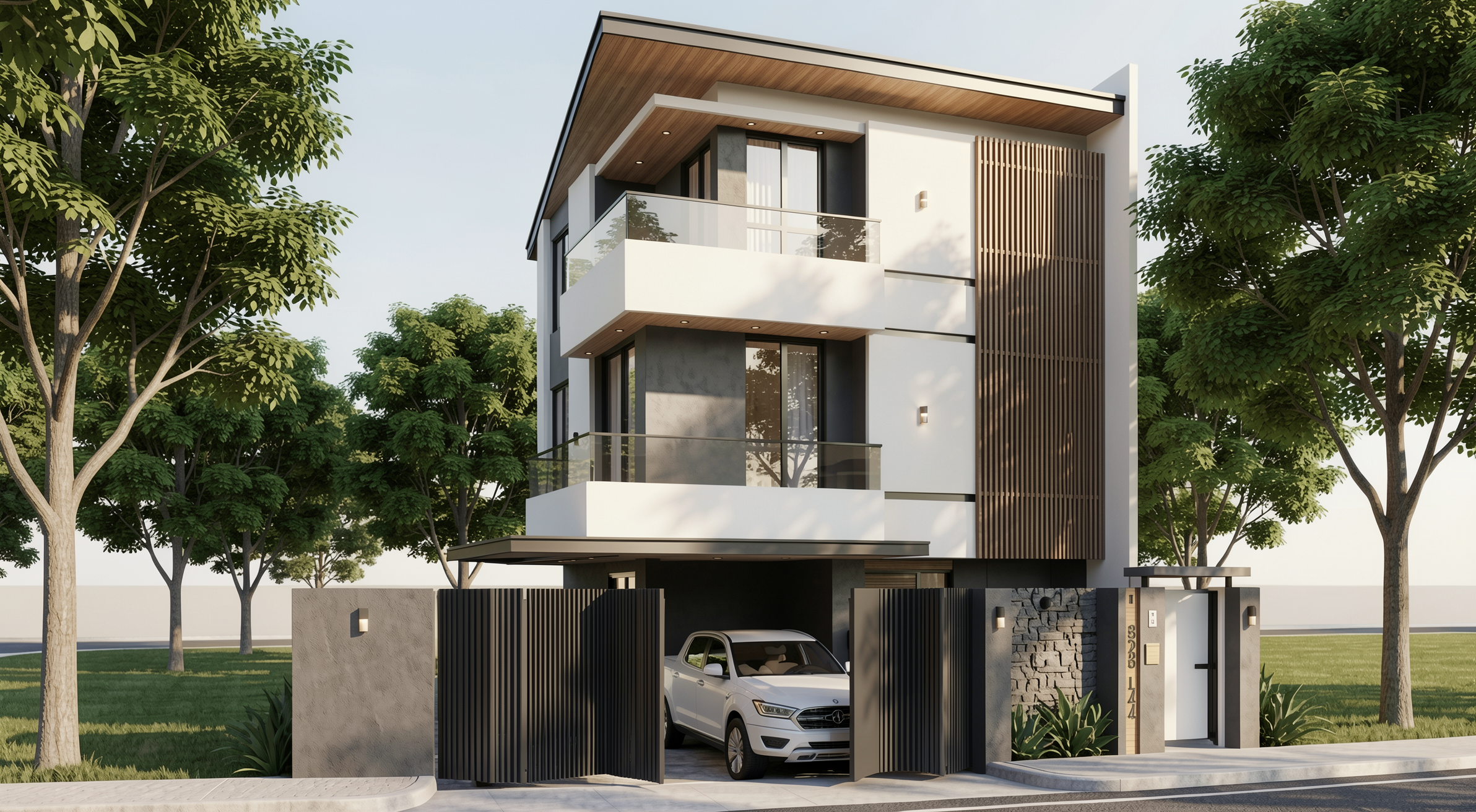
Result with Redraw
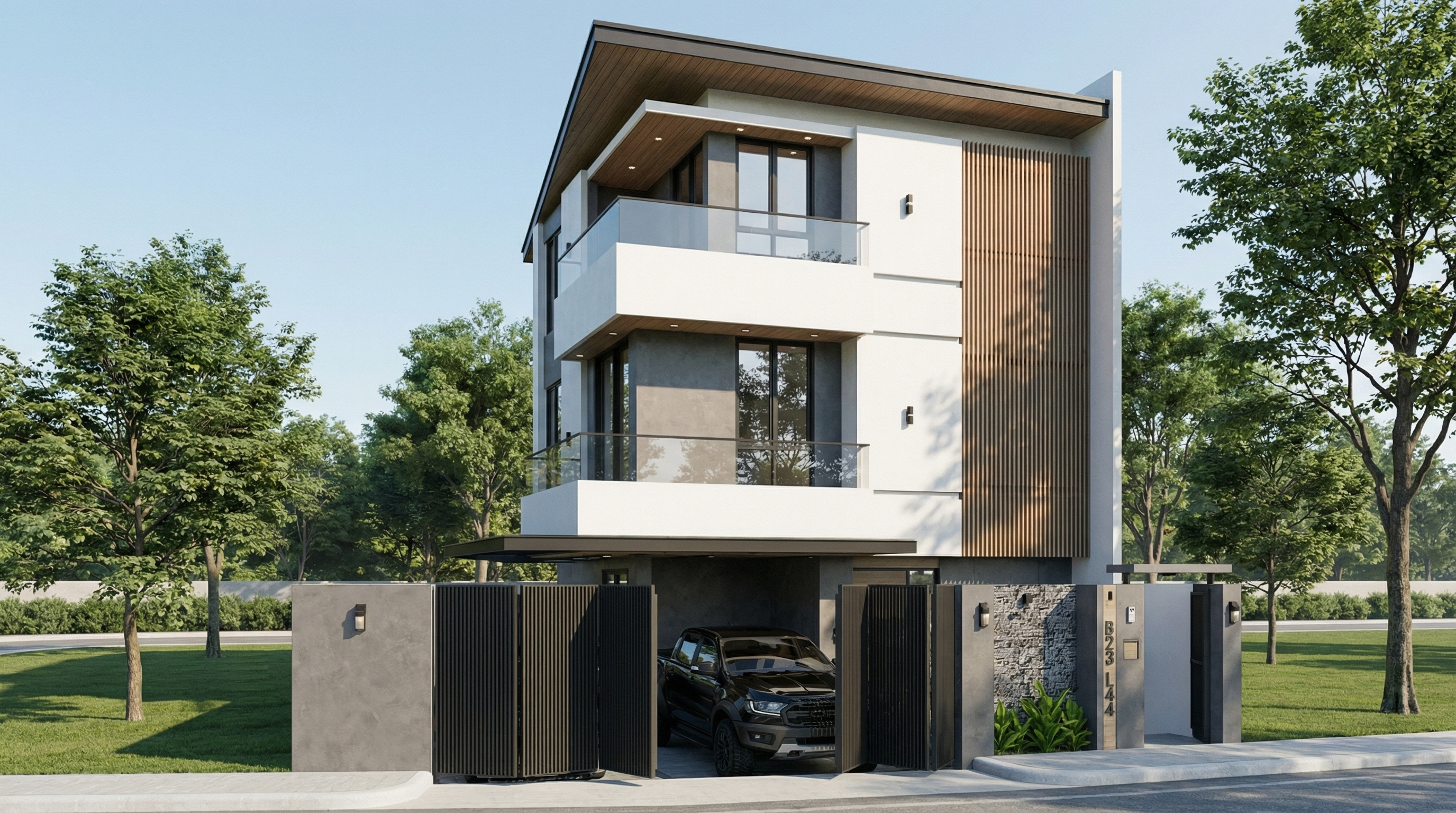
Result with Nano Banana Pro
PROMPT 3, Post-rain atmosphere (ultra realistic)
Problem it solves: Post-rain facades with wet floor reflections and surface moisture are among the most visually impactful renders, and among the hardest to do with control. This prompt solves it.
When to use: High-impact presentations, portfolios, social media. Works especially well on facades with concrete, stone, paving, and metal.
The prompt:
Preserve 100% of the original architecture, materials, colors, textures, proportions, decorative elements, lighting fixtures, surrounding elements, landscaping, and camera angle. Do NOT add, remove, redesign, reposition, replace, or reinterpret any element. Transform the image into an ultra photorealistic architectural photograph representing a natural post-rain environment. Simulate realistic wet surface conditions on ground planes, pavements, streets, and exposed exterior surfaces, ensuring physically accurate water reflection behavior and subtle moisture accumulation. Enhance reflective properties on materials such as stone, concrete, glass, metal, and flooring through realistic surface roughness variation, water film reflections, and natural light diffusion across wet areas. Introduce subtle environmental dampness indicators such as slightly darkened material tones, enhanced reflection clarity, and realistic interaction between moisture and lighting. Maintain balanced HDR exposure, natural color grading, realistic sky brightness consistency, soft shadow transitions, and accurate global illumination under post-rain atmospheric conditions. Ensure reflections remain physically plausible and proportional, avoiding exaggerated mirror effects while preserving realistic depth and material response. Professional architectural photography quality, cinematic yet natural atmosphere, ultra high resolution, 8K detail, and full-frame camera realism.
What sets this prompt apart: The instruction “avoiding exaggerated mirror effects” is fundamental. Without it, the AI tends to create floor mirror reflections that look unreal.
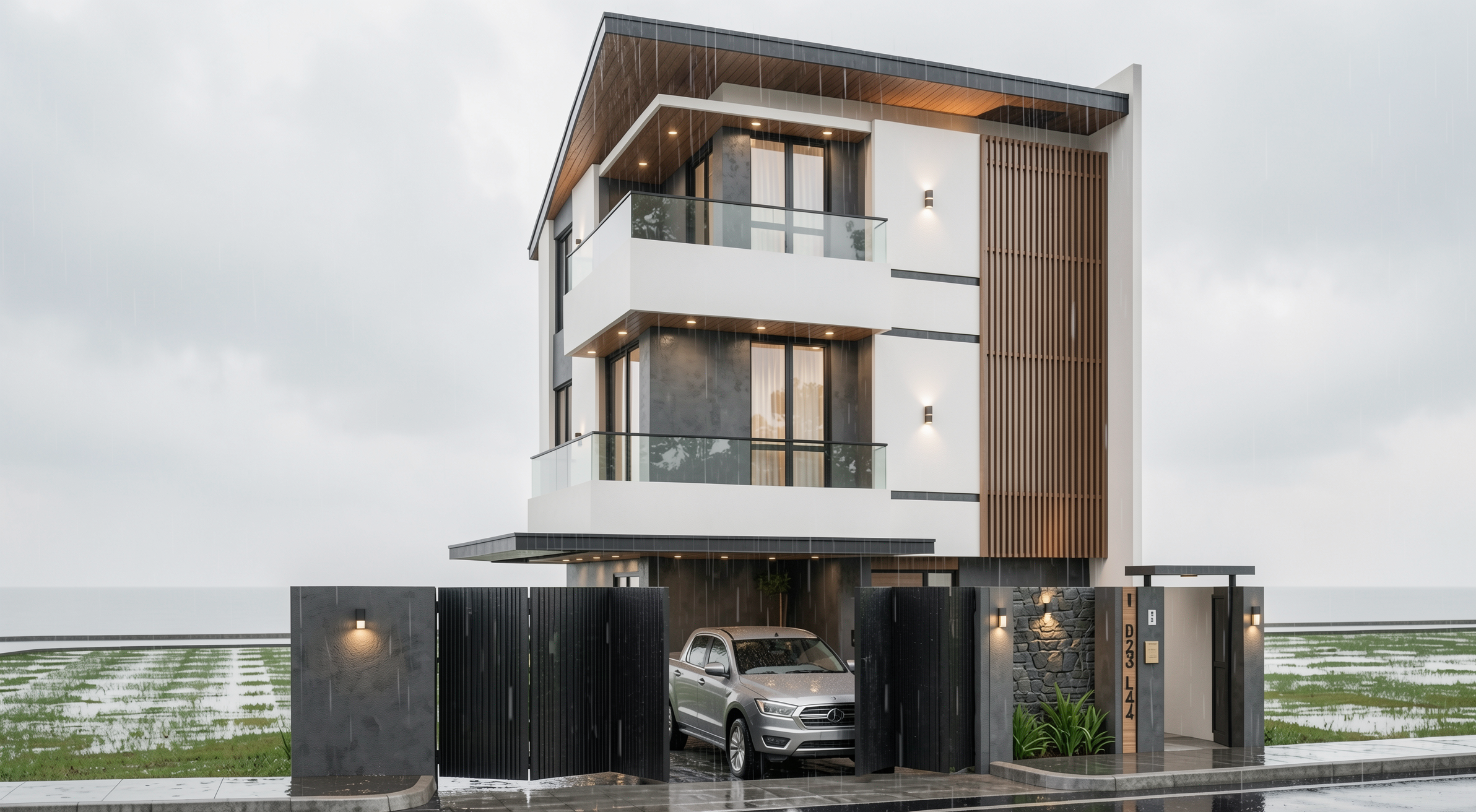
Result with Redraw
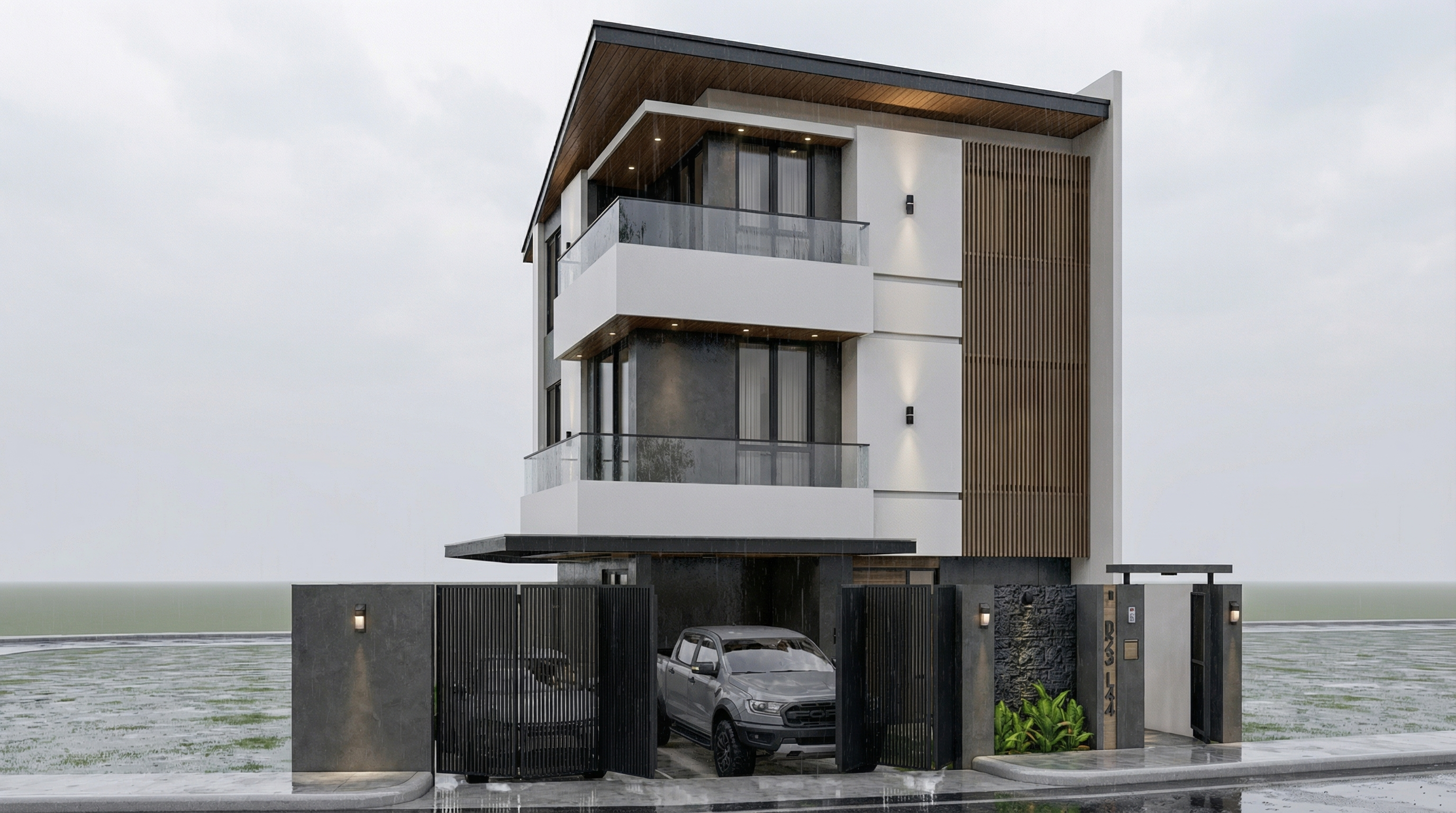
Result with Nano Banana Pro
PROMPT 4, Universal daytime atmosphere
Problem it solves: The most versatile facade prompt, transforms any facade render into a daytime architectural photograph with realistic natural light.
When to use: Starting point for any facade when you want a clean and professional photorealistic result, without defining a specific atmosphere.
The prompt:
Preserve 100% of the original architecture, materials, colors, textures, proportions, decorative elements, lighting fixtures, surrounding elements, landscaping, and camera angle. Do NOT add, remove, redesign, reposition, replace, or reinterpret any element. Transform the image into an ultra photorealistic daytime architectural photograph. Enhance realism through physically accurate daylight simulation, natural sky illumination, realistic sun direction, soft shadow gradients, global illumination, and accurate environmental light bounce. Improve facade material response with micro surface imperfections, subtle tonal variation, realistic roughness maps, natural reflection behavior on glass and metal, and authentic surface depth. Maintain balanced HDR exposure, natural color grading, realistic atmospheric clarity, professional full-frame camera behavior, subtle depth perception, and true-to-life sharpness. Ultra high resolution, 8K detail, cinematic yet realistic architectural photography quality.
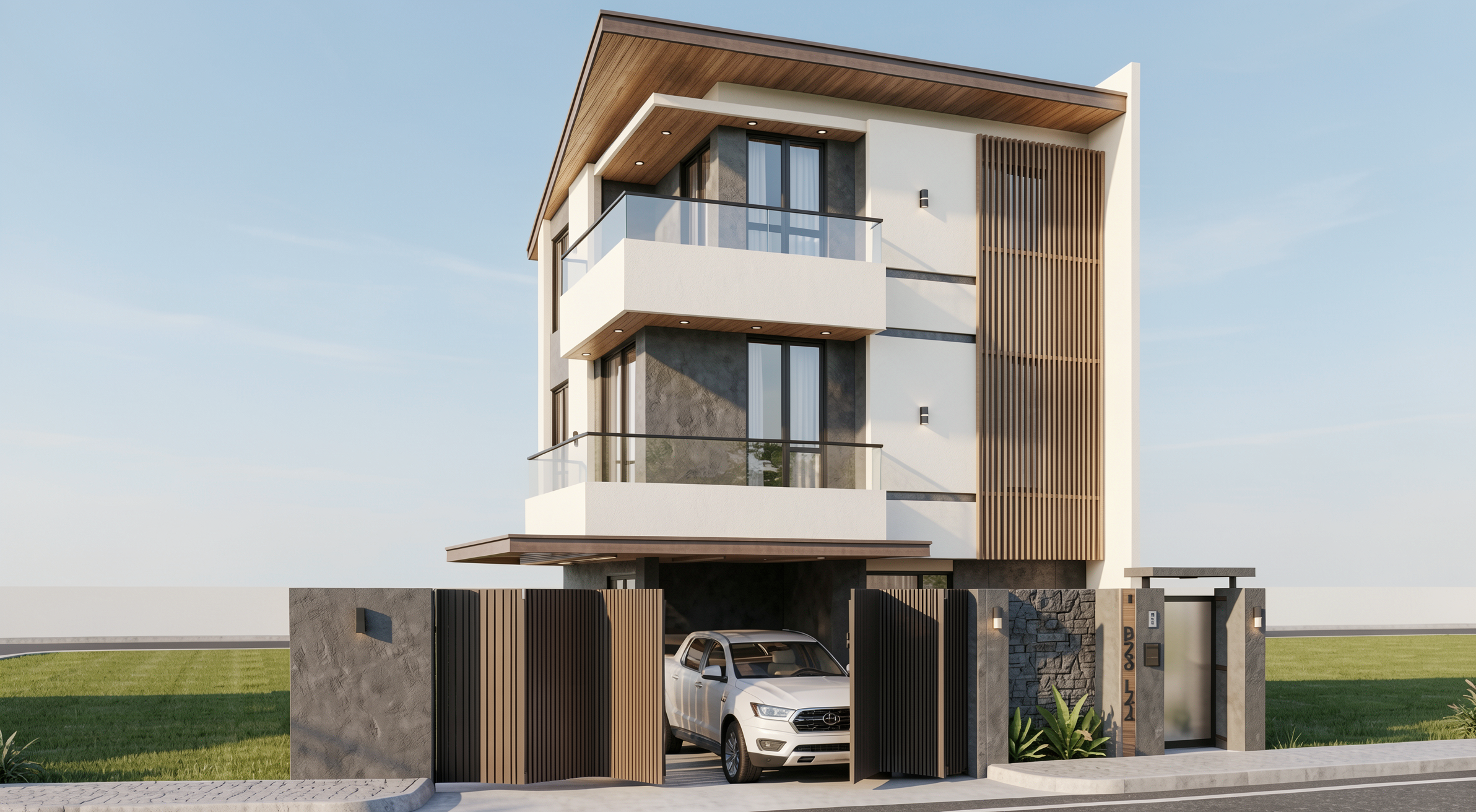
Result with Redraw
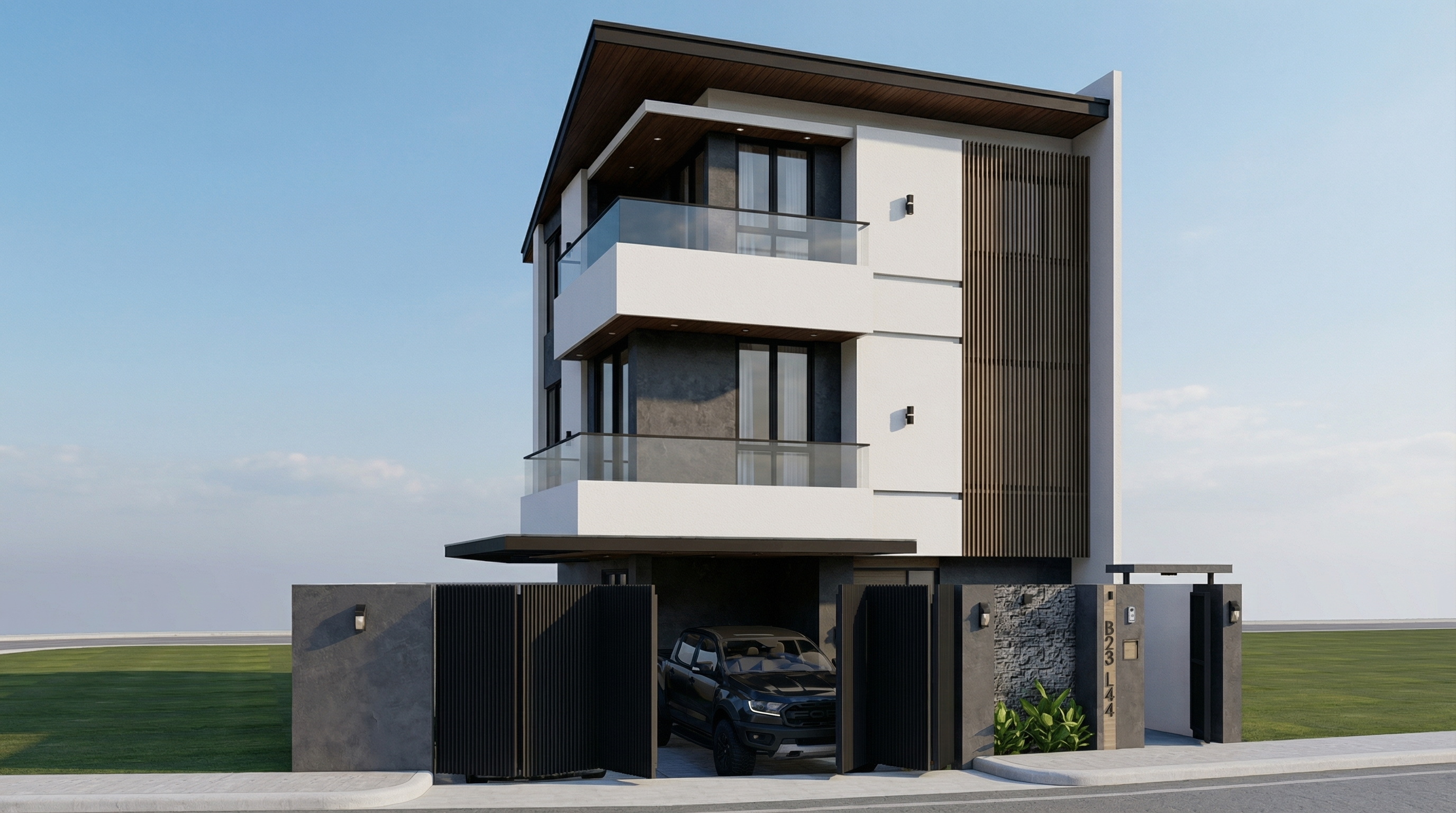
Result with Nano Banana Pro
PROMPT 5, Overcast (ultra realistic)
Problem it solves: Overcast light is the favorite of professional architectural photographers, it's diffused, casts no harsh shadows, and reveals the real material texture. This prompt replicates that effect.
When to use: Facades with textured materials (exposed concrete, brick, stone) where you want texture to be the protagonist. Also works very well on dark facades or low-reflection materials.
The prompt:
Preserve 100% of the original architecture, materials, colors, textures, proportions, decorative elements, lighting fixtures, surrounding elements, landscaping, and camera angle. Do NOT add, remove, redesign, reposition, replace, or reinterpret any element. Transform the image into an ultra photorealistic architectural photograph under overcast sky conditions. Simulate diffused environmental lighting with soft, evenly distributed illumination across all facade surfaces. Reduce harsh shadow contrast while maintaining realistic depth perception, natural material response, accurate environmental reflections, and subtle tonal transitions. Enhance facade texture clarity with physically accurate surface roughness, micro imperfections, realistic light absorption, and natural color consistency under cloudy lighting conditions. Maintain professional architectural photography standards, balanced exposure, realistic atmospheric depth, and ultra high resolution 8K detail.
What sets this prompt apart: “Reduce harsh shadow contrast” is the key to overcast days. Soft shadows and uniform diffused light are exactly what differentiate a professional facade photograph from a hard-sun render.
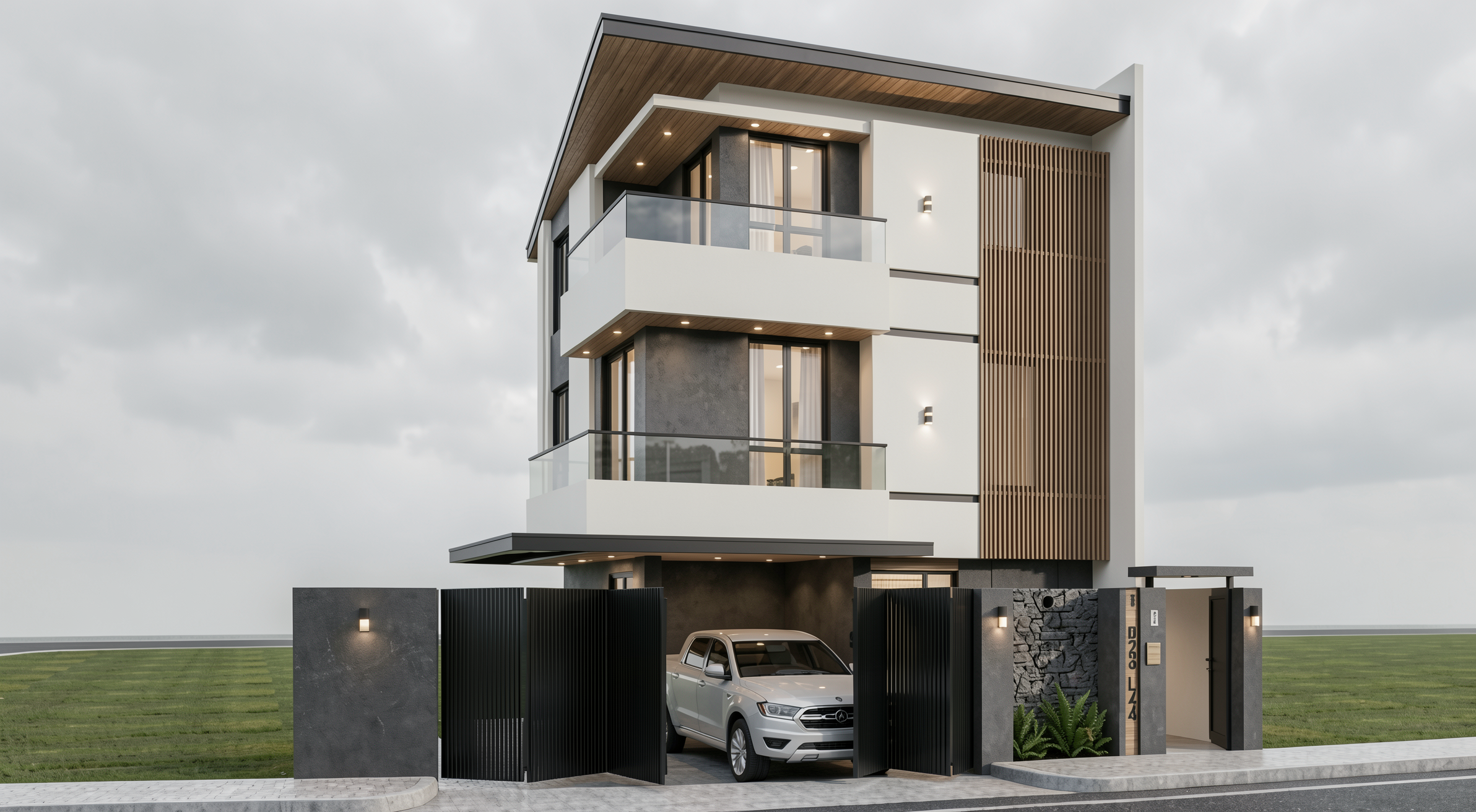
Result with Redraw
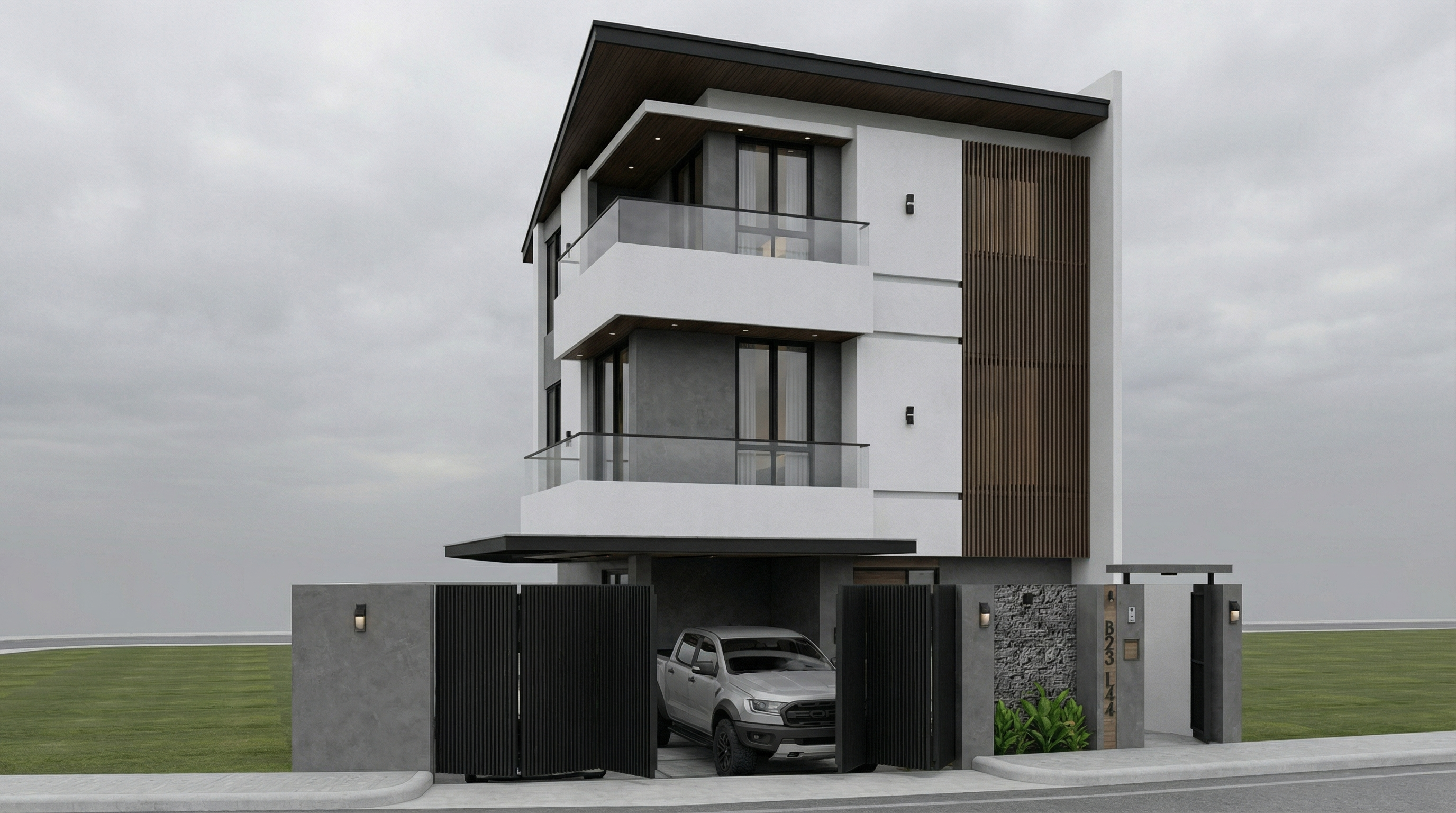
Result with Nano Banana Pro
PROMPT 6, Night (ultra realistic)
Problem it solves: Night renders are hard to do well, the balance between the project's artificial lighting and the dark environment is the great challenge.
When to use: Projects with elaborate artificial lighting, commercial, high-end residential, restaurants, hotels. Night renders are often the most impactful for these.
The prompt:
Preserve 100% of the original architecture, materials, colors, textures, proportions, decorative elements, lighting fixtures, surrounding elements, landscaping, and camera angle. Do NOT add, remove, redesign, reposition, replace, or reinterpret any element. Transform the image into an ultra photorealistic nighttime architectural photograph. Simulate realistic night environmental conditions with accurate low-light exposure, natural darkness balance, and physically correct interaction between existing artificial lighting and surrounding shadows. Enhance realistic light falloff, warm and cool contrast balance, subtle reflections on glass surfaces, accurate ambient occlusion, soft shadow transitions, and volumetric light interaction where appropriate. Refine facade materials with realistic surface depth, micro imperfections, subtle reflection roughness variation, and true-to-life night photography exposure control. Professional architectural night photography style, balanced dynamic range, cinematic yet natural atmosphere, ultra high resolution, 8K detail.
What sets this prompt apart: “warm and cool contrast balance” and “light falloff” are the two parameters that make a night render look like a real photo. Warm light from fixtures vs. cool blue of the night ambient.
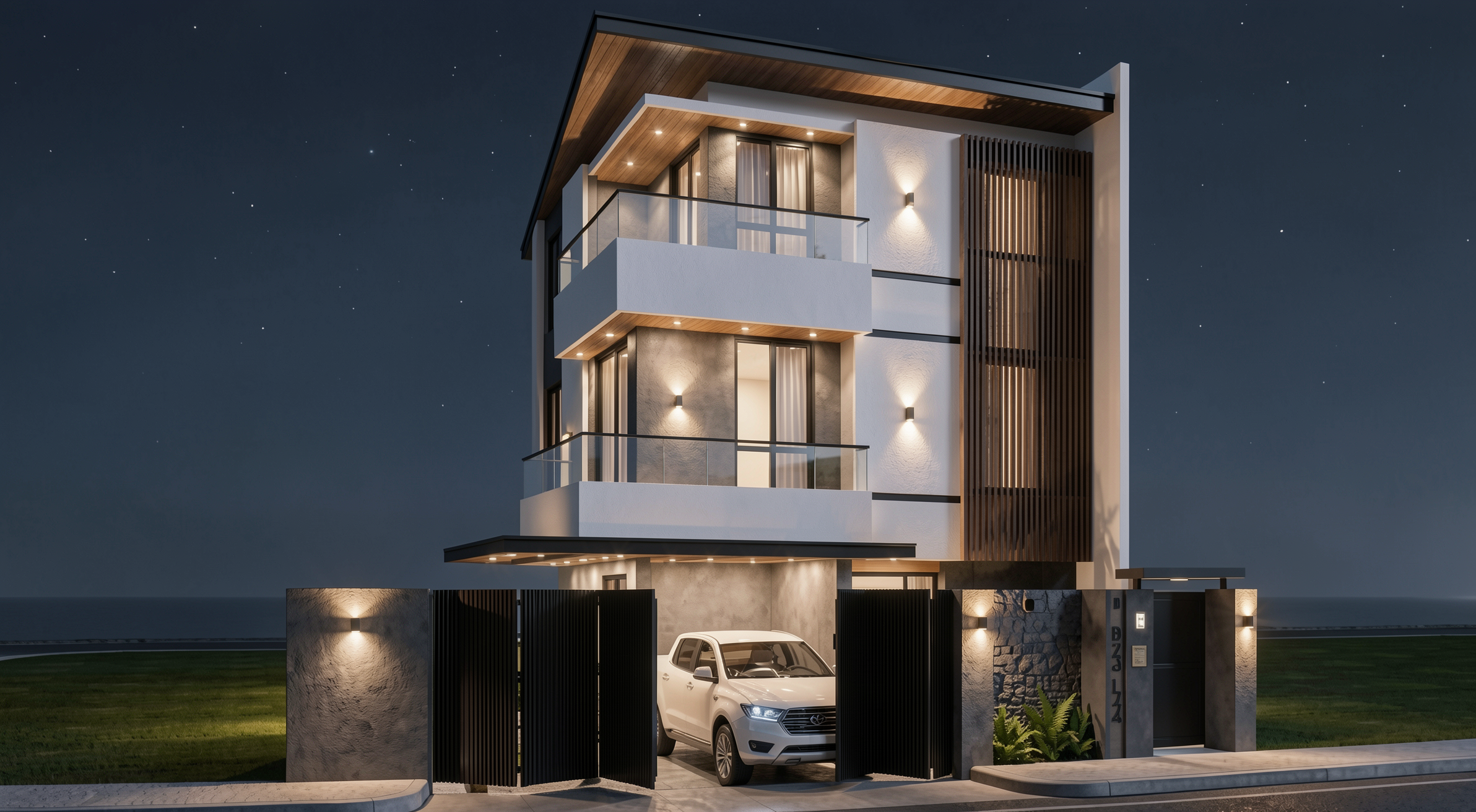
Result with Redraw
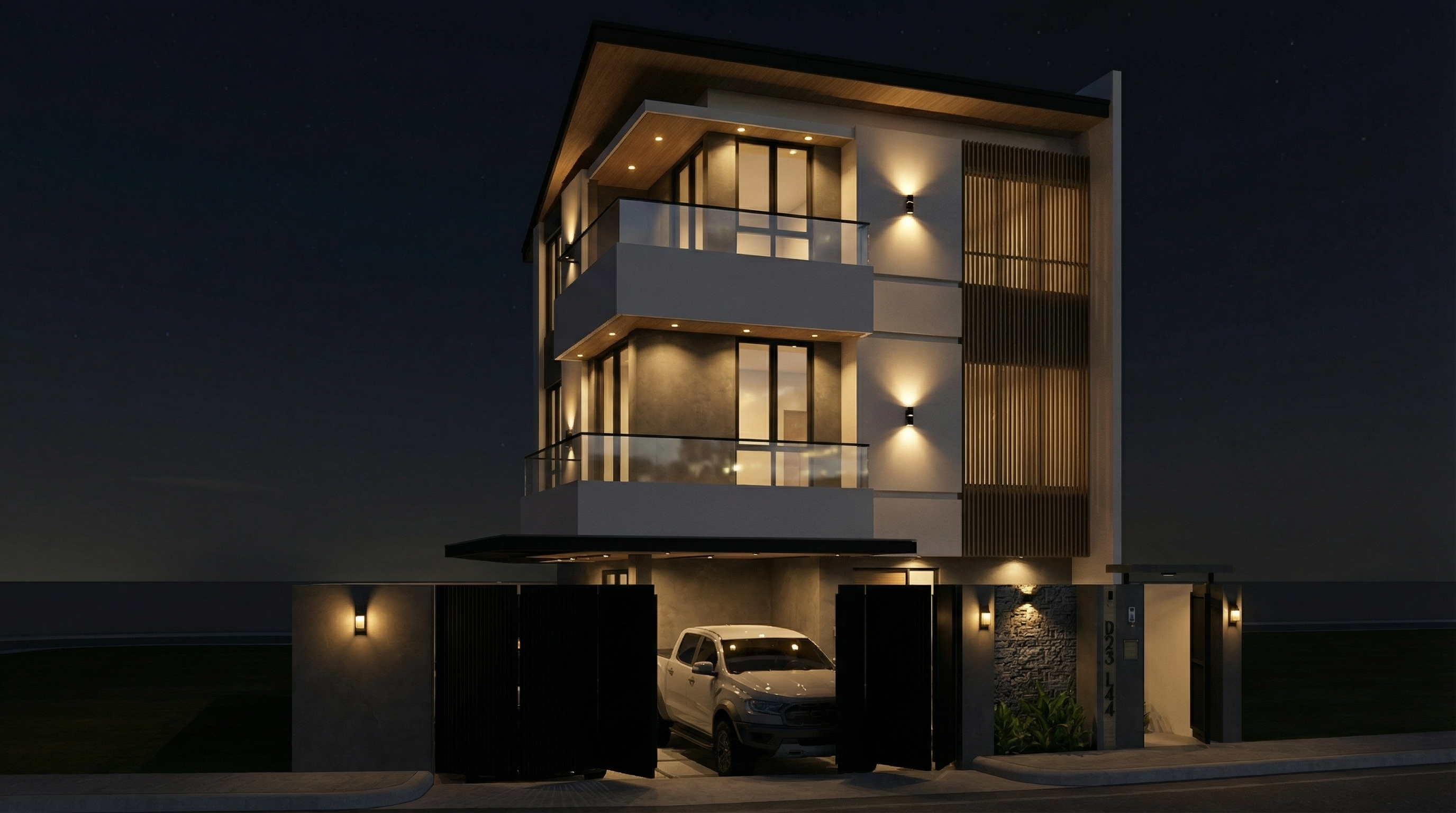
Result with Nano Banana Pro
PROMPT 7, Blue hour (premium transition)
Problem it solves: Blue hour, that moment between end of day and full night, is the most sought-after timing in professional architectural photography. Ambient light still exists, but the project's artificial lights are already on. The contrast is cinematic.
When to use: Portfolios, high-impact presentations, projects with significant artificial lighting. It's the hardest render to do manually and one of the most efficient with AI.
The prompt:
Preserve 100% of the original architecture, materials, colors, textures, proportions, decorative elements, lighting fixtures, surrounding elements, landscaping, and camera angle. Do NOT alter any architectural or design element. Transform the scene into an ultra photorealistic blue hour architectural photograph. Balance residual ambient daylight with existing artificial lighting, creating realistic contrast between cool environmental tones and warm interior illumination. Enhance subtle reflections, soft shadow layering, atmospheric depth, physically accurate light diffusion, and realistic material response. Maintain cinematic yet natural color grading, professional camera exposure control, realistic dynamic range, and ultra high resolution 8K architectural photography quality.
What sets this prompt apart: “balance residual ambient daylight with existing artificial lighting”, this instruction is what creates the real blue hour contrast. Without it, the AI tends to go straight to night or day, with no transition.
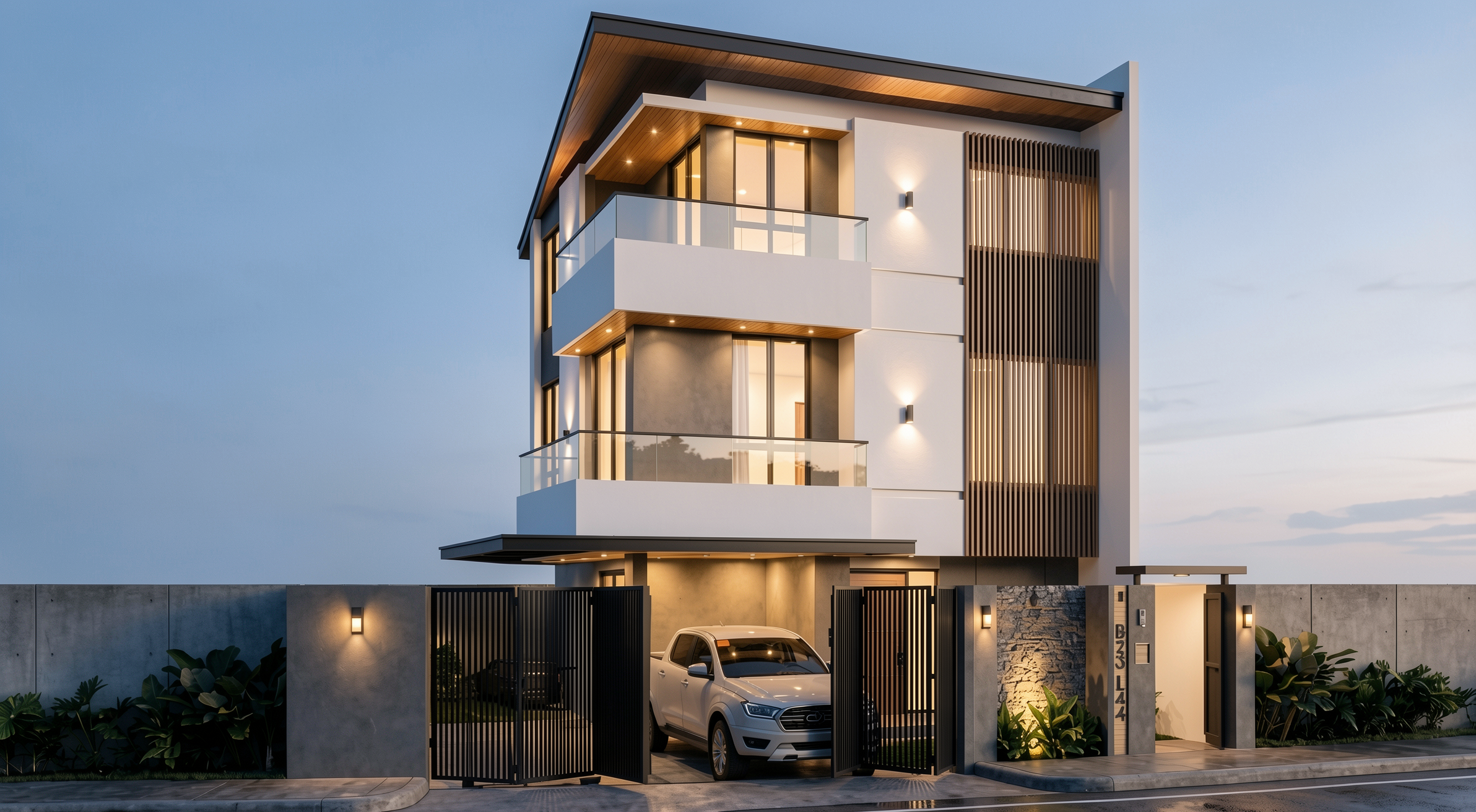
Result with Redraw
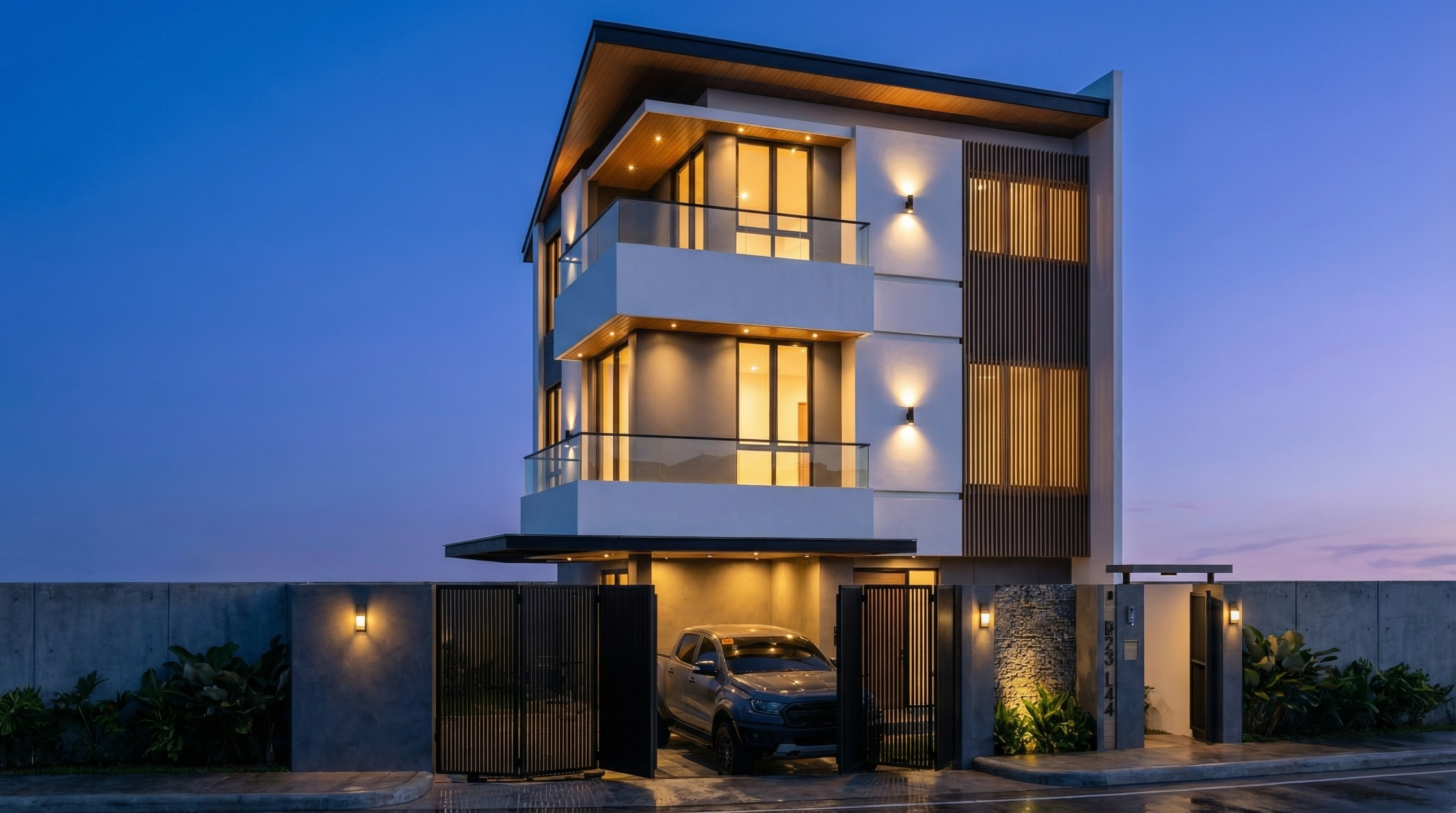
Result with Nano Banana Pro
AI change control system
Use these prompts together with any facade prompt above whenever the AI is altering elements it shouldn't.
Total change lock
Preserve 100% of the original architecture, layout, furniture placement, materials, colors, textures, decorative elements, proportions, lighting positions, and camera angle. Strictly forbid adding, removing, replacing, resizing, repositioning, or redesigning any element. The purpose of this transformation is ONLY to enhance realism, lighting behavior, and material response without altering the original design in any way.
Lighting design respect
Preserve the original lighting design exactly as shown in the image. Do not add new light sources, remove existing lights, or modify lighting positions. Only enhance realism through natural light diffusion, realistic light bounce, soft shadow transitions, and accurate material interaction with existing lighting.
Material protection
Preserve all original materials and textures exactly as shown. Do not replace, reinterpret, or stylize materials. Enhance realism only through improved surface detailing, micro imperfections, and physically accurate light response.
Which AI to use for facade renders?
For facade renders with full project fidelity, the recommendation is clear: Redraw.
Redraw processes the 3D facade model directly (SketchUp, Archicad, Revit, Rhino, 3DS), preserves the original geometry, and generates the render in 20 to 40 seconds. You choose the atmosphere, daytime, night, overcast, sunset, in clicks, with no need for long text prompts.
The prompts in this guide are ideal for those who want to explore and learn AI text control. For day-to-day office work, Redraw delivers the result without the learning curve.


The AI ecosystem for architects








Some examples
Impressive results
These are some of the results that several of our clients have achieved using Redraw