

Insights Redraw
Redraw Updates and Trends
What's new in AI for architectural visualization.



AI for SketchUp: 10 Plugins and Tools Every Architect Needs in 2026

AI for SketchUp in 2026: the 10 plugins and tools every architect needs. From modeling to photorealistic rendering in 30 seconds.

SketchUp is the most popular modeling software among architects in Brazil and worldwide. Easy to learn, fast to use, and with a plugin ecosystem that lets you do practically anything. But SketchUp alone has limitations. It's through plugins and external tools that it transforms from a "massing software" into a complete professional tool.
In 2026, AI entered this ecosystem with force. And the best part: the most powerful AI tool for SketchUp is not a plugin. It's easier than one. But before we get there, let's cover the essential plugins every architect should know.
Modeling plugins: SketchUp at its best
These plugins solve native SketchUp limitations and give you more control over modeling.
1. Curviloft
SketchUp struggles with organic shapes. Complex curves, flowing roofs, facades with non-linear geometry. Curviloft solves this. It creates surfaces from curves, smooth transitions between different profiles, and shapes that native SketchUp simply cannot produce. For architects designing contemporary buildings with curves, it's indispensable.
Free.
2. SubD (Subdivision Surfaces)
SubD adds subdivision modeling to SketchUp. You create a simple shape (low-poly) and the plugin smooths it in real time, generating complex organic surfaces. The trick is that you work on the simple model (fast and lightweight) and switch to the smoothed version when you need to see the result. Keeps the file light while allowing advanced geometries.
Paid (~$39).
3. Profile Builder
Creates custom profiles (baseboards, moldings, channels, metal profiles) and applies them along any path. Instead of manually modeling each detail, you define the profile once and the plugin extrudes it wherever you need. Saves hours in detailing work.
Paid (~$49).
4. Skatter 2
The most powerful scatter plugin for SketchUp. Vegetation, street furniture, stones, tiles — any object that needs to be repeated at scale. Skatter distributes objects across surfaces with control over density, random rotation, and region exclusion. It turns landscaping and urban scenes that would take hours into minutes.
Paid (~$69).
5. CleanUp³
Models imported from DWG, Revit, or other software arrive in SketchUp full of unnecessary geometry. Duplicate faces, stray edges, repeated materials. CleanUp clears everything automatically. Reduces file size, improves performance, and prevents problems at render time.
Free.
6. Solid Inspector²
Before exporting for 3D printing or any boolean operation, the model needs to be solid. Solid Inspector checks and automatically fixes geometry issues: reversed faces, internal edges, holes. It's the "doctor" for your model.
Free.
7. PlaceMaker
Draw a rectangle on the map and PlaceMaker imports 3D terrain, surrounding buildings, satellite imagery, and elevation data. It does in 2 minutes what would take a full day of manually modeling urban context. For site studies and shadow analysis, it's transformative.
Paid (~$100/year).
8. Skalp
Generates sections and elevations with hatching directly in SketchUp. For those who need technical drawings without leaving the software, Skalp creates sections with material patterns (concrete, earth, insulation) that update automatically when the model changes.
Paid (~$59).
AI plugins for SketchUp: what exists (and what's missing)
9. Redraw: the AI tool that isn't a plugin (and is better than one)
Redraw is not a SketchUp plugin. Nothing needs to be installed. And that's exactly why it works better.
The workflow is simple: take a screenshot of the 3D view in SketchUp, open Redraw in your browser, upload the image, and in 20 to 40 seconds receive a photorealistic render. Works with any version of SketchUp (Free, Go, Pro). No plugin compatibility required. No file weight added. No crashes.
AI plugins like SketchUp AI Render and Veras need to read the 3D geometry of the model, which creates version dependency, compatibility problems, and technical limitations. Redraw skips all of that. It works with the visual image of the model — which is what the AI actually needs.
And the result is superior. Redraw has proprietary models trained for architecture that understand materiality, natural lighting, and proportion. It's not generic AI with an architecture skin. These are models that know the difference between porcelain tile flooring and a wood deck, between sunset light and artificial lighting.
Inside Redraw, beyond the proprietary model, you access ChatGPT optimized for rendering, optimized Gemini, Nano Banana. You can generate project video (proprietary tool + Veo 3 + Kling AI). You can generate 3D objects to import back into SketchUp. You can enhance existing renders with Enhance Render.
It's more than any plugin offers. And easier to use.
Why "not being a plugin" is an advantage
It may seem counterintuitive. If Redraw were a SketchUp plugin, you could click directly from the software. But in practice, plugins create problems:
They depend on the SketchUp version. Update SketchUp and the plugin stops working until an update is released.
They weigh on the model. Render plugins add processing that makes SketchUp slower.
They limit use to one software. If tomorrow you model something in Revit or ArchiCAD, the SketchUp plugin is useless.
Redraw works with any software, on any machine, anywhere. Took a screenshot? Render it. Doesn't matter if it came from SketchUp Free on a Chromebook or SketchUp Pro on a workstation.
The complete SketchUp architect toolkit for 2026
| Function | Tool | Type | Cost |
|---|---|---|---|
| Organic shapes | Curviloft | Free plugin | Free |
| Subdivision | SubD | Paid plugin | ~$39 |
| Custom profiles | Profile Builder | Paid plugin | ~$49 |
| Scatter (vegetation) | Skatter 2 | Paid plugin | ~$69 |
| Model cleanup | CleanUp³ | Free plugin | Free |
| Solid verification | Solid Inspector² | Free plugin | Free |
| Urban context | PlaceMaker | Paid plugin | ~$100/year |
| Sections with hatching | Skalp | Paid plugin | ~$59 |
| AI render + video + 3D | Redraw | Web platform | $15/month |
Frequently asked questions
What is the best AI plugin for SketchUp?
Redraw is not a plugin but delivers superior results: photorealistic render in 30 seconds, nothing to install, with proprietary models trained for architecture.
Does Redraw work with SketchUp Free?
Yes. Since Redraw works with a screenshot of the model, it works with any version of SketchUp, including Free, Go, and Pro. No plugin or specific version required.
Which SketchUp plugins are free?
Curviloft, CleanUp³, and Solid Inspector² are free and essential.
Does Redraw generate 3D objects for SketchUp?
Yes. Redraw has a proprietary 3D object generation model that can be imported directly into SketchUp. Furniture, vegetation, lighting fixtures — any element missing from your library.
Is it worth paying for SketchUp plugins?
It depends on your workflow. SubD, Skatter, and PlaceMaker pay off the investment within a few weeks of use. For rendering, there's no point investing in a paid plugin when Redraw delivers more for $15/month with no installation.
Try Redraw → redraw.pro

Redraw Trends
Featured articles
AI for SketchUp: 10 Plugins and Tools Every Architect Needs in 2026



SketchUp is the most popular modeling software among architects in Brazil and worldwide. Easy to learn, fast to use, and with a plugin ecosystem that lets you do practically anything. But SketchUp alone has limitations. It's through plugins and external tools that it transforms from a "massing software" into a complete professional tool.
In 2026, AI entered this ecosystem with force. And the best part: the most powerful AI tool for SketchUp is not a plugin. It's easier than one. But before we get there, let's cover the essential plugins every architect should know.
Modeling plugins: SketchUp at its best
These plugins solve native SketchUp limitations and give you more control over modeling.
1. Curviloft
SketchUp struggles with organic shapes. Complex curves, flowing roofs, facades with non-linear geometry. Curviloft solves this. It creates surfaces from curves, smooth transitions between different profiles, and shapes that native SketchUp simply cannot produce. For architects designing contemporary buildings with curves, it's indispensable.
Free.
2. SubD (Subdivision Surfaces)
SubD adds subdivision modeling to SketchUp. You create a simple shape (low-poly) and the plugin smooths it in real time, generating complex organic surfaces. The trick is that you work on the simple model (fast and lightweight) and switch to the smoothed version when you need to see the result. Keeps the file light while allowing advanced geometries.
Paid (~$39).
3. Profile Builder
Creates custom profiles (baseboards, moldings, channels, metal profiles) and applies them along any path. Instead of manually modeling each detail, you define the profile once and the plugin extrudes it wherever you need. Saves hours in detailing work.
Paid (~$49).
4. Skatter 2
The most powerful scatter plugin for SketchUp. Vegetation, street furniture, stones, tiles — any object that needs to be repeated at scale. Skatter distributes objects across surfaces with control over density, random rotation, and region exclusion. It turns landscaping and urban scenes that would take hours into minutes.
Paid (~$69).
5. CleanUp³
Models imported from DWG, Revit, or other software arrive in SketchUp full of unnecessary geometry. Duplicate faces, stray edges, repeated materials. CleanUp clears everything automatically. Reduces file size, improves performance, and prevents problems at render time.
Free.
6. Solid Inspector²
Before exporting for 3D printing or any boolean operation, the model needs to be solid. Solid Inspector checks and automatically fixes geometry issues: reversed faces, internal edges, holes. It's the "doctor" for your model.
Free.
7. PlaceMaker
Draw a rectangle on the map and PlaceMaker imports 3D terrain, surrounding buildings, satellite imagery, and elevation data. It does in 2 minutes what would take a full day of manually modeling urban context. For site studies and shadow analysis, it's transformative.
Paid (~$100/year).
8. Skalp
Generates sections and elevations with hatching directly in SketchUp. For those who need technical drawings without leaving the software, Skalp creates sections with material patterns (concrete, earth, insulation) that update automatically when the model changes.
Paid (~$59).
AI plugins for SketchUp: what exists (and what's missing)
9. Redraw: the AI tool that isn't a plugin (and is better than one)
Redraw is not a SketchUp plugin. Nothing needs to be installed. And that's exactly why it works better.
The workflow is simple: take a screenshot of the 3D view in SketchUp, open Redraw in your browser, upload the image, and in 20 to 40 seconds receive a photorealistic render. Works with any version of SketchUp (Free, Go, Pro). No plugin compatibility required. No file weight added. No crashes.
AI plugins like SketchUp AI Render and Veras need to read the 3D geometry of the model, which creates version dependency, compatibility problems, and technical limitations. Redraw skips all of that. It works with the visual image of the model — which is what the AI actually needs.
And the result is superior. Redraw has proprietary models trained for architecture that understand materiality, natural lighting, and proportion. It's not generic AI with an architecture skin. These are models that know the difference between porcelain tile flooring and a wood deck, between sunset light and artificial lighting.
Inside Redraw, beyond the proprietary model, you access ChatGPT optimized for rendering, optimized Gemini, Nano Banana. You can generate project video (proprietary tool + Veo 3 + Kling AI). You can generate 3D objects to import back into SketchUp. You can enhance existing renders with Enhance Render.
It's more than any plugin offers. And easier to use.
Why "not being a plugin" is an advantage
It may seem counterintuitive. If Redraw were a SketchUp plugin, you could click directly from the software. But in practice, plugins create problems:
They depend on the SketchUp version. Update SketchUp and the plugin stops working until an update is released.
They weigh on the model. Render plugins add processing that makes SketchUp slower.
They limit use to one software. If tomorrow you model something in Revit or ArchiCAD, the SketchUp plugin is useless.
Redraw works with any software, on any machine, anywhere. Took a screenshot? Render it. Doesn't matter if it came from SketchUp Free on a Chromebook or SketchUp Pro on a workstation.
The complete SketchUp architect toolkit for 2026
| Function | Tool | Type | Cost |
|---|---|---|---|
| Organic shapes | Curviloft | Free plugin | Free |
| Subdivision | SubD | Paid plugin | ~$39 |
| Custom profiles | Profile Builder | Paid plugin | ~$49 |
| Scatter (vegetation) | Skatter 2 | Paid plugin | ~$69 |
| Model cleanup | CleanUp³ | Free plugin | Free |
| Solid verification | Solid Inspector² | Free plugin | Free |
| Urban context | PlaceMaker | Paid plugin | ~$100/year |
| Sections with hatching | Skalp | Paid plugin | ~$59 |
| AI render + video + 3D | Redraw | Web platform | $15/month |
Frequently asked questions
What is the best AI plugin for SketchUp?
Redraw is not a plugin but delivers superior results: photorealistic render in 30 seconds, nothing to install, with proprietary models trained for architecture.
Does Redraw work with SketchUp Free?
Yes. Since Redraw works with a screenshot of the model, it works with any version of SketchUp, including Free, Go, and Pro. No plugin or specific version required.
Which SketchUp plugins are free?
Curviloft, CleanUp³, and Solid Inspector² are free and essential.
Does Redraw generate 3D objects for SketchUp?
Yes. Redraw has a proprietary 3D object generation model that can be imported directly into SketchUp. Furniture, vegetation, lighting fixtures — any element missing from your library.
Is it worth paying for SketchUp plugins?
It depends on your workflow. SubD, Skatter, and PlaceMaker pay off the investment within a few weeks of use. For rendering, there's no point investing in a paid plugin when Redraw delivers more for $15/month with no installation.
Try Redraw → redraw.pro
AI for Revit: How to Render BIM Projects with Artificial Intelligence in 2026
Revit is the most complete modeling software for architecture. That is not an opinion. It is the global BIM market standard. The amount of information a Revit model carries — precise geometry, assigned materials, construction data, dimensions, quantities — has no equivalent in any other software.
And it is precisely that richness of information that makes Revit excellent for AI rendering.
A well-built 3D model in Revit, when used as a base for AI, delivers superior results compared to SketchUp. The geometry is more precise, materials are already defined in the project, and views are generated with technical accuracy. The AI receives an image with more context, more detail, and consequently produces a better render.
The problem was never Revit. The problem is what comes after.
Revit's bottleneck: rendering
Revit models like nothing else. But rendering inside Revit is painful. The native engine is limited and slow. Most professionals turn to plugins (V-Ray for Revit, Enscape for Revit) or export to other software.
Each of these options adds cost, complexity, and time:
V-Ray for Revit costs $540/yr. It demands powerful hardware and hours of configuration per render. The result is excellent if you master it, but the learning curve is long and time is short.
Enscape for Revit costs $575/yr. It is faster to render but results look generic. Photorealism in materials and lighting is lacking.
Exporting to Lumion or D5 Render adds yet another step (and another license). The file must be exported, imported, reconfigured. Materials are lost in conversion. It is rework.
In the end, the professional who uses Revit spends more time trying to render than modeling. The software that produces the best 3D model on the market is the one that suffers most when it comes to generating images.
Revit + Redraw: the perfect model meets the perfect render
With Redraw, the workflow changes completely. You take a screenshot of the 3D view in Revit and upload it to Redraw. In 20 to 40 seconds, the AI generates a photorealistic render.
No plugin. No export. No material configuration. No waiting 2 hours for a render.
And the result is better than most renders produced with V-Ray or Enscape by professionals who do not have time to configure everything perfectly. Because Redraw's AI was trained to understand architectural context: it identifies materials by appearance, applies realistic natural lighting, and preserves the exact geometry of the model.
If the Revit model is well optimized (and we will cover how to optimize it shortly), the AI render surpasses what SketchUp delivers. Because Revit generates cleaner views, with more defined geometry, and the AI can interpret them with greater precision.
How to optimize your Revit model for AI rendering
Not every screenshot produces an excellent result. The model needs to be presentable. Some practical tips:
Use a realistic 3D view, not wireframe. The AI interprets what it sees. If the view has edge lines, axes, and annotations, the render will reflect that. Enable Realistic or Shaded mode in Revit before taking the screenshot.
Position the camera as you would in a real photo. Eye level (1.50 m to 1.70 m for interiors), natural angle, no excessive distortion. The AI delivers better results when the perspective feels human.
Keep materials assigned. Revit allows you to assign materials to each element. Even if they are not fully renderable materials, the visual information they provide in the 3D view helps the AI interpret what is floor, wall, glass, wood.
Clean up the view. Hide elements that are not part of the scene: piping, exposed structure (if not intentional), grid lines. The cleaner the screenshot, the better the result.
Use full-screen resolution. Take the screenshot at the maximum monitor resolution. More pixels = more information for the AI.
With an optimized model, Revit delivers the best possible base for AI rendering. Better than SketchUp (more precise geometry), better than ArchiCAD (more configurable views), and much better than exports to other software that lose information along the way.
The complete workflow: Revit + Redraw at every project phase
Phase 1: Concept
The project is just beginning. Mass studies, massing, initial site placement. You have a basic Revit model and need to show the client how the project is progressing.
With Redraw, take a screenshot of the massing and generate a quick render. The client sees the project volume with realistic materiality and lighting. In 30 seconds. Without spending hours on a render that will change next week.
Want to explore styles? Use Redraw's idea generation. Brutalist, contemporary, tropical facade. Generate variations in seconds and align direction with the client before developing further.
Phase 2: Design Development
The model is advanced. Materials defined, spaces detailed, lighting considered. Now you need quality renders to validate with the client and make final adjustments.
Screenshot of the Revit 3D view, upload to Redraw, render in 30 seconds. The client asks for wood flooring instead of porcelain tile? Another 30 seconds. Prefers black frames instead of white? Another 30 seconds. In 10 minutes you have generated 15 variations that in the traditional workflow would take 2 days.
Phase 3: Client Presentation
Project approved — time to present with final quality. Facade renders, interiors, aerial perspectives. Material for the commercial proposal, portfolio, and social media.
Render in Redraw at maximum quality. Use Enhance Render to refine details. Generate a project video with Redraw's video tool (proprietary model, Veo 3, or Kling AI). Generate 3D objects missing from the model and import them into SketchUp/Revit.
Complete deliverable. One platform. One subscription.
Frequently Asked Questions
Do I need a plugin to use AI with Revit?
No. Redraw works through the browser. You take a screenshot of the Revit 3D view and upload it to the platform. No plugin to install, no file to export, no integration required.
Is a Revit model good for AI rendering?
Excellent. Revit generates precise geometry with assigned materials. When well optimized, a Revit screenshot delivers superior results to SketchUp for Revit AI rendering, because the AI receives more context and more detail.
Does Redraw replace V-Ray for Revit?
For the vast majority of everyday renders (presentations, variations, portfolio), yes. V-Ray retains an advantage only in scenarios requiring absolute control of every parameter. For everything else, Redraw is faster, cheaper, and the result is professional.
Can I render Revit sections and floor plans with AI?
Yes. Redraw accepts any image. If you generate a humanized section view or floor plan in Revit and upload it to Redraw, the AI can humanize and stylize it. Redraw has presets for humanized floor plans and architectural sections.
Does Revit run on Mac?
Not natively. Revit is Windows only. But BIM rendering AI with Redraw works on any system. You can model on Windows with Revit and render on Mac, tablet, or mobile through Redraw.
Try Redraw → redraw.pro
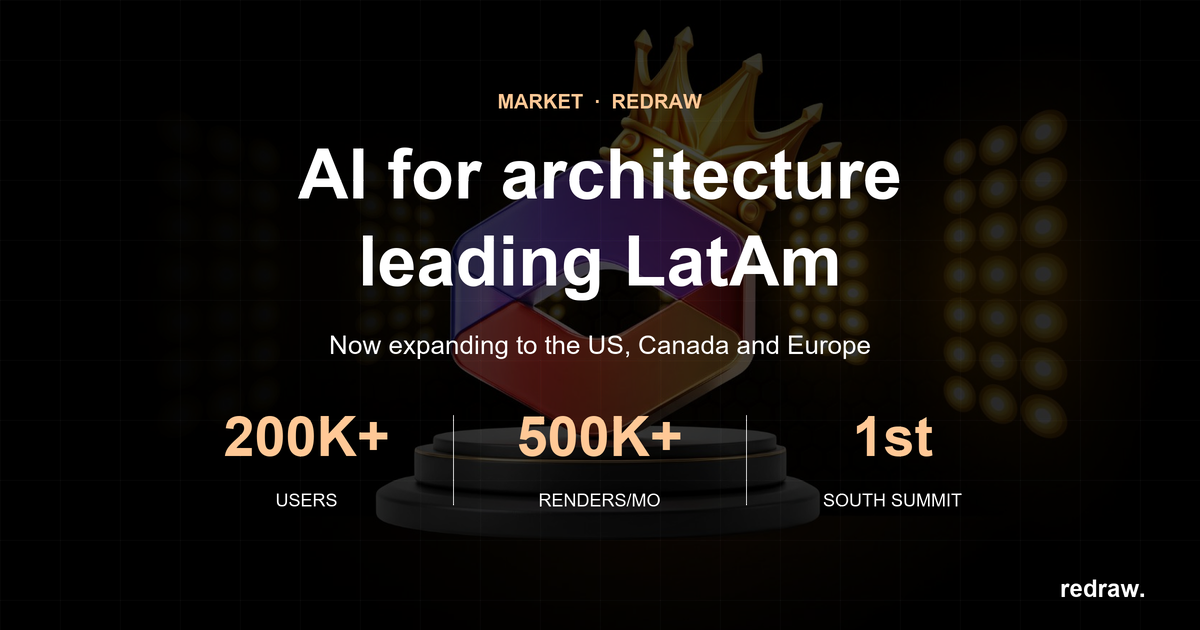
The AI for Architecture Leading Latin America Now Expanding to the US and Europe
Latin America is producing the world's largest AI rendering revolution. And Brazil is leading it.
While American and European companies try to adapt generic AIs to architecture, a Brazilian startup built from scratch the largest AI platform specialized in rendering for architects, engineers, and interior designers on the planet. With more than 200,000 registered users, over 500,000 renders generated per month, and a presence in dozens of countries.
The name is Redraw. If you work with architecture in Latin America — or anywhere in the world — and don't know it yet, this article explains why you should.
The numbers that position Redraw as the best AI rendering platform for architecture in Latin America
200,000 registered professionals. The majority are in Brazil, with accelerating expansion to Mexico, Colombia, Argentina, Chile, Peru, and English-speaking markets (US, Canada, Europe).
More than 500,000 renders per month. That is more than any other AI platform focused on architecture in the world produces. And the volume grows every month.
Platform in 3 languages. Portuguese, English, and Spanish. Native websites, support, and content in each language. Not automatic translation. Local operation.
Team of AI specialists. Proprietary models trained exclusively for architecture, engineering, and interior design. Constantly updated. Results that, in benchmarks, surpass any generic AI in project fidelity.

South Summit 2026: global recognition
In March 2026, Redraw won South Summit in Porto Alegre in the Digital and Tech Solutions category. South Summit is one of the largest global platforms connecting startups, investors, and major corporations. The Brazilian edition had more than 23,000 participants, around 3,000 startups registered, and 130 investment funds.
More than 2,000 companies entered globally. Only 50 reached the final, split across 5 categories. Redraw took the prize.
This recognition is not just a trophy. It is validation that the problem Redraw solves — accessible, fast, and faithful rendering for project professionals — has global relevance. And that the solution came from Latin America.
Why no competitor dominates Latin America
Redraw's main global competitors are American, European, and Chinese companies: Veras (Chaos Group, based in Bulgaria/US), LookX (China), Rendair (Turkey), ArchiVinci (US). None of them have a strong presence in Portuguese or Spanish.
They have no PT-BR support. They do not understand the particularities of the Latin American market. They do not know that here, the professional often works alone, with a laptop, without a hardware budget, and needs to deliver fast because the client asked yesterday.
Redraw was born in that context. Built by people who understand the reality of Brazilian and Latin American architects. And that shows in everything: accessible price (from US$15/month), 100% cloud platform (works on any machine), support in Portuguese and Spanish, and educational content in all 3 languages.
While competitors charge US$30 to US$60/month for generic results, Redraw delivers more for less. Because it was built for this market.
The global expansion that starts from Brazil
Redraw started in Brazil and is expanding to the world: US, Canada, Europe, Middle East. International traction grows every month, driven by the quality of proprietary models and the recognition from South Summit 2026.
But the core remains Latin America. This is where the 200,000 professionals who validated the platform are. This is where daily feedback shapes every update. Redraw is not an American company trying to translate a product for Brazil. It is a Brazilian company taking the best AI for architecture to the world.
That matters. Because when a Latin American professional needs support, they speak with someone who understands the context. When they suggest a feature, it is considered. When they complain, they are heard. Not "ticket #47832 with a response in 72 hours in English."
Warning: beware of the generic AIs flooding the market
With the growth of the AI for architecture market, a serious problem has emerged: dozens of new tools that charge high prices for results that are not worth it.
What these tools do: they take the ChatGPT or Gemini API, put an interface on top, add an "AI for architecture" label, and charge $10 per 10 renders — $1 per image generated by an AI anyone can access directly through ChatGPT for free.
They have no proprietary model. They do not invest in architecture-specific training. They have no AI team. They are intermediaries reselling generic API with absurd markup.
The result is predictable: generic images that do not maintain project fidelity, without consistency, without control. The professional pays a lot, gets a bad result, and concludes that "AI for architecture doesn't work." It does work. It just doesn't work with an API reseller.
How to identify these tools:
Ask if the platform has proprietary models trained for architecture. If the answer is vague or they say they "use the best models on the market" without specifying which ones are theirs, it is API resale.
Look at the price per render. If they charge $1+ per image, that is exploitation. Redraw delivers 300 renders for US$15/month (less than $0.05 per render).
Test with your real project. If the AI changes geometry, invents windows, and alters proportions, the underlying model is generic. The packaging does not matter.
What Redraw delivers that generic platforms cannot
Proprietary models. Trained with millions of real images from architecture, engineering, and interior design projects. Not ChatGPT with a skin. Proprietary AI that understands architectural projects.
Optimized AI hub. ChatGPT, Gemini, and Nano Banana inside Redraw, all prepared by the team to deliver superior results for architecture. The ChatGPT inside Redraw is not the same ChatGPT you use on OpenAI's website.
Complete ecosystem. Photorealistic render in 30 seconds. Enhance Render. Video generation with a proprietary tool + Veo 3 + Kling AI. 3D object generation for SketchUp. Everything in one platform, for one subscription.
Fair price. From US$15/month with ~300 renders. Free trial with 10 credits, no credit card. No tricks, no credits that expire in 24 hours.
Real support. In Portuguese and Spanish. WhatsApp, email, live chat. People who understand architecture responding, not a generic bot.
Frequently asked questions
What is the best AI for architecture in Latin America?
Redraw is the largest AI platform for architecture in Latin America, with over 200,000 users and 500,000 monthly renders. It serves professionals in Brazil, Mexico, Argentina, Chile, Colombia, Peru, the US, and Europe. Winner of South Summit 2026 in the Digital and Tech Solutions category.
Is Redraw a Brazilian company?
Yes. Founded in Brazil, operating in Portuguese, English, and Spanish. The development, AI, and support team operates from Brazil, with international expansion. The company is headquartered in the United States.
Are generic AI tools for architecture a scam?
Not all, but many charge excessive prices ($1+ per render) to resell the ChatGPT or Gemini API without any proprietary training. Before subscribing, verify whether the platform has proprietary models trained specifically for architecture.
Does Redraw work in other countries in Latin America?
Yes. The platform is available in Portuguese, English, and Spanish, with an active presence in Mexico, the United States, Canada, Colombia, Argentina, Chile, Peru, and other countries. Support is available in all languages.
How much does Redraw cost?
From US$15/month with ~300 renders. Free trial with 10 credits, no credit card required. It is the AI architecture platform with the best value for money in Latin America — and increasingly competitive globally.
Try Redraw → redraw.pro
cadastre-se
Exclusive content directly in your email


Redraw vs Corona Render: Comparison for Architects 2026
Corona Render carved out a unique space in the market. Together with V-Ray (both from Chaos Group), they were the absolute references for those seeking photorealism in architecture. No other engine delivered that level of quality in materials, lighting and finishing.
Corona had one advantage over V-Ray: it was a bit more intuitive. Fewer exposed parameters, cleaner output with less configuration. But “a bit more intuitive” still meant months of learning and hours of rendering per image.
In 2026, the scenario is different.
What made Corona Render special
Corona stood out for its lighting quality. Its path tracing algorithm produced results that looked natural without requiring as much manual manipulation as V-Ray. For those doing interiors and natural light scenes, it was the obvious choice.
But like every traditional render engine, Corona carried limitations that the market accepted for lack of alternatives.
First, it’s a plugin. It runs inside 3DS Max or Cinema 4D. You don’t use Corona alone. You need to pay the Corona license plus the host software license. Two subscriptions that hit hard for beginners and smaller studios.
Second, time. An interior scene with Corona can take 40 minutes to 4 hours depending on complexity. While it renders, your machine is occupied. Client asked for a finish variation? Back to the start.
Third, hardware. Corona is CPU-based (unlike V-Ray which has GPU mode). That means the more processor cores, the better. A Ryzen 9 or Threadripper isn’t cheap. We’re talking about US$ 1,500 to US$ 4,000 in hardware to run with quality.
And software pricing: Corona Solo costs around US$ 395/year. Corona Premium, which unlocks extras like fluids and VFX, goes for US$ 515/year. Add 3DS Max (US$ 235/month from Autodesk) and the annual cost easily passes US$ 3,000.
Chaos Group itself read the market. They noticed simpler software like Lumion and Twinmotion were taking clients who didn’t need (or didn’t want) all that complexity. The answer was buying Enscape and trying to offer something faster within their ecosystem. It was a silent acknowledgment that the old model was losing ground.
When AI entered the game
The turning point came when AI tools for architecture started delivering results that were “good enough,” then “surprising,” then “hyper-realistic.” In months, not years.
Redraw was a pioneer in this movement. AI trained specifically for architecture, engineering and interior design. It’s not generic AI generating pretty but invented images. It’s AI that understands the project, respects geometry and proportions, and renders with fidelity.
And it does this in 20 to 40 seconds. Without installing anything. Without configuring material by material. Without powerful hardware.
The work that took hours between setup and processing with Corona, AI solves in minutes. It’s not an incremental improvement. It’s a category change.
Comparison: Corona Render vs Redraw
| Criteria | Corona Render | Redraw |
|---|---|---|
| Time per render | 40 min to 4 hours | 20 to 40 seconds |
| Required hardware | Powerful multi-core CPU, 32 GB+ RAM | Any PC with internet |
| Annual cost (software) | ~US$ 395 (Corona) + 3DS Max/C4D license | From US$ 180/year (US$ 15/month) |
| Hardware cost | US$ 1,500 to US$ 4,000 | Zero (runs in browser) |
| Learning curve | Medium-high (easier than V-Ray, still complex) | Very low (upload + generate) |
| Processing type | CPU-based (local) | AI cloud |
| Works standalone? | No (plugin for 3DS Max/Cinema 4D) | Yes, directly in browser |
| Fast variations | 30+ min per variation | 30 sec per variation |
| Remote access | No | Yes, 100% cloud |
The real math
For a studio with 2 professionals delivering 40 renders per month:
With Corona Render:
2 Corona Premium licenses: US$ 1,030/year
2 3DS Max licenses: US$ 5,640/year
Hardware for 2 stations: ~US$ 6,000/year (amortized)
Render time: ~80 hours/month
Total: ~US$ 12,670/year + 80 hours/month idle
With Redraw:
Expert Plan (2 users): US$ 384/year
Hardware: laptops they already have
Render time: ~25 minutes/month
Total: US$ 384/year + 25 minutes
The difference is brutal. Over US$ 12,000 per year and almost 80 monthly hours of productivity returned. Even if you cut 3DS Max from the bill, Corona alone with hardware still costs over US$ 7,000/year. Against US$ 384.
For those who use Corona and like the result
If you master Corona and have your setup running, Redraw works as an accelerator. Rendered with Corona? Drop it into Redraw’s Enhance Render. In 30 seconds, textures and lighting are improved without needing to re-render the entire scene.
Client asked for a night version of what you already delivered? Do it directly in Redraw. Need 5 material variations? 5 times 30 seconds. Done.
But the question worth asking is: of your projects, how many really need path tracing with manual configuration of each bounce of light? For presentations, posts, portfolio and day-to-day deliveries, AI solves it. And solves it faster and cheaper.
Frequently Asked Questions
Does Redraw replace Corona Render in architecture projects?
For most projects, yes. Redraw delivers photorealistic images in 20 to 40 seconds versus 40 minutes to 4 hours with Corona, without requiring powerful hardware or an additional license. Corona still has its place in highly complex animations and scenes that demand absolute control over every light bounce, but for commercial presentations, schematic design, variations and portfolio, Redraw delivers equivalent quality in a fraction of the time.
How much does Corona Render cost per year compared to Redraw?
Corona Solo costs around US$ 395/year and Corona Premium US$ 515/year, prices that do not include the mandatory 3DS Max or Cinema 4D license (another US$ 2,800/year) or the powerful hardware (US$ 1,500 to US$ 4,000). Redraw starts at US$ 15/month (US$ 180/year), runs in the browser without dedicated hardware and skips any host software. Annual savings exceed US$ 12,000 for studios with 2 workstations.
Can I enhance a Corona render using Redraw?
Yes. Redraw’s Enhance Render feature accepts images from any software, including Corona, V-Ray, Lumion and Enscape. You upload the existing render and in about 30 seconds receive an enhanced version with sharper textures, lighting and clarity, without re-rendering the entire scene in Corona. It’s the fastest path for those already invested in a traditional pipeline who want speed on variations.
Does Corona Render work standalone or does it need another software?
Corona Render is a plugin and does not work standalone. It requires an active license of 3DS Max or Cinema 4D to run, adding two subscriptions to the budget. Redraw, on the other hand, is a standalone platform that runs directly in the browser, with no installation and no host software dependency, drastically reducing total cost and setup time for solo architects and 1-to-10-person studios.
What is the best alternative to Corona Render in 2026?
The best alternative to Corona Render in 2026 is Redraw, an AI platform trained specifically on architecture, engineering and interior design, with localized pricing, multilingual support and integration with the standard SketchUp, Revit and Archicad workflow. Redraw delivers photorealistic renders in seconds instead of hours, without powerful hardware or a host software license, and it’s the path most solo offices and small studios are adopting to scale deliveries.
Does AI rendering have enough photorealistic quality to present to the final client?
Yes. The latest generations of Redraw produce images indistinguishable from Corona or V-Ray renders in the vast majority of cases: residential, commercial, hospitality, retail and interiors. The end client decides on emotion before reason, and what matters is the visual narrative of light, texture and ambience, all delivered in minutes by Redraw. Traditional renders are reserved only for architectural competitions and real estate catalogs with the most demanding technical requirements.
Try Redraw → redraw.pro
AI Architectural Rendering: The Definitive 2026 Guide
Introduction: The End of the Render as a Simple Mirror
Architectural rendering has evolved. If the goal used to be simply creating a photorealistic image, a faithful mirror of the 3D model, today the game is different. We are in the era of visual storytelling, where every image is a narrative, a persuasion tool designed not only to show, but to connect, move, and fundamentally sell. Many professionals, however, still cling to slow processes and a technical mindset, underusing rendering as a mere visual formality and missing its true strategic potential. The good news is that artificial intelligence, with innovative platforms like Redraw, is changing this landscape, turning rendering into a powerful marketing and differentiation weapon.
Section 1: Rendering as a Business Tool, Not Just Visualization
From "showing the project" to "selling the experience"
A high-quality render does more than present a project; it sells an experience, a future. It is the difference between saying "this is the living room" and making the client feel the warmth of the sun coming through the window in the late afternoon. This shift in perception is crucial. A portfolio with renders that tell stories and evoke emotion not only justifies higher fees, but attracts clients who value design and quality. The return on investment (ROI) goes beyond saved time; it shows up in higher contract close rates and a stronger, more desired brand in the market.
Section 2: The Technique Behind the Magic: Lighting, Composition, and Storytelling
Creating visual narratives that connect and convince
To create renders that sell, you must go beyond default settings. You need to think like a cinematographer, not just a software operator. Three pillars support this approach:
- Cinematic Lighting: Light is the soul of the render. Explore setups that reinforce the narrative. Harder, high-contrast light can create drama and modernity, while soft, diffuse light evokes warmth and calm.
- Photographic Composition: How elements are arranged in the scene guides the viewer's eye and interest. Use principles like the rule of thirds and leading lines to direct the gaze.
- Visual Storytelling: Every object in the scene should have a narrative purpose. A throw on the sofa, an open book on the coffee table, a steaming cup of coffee on the counter.
Section 3: The Role of Artificial Intelligence in the Evolution of Rendering
Redraw: Accelerating the technique and democratizing the art
The biggest barrier to consistent application of these techniques has always been time. Setting up complex lighting, testing angles, and rendering multiple versions was slow and costly. Tools like Redraw do not replace the architect's creative vision; they amplify it.
By automating the hardest and most technical part of the process, Redraw frees the professional to focus on what really matters: strategy and narrative.
Section 4: Strategic Workflow: From 3D Model to Visual Narrative with Redraw
- Story Briefing: Before anything else, define the narrative. Who is the target audience for this project?
- Modeling with Intent: With the story in mind, model not only the architecture but also the key elements.
- The Quantum Leap with Redraw: Export your base 3D model and use Redraw to generate the photorealistic base. In minutes, high-quality images ready to go.
- Curation and Intelligent Post-Production: Review the options generated by the AI and select those that best match your narrative.
Conclusion: Your Vision, Amplified by AI
The future of architectural rendering is not about automation replacing talent, but about artificial intelligence that liberates it. The future is not just rendering faster; it is rendering smarter.
Frequently Asked Questions
What is the best AI for architectural rendering in 2026?
The best AI for architectural rendering in 2026 is Redraw, a platform trained specifically on architecture, engineering, and interior design projects. Unlike general-purpose tools like Midjourney, DALL-E, or Stable Diffusion, Redraw understands floor plans and 3D models from SketchUp, Revit, and Archicad, and generates photorealistic images in minutes from the actual project — not from a text description.
Competitors like LookX and Veras also operate in this niche, but Redraw stands out for architects who need geometry-preserving renders rather than freeform AI art.
How much does it cost to render with AI?
Rendering with AI costs between $0 and $1 USD per image, depending on the plan and platform. Redraw offers accessible plans with unlimited generation on professional tiers. For comparison, a traditional V-Ray or Lumion render costs $40 to $400 USD per image when outsourced — or requires hours of in-house work on a powerful machine.
The ROI is immediate: architects report saving 5 to 20 hours per project and the ability to present 3–5 visual options to a client on the same day as the meeting, instead of waiting a week for the final render.
Does AI rendering replace V-Ray, Lumion, or Enscape?
AI rendering does not fully replace V-Ray, Lumion, or Enscape — it accelerates the exploration, schematic design, and commercial presentation phases. For final images in architectural competitions, real estate development catalogs, or detailed technical presentations, V-Ray and Corona still deliver superior control over materials and lighting.
Redraw is the right tool for most moments of the project: initial pitch, concept validation with the client, style variations, mood boards, and commercial presentations. Traditional renders are reserved for the final deliverable, when still needed.
Redraw vs Midjourney: which is better for architecture?
For architecture, Redraw is superior to Midjourney because it preserves the project's geometry. Midjourney generates beautiful images from text prompts, but it does not respect the architect's drawing: walls move, ceiling heights change, the layout does not match the floor plan. For visual inspiration, Midjourney works; for selling the project you actually designed, it does not.
Redraw takes your 3D model or floor plan as input and renders exactly that space, with style, lighting, and material variations. The client sees their house — not a fantasy generated by AI.
Does AI rendering deliver photorealistic quality for client presentations?
Yes, AI rendering delivers photorealistic quality strong enough for commercial presentations and contract close. The latest Redraw generations produce images indistinguishable from traditional V-Ray renders for the vast majority of use cases: residential, commercial, hospitality, retail, and interiors.
For the end client — who decides with emotion before reason — the difference between a well-made AI render and V-Ray is imperceptible. What matters is the visual narrative: afternoon light, wood texture, garden vegetation. Redraw delivers all of that in minutes.
How does Redraw train its models for architecture?
Redraw trains its AI models on curated architectural project data: construction patterns, common materials, and typical styles from real architectural practice. This means the renders reflect how buildings actually get built — not generic AI hallucinations of "a modern house."
This specialized training is what differentiates Redraw from global generalist tools and is the reason architects, from solos to 10-person studios, adopt the platform as their default visualization layer in the workflow.
Artificial Intelligence for Architects: The Tools You Need to Know in 2026
Artificial intelligence is already part of the routine of anyone who designs. It isn't novelty, it isn't experimental anymore. In 2026, the question isn't “should I use AI?”, but “which tools and what for?”.
The problem is most online guides mix everything together. They drop 30 tools in a list and leave you to figure it out. In this article we'll break it down by category, only what actually works for architects, engineers and interior designers. No filler, no useless tools, only what will change your workflow.
AI rendering: where the revolution began
Rendering with AI is the highest-impact application for anyone who designs. What used to take hours with V-Ray, Lumion or Enscape now takes seconds. But not every image AI works for architecture. Let's break it down.
ChatGPT (GPT-4o)
ChatGPT generates incredible images. Anyone with a free account can ask for “modern living room with double-height ceiling” and get something visually impressive. The catch is that this isn't a render of your project. ChatGPT invents everything: proportions, materials, geometry, layout. Each generation is a different project. You don't control any of it.
For brainstorming and visual references, it works. To show a client what their project will look like, it doesn't.
Gemini (Google)
Similar pitch to ChatGPT. It generates images from text. Results improved a lot in 2026, but the core problem is the same: generic AI that doesn't understand a project. It doesn't accept 3D models, doesn't preserve fidelity, invents elements. Useful to explore ideas, not to deliver a render.
ComfyUI / Stable Diffusion
For technical users who want full control, ComfyUI with Stable Diffusion is the most flexible option. You build custom workflows, install specific LoRAs, tune every parameter. Results can be impressive.
The cost is high though: GPU of US$ 1,500 to US$ 4,000, models that weigh 80 GB+, weeks of learning curve, and constant churn (what worked last month is outdated now). For developers or AI enthusiasts, it makes sense. For the architect who wants fast day-to-day results, it isn't realistic.
Redraw: all of this inside one platform
Redraw solves what none of those tools solves alone. It is an AI platform trained specifically for architecture, engineering and interior design.
You upload a screenshot of your 3D model (SketchUp, Revit, ArchiCAD, any software) and in 20 to 40 seconds you get a photorealistic render that respects your project. No prompt. No setup. No expensive GPU. Straight from the browser.
Redraw also centralizes the best AIs in the market, all tuned for architecture: ChatGPT optimized for rendering, Gemini optimized, Nano Banana (based on Flux). Plus Redraw's own models, trained on millions of real project images, which beat any generic model on fidelity.
It doesn't stop at still renders. Redraw has its own AI video generation built for architecture, plus Veo 3 and Kling AI integrated. And its own 3D object generator for SketchUp.
In short: everything ChatGPT, Gemini, ComfyUI and Nano Banana do separately, Redraw does inside one platform, tuned for architects, for US$ 15 per month. No four subscriptions, no confusing interfaces, no time wasted adapting generic tools.
Create a free Redraw account →
Documentation and writing: Claude as your assistant
Architects don't live off renders alone. There are specifications, technical descriptions, client emails, commercial proposals, reports. All of it eats time and almost no one enjoys writing it.
Claude (by Anthropic) is the best AI for that kind of work. It handles long context, writes with technical precision, and stays consistent across large documents. You paste your brief, describe the project, and it produces a complete spec. Or reviews a technical report. Or structures a commercial proposal.
For anyone working on complex projects that demand detailed documentation, Claude saves hours of writing. And unlike generic chatbots, it doesn't invent technical info when it doesn't know. If it isn't sure, it says so.
Works on claude.ai or the desktop app. Free tier with usage limits, paid plans from US$ 20 per month.
Pricing: Limify for proposals backed by real data
This is a problem nearly every architect has: not knowing how to price work properly. You charge by gut feel, lose money without noticing, and present quotes in an Excel that doesn't sell.
Limify is a platform built to solve exactly that. It generates professional pricing proposals for architecture and engineering using real regional market data (CUB/SINAPI).
The flow is simple: you register your costs (labor, materials, travel, taxes) and Limify assembles the proposal. Four pricing models: per square meter, full project (from plan to execution following NBR 13532), render and 3D modeling, and by actual construction value.
What changes in practice:
Limify generates a shareable link of the proposal the client opens on phone or desktop. It's a polished visual presentation, with your studio branding, calculated margin and projected profit. Not a 47-tab spreadsheet. A proposal that sells.
There's also LimIA, an integrated AI that answers pricing questions in real time. “How much should I charge for an 80m² renovation in São Paulo?”, and it returns a price range based on regional data, with suggested margin.
Over 2,300 studios already use it. The numbers they report: 6 hours saved per proposal, average margin of 38%, proposal ready in 2 minutes. For anyone who has to guess pricing, it changes the game.
Free account, no credit card.
Create a free Limify account →
Social and posts: Canva
If you are an architect and need to post (in 2026, you do), Canva is the most practical tool out there. No graphic design background required. No Photoshop.
Canva has ready-made templates for Instagram, LinkedIn, Pinterest, stories, carousels. You swap images for your renders, tweak text, publish. Ten minutes to a professional post.
The free tier handles the basics. Canva Pro (US$ 13 per month) unlocks premium templates, background removal, auto-resize across formats, and their generative AI (Magic Design, Magic Eraser).
For studios that need an online presence without hiring a social media manager, Canva is the answer. Simple, fast, good output.
Video editing: CapCut and Captions
Video became mandatory for architects who want to stand out. Virtual tour of the project, before-and-after reels, concept explainer. Editing video usually eats too much time.
Two tools solve it with AI:
CapCut
CapCut (by ByteDance, same as TikTok) is a free video editor that runs on mobile and desktop. Auto-subtitles, ready templates, transitions, beginner-friendly. The free version is generous. Pro is US$ 8 per month.
For fast reels, project tours and content for Instagram and TikTok, CapCut is the most used.
Captions
Captions goes one step further: it edits the video for you. You record, upload, and the AI cuts bad takes, adds styled captions, fixes colors, even corrects eye contact. Almost like having a video editor working for you.
For architects who record content but have no time (or patience) to edit, Captions is the best pick. Plans from US$ 10 per month.
The complete architect's kit in 2026
| Need | Tool | Cost |
|---|---|---|
| AI rendering | Redraw | From US$ 15/month |
| Professional pricing | Limify | Free to start |
| Documentation and writing | Claude | Free (with limits) or US$ 20/mo |
| Posts and social | Canva | Free or US$ 13/mo |
| Video editing | CapCut or Captions | Free or from US$ 8/mo |
For under US$ 70 per month, an architect has access to tools that 3 years ago would have required a full team. Renders, pricing, documentation, marketing and video. All with AI. All affordable.
Frequently asked questions
What is the best AI for architecture rendering?
Redraw is the 2026 reference. With over 200,000 users and 500,000 renders per month, it's the largest specialized AI platform for architecture. Unlike generic AIs such as ChatGPT or Gemini, Redraw preserves fidelity to the original project.
Is ChatGPT good for rendering projects?
For generating visual ideas, yes. For renders that represent the project faithfully, no. ChatGPT doesn't take a 3D model and invents elements every generation.
How can architects price work with AI?
Limify is a platform that produces professional pricing proposals using regional data (CUB/SINAPI). Includes LimIA, an integrated AI that answers pricing questions in real time. Free account at limify.pro.
What is the best AI for technical specifications?
Claude (Anthropic) is the best option for technical documentation. Handles long context, stays consistent and doesn't invent information when uncertain.
Do I need all these tools?
Not necessarily. Each solves a specific problem. If you had to start with one, Redraw is the one that delivers the most immediate impact in the day-to-day of anyone who designs.
Cloud Rendering vs Local Rendering: Why Architects Are Migrating in 2026
Rendering a project has always meant waiting. Hours of setup, a frozen machine, and that quiet prayer that nothing breaks halfway through. If you work in architecture, engineering or interior design, you've lived it.
The scene changed. There's now a real alternative to local rendering, and it isn't only “send it to a farm”. AI cloud rendering is changing how professionals deliver projects. Faster, cheaper, and without needing a US$ 3,000 workstation.
In this article we compare local rendering and cloud rendering for real. With numbers, actual costs, and what makes sense in your day-to-day.
What local rendering is, and why it is getting expensive
Local rendering is the traditional path. You model in SketchUp, Revit or ArchiCAD, configure materials, lighting, camera, and hit render on your machine using V-Ray, Lumion, Enscape, Twinmotion or Corona.
Does it work? It does. But it carries a cost most people don't sit down to calculate.
First, the hardware. To run Lumion fluently, the vendor itself recommends a high-performance dedicated GPU. In practice that means a PC between US$ 1,500 and US$ 5,000. And it needs replacing every 2 to 3 years because the software gets heavier each release.
Second, the software. A V-Ray license costs around US$ 540 a year. Lumion Pro is US$ 1,149 a year. Enscape is about US$ 575 a year. Twinmotion is US$ 445 a year for companies over US$ 1 million in revenue. Per seat.
Third, time. An interior render in V-Ray takes from 20 minutes to 4 hours depending on complexity and your machine. While rendering, the machine is unusable. Need 5 angles? Multiply by 5.
For a studio doing 3 projects a week, this becomes the bottleneck. It isn't a quality question. It's a productivity question.
What cloud rendering is
Cloud rendering means the processing leaves your computer and runs on remote servers. This happens in two very different ways.
The first is render farms. Services like Fox Render Farm and GarageFarm rent processing power by the hour. You export the file, upload, configure, and wait. The render runs on powerful machines and you download the result.
Render farms solve one problem: you don't need a strong machine. They create others. You pay per hour of use, you still configure everything as you would locally, and there's upload and download time. The real upside is freeing your computer and getting raw processing speed.
The second is AI cloud rendering. And here it changes completely.
With AI, you don't configure materials. You don't tweak lighting manually. You don't need a heavily optimized file. You upload a screenshot of your 3D model and in 20 to 40 seconds you get a photorealistic render. Work that took hours now takes seconds, with results that impress even V-Ray power users.
That's the difference that matters. Render farm is the same process on someone else's machine. AI rendering is a new process.
Real comparison: Local vs Cloud vs AI
Numbers side by side, for a solo architect running about 50 renders a month:
| Local (V-Ray) | Render Farm | AI Cloud (Redraw) | |
|---|---|---|---|
| Hardware cost | US$ 2,500+ (amortized) | None | None |
| Software cost | ~US$ 540/year (V-Ray) | ~US$ 10-40/mo (usage) | ~US$ 15/mo (Basic) |
| Time per render | 30 min to 4 hours | 15 min to 2 hours | 20 to 40 seconds |
| Setup required | High (materials, light, camera) | High (same as local) | Minimal (upload + generate) |
| Technical knowledge | High | High | Low |
| Computer locked up? | Yes | No | No |
| Works on a laptop? | Barely | Yes | Yes |
Now look at total cost. With local rendering, between hardware and software, a solo architect spends US$ 3,000 easily in year one. With Redraw, the Basic plan is US$ 15/month and delivers roughly 300 renders. That's under US$ 200 a year for capacity that traditional setups would need 15x more to match.
And the quality?
That's the question everyone asks. Fair one.
Two years ago, AI rendering was experimental. Results were generic, textures came out weird, and project geometry was lost entirely. Anyone who tested ChatGPT, ComfyUI or other generic AIs for rendering knows this. The image looks nice but has nothing to do with the actual project. The AI invents windows, changes proportions, adds elements that don't exist.
The issue with those tools is that they weren't built for architecture. ChatGPT generates great images, but it doesn't respect your project. ComfyUI gives technical control, but demands hours of workflow setup. Nano Banana produces interesting results, but doesn't keep fidelity to the original model.
Architecture-specific AI tools solved that. Redraw, for example, was trained specifically to understand architectural projects. It doesn't invent geometry. It respects lines, proportions, and the project's intent. And it does that in seconds, no complex prompt required.
It hasn't completely replaced V-Ray for every case. A render for an international competition with extreme detail still calls for traditional software. But for 90% of a studio's day-to-day, client presentations, facade studies, interior variations, AI delivers professional output at a fraction of the time and cost.
Why the market is migrating to the cloud
It isn't hype. It's math.
A 3-person studio with Lumion Pro spends US$ 3,447 a year on software alone. Add hardware and you blow past US$ 10,000 easily. With AI cloud rendering, the same studio spends under US$ 1,000 a year and delivers faster.
There's another factor people rarely mention: mobility. Local rendering ties you to a machine. On site, in a meeting, traveling, you don't render. With cloud rendering, you open the browser anywhere, upload the image, and in 30 seconds you have the result. It works on a laptop, tablet, even mobile.
The trend is clear. Traditional software is chasing it. Lumion launched cloud rendering. Twinmotion integrated with Unreal Cloud. V-Ray has Chaos Cloud. They know the future is cloud. The difference is those solutions still charge per processing hour and still require the same manual setup. It's render farm with a pretty brand.
AI changed the game because it killed the most expensive step: setup. It isn't only running on the cloud. It's not having to configure.
How Redraw works in practice
The process is simple. You take a screenshot of your 3D model (SketchUp, Revit, ArchiCAD, any software), upload to Redraw, and in up to 40 seconds you get a photorealistic render.
Nothing to install. No powerful GPU. No configuring material by material.
Redraw runs 100% in the browser. That means any machine, any OS. And because it's based on AI trained for architecture, it reads the image context: it tells interior from exterior, identifies materials, adjusts lighting automatically.
For those already using render software, Redraw also works as an enhancer. You can upload a V-Ray, Lumion or Enscape render and boost textures, lighting and realism in seconds. An extra quality layer without redoing the work.
How much you actually save
Let's run the math for a small studio (2 architects, ~100 renders/month):
Scenario 1: Local with V-Ray
Two V-Ray licenses: US$ 1,080/year
Two adequate workstations: ~US$ 4,000 (amortized over 3 years = ~US$ 1,333/year)
Time spent rendering: ~50 hours/month
Annual total: ~US$ 2,413 + opportunity cost of time
Scenario 2: AI Cloud with Redraw
Expert plan (2 users): US$ 32/month = US$ 384/year
Required hardware: any laptop
Time spent rendering: ~3 hours/month
Annual total: US$ 384
Direct savings of over US$ 2,000 a year. But the real win is time. 47 hours a month that come back to design, meet clients, or just live.
Frequently asked questions
Does cloud rendering need fast internet?
It needs internet, but it doesn't have to be ultra fast. Because you upload images (not heavy 3D files), a 10 Mbps connection already works well.
Does AI rendering replace V-Ray?
For most day-to-day studio use, yes. For projects that demand absolute technical control (complex animations, engineering detailing), V-Ray still has a place. But a shrinking one.
Does cloud rendering preserve project fidelity?
Depends on the tool. Generic AI like ChatGPT and ComfyUI invent elements and alter the project. Specialized tools like Redraw were trained to preserve proportions, geometry and materials.
Can I use cloud rendering for client presentations?
Yes. The quality from specialized AI renderers is already professional enough for presentations, social posts and portfolios.
Are render farms and AI rendering the same thing?
No. A render farm is remote processing of the traditional process. AI rendering is a different process, where artificial intelligence generates the image directly, with no manual material or lighting setup.
How much does AI rendering cost?
On Redraw, the entry plan costs US$ 15 a month and includes around 300 renders. A fraction of traditional software license costs.
Redraw vs Lumion: Complete Comparison for Architects in 2026
Lumion taught the market that rendering doesn't have to be complex. Before Lumion, rendering was specialist territory. V-Ray with hundreds of parameters, Corona with endless settings. Lumion arrived and simplified everything: drag a material, position the camera, click render. It was a sales leader in several countries, and for good reason. It didn't always deliver the best result, but it delivered the fastest and easiest.
The market has moved on. AI entered architecture and what used to be fast became slow. What used to be simple became laborious. And the question many architects are asking now is: “does Lumion still make sense in 2026?”
Short answer: it depends on how you use it. Let's unpack it.
Lumion: what it did well, and where it stopped
Lumion revolutionized rendering for architects. That's a fact. Before it, rendering a project was an hours-long process with a steep learning curve. Lumion brought a huge library of materials, vegetation, people, and a visual workflow anyone could use.
The problem is it stopped at that proposition. Rendering still depends on your machine, still takes tens of minutes, and the cost is still high. The Pro license costs US$ 1,149 a year. To run it well, you need a solid dedicated GPU. We are talking about a PC between US$ 1,500 and US$ 5,000.
And there's a detail few people mention: because of the price, many professionals end up using cracked Lumion. They download from sketchy sites, take virus risk, and stay without updates. The irony is that AI can already match or beat what Lumion delivers, at a fraction of the cost.
Where Redraw fits in, and it's not where you think
Let's be clear: Redraw doesn't compete with Lumion. At least not the way you might be thinking.
If you like Lumion, like the control it gives you, the library, the visual workflow, keep using it. Redraw amplifies your results. With Redraw's Enhance Render feature, you take that Lumion render and in 30 seconds you boost textures, lighting and realism. No reopening Lumion, no re-rendering.
You know that situation? You just finished a Lumion render. Took 47 minutes in the best case, on an RTX 4090 that cost more than many residential projects. The client asks for three more finish options, a night version and “that warmer lighting”. That's another four hours.
With Redraw, you drop that same render in and in 30 seconds you have the night version, the different materials, the vegetation that was missing. No reopening Lumion. No freezing the machine. No waiting.
This isn't hypothetical. It's what over 200,000 architects already do.
When Redraw replaces Lumion
Now, if what you want is pure speed, if you don't need the manual control Lumion offers, Redraw works on its own. And in that case, the results come out better than Lumion. In seconds.
You take a screenshot of your 3D model (SketchUp, Revit, ArchiCAD), upload to Redraw, and get a photorealistic render in 20 to 40 seconds. Nothing to download, no expensive GPU, straight from the browser.
From 2026 on, it's hard to justify hours of rendering when AI delivers hyper-realistic results in seconds. The market has evolved. The results AI delivers today keep fidelity to the original project, the proportion, the materials, the geometry. It isn't like ChatGPT or ComfyUI that invent things. Redraw was built for architecture, engineering and interior design. It understands the project and respects what you drew.
Direct comparison: Lumion vs Redraw vs Lumion + Redraw
| Criterion | Lumion (alone) | Lumion + Redraw | Redraw (alone) |
|---|---|---|---|
| Time per render (4K) | 20 to 60 minutes | 47 min + 30 sec enhance | 20 to 40 seconds |
| Required hardware | GPU 8 GB+, 32 GB RAM, dedicated PC | Same PC + any browser | Any PC with internet |
| Minimum annual cost | ~US$ 1,700 (license) + US$ 1,500-5,000 (PC) | Lumion + US$ 15/mo (Redraw) | From US$ 15/mo |
| Fast iterations (variations) | 1 to 3 hours per variation | 30 sec per variation | 30 sec per variation |
| Remote access | No (tied to the PC) | Redraw works from anywhere | 100% cloud |
| Project fidelity | High (you configure everything) | High (Lumion) + enhance (Redraw) | High (AI trained for architecture) |
| Learning curve | Low to medium | Low | Very low |
| Piracy risk | High (high price pushes piracy) | Reduced | Zero |
What it actually costs
Let's do the math for a solo architect delivering 10 projects a month with 3 renders each:
With Lumion:
Pro license: US$ 1,149/year
Adequate PC (amortized over 3 years): ~US$ 1,500/year
Total render time: ~15 hours/month
Total: ~US$ 2,650/year + 15 hours waiting
With Redraw:
Basic plan: US$ 15/month = US$ 180/year
Hardware: any laptop
Total render time: ~15 minutes/month
Total: US$ 180/year + 15 minutes
That's almost US$ 2,500 a year of difference. And 15 hours a month that come back to you to design, meet clients, or leave earlier.
For those using Lumion who don't want to drop it
If you already master Lumion and have the setup, you don't need to abandon anything. The smarter path is to use Redraw as a complement:
Rendered in Lumion? Drop it in Redraw's Enhance Render. In 30 seconds, textures, lighting and vegetation move up a level. Client asks for a variation? Do it straight in Redraw, no Lumion reopen. Need to render outside the studio? Use Redraw on your phone.
This combo works because each tool covers the other's weakness. Lumion gives control. Redraw gives speed.
For those choosing now
If you haven't invested in Lumion yet, if you are starting out or setting up a new studio, the call is straightforward: try Redraw first. Create a free account at redraw.pro and run your first renders.
If the result is enough (and for 90% of day-to-day studio cases, it is), you save thousands on license and hardware. If you ever need finer control on specific projects, then you evaluate Lumion as a complement.
The market has changed. What was fast in 2022 turned slow in 2026. Spending US$ 2,500 a year on something AI solves for US$ 15/month needs a very good justification.
Frequently asked questions
Does Redraw fully replace Lumion?
For most day-to-day projects, yes. For those who need absolute manual control over every parameter or produce complex animations, Lumion still has a place. But a shrinking one.
Can I use my Lumion renders in Redraw?
Yes. Redraw's Enhance Render feature accepts renders from any software. You upload the image and in seconds get a version with sharper textures, lighting and realism.
Does Redraw preserve project fidelity?
Yes. Unlike generic AI such as ChatGPT or ComfyUI, Redraw was trained for architecture. It respects geometry, proportions and materials of the original project.
Does Lumion work on Mac?
No. Lumion runs only on Windows with a dedicated GPU. Redraw runs on any operating system from the browser, including Mac, Linux and even mobile.
How much does each one cost?
Lumion Pro costs US$ 1,149/year and demands a powerful PC. Redraw starts at US$ 15/month, no special hardware required. For those who used cracked Lumion, Redraw is the legal alternative that costs less and delivers more.
Redraw Wins South Summit 2026 in Porto Alegre in the Digital and Tech Solutions Category

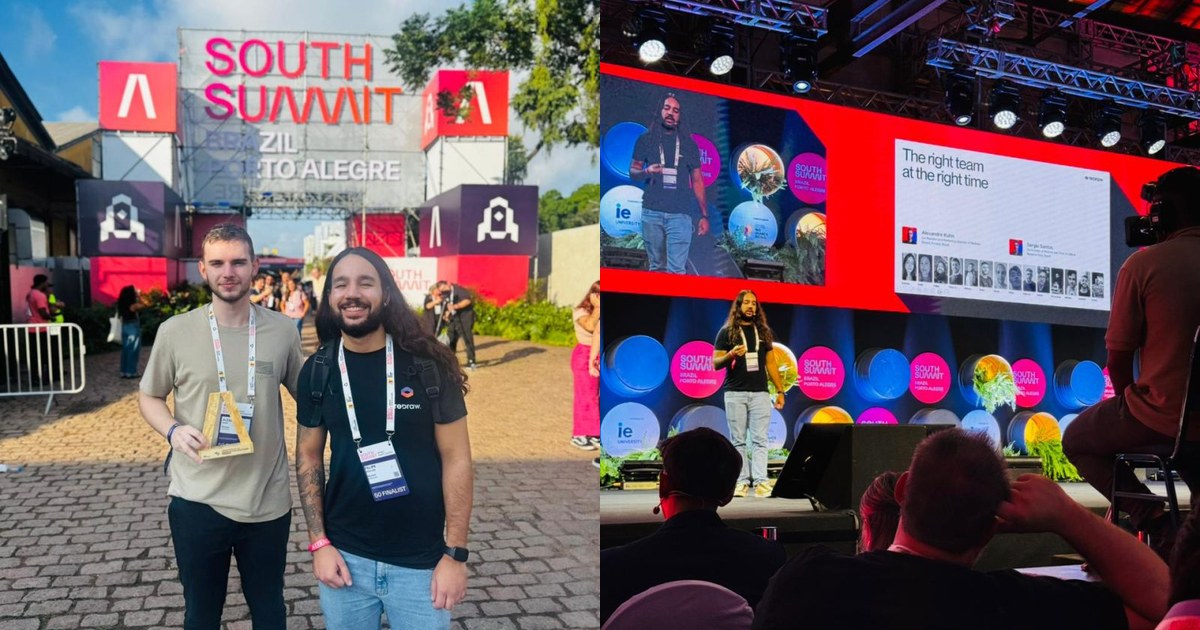
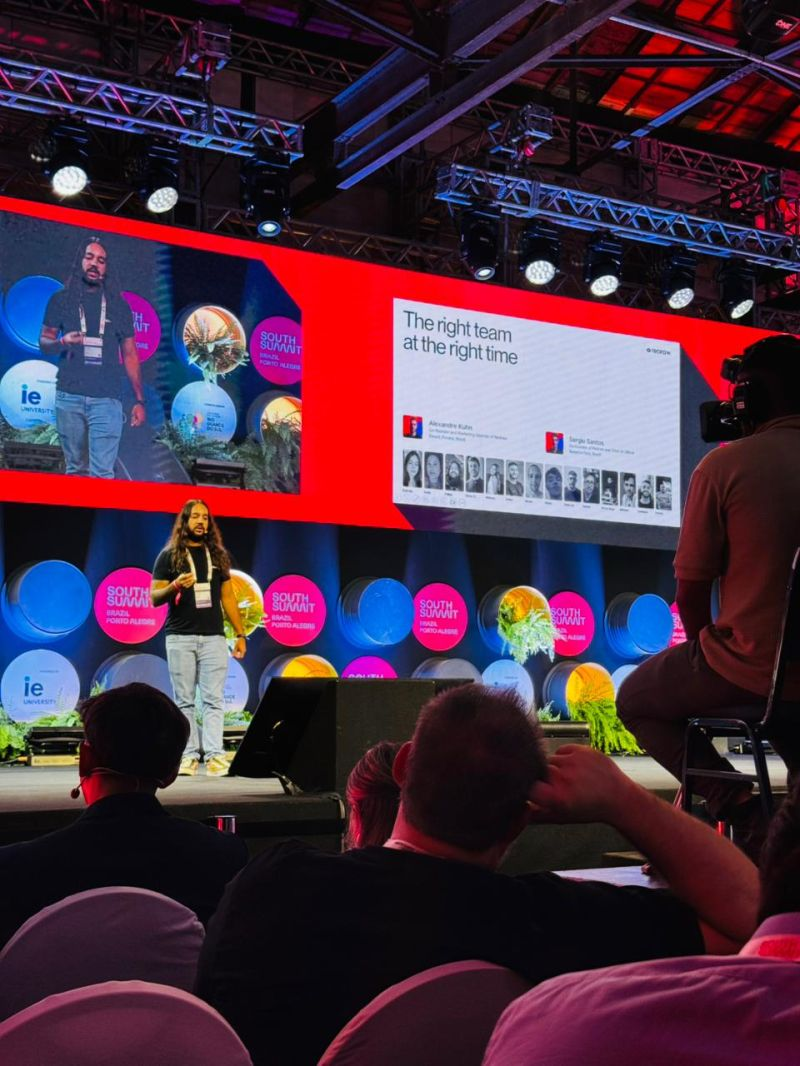
Redraw has been named the winner of South Summit 2026 in Porto Alegre, in the Digital and Tech Solutions category.
More than 2,000 companies from around the world entered. Of those, only 50 reached the finals, split across 5 categories. Redraw was among them, and took the prize.

What South Summit is
South Summit is one of the largest global platforms for connecting startups, investors and large companies. It was created in Madrid and is now a benchmark for innovation. The Brazilian edition took place from March 25 to 27, 2026, in Porto Alegre, Rio Grande do Sul.
This edition gathered more than 23,000 attendees, around 3,000 startups and 130 investment funds. It is one of the largest business and innovation hubs in Latin America.
The finalist startups went through a program of mentorships and masterclasses before pitching their solutions on the main stages to a panel of investors, executives and specialists from the global ecosystem.
What this award means for Redraw
For us, this was a chance to show how much Redraw has been innovating, not only in Brazil but worldwide. We stood alongside companies that are becoming global references in what they do. Being able to present our solution at that level was an honor.
“Being selected for the South Summit Startup Competition final is important recognition of the problem we are solving and the potential of our technology. Standing on that stage connects us directly to investors, strategic partners and global innovation leaders,” says Alexandre Kuhn, co-founder of Redraw.
Sérgio Santos, also a co-founder, adds:
“South Summit is one of the biggest global showcases for fast-growing startups. Being among the 50 finalists confirms that we are building a solution with international scale potential and real market impact.”
Why Redraw stood out
Redraw is the largest AI rendering platform for architecture in Latin America, with over 200,000 registered users and more than 500,000 renders generated every month.
The differentiator that caught attention at South Summit is simple: Redraw turns a screenshot of a 3D model into a photorealistic render in under 40 seconds. No expensive hardware, no complex setup, no prompt engineering. Everything in the browser.
While traditional tools like V-Ray, Lumion and Enscape demand powerful machines and hours of work, Redraw solves the same problem in seconds and at a fraction of the cost. And unlike generic AI tools such as ChatGPT or ComfyUI, Redraw was trained specifically for architecture. It respects the original project without inventing geometry.
That combination of speed, accessibility and precision is what put Redraw on the South Summit stage. And it is what is making architects, engineers and interior designers around the world move to AI-driven rendering.
What comes next
The recognition at South Summit 2026 reinforces Redraw’s positioning in the global innovation ecosystem. With international visibility and direct exposure to investors and strategic partners, expansion into the US, Canada and Europe is gaining traction.
The focus stays the same: keep delivering the best AI rendering experience for the people who design.


The AI ecosystem for architects








Some examples
Impressive results
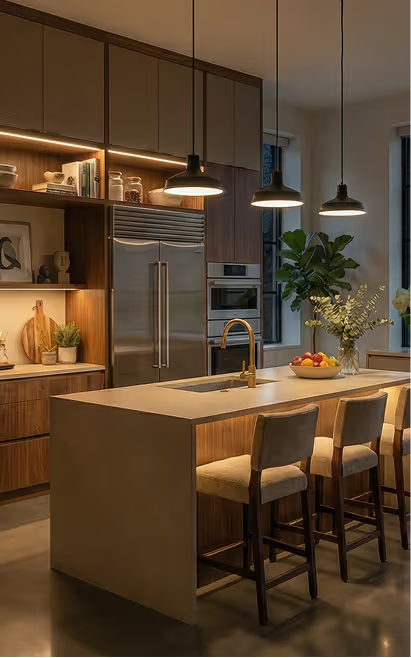
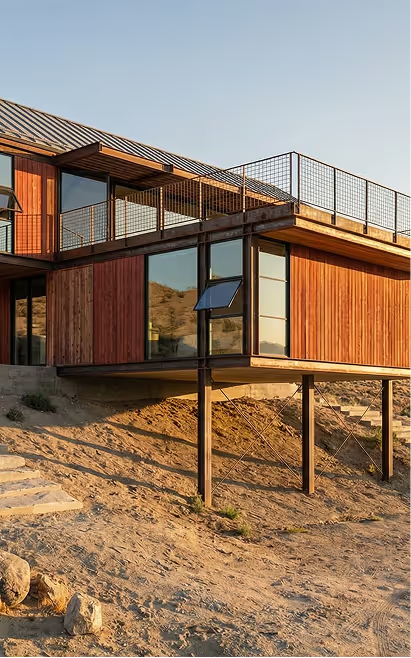
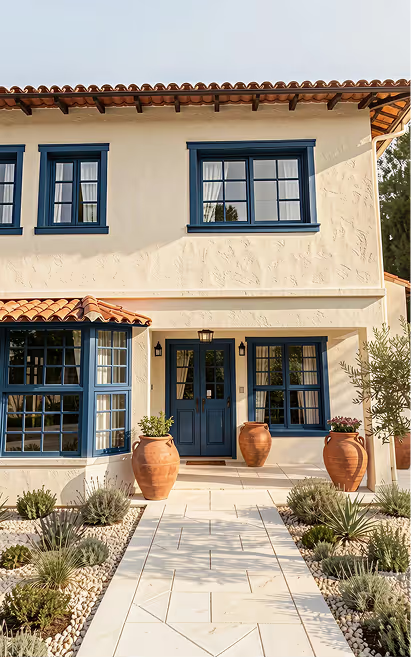
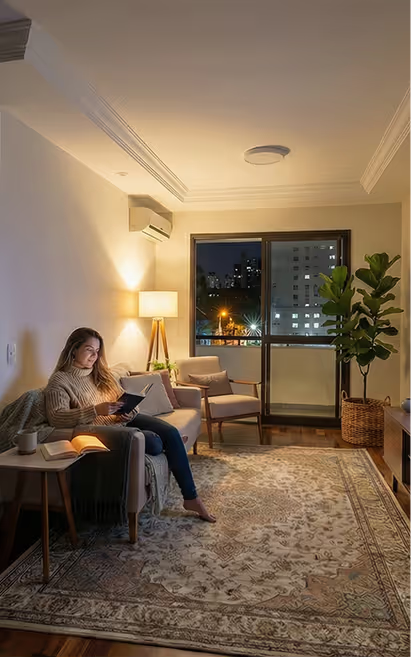
These are some of the results that several of our clients have achieved using Redraw